2009 KIA SOUL ECO mode
[x] Cancel search: ECO modePage 157 of 328
485
Features of your vehicle
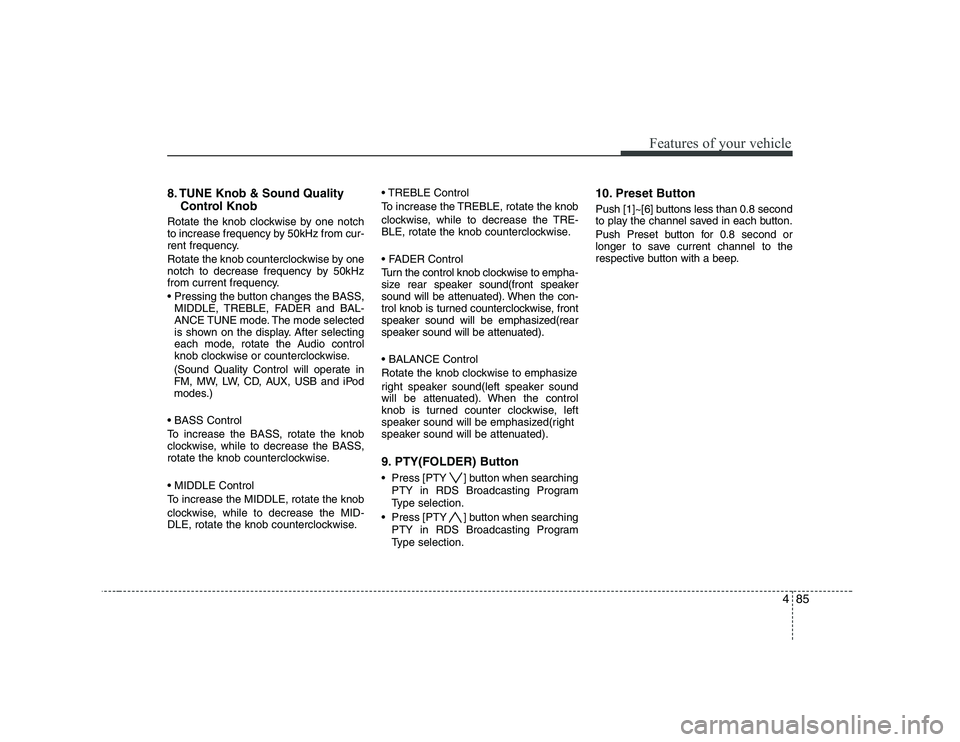
8. TUNE Knob & Sound QualityControl Knob
Rotate the knob clockwise by one notch
to increase frequency by 50kHz from cur-
rent frequency.
Rotate the knob counterclockwise by one
notch to decrease frequency by 50kHz
from current frequency.
MIDDLE, TREBLE, FADER and BAL-
ANCE TUNE mode. The mode selected
is shown on the display. After selecting
each mode, rotate the Audio control
knob clockwise or counterclockwise.
(Sound Quality Control will operate in
FM, MW, LW, CD, AUX, USB and iPod
modes.)
To increase the BASS, rotate the knob
clockwise, while to decrease the BASS,
rotate the knob counterclockwise.
To increase the MIDDLE, rotate the knob
clockwise, while to decrease the MID-
DLE, rotate the knob counterclockwise. Control
To increase the TREBLE, rotate the knob
clockwise, while to decrease the TRE-
BLE, rotate the knob counterclockwise.
Turn the control knob clockwise to empha-
size rear speaker sound(front speaker
sound will be attenuated). When the con-
trol knob is turned counterclockwise, front
speaker sound will be emphasized(rear
speaker sound will be attenuated).
Rotate the knob clockwise to emphasize
right speaker sound(left speaker sound
will be attenuated). When the control
knob is turned counter clockwise, left
speaker sound will be emphasized(right
speaker sound will be attenuated).
9. PTY(FOLDER) Button
Press [PTY ] button when searching
PTY in RDS Broadcasting Program
Type selection.
Press [PTY ] button when searching PTY in RDS Broadcasting Program
Type selection. 10. Preset Button
Push [1]~[6] buttons less than 0.8 second
to play the channel saved in each button.
Push Preset button for 0.8 second or
longer to save current channel to the
respective button with a beep.
Page 159 of 328
![KIA SOUL 2009 Owners Manual 487
Features of your vehicle
5. Automatic Channel SelectionButton
] button is pressed, it reduces the band frequency by 200kHz to automatically select a chan-
nel. Stops at the previous frequency if](/manual-img/2/40388/w960_40388-158.png "KIA SOUL 2009 Owners Manual 487
Features of your vehicle
5. Automatic Channel SelectionButton
] button is pressed, it reduces the band frequency by 200kHz to automatically select a chan-
nel. Stops at the previous frequency if")
487
Features of your vehicle
5. Automatic Channel SelectionButton
] button is pressed, it reduces the band frequency by 200kHz to automatically select a chan-
nel. Stops at the previous frequency if
no channel is found.
] button is pressed, it increases the band frequency by200kHz to automatically select a chan-
nel. Stops at the previous frequency if no
channel is found.
6. AST(AUTO STORE) Button When AST is pressed, frequency is stored
on the preset memory [1]~[6] and auto-
matically plays the channel stored on the
Preset [1]. If no channels have been stored
because there was no channel received,
will return to the previous channel.
7. SETUP Button & Clock Control Button
Press this button to turn to the SETUP
adjustment mode. If no action is taken for
5 seconds after pressing the button, it will
return to the play mode. (After entering
SETUP mode, move between items
using the left, right and PUSH functions
of the [TUNE] knob.) ■
PA710 MODEL
The setup changes in the order of CLOCK
↔ SCROLL ↔ P.BASS ↔ RETURN ↔
TEMP ↔ SDVC...
■ PA715 MODEL
The setup changes in the order of CLOCK
↔ SCROLL ↔ TEMP ↔ SDVC...
Press the [SETUP] button. Use the vol-
ume controller to adjust the clock in the
following order: CLOCK ➟ENTER ➟
hour or minute. Adjust the hour and press the [ENTER]
button to set. Use the same method to
adjust the minute and press the [ENTER]
button to complete and exit from clock
adjustment mode.
Pressing the [SETUP] button while in
POWER OFF screen will allow the user to
make immediate adjustments to the clock.
This function is used to display charac-
ters longer than the LCD text display and
can be turned ON/OFF through the vol-
ume controller.
This function displays the previous MODE screen. This function is used to change the tem-
perature display setting.
This function automatically adjusts the
volume level according to the speed of
the vehicle and can be turned ON/OFF
through the volume controller.
Based on psychoacoustic technology, this
technology overcomes BASS limitations
which may occur due to the limited num-
ber and size of speakers to offer dynamic
BASS sound quality. It is possible to adjust
in 3 levels of LOW/MID/HIGH. OFF
➟
LOW ➟MID ➟HIGH
Modes: CD/FM/AUX/IPOD/USB (exclud- ing AM Mode)
Page 160 of 328
Features of your vehicle
88
4
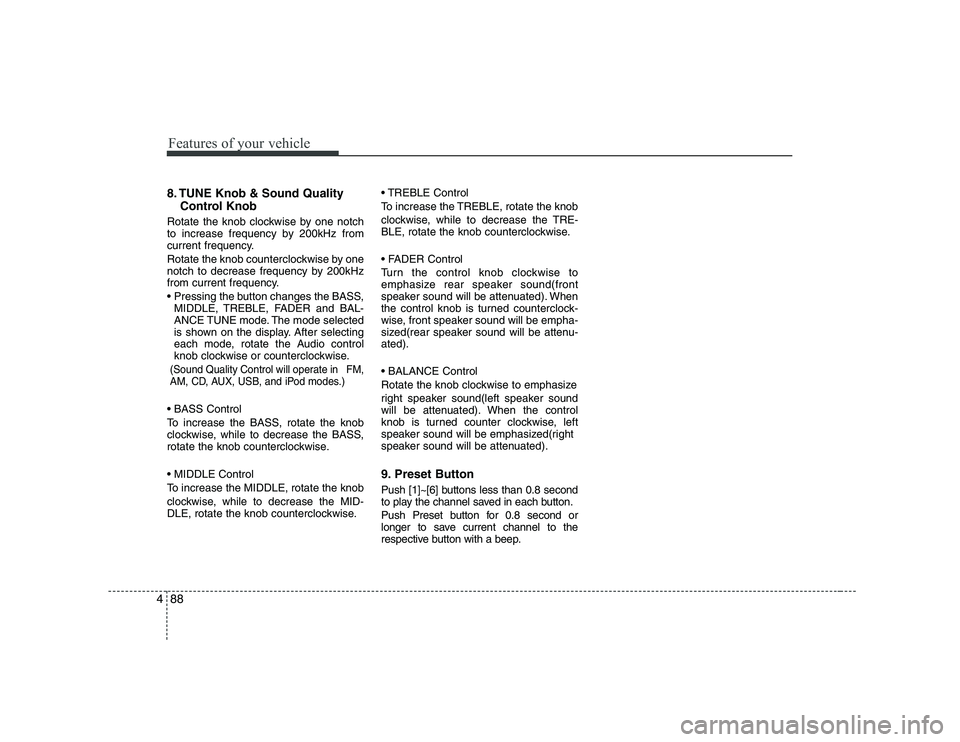
8. TUNE Knob & Sound Quality
Control Knob
Rotate the knob clockwise by one notch
to increase frequency by 200kHz from
current frequency.
Rotate the knob counterclockwise by one
notch to decrease frequency by 200kHz
from current frequency.
MIDDLE, TREBLE, FADER and BAL-
ANCE TUNE mode. The mode selected
is shown on the display. After selecting
each mode, rotate the Audio control
knob clockwise or counterclockwise.
(Sound Quality Control will operate in FM,
AM, CD, AUX, USB, and iPod modes.)
To increase the BASS, rotate the knob
clockwise, while to decrease the BASS,
rotate the knob counterclockwise.
To increase the MIDDLE, rotate the knob
clockwise, while to decrease the MID-
DLE, rotate the knob counterclockwise. Control
To increase the TREBLE, rotate the knob
clockwise, while to decrease the TRE-
BLE, rotate the knob counterclockwise.
Turn the control knob clockwise to
emphasize rear speaker sound(front
speaker sound will be attenuated). When
the control knob is turned counterclock-
wise, front speaker sound will be empha-
sized(rear speaker sound will be attenu-ated).
Rotate the knob clockwise to emphasize
right speaker sound(left speaker sound
will be attenuated). When the control
knob is turned counter clockwise, left
speaker sound will be emphasized(right
speaker sound will be attenuated).
9. Preset Button
Push [1]~[6] buttons less than 0.8 second
to play the channel saved in each button.
Push Preset button for 0.8 second or
longer to save current channel to the
respective button with a beep.
Page 162 of 328

Features of your vehicle
90
4
1. CD Loading Slot
Please face printed side upward and gen-
tly push in. When the ignition switch is on
ACC or ON and power is off, power is auto-
matically turned on if the CD is loaded.
This CDP supports only 12cm CD. If VCDor Data CD are loaded, a "Reading Error"
message will be displayed and the CD willbe ejected.
2. CD Eject Button
Push button to eject the CD during
CD playback. This button is enabled
when ignition switch is off.
3. CD/AUX Selection Button
switches to AUX mode from the other
mode to play the sounds from the aux-
iliary player.
If the CD is loaded, turns to CD mode, and if a device is connected to AUX then
it toggles in the order of. CD ➟
AUX ➟
CD... when the button is pressed each
time.(It will not turn to AUX if the auxil-
iary device is not connected.)
then it displays the message "No
Media" for 3 seconds and returns to the
previous mode. 4. Automatic Track Selection
Button
] button for less than 0.8 second to play from the beginningof current song.
] button for less than 0.8 second and press again within 1
seconds to play the previous song.
] button to initiate reverse direction highspeed sound search of current song.
] button for less than 0.8 second to play the next song.
] button to initiate high speed soundsearch of current song.
5. REPEAT Button
Repeats current song when the button is
pressed for less than 0.8 second.
Repeats the entire DISC when the button
is pressed for 0.8 second or longer. (In the case of MP3, the Repeat function
will operate only within folder.) 6. RANDOM Play Button
Press this button for less than 0.8 second
to activate ‘RDM’ mode and longer than
0.8 second to activate ‘A.RDM’ mode.
Only files/tracks in a folder/disc
are played back in random sequence.
All files in a disc are played back in random
sequence.
7. CD Indicator
When car ignition switch is ACC or ON and if the CD is loaded, this indicator is
lighted. If the CD is ejected, the light is
turned off.
8. SCAN Play Button Scans first 10 seconds of each song in
the DISC. To cancel the mode, press the
button once again.
Page 165 of 328
493
Features of your vehicle
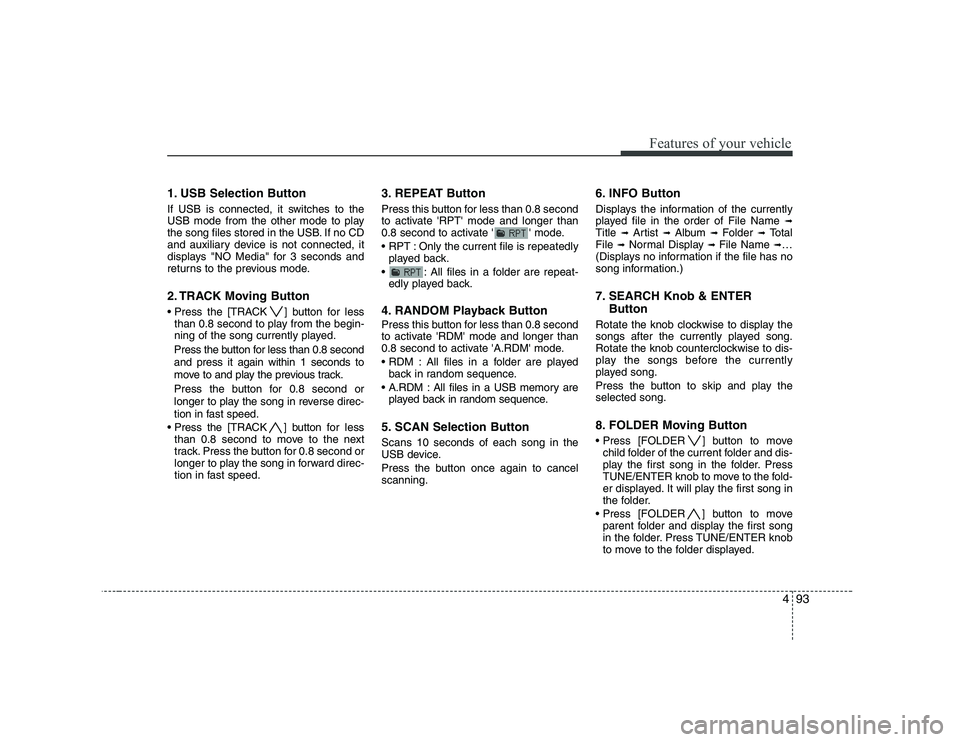
1. USB Selection Button
If USB is connected, it switches to the
USB mode from the other mode to play
the song files stored in the USB. If no CD
and auxiliary device is not connected, it
displays "NO Media" for 3 seconds and
returns to the previous mode.
2. TRACK Moving Button
] button for lessthan 0.8 second to play from the begin-
ning of the song currently played.
Press the button for less than 0.8 second and press it again within 1 seconds to
move to and play the previous track.
Press the button for 0.8 second or
longer to play the song in reverse direc-
tion in fast speed.
] button for less
than 0.8 second to move to the next
track. Press the button for 0.8 second or
longer to play the song in forward direc-
tion in fast speed. 3. REPEAT Button
Press this button for less than 0.8 second
to activate 'RPT' mode and longer than
0.8 second to activate ' ' mode.
Only the current file is repeatedly
played back.
: All files in a folder are repeat- edly played back.
4. RANDOM Playback Button
Press this button for less than 0.8 second
to activate 'RDM' mode and longer than
0.8 second to activate 'A.RDM' mode.
All files in a folder are played back in random sequence.
All files in a USB memory are played back in random sequence.
5. SCAN Selection Button Scans 10 seconds of each song in the
USB device.
Press the button once again to cancel scanning. 6. INFO Button
Displays the information of the currently
played file in the order of File Name
➟
Title ➟ Artist ➟ Album ➟ Folder ➟ Total
File ➟Normal Display ➟ File Name ➟…
(Displays no information if the file has no
song information.)
7. SEARCH Knob & ENTER
Button
Rotate the knob clockwise to display the
songs after the currently played song.
Rotate the knob counterclockwise to dis-
play the songs before the currently
played song.
Press the button to skip and play the selected song.
8. FOLDER Moving Button
] button to move child folder of the current folder and dis-
play the first song in the folder. Press
TUNE/ENTER knob to move to the fold-
er displayed. It will play the first song in
the folder.
] button to move parent folder and display the first song
in the folder. Press TUNE/ENTER knob
to move to the folder displayed.
Page 166 of 328
Features of your vehicle
94
4
CAUTION - Using USB
device
To use the external USB device,
make sure the device is not con-nected when starting the vehicle. Connect the device after starting.
If you start the vehicle when the USB device is mounted, it maydamage the USB device. (USB is not ESA)
If the vehicle is started or turned off while the external USB device
is connected, the external USBdevice may not work.
It may not play inauthentic MP3 or WMA files.
1) It can only play MP3 files with the compression rate between8Kbps~320Kbps.
2) It can only play WMA music files with the compression ratebetween 8Kbps~320Kbps.
Take cautions for static electricity when connect or disconnect theexternal USB device.
Encoded MP3 PLAYER is not rec- ognizable.
(Continued)
(Continued) Depending on the condition of the external USB device, the con-nected external USB device can
be unrecognizable.
When the VHAPTTL byte/sector setting of External USB devices isnot either 512byte or 2048byte,
then the device will not be recog-nized.
The USB device should only be formatted to FAT 12/16/32.
USB device without USB I/F (IMPLEMENTERS FORUM)authentication may not be recog- nizable.
Make sure the USB connection terminal does not come in con-
tact with human body or any object.
If you repeat connecting or dis- connecting USB device in a short
period of time, it may break thedevice.
You might hear a strange noise when connecting or disconnect-ing USB device.
(Continued)(Continued) If you disconnect the external USB device during playback inUSB mode, the external USB
device can be damaged or mal- function. Therefore, connect theexternal USB device when the
engine is turned off or in anothermode.
Depending on the type and capacity of the external USB
device or the type of files stored in the device, there is a differencein the time taken for recognition of the device, so you may have to
wait.
Do not use the USB device for other purposes than playingmusic files.
Use of USB accessories such as recharger or heater using USB I/F(IMPLEMENTERS FORUM) maylower the performance or cause trouble.
(Continued)
Page 169 of 328
497
Features of your vehicle
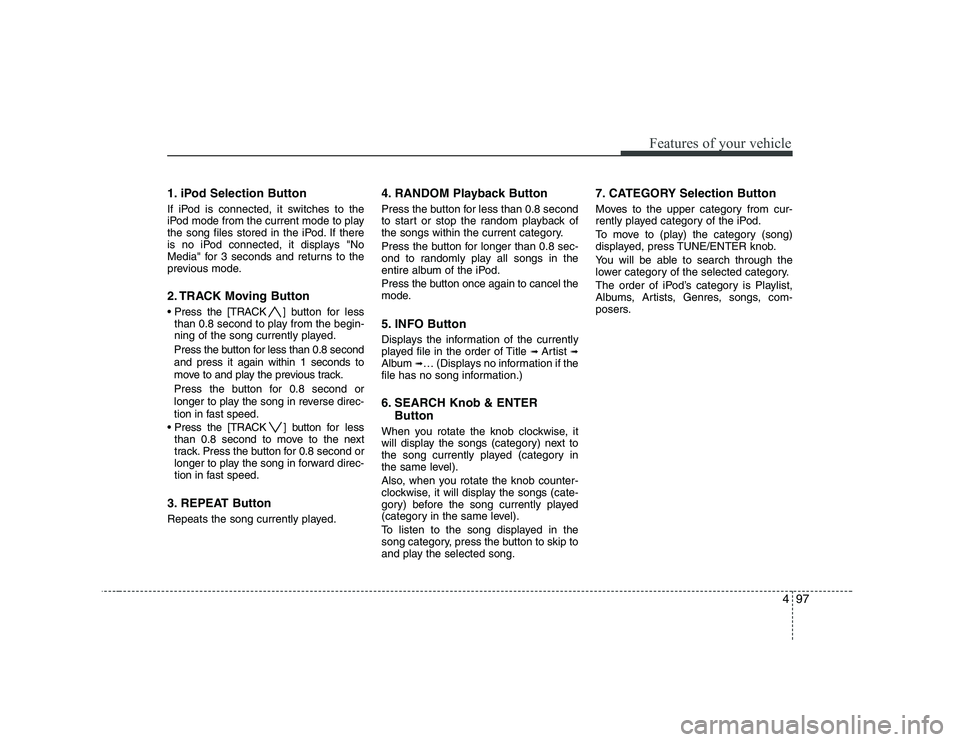
1. iPod Selection Button
If iPod is connected, it switches to the
iPod mode from the current mode to play
the song files stored in the iPod. If there
is no iPod connected, it displays "No
Media" for 3 seconds and returns to the
previous mode.
2. TRACK Moving Button
] button for less
than 0.8 second to play from the begin-
ning of the song currently played.
Press the button for less than 0.8 second and press it again within 1 seconds to
move to and play the previous track.
Press the button for 0.8 second or
longer to play the song in reverse direc-
tion in fast speed.
] button for less
than 0.8 second to move to the next
track. Press the button for 0.8 second or
longer to play the song in forward direc-
tion in fast speed.
3. REPEAT Button
Repeats the song currently played. 4. RANDOM Playback Button
Press the button for less than 0.8 second
to start or stop the random playback of
the songs within the current category.
Press the button for longer than 0.8 sec-
ond to randomly play all songs in the
entire album of the iPod.
Press the button once again to cancel the
mode.
5. INFO Button
Displays the information of the currently
played file in the order of Title
➟ Artist ➟
Album ➟… (Displays no information if the
file has no song information.)
6. SEARCH Knob & ENTER
Button
When you rotate the knob clockwise, it
will display the songs (category) next to
the song currently played (category in
the same level).
Also, when you rotate the knob counter-
clockwise, it will display the songs (cate-
gory) before the song currently played
(category in the same level).
To listen to the song displayed in the
song category, press the button to skip to
and play the selected song. 7. CATEGORY Selection Button
Moves to the upper category from cur-
rently played category of the iPod.
To move to (play) the category (song)
displayed, press TUNE/ENTER knob.
You will be able to search through the
lower category of the selected category.
The order of iPod’s category is Playlist,
Albums, Artists, Genres, songs, com-
posers.
Page 183 of 328

513
Driving your vehicle
L (Low)
Move the shift lever to this position in
hard pulling situations and for climbing
steep grades.E060104ASA
O/D (Over Drive) system (if equipped)
Pressing the O/D system button cancels
and engages the overdrive system.When the O/D system is cancelled, theO/D OFF indicator illuminates and the
transaxle gear range is limited to 1st
through 3rd. The transaxle will not shift to
4th gear until the O/D system button is
pressed again to release the switch.
When driving down a sloping road with
the transaxle in O/D (4th), you can
decrease the vehicle speed without using
the brakes by pressing the O/D button.
When the ignition is switched OFF, O/D OFF mode is automatically cancelled.O/D OFF Indicator This indicator light illuminates in the
instrument panel when the O/D mode iscancelled.
✽✽
NOTICE
If the O/D OFF indicator flashes, it indi-
cates an electrical problem with the
transaxle. Should this occur, have thevehicle checked by an authorized KIA
dealer as soon as possible.CAUTION
Do not exceed the recommended maximum speed in 2 (Second Gear)
or L(Low). Operating the vehicleabove the maximum speed recom-mended for 2 (Second Gear) or
L(Low) may cause excessive heat which could damage the automatictransaxle.
OAM059003