2009 KIA Sedona buttons
[x] Cancel search: buttonsPage 206 of 356
3197
Features of your vehicle
✽
✽NOTICE -
Using iPod device
• Some iPod models might not sup-
port the communication protocol
and the files will not be played.
(iPod models supported: Mini, 4G,
Photo, Nano, 5G)
• The order of search or playback of songs in the iPod can be different
from the order searched in the
audio system.
• If the iPod crashes due to its own trouble, reset the iPod. (Reset:
Refer to iPod manual)
• An iPod may not operate normally on low battery.
CAUTION
- Using iPod
device
You need the power cable exclu-
sive for an iPod in order to oper-ate an iPod with the buttons onthe audio system. The PC cableprovided by Apple may cause a malfunction and do not use it forvehicle use.
When connecting the device with an iPod cable, push in the jackfully to not interfere with commu-nication.
When adjusting the sound effects of an iPod and the audio system,the sound effects of both deviceswill overlap and might reduce or distort the quality of the sound.
Deactivate (turn off) the equalizer function of an iPod when adjust-ing the audio system’s volume, and turn off the equalizer of theaudio system when using the equalizer of an iPod.
(Continued)
(Continued) When the iPod cable is connected, the system can be switched to theAUX mode even without the iPod device and can cause noise.Disconnect the iPod cable when you are not using the iPod device.
When the iPod is not used for the audio system, the iPod cable hasto be separate from iPod devies. Origin display of iPod may not bedisplayed.
Page 208 of 356
3199
Features of your vehicle
How to Use SIRIUS Satellite
RadioYour Kia vehicle is equipped with 3 months
complimentary period of SIRIUS Satellite
Radio so you have access to over 130
channels of music, information, and enter-
tainment programming.ActivationIn order to extend or reactivate your sub-
scription to SIRIUS Satellite Radio, you
will need to contact SIRIUS Customer
Care at 888-539-7474. Have your 12 digit
SID (Sirius Identification Number)/ESN
(Electronic Serial Number) ready. To
retrieve the SID/ESN, turn on the radio,
press the [SAT] button and tune to chan-
nel zero. Please note that the vehicle will
need to be turned on, in Sirius mode, and
have an unobstructed view of the sky in
order for the radio to receive the activa-
tion signal.1. SATELLITE RADIO SelectionButton(SIRIUS Satellite Radio)Press the [SAT] button to switch to SIR-
IUS Satellite Radio. It cycles through the
different bands as noted below.
SAT1
➟SAT2
➟SAT3
➟SAT1
➟...
2. Channel Selection Button Press [SEEK ] or [SEEK ] button
for less than 0.8 second to select pre-
vious or next channel.
Press [SEEK ] or [SEEK ] button for 0.8 or longer to continuously move
to previous or next channel.
If "CATEGORY" Icon is displayed at the top of the screen, channel up/down
is done through the channels within
current category.3. Preset Selection Button Push [1]~[6] buttons less than 0.8 sec-ond to play the channel saved in each
button.
Hold down the preset button for 0.8 second or longer to save current chan-
nel. An audible beep will play to con-
firm the preset is stored.4. SCAN Button When the button is pressed, it auto-matically scans the radio stations
upwards.
The SCAN feature steps through each channel, starting from the initial chan-
nel, for ten seconds. Press the [SCAN] button again to stop
the scan feature and to listen to the
currently selected channel.
if "CATEGORY" Icon is displayed at the top of the screen, channel changing is
done through the channels in current
category.
5. Tune knob and Enter button Turn this button clockwise by one notchto increase the channel.
Turn this button counterclockwise by one notch to decrease the channel.
Press this button while holding SETUP button to activate / deactivate the item
to. Select SETUP item using left and
right function of the Tune button.
Page 209 of 356
![KIA Sedona 2009 2.G Owners Manual Features of your vehicle200
36. CAT/FOLDER Button Press [CAT ] or [CAT ] button to
enter the Category List Mode, it dis-
plays cateogry items and highlights the
category that currently tuned channe](/manual-img/2/2910/w960_2910-208.png "KIA Sedona 2009 2.G Owners Manual Features of your vehicle200
36. CAT/FOLDER Button Press [CAT ] or [CAT ] button to
enter the Category List Mode, it dis-
plays cateogry items and highlights the
category that currently tuned channe")
Features of your vehicle200
36. CAT/FOLDER Button Press [CAT ] or [CAT ] button to
enter the Category List Mode, it dis-
plays cateogry items and highlights the
category that currently tuned channel
belongs to.
On Category List Mode, press these buttons to navigate category list.
Press [ENTER] Button to select the lowest channel in highlighted category.
If channel is selected by selecting cate- gory "CATEGORY" Icon is displayed at
the top of the screen.7. INFO Selection ButtonDisplays the information of the channel
currently played by in the order of CATE-
GORY NAME
➟ARTIST NAME
➟COM-
POSER NAME(if available)
➟... (CH/ TITLE
Selection).
Displays the information of the channel
currently played by in the order of SONG
TITLE
➟ARTIST NAME
➟COMPOSER(if
available)
➟(CAT/CH Selection) (If there is
no information of COMPOSER NAME, it
returns to main display.)
8. SETUP ButtonPress this button to adjust to the SCROLL,
SDVC, SIRIUS and adjustment mode.
If no action is taken for 5 seconds after
pressing the button, it will return to the pre-
vious radio mode.(After entering SETUP
mode, move between items using the
left,right and PUSH functions of the TUNE
button.)
The setup item changes from SCROLL➟SDVC
➟SIRIUS
➟SCROLL
➟...
✽ ✽ Troubleshooting1. Antenna Error
If this message is displayed, the anten-
na or antenna cable is broken or
unplugged. Please consult with your
Kia dealership.
2. Acquiring Signal If this message is displayed, it means
that the antenna is covered and that
the SIRIUS Satellite Radio signal is
not available. Ensure the antenna is
uncovered and has a clear view of the
sky.
Page 214 of 356
3205
Features of your vehicle
11. TUNE/ENTER KnobTurn this button clockwise by one notch
to increase frequency by 200kHz(AM:
10KHz) from current frequency.
Turn this button counterclockwise by one
notch to decrease frequency by 200kHz
(AM:10KHz)from current frequency.
Press this button while holding SETUP
button to activate / inactivate the item to.
Select SETUP item using left and right
function of the Tune button.12. Preset Selection ButtonPush [1]~[6] buttons less than 0.8 second
to play the channel saved in each button.
Push preset button for 0.8 second or
longer to save the current channel to the
respective button with a beep.
Page 224 of 356
3215
Features of your vehicle
✽
✽NOTICE
- Using iPod device
• Some iPod models might not support
the communication protocol and the
files will not be played. (iPod models
supported: Mini, 4G, Photo, Nano,
5G)
• The order of search or playback of songs in the iPod can be different
from the order searched in the audio
system.
• If the iPod crashes due to its own trou- ble, reset the iPod. (Reset: Refer to
iPod manual)
• An iPod may not operate normally on low battery.
CAUTION -
Using iPod
device
You need the power cable exclu-
sive for an iPod in order to oper-ate an iPod with the buttons onthe audio system. The PC cable provided by Apple may cause amalfunction and do not use it for vehicle use.
When connecting the device with an iPod cable, push in the jackfully to not to interfere with com-munication.
When adjusting the sound effects of an iPod and the audio system,the sound effects of both devices will overlap and might reduce ordistort the quality of the sound.
Deactivate (turn off) the equalizer function of an iPod when adjust-ing the audio system’s volume, and turn off the equalizer of theaudio system when using theequalizer of an iPod.
(Continued)
(Continued) When the iPod cable is connected, the system can be switched to theAUX mode even without the iPod device and can cause noise.Disconnect the iPod cable whenyou are not using the iPod device.
When the iPod is not used for the audio system, the iPod cable hasto be separate from iPod devies. Origin display of iPod may not bedisplayed.
Page 226 of 356
3217
Features of your vehicle
How to Use SIRIUS Satellite
RadioYour Kia vehicle is equipped with 3 months
complimentary period of SIRIUS Satellite
Radio so you have access to over 130
channels of music, information, and enter-
tainment programming.ActivationIn order to extend or reactivate your sub-
scription to SIRIUS Satellite Radio, you
will need to contact SIRIUS Customer
Care at 888-539-7474. Have your 12 digit
SID (Sirius Identification Number)/ESN
(Electronic Serial Number) ready. To
retrieve the SID/ESN, turn on the radio,
press the [SAT] button and tune to chan-
nel zero. Please note that the vehicle will
need to be turned on, in Sirius mode, and
have an unobstructed view of the sky in
order for the radio to receive the activa-
tion signal.1. SATELLITE RADIO SelectionButton(SIRIUS Satellite Radio)Press the [SAT] button to switch to SIR-
IUS Satellite Radio. It cycles through the
different bands as noted below.
SAT1
➟SAT2
➟SAT3
➟SAT1
➟...
2. Channel Selection Button Press [SEEK ] or [SEEK ] button
for less than 0.8 second to select pre-
vious or next channel.
Press [SEEK ] or [SEEK ] button for 0.8 or longer to continuously move
to previous or next channel.
If "CATEGORY" Icon is displayed at the top of the screen, channel up/down
is done through the channels within
current category.3. Preset Selection Button Push [1]~[6] buttons less than 0.8 sec-ond to play the channel saved in each
button.
Hold down the preset button for 0.8 second or longer to save current chan-
nel. An audible beep will play to con-
firm the preset is stored.4. SCAN Button When the button is pressed, it auto-matically scans the radio stations
upwards.
The SCAN feature steps through each channel, starting from the initial chan-
nel, for ten seconds. Press the [SCAN] button again to stop
the scan feature and to listen to the
currently selected channel.
if "CATEGORY" Icon is displayed at the top of the screen, channel changing is
done through the channels in current
category.
5. Tune knob and Enter button Turn this button clockwise by one notchto increase the channel.
Turn this button counterclockwise by one notch to decrease the channel.
Press this button while holding SETUP button to activate / deactivate the item
to. Select SETUP item using left and
right function of the Tune button.
Page 227 of 356
![KIA Sedona 2009 2.G Owners Manual Features of your vehicle218
36. CAT/FOLDER Button Press [CAT ] or [CAT ] button to
enter the Category List Mode, it dis-
plays cateogry items and highlights the
category that currently tuned channe](/manual-img/2/2910/w960_2910-226.png "KIA Sedona 2009 2.G Owners Manual Features of your vehicle218
36. CAT/FOLDER Button Press [CAT ] or [CAT ] button to
enter the Category List Mode, it dis-
plays cateogry items and highlights the
category that currently tuned channe")
Features of your vehicle218
36. CAT/FOLDER Button Press [CAT ] or [CAT ] button to
enter the Category List Mode, it dis-
plays cateogry items and highlights the
category that currently tuned channel
belongs to.
On Category List Mode, press these buttons to navigate category list.
Press [ENTER] Button to select the lowest channel in highlighted category.
If channel is selected by selecting cate- gory "CATEGORY" Icon is displayed at
the top of the screen.7. INFO Selection ButtonDisplays the information of the channel
currently played by in the order of CATE-
GORY NAME
➟ARTIST NAME
➟COM-
POSER NAME(if available)
➟... (CH/
TITLE Selection).
Displays the information of the channel
currently played by in the order of SONG
TITLE
➟ARTIST NAME
➟COMPOSER(if
available)
➟(CAT/CH Selection) (If there
is no information of COMPOSER NAME,
it returns to main display.)
8. SETUP ButtonPress this button to adjust to the
SCROLL, SDVC, SIRIUS and adjustment
mode.
If no action is taken for 5 seconds after
pressing the button, it will return to the
previous radio mode.(After entering
SETUP mode, move between items
using the left,right and PUSH functions of
the TUNE button.)
The setup item changes from SCROLL➟SDVC
➟SIRIUS
➟SCROLL
➟...
✽ ✽ Troubleshooting1. Antenna Error
If this message is displayed, the anten-
na or antenna cable is broken or
unplugged. Please consult with your
Kia dealership.
2. Acquiring Signal If this message is displayed, it means
that the antenna is covered and that
the SIRIUS Satellite Radio signal is
not available. Ensure the antenna is
uncovered and has a clear view of the
sky.
Page 233 of 356
Features of your vehicle224
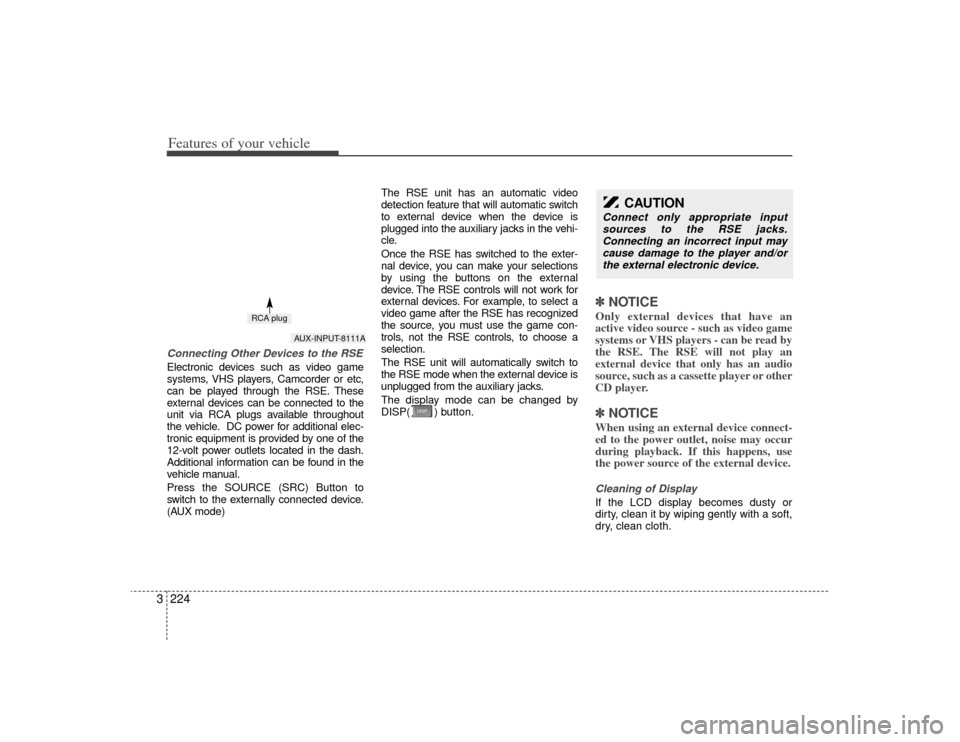
3Connecting Other Devices to the RSEElectronic devices such as video game
systems, VHS players, Camcorder or etc,
can be played through the RSE. These
external devices can be connected to the
unit via RCA plugs available throughout
the vehicle. DC power for additional elec-
tronic equipment is provided by one of the
12-volt power outlets located in the dash.
Additional information can be found in the
vehicle manual.
Press the SOURCE (SRC) Button to
switch to the externally connected device.
(AUX mode) The RSE unit has an automatic video
detection feature that will automatic switch
to external device when the device is
plugged into the auxiliary jacks in the vehi-
cle.
Once the RSE has switched to the exter-
nal device, you can make your selections
by using the buttons on the external
device. The RSE controls will not work for
external devices. For example, to select a
video game after the RSE has recognized
the source, you must use the game con-
trols, not the RSE controls, to choose a
selection.
The RSE unit will automatically switch to
the RSE mode when the external device is
unplugged from the auxiliary jacks.
The display mode can be changed by
DISP( ) button.
✽ ✽
NOTICEOnly external devices that have an
active video source - such as video game
systems or VHS players - can be read by
the RSE. The RSE will not play an
external device that only has an audio
source, such as a cassette player or other
CD player.✽ ✽NOTICEWhen using an external device connect-
ed to the power outlet, noise may occur
during playback. If this happens, use
the power source of the external device.Cleaning of DisplayIf the LCD display becomes dusty or
dirty, clean it by wiping gently with a soft,
dry, clean cloth.
CAUTION
Connect only appropriate input
sources to the RSE jacks. Connecting an incorrect input maycause damage to the player and/or the external electronic device.
AUX-INPUT-8111A
RCA plug