2009 KIA Sedona audio
[x] Cancel search: audioPage 229 of 356

Features of your vehicle220
31. RSE Selection ButtonPlay the RSE, and "RSE" Icon is dis-
played. After pressing the RSE button,
you can enjoy the RSE audio through the
speakers in RSE mode and "Connected"
is appeared at the same time.
At the state of NO RSE Icon, the RSE
button is pressed and "RSE Not Ready"
is appeared at the window.
The speaker volume level is adjustable
by VOLUME(+,-) knob on HEAD unit,
RSE unit and remote controler.
Refer to the "RSE" in this section for
details RSE operation.
RSE : Rear Seat Entertainment System (A/V).2. Power ON/OFF & Volume Control ButtonTurns the set on/off when the IGNITION
SWITCH is on ACC or ON. If the button
is turned to the right, it increases the vol-
ume and left, decreases the volume.
Page 230 of 356

3221
Features of your vehicle
WelcomeThe Rear Seat Entertainment (RSE)
System is a compact, built-in, easy-to-use
entertainment system designed to provide
family fun while you are on the road. Enjoy
great quality sound from the vehicle
speakers, or have a private, quiet viewing
with the wireless headphones.
The display unit is mounted to the ceiling
in the rear passenger area of the vehicle,
allowing rear-seat passengers to play
DVD movies, video CDs or music CDs.
Users may also plug in a game platform or
VHS player. Headphones, game car-
tridges and other accessories can be kept
neatly out of the way in the 3rd-row arm-
rest compartment.System OverviewThe RSE System includes a mounted
color monitor with a built-in audio/video
control panel and a DVD player. It also
includes a remote control and two (2)
sets of battery-operated wireless head-
phones (batteries are included).
Connections / SetupThe RSE system is designed to make
your time on the road more enjoyable.
Please follow these instructions carefully
to get the most out of your RSE.
✽ ✽NOTICERSE operation is prevented during the
first 2 seconds after the ignition switch is
turned to ignition on or accessory mode.The RSE system is already set up and
ready for use. The system is always
“awake” when the vehicle's ignition is
turned on or when the vehicle is in
“accessory power mode.”
REAR SEAT ENTERTAINMENT SYSTEM (IF EQUIPPED)
CAUTION
Refrain from using food or drinks
near the RSE, the wireless head-phones or the remote control.
Direct sunlight may interfere with the headphone's operation andperformance.
Normal RSE operation cannot be guaranteed with unofficial dupli-cated discs.
In order to prevent inadvertent battery discharge, the RSE willremain in standby mode whenignition switch is turn to ignitionON or accessory mode.
Use of rear seat entertainment system without the engine run-ning will reduce battery power.
CAUTION
Disclaimer: The RSE system is pro- grammed to the regional displayformats for your region (NTSC or PAL). Please note that your RSE willnot read DVDs from a different region.
Page 232 of 356
3223
Features of your vehicle
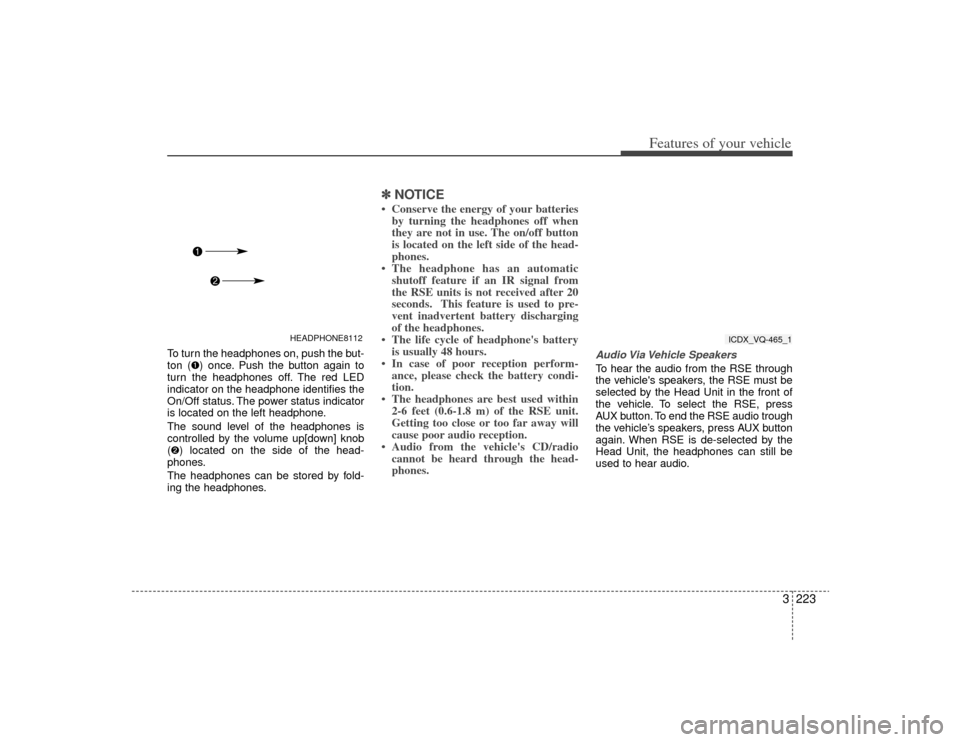
To turn the headphones on, push the but-
ton (➊) once. Push the button again to
turn the headphones off. The red LED
indicator on the headphone identifies the
On/Off status. The power status indicator
is located on the left headphone.
The sound level of the headphones is
controlled by the volume up[down] knob
(➋) located on the side of the head-
phones.
The headphones can be stored by fold-
ing the headphones.
✽ ✽ NOTICE• Conserve the energy of your batteries
by turning the headphones off when
they are not in use. The on/off button
is located on the left side of the head-
phones.
• The headphone has an automatic shutoff feature if an IR signal from
the RSE units is not received after 20
seconds. This feature is used to pre-
vent inadvertent battery discharging
of the headphones.
• The life cycle of headphone's battery is usually 48 hours.
• In case of poor reception perform- ance, please check the battery condi-
tion.
• The headphones are best used within 2-6 feet (0.6-1.8 m) of the RSE unit.
Getting too close or too far away will
cause poor audio reception.
• Audio from the vehicle's CD/radio cannot be heard through the head-
phones.
Audio Via Vehicle SpeakersTo hear the audio from the RSE through
the vehicle's speakers, the RSE must be
selected by the Head Unit in the front of
the vehicle. To select the RSE, press
AUX button. To end the RSE audio trough
the vehicle’s speakers, press AUX button
again. When RSE is de-selected by the
Head Unit, the headphones can still be
used to hear audio.
HEADPHONE8112
ICDX_VQ-465_1
Page 233 of 356
Features of your vehicle224
3Connecting Other Devices to the RSEElectronic devices such as video game
systems, VHS players, Camcorder or etc,
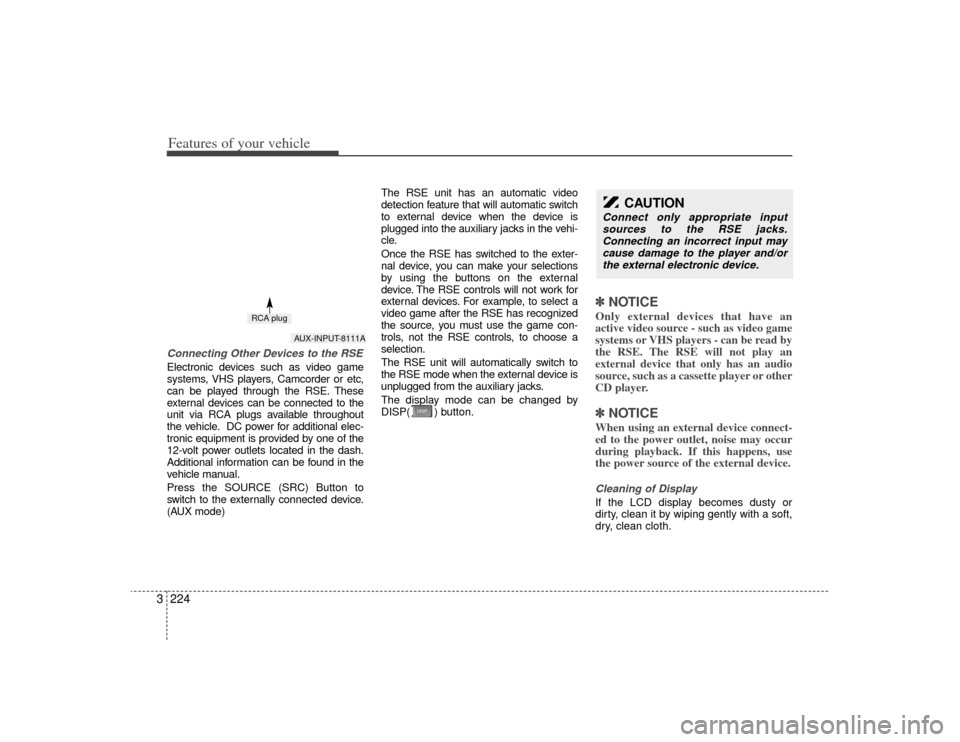
can be played through the RSE. These
external devices can be connected to the
unit via RCA plugs available throughout
the vehicle. DC power for additional elec-
tronic equipment is provided by one of the
12-volt power outlets located in the dash.
Additional information can be found in the
vehicle manual.
Press the SOURCE (SRC) Button to
switch to the externally connected device.
(AUX mode) The RSE unit has an automatic video
detection feature that will automatic switch
to external device when the device is
plugged into the auxiliary jacks in the vehi-
cle.
Once the RSE has switched to the exter-
nal device, you can make your selections
by using the buttons on the external
device. The RSE controls will not work for
external devices. For example, to select a
video game after the RSE has recognized
the source, you must use the game con-
trols, not the RSE controls, to choose a
selection.
The RSE unit will automatically switch to
the RSE mode when the external device is
unplugged from the auxiliary jacks.
The display mode can be changed by
DISP( ) button.
✽ ✽
NOTICEOnly external devices that have an
active video source - such as video game
systems or VHS players - can be read by
the RSE. The RSE will not play an
external device that only has an audio
source, such as a cassette player or other
CD player.✽ ✽NOTICEWhen using an external device connect-
ed to the power outlet, noise may occur
during playback. If this happens, use
the power source of the external device.Cleaning of DisplayIf the LCD display becomes dusty or
dirty, clean it by wiping gently with a soft,
dry, clean cloth.
CAUTION
Connect only appropriate input
sources to the RSE jacks. Connecting an incorrect input maycause damage to the player and/or the external electronic device.
AUX-INPUT-8111A
RCA plug
Page 236 of 356

3227
Features of your vehicle
✽
✽NOTICEThe RSE will enter standby mode when
the vehicle ignition is turned off and
back on. Press the SRC or
PLAY/PAUSE( ) button to “wake
up” the unit and resume disc play.1. Stop/Eject While the disc is playing, press the
STOP/EJECT ( ) button to stop disc
play. When the disc has stopped, press
the button again to eject the disc.✽ ✽NOTICEThe player has an Auto-Reload Disc
Protection feature to protect discs from
accidental damage. If an ejected disc is
not removed within 25 seconds after
being ejected, it will be pulled back into
the player. This is to protect the disc
from accidental damage.
2. Speaker Volume ControlYou can adjust the volume one of two
ways. First, if you are adjusting the vol-
ume for audio through the vehicle speak-
ers, you can use the VOLUME button on
the control panel or the remote control.
This button is reserved for sending a sig-
nal to the vehicle speakers only, and will
not adjust the headphone volume. Press
“+” to increase the volume and “-” to
decrease the volume.
Second, the volume on the wireless
headphones can be adjusted by turning
the VOL knob located on the left side of
the headphones.3. Play/Pause You do not need to press the play button
after first loading a DVD or VCD; it will
start automatically by playing the first
track or bringing up the disc menu.
If the disc does not automatically load,
press PLAY/PAUSE( ) to play the DVD.
While playing a DVD, press PLAY
/PAUSE( ) to pause the DVD. Press
the button again to resume play.
4. Display When the player is in DVD mode, press the
DISP button to view the DVD title, chapter
number and elapsed time and other infor-
mation about the DVD currently playing.
It will also display brightness. There are
“Day Time” brightness with brightest level
and “Night Time” brightness which has 70%
level of “Day Time” brightness. Adjust the
level of brightness by pressing the
REV(dimmer) or FWD(brighter) buttons.
The next time the player is turned on, it will
return to the brightness level it was adjusted
to when last used.
The RSE unit has two presets of display
brightness. When the headlamp is turned
on, the display brightness level will be
dimmed as the preset. However, when the
headlamp is turned off, the display bright-
ness will return to the daytime brightness.
Press DISP to adjust the image format. The
image format, also known as the aspect
ratio, is a ratio of the height to width of the
image on the screen. For example, a 4:3
ratio would mean an image that is 4 units by
3 units.
Page 238 of 356
3229
Features of your vehicle
When viewing a menu, pressing the
MENU button again will automatically
return to the movie at the point it was
being viewed. You can also select “play” or
any other option by using the NEXT,
PREV, FWD and REV buttons.
Press the NEXT button to move the cursor
up and the PREV button to move the cur-
sor down the menu.
Press the FWD button to move the cursor
to the right, and the REV button to move
the cursor to the left.✽ ✽NOTICEYou must repeatedly push any button to
move through several items. Pressing
and holding any button will not advance
the cursor beyond the position just
moved. Press ENTER to select the desired menu
choice.11. SourcePress the SOURCE button to switch from
the RSE’s internal DVD player to an
external device such as a VCR or video
game. The sound and images from the
external source will be presented
through the RSE. Pressing the SRC button will switch
between the following RSE states:
Playback state - will play DVDs, VCDs, and
CDs
Auxiliary (AUX) state - will play video
games and other external devices
When an external source is selected, the
RSE’s internal DVD player turns off.
Press the SRC button to switch back
from the external source to the internal
DVD player.
If a disc is present in the DVD player, the
disc will begin to play. If another source
has been detected, such as a VCR or
video game, the RSE will enter the AUX
mode automatically and shall remain so
until a disc is inserted or until the PLAY/
SRC button is pressed on the RSE's front
panel or on the remote control. If the
vehicle ignition is on but the player isn't
being used, the display will power off.
The DVD mechanism will be in sleep
mode, but the main RSE's controller will
stay up to accept commands from the
front panel controls or the remote control.
✽ ✽
NOTICEThe external device must be correctly
connected to the RSE in order to play
properly.
Using the CD PlayerThe RSE will play audio CDs in both the
standard (12 cm) and mini-disc (8 cm)
format.✽ ✽NOTICEWhile the player will accept DVD
ROMs and CD ROMs discs, the RSE
cannot play discs in these formats and
will eject them.With power applied to your unit, insert
the disc part way into the load slot. The
player will automatically grip the CD disc,
pull it the rest of the way in and begin
playing.CD ControlsThe following functions are available
when playing audio CDs.
Page 239 of 356
Features of your vehicle230
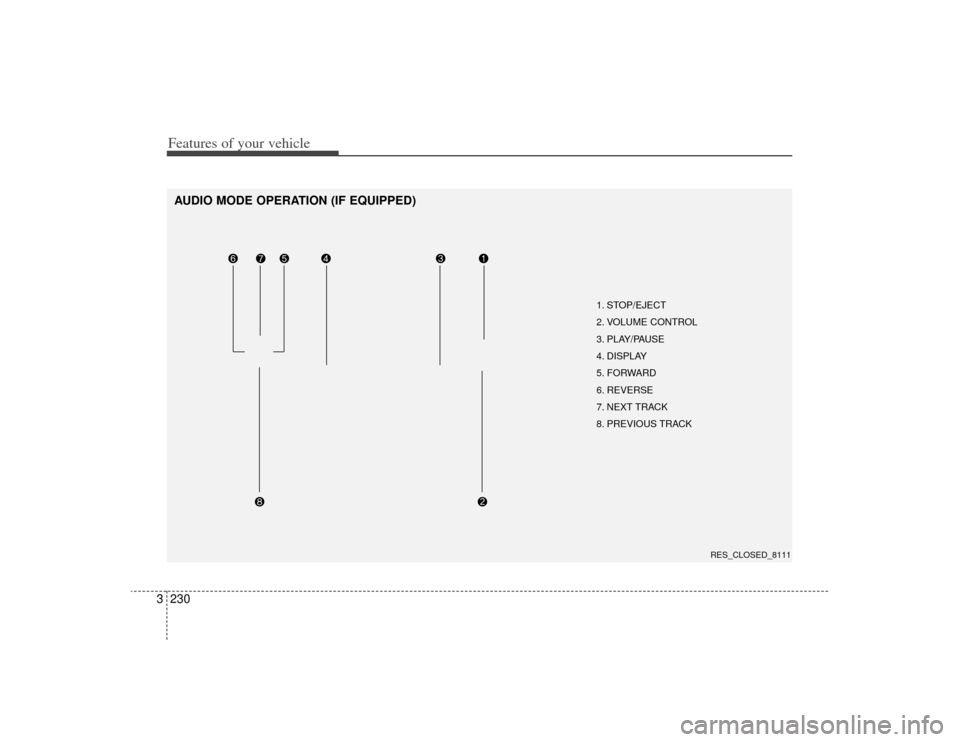
3AUDIO MODE OPERATION (IF EQUIPPED)
1. STOP/EJECT
2. VOLUME CONTROL
3. PLAY/PAUSE
4. DISPLAY
5. FORWARD
6. REVERSE
7. NEXT TRACK
8. PREVIOUS TRACK
RES_CLOSED_8111
Page 240 of 356

3231
Features of your vehicle
1. Stop/Eject While the disc is playing, press the
STOP/EJECT( ) button to stop disc
play.
While the disc is stopped, press the
STOP/EJECT( ) button again to eject
the disc.2. Volume Control You can adjust the volume one of two
ways. First, if you are adjusting the vol-
ume for audio through the vehicle speak-
ers, you can use the VOLUME (
)button on the control panel or the
remote control. Press “+” to increase the
volume and “-” to decrease the volume.
The volume level will be displayed on the
head-unit, when the RSE unit volume
level is adjusted from its control panel or
remote control. This button does not
affect headphone volume.
Second, you can adjust the volume on
the wireless headphones by locating the
VOL control wheel on the left side of the
headphones. Roll the control wheel to
adjust the volume.
3. Play/Pause When an audio CD is inserted, the RSE
will display the KIA logo, then automati-
cally begin playing the first track. The
track number and time elapsed for the
current track is displayed.
If a CD is loaded and playing, press the
PLAY/PAUSE( ) button to pause the
CD. Press the button again to resume
play.
If a CD is already loaded, stopping and
playing the CD by pressing
PLAY/PAUSE( ) button on the remote
control; cycling the ignition and pressing
play; or changing the source will cause the
CD to begin playing at the point where it
was stopped during the previous play. The
player will automatically play this previous
play position unless the
STOP/EJECT( ) button is pressed.
At the end of the CD, the player will auto-
matically return to the first track and con-
tinue playing.
4. Display When the player is in DVD mode, press the
DISP button to view the DVD title, chapter
number and elapsed time and other infor-
mation about the DVD currently playing.
The next time the player is turned on, it will
return to the brightness level it was adjusted
to when last used.
The RSE unit has two presets of display
brightness. When the headlamp is turned
on, the display brightness level will be
dimmed as the preset. However, when the
headlamp is turned off, the display bright-
ness will return to the daytime brightness.
Press DISP to adjust the image format. The
image format, also known as the aspect
ratio, is a ratio of the height to width of the
image on the screen. For example, a 4:3
ratio would mean an image that is 4 units by
3 units. You have two options: 4:3 (normal)
and 16:9 (widescreen). Press the display
button to select the preferred aspect ratio.
When the RSE unit receives video signals
from the AUX, the aspect ratio can be
changed to 16:9 or 4:3 by the DISP button.
The aspect ratio information will auto-
matically disappear if no button is
pressed for three seconds.