Page 257 of 502
Multisession disc formats are supported by the radio.
Multisession discs may contain combinations of normal
CD audio tracks and computer files (including MP3 files).
Discs created with an option such as�keep disc open after
writing� are most likely multisession discs. The use of
multisession for CD audio or MP3 playback may result in
longer disc loading times.
Supported MP3 File Formats
The radio will recognize only files with the *.MP3 exten-
sion as MP3 files. Non-MP3 files named with the *.MP3
extension may cause playback problems. The radio is
designed to recognize the file as an invalid MP3 and will
not play the file.
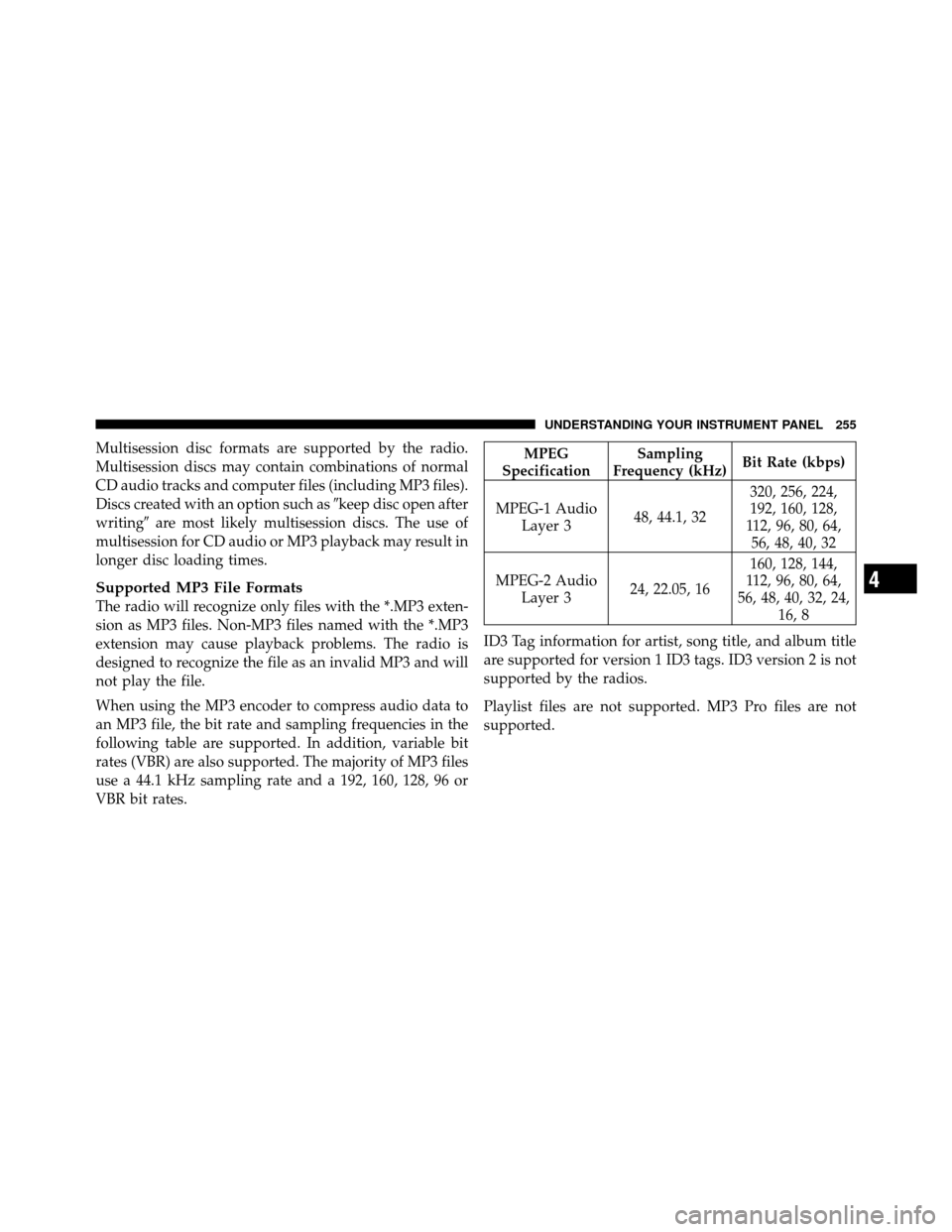
When using the MP3 encoder to compress audio data to
an MP3 file, the bit rate and sampling frequencies in the
following table are supported. In addition, variable bit
rates (VBR) are also supported. The majority of MP3 files
use a 44.1 kHz sampling rate and a 192, 160, 128, 96 or
VBR bit rates.
MPEG
Specification Sampling
Frequency (kHz) Bit Rate (kbps)
MPEG-1 Audio Layer 3 48, 44.1, 32 320, 256, 224,
192, 160, 128,
112, 96, 80, 64, 56, 48, 40, 32
MPEG-2 Audio Layer 3 24, 22.05, 16 160, 128, 144,
112, 96, 80, 64,
56, 48, 40, 32, 24, 16, 8
ID3 Tag information for artist, song title, and album title
are supported for version 1 ID3 tags. ID3 version 2 is not
supported by the radios.
Playlist files are not supported. MP3 Pro files are not
supported.
4
UNDERSTANDING YOUR INSTRUMENT PANEL 255
Page 259 of 502

Press and hold the INFO button for three seconds or
more and the radio will display song titles for each file.
Press and hold the INFO button again for three seconds
to return to�elapsed time� display.
Operation Instructions - Auxiliary Mode
The auxiliary (AUX) jack is an audio input jack which
allows the user to plug in a portable device such as an
MP3 player or cassette player and utilize the vehicle’s
audio system to amplify the source and play through the
vehicle speakers.
Pressing the AUX button will change the mode to auxil-
iary device if the AUX jack is connected.
NOTE:The AUX device must be turned on and the
device’s volume set to the proper level. If the AUX audio
is not loud enough, turn the device’s volume up. If the
AUX audio sounds distorted, turn the device’s volume
down.
TIME Button (Auxiliary Mode)
Press this button to change the display to time of day. The
time of day will display for five seconds (when the
ignition is OFF).
Operating Instructions - uconnect™ phone (If
Equipped)
Refer to “uconnect™ phone” in Section 3.
Operating Instructions - uconnect™ studios
(Satellite Radio) (If Equipped)
Refer to “uconnect™ studios (Satellite Radio)” in this
section.
4
UNDERSTANDING YOUR INSTRUMENT PANEL 257
Page 260 of 502
uconnect�studios (SATELLITE RADIO) — IF
EQUIPPED (REN/REQ/RER/RES/REU RADIOS
ONLY)
Satellite radio uses direct satellite-to-receiver broadcast-
ing technology to provide clear digital sound, coast to
coast. The subscription service provider is Sirius Satellite
Radio. This service offers over 130 channels of music,
sports, news, entertainment, and programming for chil-
dren, directly from its satellites and broadcasting studios.
NOTE: Sirius service is not available in Hawaii and has
limited coverage in Alaska.
System Activation
Sirius Satellite Radio service is pre-activated and you
may begin listening immediately to the one year of audio
service that is included with the factory-installed satellite
radio system in your vehicle. Sirius will supply a wel-
come kit that contains general information, including
how to setup your on-line listening account. For further information, call the toll-free number 888-539-7474, or
visit the Sirius web site at www.sirius.com, or at www-
.siriuscanada.ca for Canadian residents.
Electronic Serial Number/Sirius Identification
Number (ESN/SID)
Please have the following information available when
calling:
1. The Electronic Serial Number/Sirius Identification
Number (ESN/SID).
2. Your Vehicle Identification Number.
To access the ESN/SID, refer to the following steps:
ESN/SID Access With REQ/RES Radios
With the ignition switch in the ON/RUN or ACC posi-
tion and the radio on, press the SETUP button and scroll
using the TUNE/SCROLL control knob until Sirius ID is
selected. Press the TUNE/SCROLL control knob and the
258 UNDERSTANDING YOUR INSTRUMENT PANEL
Page 262 of 502

•Dense tree coverage may interrupt reception in the
form of short audio mutes.
•Driving under wide bridges or along tall buildings can
cause intermittent reception.
•Placing objects over or too close to the antenna can
cause signal blockage.
Operating Instructions — uconnect�studios
(Satellite) Mode
NOTE: The ignition switch must be in the ON or ACC
position to operate the radio.
SEEK Buttons
Press and release the SEEK buttons to search for the next
channel in Satellite mode. Press the right switch to seek
up and the left switch to seek down. The radio will
remain tuned to the new channel until you make another
selection. Holding either button will bypass channels
without stopping until you release it.
SCAN Button (When Equipped)
Pressing the SCAN button causes the tuner to search for
the next channel, pausing for eight seconds before con-
tinuing to the next. To stop the search, press the SCAN
button a second time.
INFO Button — Except REU Radio
Pressing the INFO button will cycle the display informa-
tion between Artist, Song Title, and Composer (if avail-
able). Also, pressing and holding the INFO button for an
additional three seconds will make the radio display the
song title all of the time (press and hold again to return to
normal display).
INFO Button — REU Radio
Pressing the INFO button will display information about
Artist, Song Title, and Composer (if available). Pressing
the INFO button again will close the INFO screen.
260 UNDERSTANDING YOUR INSTRUMENT PANEL
Page 264 of 502

SETUP Button
Pressing the SETUP button allows you to select the
following items:
•Display Sirius ID number — Press the AUDIO/
SELECT button to display the Sirius ID number. This
number is used to activate, deactivate, or change the
Sirius subscription.
SET Button – To Set the Pushbutton Memory
When you are receiving a channel that you wish to
commit to pushbutton memory, press the SET button.
The symbol SET 1 will now show in the display window.
Select the button (1-6) you wish to lock onto this channel
and press and release that button. If a button is not
selected within five seconds after pressing the SET but-
ton, the channel will continue to play but will not be
stored into pushbutton memory.You may add a second channel to each pushbutton by
repeating the above procedure with this exception: Press
the SET button twice and SET 2 will show in the display
window. Each button can be set for SET 1 and SET 2. This
allows a total of 12 Satellite channels to be stored into
pushbutton memory. The channels stored in SET 2
memory can be selected by pressing the pushbutton
twice.
Every time a preset button is used, a corresponding
button number will display.
Buttons 1 - 6
These buttons tune the radio to the channels that you
commit to pushbutton memory (12 Satellite stations).
Operating Instructions — uconnect�
phone (If
Equipped)
Refer to “uconnect� phone” in Section 3.
262 UNDERSTANDING YOUR INSTRUMENT PANEL
Page 440 of 502
Cavity CartridgeFuseMini
Fuse Description
J21 20 Amp Blue Front/Rear Washer
J22 — Spare
M1 15 Amp
Blue Center High-Mounted
Stop Light (CHMSL)/
Switch Stop Lamp
Feed
M2 20 Amp
Yellow Relay Trailer Lighting
(Stop)
M3 20 Amp
Yellow Frt/Rear Axle Locker
Relay
M4 — —
M5 — —
M6 20 Amp
Yellow Power Outlet #1/Rain
SensorCavity Cartridge
FuseMini
Fuse Description
M7 20 Amp YellowPower Outlet #2
(BATT/ACC SELECT)
M8 20 Amp
Yellow Front Heated Seat
M9 20 Amp
Yellow Rear Heated Seat (If
Equipped)
M10 20 Amp
Yellow Ignition Off Draw —
Vehicle Entertainment
System (IOD-VES),
Satellite Digital Audio
Receiver (SDARS),
DVD, Hands-Free
Module (HFM), RA-
DIO, Antenna (ANT),
Universal Garage
Door Opener
(UGDO), Vanity
Lamp (VANITY LP)
438 MAINTAINING YOUR VEHICLE
Page:
< prev 1-8 9-16 17-24
