2009 JAGUAR XF Valet
[x] Cancel search: ValetPage 272 of 391

Audio unit operation
272
While the volume is being adjusted, the volume
level is displayed on the touch-screen display
using a graduated bar.
Volume settings
A number of functions have preset volume
levels. You can adjust these settings on the Vol
presets menu.
1. From the touch-screen Home menu, select
Vehicle .
2. Select Syst. settings and then select Vol.
presets .
3. Use the + and – icons to adjust the volume
levels for the options available.
Automatic volume control (AVC)
This maintains radio volume at a level sufficient
to overcome road noise, as vehicle speed
increases or decreases.
On the Vol presets menu, select Low, Medium
or High levels for AVC.
The default AVC setting is Medium.
AUDIO CONTROL
Sound settings
On the main AM/FM screen, select Settings.
Select Sound to display the sound quality
settings menu.
Note: The list of settings available depends on
the sound system fitted to the vehicle.
See AUDIO UNIT OVERVIEW (page 269).
Home
Audio
Climate
Phone
Navigation
Vehicle Left Right
TP T
A PTY
Valet12 : 26 pm
Audio
External15C
E94087
Voice
Vehicle
Display set
Preferences
Button audioParking aid
Vol. presets
AVC Low
MediumHigh
12 : 26 pm
Navigation
Phone
E94052
Audio/TV
DAB radio
CD
AM/FM
12 : 26 pm
BBC R2 BBC R3
BBC R4 BBC LDN BBC W&M Mercia Galaxy 106.2Radio 1
Settings
Aut
TP TA PTY AF REG 3CHFM2 89.0 BBC R2
Portable audio TV
E94055
Page 276 of 391

Audio unit operation
276
TRAFFIC INFORMATION CONTROL
With the Traffic Announcements (TA) option
on, local traffic announcements will interrupt
normal broadcasts or playback.
If audio volume is set at a minimum, then the
volume will increase for the announcement,
returning to the previous volume setting
afterwards.
When broadcasting an announcement, a traffic
announcement pop-up is displayed.
When enabled, TA will appear at the top of the
touch-screen. The audio un it then checks that
the station has Radio Data System (RDS)
Traffic Programme (TP). If it is not available on
the current station, th e display will not show
TP . If TP is not displayed with TA after 45
seconds have elapsed, th en the audio unit will
search for a new TP station.
To change this setting, on the AM/FM screen,
select Settings . Select
Options and then switch the Traffic
option On or Off.
Note: You can switch the Traffic option on and
off on the Settings menu for each individual
source.
Skipping traffic announcements
Traffic announcements (TA) can be skipped
during broadcast by selecting Skip, which will
cancel the pop-up and the announcement. You
will be returned to your selected station.
Note: Selecting Skip will not switch off TA
permanently and it will remain ready for the
next interrupt.
Select Traffic off to switch TA off completely
(the TA indicator will clear from the display).
Selecting anywhere on the pop-up screen will
cancel the pop-up, but the traffic
announcement will continue to be broadcast.
Note: TA relies on the broadcast information
from local radio stations and may be better in
some locations than others.
Audio/TV
DAB radio
CD
AM/FM
12 : 26 pm
BBC R2 BBC R3
BBC R4 BBC LDN BBC W&M Mercia Galaxy 106.2Radio 1
Settings
Au
TP TA PTY AF REG 3CHFM2 89.0 BBC R2
Portable audio TV
E94055
Audio/TV
Options
PTY
Sound
12 : 26 pm
Settings
TrafficOnOff
Of f
On
Of
f
Dist. Local
Of f
On
Of f
FM text EON
REG
AF
E94053
Home
Audio
Climate
Phone
Navigation
Vehicle
Valet12 : 26 pm
External15C
Traffic announcement
Skip
Traffic off BBC
95.6 WM
FM1
E94059
Page 278 of 391

Audio unit menus
278
FM text
FM text displays any text messages sent out by
the current station.
Select the arrow icon to display a pop-up
screen showing the complete text message.
Select Cancel to remove the pop-up screen.
PRIORITY PROGRAMME TYPE (PTY)
PTY overview
The Programme Type (PTY) feature has two
functions:
•To set a desired PTY category for the
current station.
• To search for a station in a selected PTY
category and then retune to that station (if
found). Select
Settings to display the Settings menu.
Select PTY to display a list of available PTY
categories.
Selecting PTY categories
Select the arrow icon to scroll through the list
of available PTY categories.
Select a PTY category to select it in the list;
touch the category again to clear the selection.
If you want to deselect all PTY categories,
select Clear all .
Note: If no PTY categories are selected, then
the text PTY will disappear from the top of the
touch-screen display.
While tuned to a stati on, touch the required
PTY category (or categories), then touch the
previous screen arrow. The audio unit will now
wait for RDS informati on to indicate that a
station has changed its programme type.
If the current station is already in the selected
PTY category and reception is lost, then the
radio will attempt to fi nd another station with
the correct PTY category.
Note: PTY is active in FM radio, CD, TV and
Portable audi o modes only.
Audio/TV
DAB radio
CD
AM/FM
12 : 26 pm
BBC R2 BBC R3
BBC R4 BBC LDN BBC W&M Mercia Galaxy 106.2Radio 1
Settings
utostore
TP TA PT AF REG 3CHFM2 89. BBC R2
Portable audio TV
Text sent by station
E94057
Text sent by station
Audio/TV
DAB radio
CD
AM/FM
12 : 26 pm
TP TA PTY AF REG 3CHFM2 89.0 BBC R2
Portable audio
TV
FM text
The latest news headlines from BBC Radio 2.
ValetE94058
Audio
Options
PTY
Sound
12 : 26 pm
Settings
Clear all
PTY search
Education
News
Current affairs
Information
Sport
E94088
Page 287 of 391
287
Digital audio broadcasting
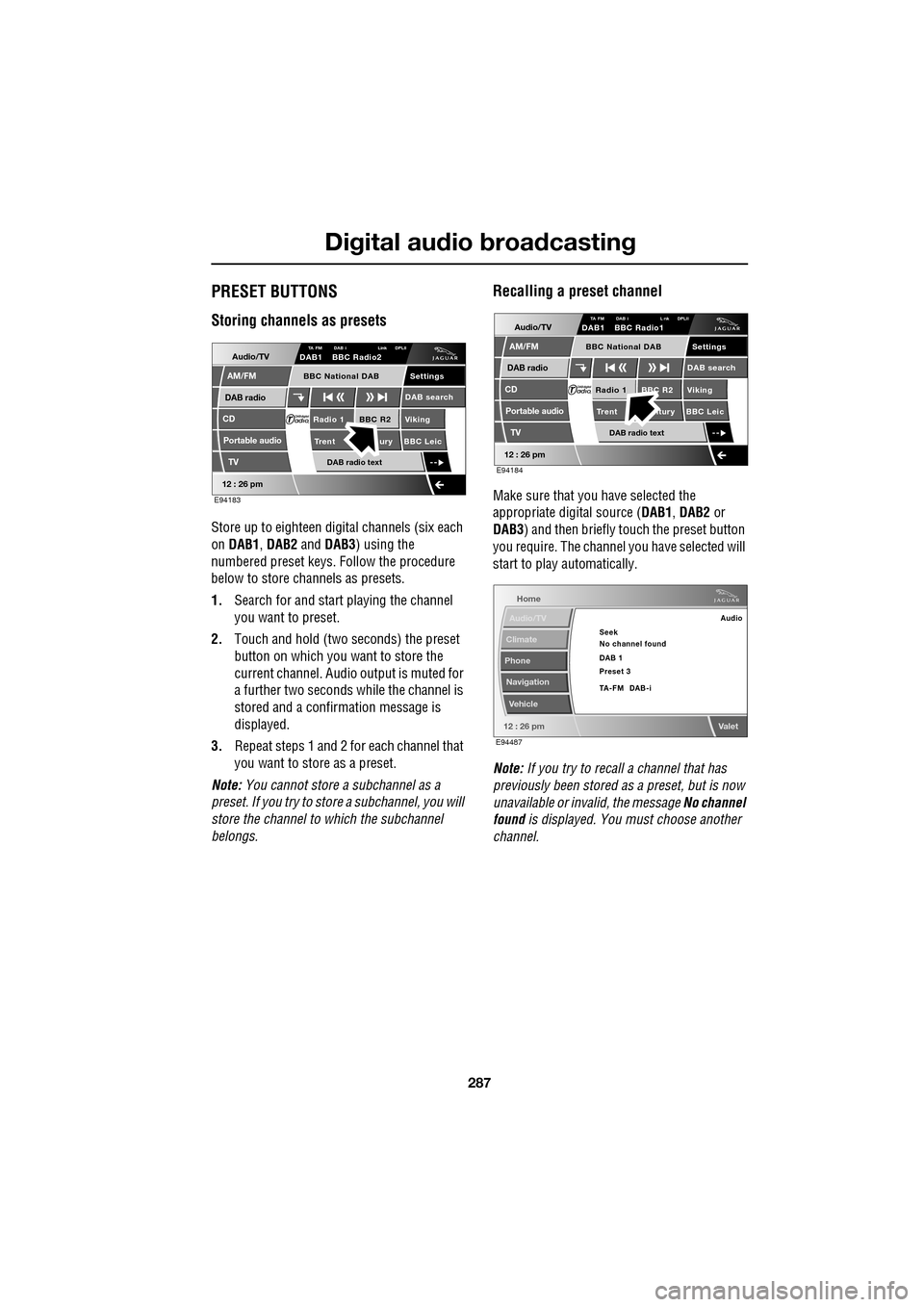
PRESET BUTTONS
Storing channels as presets
Store up to eighteen digital channels (six each
on DAB1 , DAB2 and DAB3 ) using the
numbered preset keys. Follow the procedure
below to store channels as presets.
1. Search for and start playing the channel
you want to preset.
2. Touch and hold (two seconds) the preset
button on which you want to store the
current channel. Audi o output is muted for
a further two seconds while the channel is
stored and a confirmation message is
displayed.
3. Repeat steps 1 and 2 for each channel that
you want to store as a preset.
Note: You cannot store a subchannel as a
preset. If you try to stor e a subchannel, you will
store the channel to which the subchannel
belongs.
Recalling a preset channel
Make sure that you have selected the
appropriate digital source ( DAB1, DAB2 or
DAB3 ) and then briefly touch the preset button
you require. The channel you have selected will
start to play automatically.
Note: If you try to recall a channel that has
previously been stored as a preset, but is now
unavailable or invalid, the message No channel
found is displayed. You must choose another
channel.
Audio/TV
DAB radio
CD
AM/FM
12 : 26 pm
BBC R2 Viking
Trent ury BBC LeicRadio 1
Settings
DAB search
TA FM DAB i Link DPLIIDAB1 BBC Radio2
Portable audio
TV
DAB radio text
BBC National DAB
E94183
Audio/TV
DAB radio
CD
AM/FM
12 : 26 pm
BBC R2 Viking
Trent ntury BBC LeicRadio 1
Settings
DAB search
TA FM DAB i L nk DPLIIDAB1 BBC Radio1
Portable audio
TV
DAB radio text
BBC National DAB
E94184
Home
Audio/TV
Climate
Phone
Navigation
Vehicle
Valet12 : 26 pm
Audio
Seek
No channel found
Preset 3 DAB 1
TA-FM DAB-i
E94487
Page 293 of 391

293
Compact disc player
The Home menu indicates whether a CD is
loaded and (if applicable) which CD slot is
loaded and ready for playing. If no CDs have
been loaded, the touch-screen displays
ghosted discs.
To access the CD player touch-screen menu:
1. From the touch-screen Home menu, select
Audio/TV .
2. Select CD.
You can also press the SOURCE button
repeatedly to scroll through all audio sources
to find CD.
Loading a CD (player empty)
Gently place a CD into the loading slot. A CD
loading message is displayed on the
touch-screen, while the di sc is drawn into the
player and the disc is loaded.
Loading one CD (six CD player,
part-loaded)
Touch one of the empty disc slots ( 2). You are
prompted to insert the CD into the empty slot.
1 indicates the currently playing CD and 3
indicates slots that are already loaded.
Home
Audio/TV
Climate
Phone
Navigation
VehicleExternal
Left Right
20 17CC
15C
.5 .5
Valet12 : 26 pm
5Tr 3
CD
03:42
E94065
Audio/TV
DAB radio
CD
AM/FM
12 : 26 pm
BBC R2 BBC R3
BBC R4 BBC LDN BBC W&M Mercia Galaxy 106.2Radio 1
Settings
Autostore
TP TA PTY AF REG 3CHFM2 89.0 BBC R2
Portable TV
E94090
E94066
Audio/TV
DAB radio
CD
AM/FM
12 : 26 pm
Portable audio
TV
Settings
1 23 45 6
MixRepeat
Tr 3
Paused
E94067123
Page 310 of 391

Telephone
310
6.When the vehicle's Bluetooth system is
discovered, your mob ile phone will list
Jaguar as a discovered Bluetooth device.
Select this device from the list.
7. You will now be requested to enter a
Bluetooth PIN. When pairing and docking
from your mobile phone, this number is
always 1313.
Once your phone is paired to the vehicle's
Bluetooth system, it can connect automatically.
If the phone does not automatically connect,
you will have to conne ct manually with the
Jaguar Bluetooth System, via the mobile
phone. Please consul t the mobile phone's
handbook for further information.
Note: Some mobile phones require you to
authorise the connection each time you start
the system. To change this, you must set
Jaguar as ‘authorised’ in the mobile phone’s
known device list. This will enable connections
from the vehicle to the mobile phone to take
place automatically without confirmation each
time. Please consul t the mobile phone’s
handbook for further information.
Pairing and docking using the
touch-screen
1. Switch on your mobile phone’s Bluetooth
connection, using the phone’s menu. Make
sure that your mobile phone is in Bluetooth
discoverable mode, sometimes referred to
as find me mode (s ee your phone’s
operating instructions for more
information).
2. Switch the ignition system on, ensure that
the touch-screen is active. 3.
From the home menu select Comms. If
your car is not fitted with JaguarVoice,
Phone will appear in the position occupied
by Comms .
4. Select Settings .
5. Select Search new . The system will search
for all Bluetooth phones that are in range.
If a phone is already docked, it will be
automatically undocked when a Search is
initiated.
Home
Audio/TV
Climate
Comms
Navigation
VehicleExternal
Left Right
20 17CC
15C
.5 .5
DAB radio DAB1
BBC 5Live Xtra
BBC National DAB
TA FM DAB i Subch. PL II
Valet12 : 26 pm
E96908
Digit Dial
Names
Last 10
Settings
7
1
4
*8
2
5
0 9
6
Options
C
E96912
Comms
Page 312 of 391

Telephone
312
Changing the docked phone
Only one phone can be docked to the vehicle at
any one time. To dock a different paired phone
to the vehicle, follow the steps below:
1. From the home menu, select Comms
(Phone on vehicles without Voice).
2. Select Settings .
3. Select Change phone . 4.
Select Dock from the list of available
phones.
Deleting a paired phone
To delete a phone from the system, follow the
steps below:
1. From the home menu, select Comms
(Phone on vehicles without Voice).
2. Select Settings .
Home
Audio/TV
Climate
Comms
Navigation
VehicleExternal
Left Right
20 17CC
15C
.5 .5
DAB radio DAB1
BBC 5Live Xtra
BBC National DAB
TA FM DAB i Subch. PL II
Valet12 : 26 pm
E96908
Digit Dial
Names
Last 10
Settings
7
1
4
*8
2
5
0 9
6
Options
C
E96912
Comms
JAG1314
Comms
Delete
Delete
Delete
Paired
PairedDock
Dock
Docked
Nokia N73
Nokia 6300
Apple iPhone
Home
Audio/TV
Climate
Comms
Navigation
VehicleExternal
Left Right
20 17CC
15C
.5 .5
DAB radio DAB1
BBC 5Live Xtra
BBC National DAB
TA FM DAB i Subch. PL II
Valet12 : 26 pm
E96908
Digit Dial
Names
Last 10
Settings
7
1
4
*8
2
5
0 9
6
Options
C
E96912
Comms
Page 317 of 391

317
Telephone
MAKING A CALL
Before you make a call, your mobile phone
must be paired and docked with the vehicle’s
Bluetooth system.
From the Home menu, select Comms.
Key in the phone number, including the area
code, if applicable - the number will be
displayed. Touch the connect icon.
Changing a phone number
When entering a number, you can change the
phone number shown on the touch-screen
using the C button.
A momentary touch erases a single digit, a long
touch erases the complete number.
Receiving a call
If the audio system is in use when the phone
becomes active, the audio system source is
suppressed for the dur ation of the call. If automatic answer has been programmed, the
call will automatically answer after a few
seconds. Refer to
Answer options.
To answer a call: The preferred method to
accept an incoming call, if Automatic answer is
not active, is to use th e hands-free controls on
the steering wheel (refer to Hand-free
controls ). Alternatively, you can accept or
reject the incoming call, from the pop-up
displayed on the touch-screen.
Ending a call
The preferred method to end a call is to use the
hands-free controls on the steering wheel.
Refer to Hands-free controls .
Alternatively, select the End call icon
(arrowed).
Continuity of calls
Whilst in a call, the ca ll remains connected if
the vehicle is in convenience mode. When the
call ends, another call cannot be made or
received through the vehicle system, unless
the ignition is on and the touch-screen system
active.
Home
Audio/TV
Climate
Comms
Navigation
VehicleExternal
Left Right
20 17CC
15C
.5 .5
DAB radio DAB1
BBC 5Live Xtra
BBC National DAB
TA FM DAB i Subch. PL II
Valet12 : 26 pm
E96908
Digit Dial
Names
Last 10
Settings
7
1
4
*8
2
5
0 9
3
6
Options
C
E96924
Comms02476303080Digit Dial
Names
Last 10
Settings
7
1
4
*8
2
5
0 9
3
6
Options
C
E96925
Comms
00:00:05