2009 HYUNDAI VERACRUZ AUX
[x] Cancel search: AUXPage 199 of 425

Features of your vehicle118 4D300600AENAux, USB and iPod port
(if equipped)If your vehicle has an aux and/or
USB(universal serial bus) port or iPod
port, you can use an aux port to connect
audio devices and an USB port to plug in
an USB and also an iPod port to plug in
an iPod.✽ ✽
NOTICEWhen using a portable audio device
connected to the power outlet, noise may
occur during playback. If this happens,
use the power source of the portable
audio device.❈iPod® is a trademark of Apple Inc.
D280700AENShopping bag holderTo use the holder, pull out the lower por-
tion.
D280800AENClothes hanger (if equipped)
OEN046163
CAUTION
Do not hang heavy clothes, since
those may damage the hook.
OEN047162
CAUTION
Do not hang a bag weighing more
than 7 lbs. (3 kg). It may cause dam-
age to the shopping bag holder.
OEN049170L
procarmanuals.com
Page 212 of 425
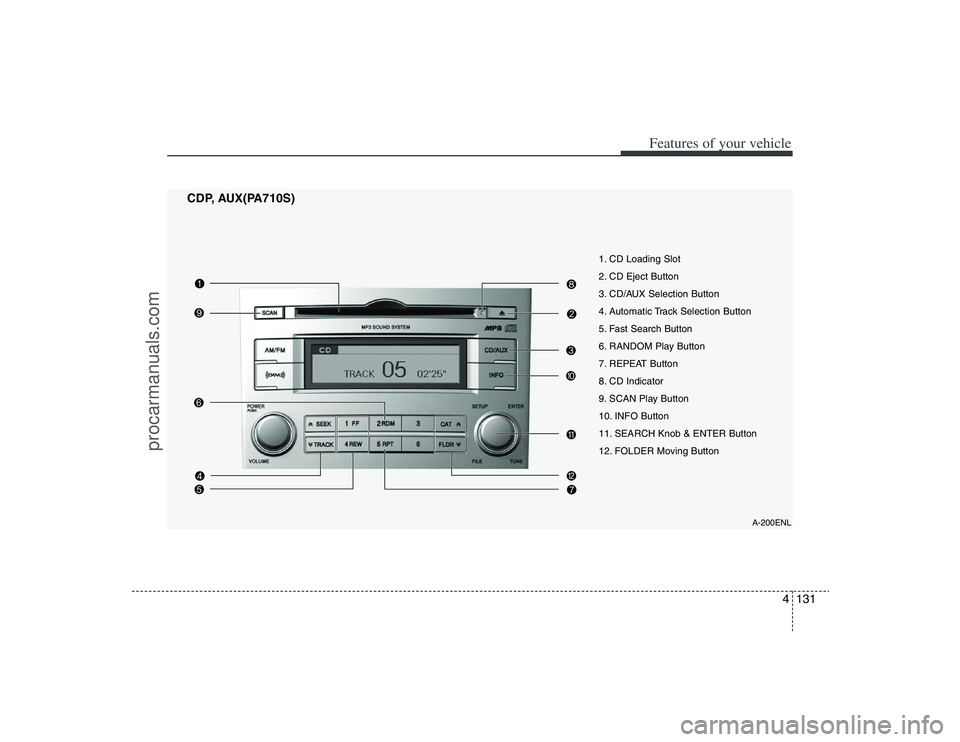
4131
Features of your vehicle
A-200ENL
1. CD Loading Slot
2. CD Eject Button
3. CD/AUX Selection Button
4. Automatic Track Selection Button
5. Fast Search Button
6. RANDOM Play Button
7. REPEAT Button
8. CD Indicator
9. SCAN Play Button
10. INFO Button
11. SEARCH Knob & ENTER Button
12. FOLDER Moving Button
CDP, AUX(PA710S)
procarmanuals.com
Page 213 of 425

Features of your vehicle132 4
CDC, AUX(PA760S)
A-300ENL
1. CD Loading Slot
2. CD Eject Button
3. CD/AUX Selection Button
4. Automatic Track Selection Button
5. Fast Search Button
6. RANDOM Play Button
7. REPEAT Button
9. SCAN Play Button
10. INFO Button
11. SEARCH Knob & ENTER Button
12. FOLDER Moving Button
13. DISC Selection Button
14. MUTE Button
15. CD LOAD Button
procarmanuals.com
Page 214 of 425

4133
Features of your vehicle
CDC, AUX(PA760S RSE)
A-350ENL
1. CD Loading Slot
2. CD Eject Button
3. CD/AUX/RSE Selection Button
4. Automatic Track Selection Button
5. Fast Search Button
6. RANDOM Play Button
7. REPEAT Button
9. SCAN Play Button
10. INFO Button
11. SEARCH Knob & ENTER Button
12. FOLDER Moving Button
13. DISC Selection Button
15. CD LOAD Button
procarmanuals.com
Page 215 of 425

Features of your vehicle134 41. CD Loading SlotPlease face printed side upward and gen-
tly push in. When the ignition switch is on
ACC or ON and power is off, power is
automatically turned on if the CD is
loaded. This CDP supports only 12cm CD.
If a VCD, Data CD are loaded, "Reading
Error" message will appear and CD will be
ejected.2. CD Eject ButtonPush button for less than 0.8 second
to eject the CD during CD playback.
This button is enabled when ignition
switch is off.
ALL EJECT(CDC Only)
Press this button for more than 0.8 sec-
ond to eject all discs inside the deck in
respective order.3. CD or CD/AUX or CD/AUX/RSE
Selection Button CD Selection Button
If the CD is loaded, turns to CD mode. If
no CD, it displays "No Disc" for 3 sec-
onds and returns to th previous mode. CD/AUX Selection Button
If the auxiliary device is connected, it
switches to the AUX mode from the other
mode to play the sound from the auxiliary
player.
If the CD is loaded, turns to CD mode,
and if a device is connected to AUX then
it toggles. CD
➟
AUX
➟
CD... when the
button is pressed each time.(It will not
turn to AUX if the auxiliary device is not
connected)
If no CD and auxiliary device is not con-
nected, it displays "No Media" for 3 sec-
onds and returns to the previous mode.
CD/AUX/RSE Selection Button
If the auxiliary device is connected, it
switches to the AUX mode from the other
mode to play the sound from the auxiliary
player.
If the CD is loaded, turns to CD mode,
and if a device is connected to AUX and
there is a CD in the RSE then it toggles.
CD
➟ AUX
➟ RSE
➟ CD... when the but-
ton is pressed each time.(It will not turn
to AUX and RSE if the auxiliary device is
not connected and there is no CD in the
RSE)
If no CD and auxiliary device is not con-
nected, it displays "No Media" for 3 sec-
onds and returns to the previous mode.
4. Automatic Track Selection
Button ] button for less than
0.8 second to play from the beginning
of current song.
] button for less than
0.8 second and press again within 1
seconds to play the previous song.
] button for less than 0.8
second to play the next song.5. Fast Search Button
longer to initiate high speed sound
search of current song.
longer to initiate reverse direction high
speed sound search of current song.6. RANDOM Play ButtonPress this button for less than 0.8 second
to activate ‘RDM’ mode and more than
0.8 second to activate ‘ALL RDM’ mode.
RDM : Only files/tracks in a folder/disc
are played back in a random sequence.
ALL RDM(MP3/WMA Only) : All files in
a disc are played back in the random
sequence.
procarmanuals.com
Page 222 of 425

4141
Features of your vehicle
1. INFO Selection ButtonDisplays the information of the file cur-
rently played in the order of FILE NAME➟ TITLE
➟ ARTIST
➟ ALBUM
➟ FOLD-
ER
➟ TOTAL FILE
➟ NORMAL DISPLAY
➟ FILE NAME
➟... (Displays no informa-
tion if the file has no song information.)
2. TRACK Moving Button ] button for less
than 0.8 second to play from the begin-
ning of the song currently played. Press
the button for less than 0.8 second and
press it again within 1 seconds to move
and play the previous track.
] button for less
than 0.8 second to move to the next-
track.3. RANDOM Playback ButtonPress this button for less than 0.8 second
to activate 'RDM' mode and more than
0.8 second to activate 'ALL RDM' mode.
Only files in a folder are played
back in a random sequence.
All files in a USB memory
are played back in the random
sequence.
4. REPEAT ButtonPress this button for less than 0.8 second
to activate 'RPT' mode and more than
0.8 second to activate 'FLD RPT' mode.
Only a file is repeatedly played
back.
Only files in a folder are
repeatedly played back.5. USB Selection ButtonIf USB is connected, it switches to the
USB mode from the other mode to play
the song files stored in the USB.
If no CD and auxiliary device is not con-
nected, it displays "No Media" for 3 sec-
onds and returns to the previous mode.6. FOLDER Moving Button ], [PTY ] button sub
folder of the current folder and displays
the first song in the folder.
Press TUNE/ENTER knob to move to
the folder displayed. It will play the first
song in the folder.
], [FLDR ] button main
folder and displays the first song in the
folder.
Press TUNE/ENTER knob to move to
the folder displayed.
7. SEARCH Knob & ENTER
ButtonTurn this button clockwise to display the
songs next to the currently played song.
Turn the button counterclockwise to dis-
play the songs before the currently
played song.
Press the button to skip and play the
selected song.8. SCAN Selection ButtonPlays 10 seconds of each song in the
USB device.
Press the button once again to cancel
scanning.9. Fast Search ButtonPush [FF] button for 0.8 second or longer
to initiate high speed sound search of
current song.
Push [REW] button for 0.8 second or
longer to initiate reverse direction high
speed sound search of current song.10. MUTE ButtonPress [MUTE] to stop sound and “Audio
Mute” is displayed on the LCD.
procarmanuals.com
Page 226 of 425

4145
Features of your vehicle
Using an iPod when the exclusive cable is
connected to the multiple terminal inside
the consol on the right hand side of the
driver's seat.
When the iPod is connected, the 'iPod'
icon will be displayed on the top left cor-
ner of the display screen.1. INFO Selection ButtonDisplays the information of the file cur-
rently played in the order of TITLE
➟
ARTIST
➟ ALBUM
➟ NORMAL DISPLAY
➟ TITLE
➟... (Displays no information if
the file has no song information.)
2. TRACK Moving Button ] button for less
than 0.8 second to play from the begin-
ning of the song currently played. Press
the button for less than 0.8 second and
press it again within 1 seconds to move
and play the previous track.
] button for less
than 0.8 second to move to the next
track.
3. RANDOM Playback ButtonPress the button for less than 0.8 second
to activate or deactivate the random play-
back of the songs within the current cat-
egory. Press the button for longer than
0.8 second to randomly play all songs in
the entire album of the iPod.
Press the button once again to cancel
the mode.4. REPEAT ButtonRepeats the song currently played.5. iPod Selection ButtonIf iPod is connected, it switches to the
iPod mode from the CD mode to play the
song files stored in the iPod. If no CD and
auxiliary device is not connected, it dis-
plays "No Media" for 3 seconds and
returns to the previous mode.6. CATEGORY Selection ButtonMoves to the upper category from cur-
rentlyplayed category of the iPod.
To move to the category displayed, press
SEARCH/ENTER Button. You will be able
to search through the lower category of
the selected category.
The order of iPod's category is SONG,
ALBUMS, ARTISTS, GENRES, and iPod.
7. SEARCH Knob & ENTER
ButtonWhen you turn the button clockwise, it
will display the songs(category) next to
the song currently played(category in the
same level).
Also, when you turn the button counter-
clockwise, it will display the songs(cate-
gory) before the song currently played
(category in the same level).
If you want to listen to the song displayed
in the song category, press the button,
then it will skip to the selected song and
play.8. Fast Search Button
longer to initiate high speed sound
search of current song.
longer to initiate reverse direction high
speed sound search of current song.9. MUTE ButtonPress [MUTE] button to stop sound and
“Audio Mute” is displayed on the LCD.
procarmanuals.com
Page 227 of 425

Features of your vehicle146 4✽
✽
NOTICE - Using iPod device• Some iPod models might not support
the communication protocol and the
files will not be played. (iPod models
supported: Mini, 4G, Photo, Nano,
5G)
• The order of search or playback of
songs in the iPod can be different
from the order searched in the audio
system.
• If the iPod crashes due to its own trou-
ble, reset the iPod. (Reset: Refer to
iPod manual)
• An iPod may not operate normally on
low battery.
CAUTION- Using iPod
device
You need the power cable exclu-
sive for an iPod in order to oper-
ate an iPod with the buttons on
the audio system. The PC cable
provided by Apple may cause a
malfunction and do not use it for
vehicle use.
When connecting the device with
an iPod cable, push in the jack
fully to not to interfere with com-
munication.
When adjusting the sound effects
of an iPod and the audio system,
the sound effects of both devices
will overlap and might reduce or
distort the quality of the sound.
Deactivate (turn off) the equalizer
function of an iPod when adjust-
ing the audio system’s volume,
and turn off the equalizer of the
audio system when using the
equalizer of an iPod.
(Continued)
(Continued)
When the iPod cable is connected,
the system can be switched to the
AUX mode even without the iPod
device and can cause noise.
Disconnect the iPod cable when
you are not using the iPod device.
When the iPod is not used for the
audio system, the iPod cable has
to be separate from iPod devies.
Origin display of iPod may not be
displayed.
procarmanuals.com