2009 Hyundai Santa Fe Remote
[x] Cancel search: RemotePage 191 of 353
1FEATURES OF YOUR HYUNDAI
180
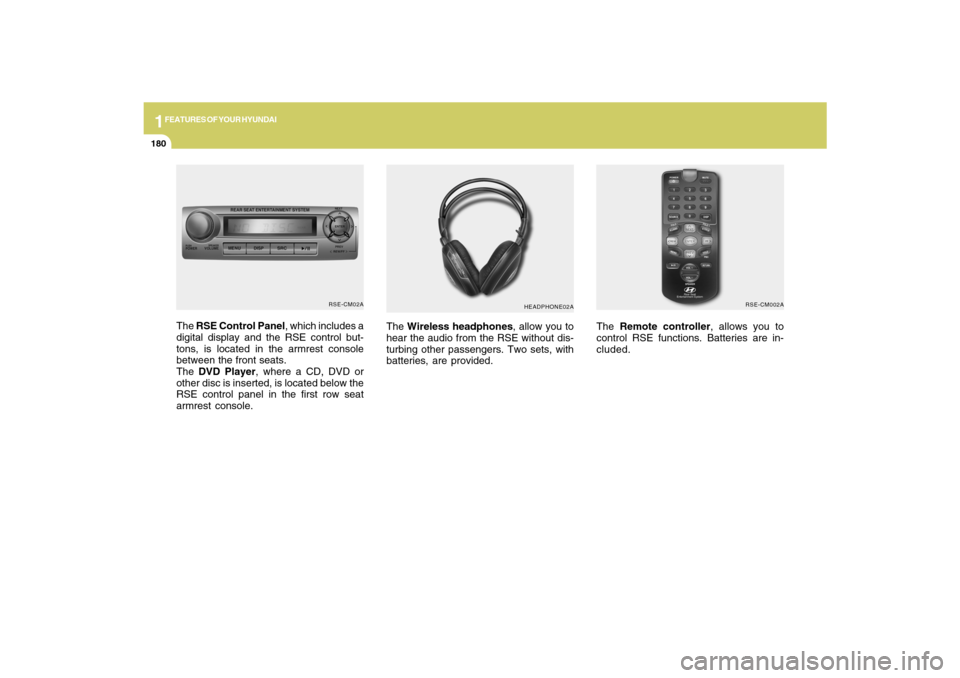
The Wireless headphones, allow you to
hear the audio from the RSE without dis-
turbing other passengers. Two sets, with
batteries, are provided.The Remote controller, allows you to
control RSE functions. Batteries are in-
cluded.
HEADPHONE02ARSE-CM002A
The RSE Control Panel, which includes a
digital display and the RSE control but-
tons, is located in the armrest console
between the front seats.
The DVD Player, where a CD, DVD or
other disc is inserted, is located below the
RSE control panel in the first row seat
armrest console.
RSE-CM02A
Page 193 of 353
1FEATURES OF YOUR HYUNDAI
182
Headphones
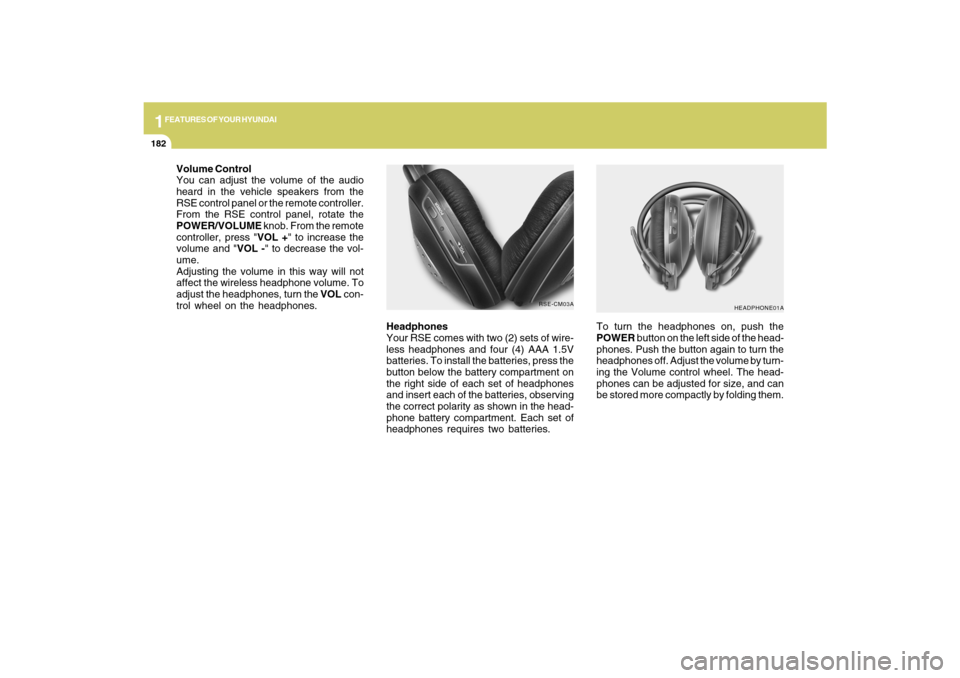
Your RSE comes with two (2) sets of wire-
less headphones and four (4) AAA 1.5V
batteries. To install the batteries, press the
button below the battery compartment on
the right side of each set of headphones
and insert each of the batteries, observing
the correct polarity as shown in the head-
phone battery compartment. Each set of
headphones requires two batteries.
HEADPHONE01A
To turn the headphones on, push the
POWER button on the left side of the head-
phones. Push the button again to turn the
headphones off. Adjust the volume by turn-
ing the Volume control wheel. The head-
phones can be adjusted for size, and can
be stored more compactly by folding them.
RSE-CM03A
Volume Control
You can adjust the volume of the audio
heard in the vehicle speakers from the
RSE control panel or the remote controller.
From the RSE control panel, rotate the
POWER/VOLUME knob. From the remote
controller, press "VOL +" to increase the
volume and "VOL -" to decrease the vol-
ume.
Adjusting the volume in this way will not
affect the wireless headphone volume. To
adjust the headphones, turn the VOL con-
trol wheel on the headphones.
Page 194 of 353
1
FEATURES OF YOUR HYUNDAI
183
FEATURES OF YOUR HYUNDAI
183183183183
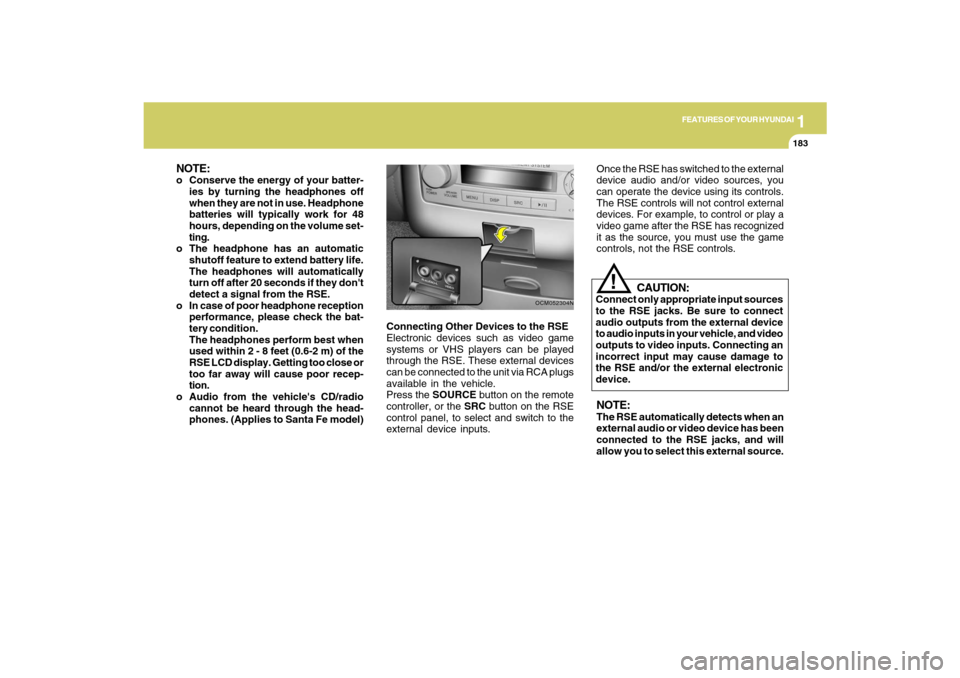
Connecting Other Devices to the RSE
Electronic devices such as video game
systems or VHS players can be played
through the RSE. These external devices
can be connected to the unit via RCA plugs
available in the vehicle.
Press the SOURCE button on the remote
controller, or the SRC button on the RSE
control panel, to select and switch to the
external device inputs.
OCM052304N
Once the RSE has switched to the external
device audio and/or video sources, you
can operate the device using its controls.
The RSE controls will not control external
devices. For example, to control or play a
video game after the RSE has recognized
it as the source, you must use the game
controls, not the RSE controls.NOTE:The RSE automatically detects when an
external audio or video device has been
connected to the RSE jacks, and will
allow you to select this external source.
CAUTION:
Connect only appropriate input sources
to the RSE jacks. Be sure to connect
audio outputs from the external device
to audio inputs in your vehicle, and video
outputs to video inputs. Connecting an
incorrect input may cause damage to
the RSE and/or the external electronic
device.
!
NOTE:o Conserve the energy of your batter-
ies by turning the headphones off
when they are not in use. Headphone
batteries will typically work for 48
hours, depending on the volume set-
ting.
o The headphone has an automatic
shutoff feature to extend battery life.
The headphones will automatically
turn off after 20 seconds if they don't
detect a signal from the RSE.
o In case of poor headphone reception
performance, please check the bat-
tery condition.
The headphones perform best when
used within 2 - 8 feet (0.6-2 m) of the
RSE LCD display. Getting too close or
too far away will cause poor recep-
tion.
o Audio from the vehicle's CD/radio
cannot be heard through the head-
phones. (Applies to Santa Fe model)
Page 195 of 353
1FEATURES OF YOUR HYUNDAI
184
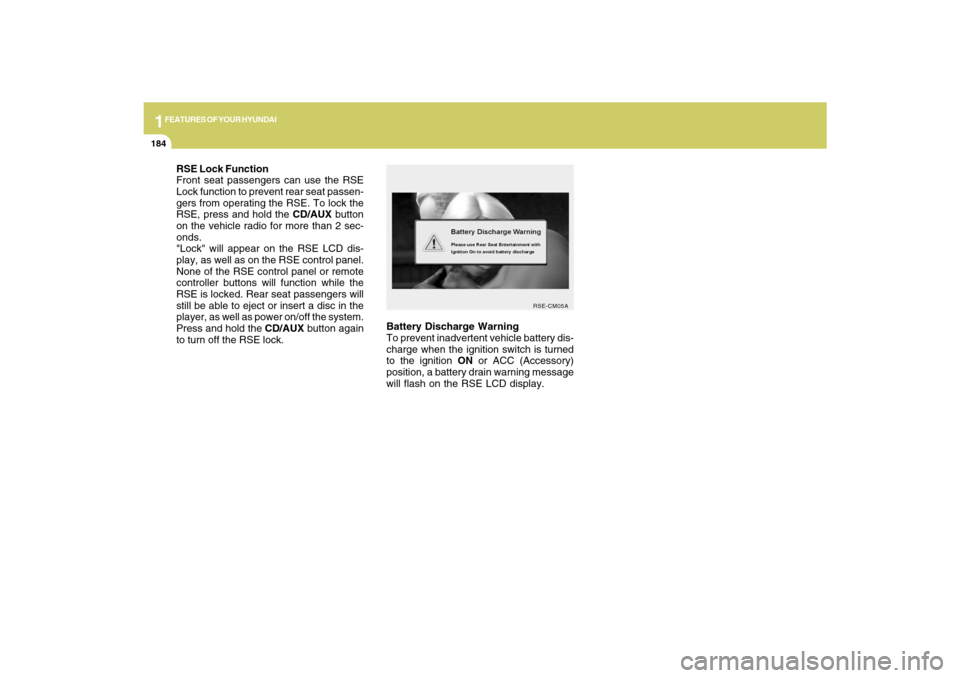
Battery Discharge Warning
To prevent inadvertent vehicle battery dis-
charge when the ignition switch is turned
to the ignition ON or ACC (Accessory)
position, a battery drain warning message
will flash on the RSE LCD display.
RSE-CM05A
RSE Lock Function
Front seat passengers can use the RSE
Lock function to prevent rear seat passen-
gers from operating the RSE. To lock the
RSE, press and hold the CD/AUX button
on the vehicle radio for more than 2 sec-
onds.
"Lock" will appear on the RSE LCD dis-
play, as well as on the RSE control panel.
None of the RSE control panel or remote
controller buttons will function while the
RSE is locked. Rear seat passengers will
still be able to eject or insert a disc in the
player, as well as power on/off the system.
Press and hold the CD/AUX button again
to turn off the RSE lock.
Page 199 of 353
1FEATURES OF YOUR HYUNDAI
188
DVD/VCD PLAYER OPERATION
Disc/Format CompatibilityYour RSE player accepts and plays all
DVDs in 4:3 (normal) and 16:9 (widescreen)
video formats. With DVDs that offer mul-
tiple formats, the default format is 16:9 and
will stay that way unless changed by the
user. See "Adjusting the LCD display" to
learn how to adjust the format.
The DVD player has the capability to play
DVD-video, DVD-R, DVD-RW, CD-DA, CD-
R, CD-RW, VCD.
The DVD player was factory programmed
with a region code for the assigned market
or country. If a DVD is inserted for a region
code that doesn’t match with the player, the
RSE player will eject the disc. An error
message will be shown on the overhead
LCD display and the RSE control panel
display.
NOTE:Because there is no universal standard
for DVD/VCD programming, your disc
may behave differently. Some DVDs may
present warning messages about unau-
thorized duplication, some will go directly
to a menu, some may have different on-
disc menu and start playing the movie
immediately, and some may be unread-
able or damaged and will be ejected.NOTE:While the player will accept DVD ROM
and CD ROM discs, the RSE cannot play
discs in these formats and will eject
them.
The player is only capable of reading the
bottom side of a disc. When inserting a
single-sided disc, the label side should be
up. When inserting a two-sided disc, the
desired play side should be down.
Press DISP on the RSE control panel or the
remote controller, then press the
∧ ∧∧ ∧
∧ NEXT
or
∨ ∨∨ ∨
∨ PREV buttons to cycle through LCD
display adjustments (SCREEN SIZE,
BRIGHTNESS, CONTRAST, CHROMA,
HUE). To adjust the SCREEN SIZE, use
the < REW or FF > buttons to select the
preferred size.1. Menu
DVDs can be controlled, and any special
programming or features accessed, by
using the menu. To access the menu while
playing a DVD, press the MENU button.
Press the button a second time to exit the
menu and return to the DVD program at the
point it was being viewed. The menu is not
available during disc initialization, the be-
ginning credits or any copyright and FBI
warnings.
While viewing the menu, press the
∧ ∧∧ ∧
∧ NEXT
button to move the cursor up and the
∨ ∨∨ ∨
∨
PREV button to move the cursor down the
menu. Press the > FWD button to move the
cursor to the right, and the < REW button to
move the cursor to the left.NOTE:You must repeatedly push any button to
move through several items. Pressing
and holding a button will not advance the
cursor beyond the first item.
Press ENTER or Play/Pause to select the
desired menu choice.
B470D01CM-AAT
Page 200 of 353
1
FEATURES OF YOUR HYUNDAI
189
FEATURES OF YOUR HYUNDAI
189189189189
Playing a DVD/VCD
You can control your DVD or VCD by using
the buttons on the RSE control panel or by
using the remote controller. Instructions
for the controls listed below are the same
whether using the RSE control panel or the
remote controller. However, there are some
additional functions that are only available
from the remote controller. These buttons
and their functions are discussed in the
"Remote Controller" section of this manual.
1. Play/Pause Button
You do not need to press the PLAY/PAUSE
button after loading a disc to begin playing
the disc. The player will start playing auto-
matically.
While a disc is playing, press PLAY/PAUSE
to pause. While paused, the elapsed time
of the current disc, track or file will blink on
the LCD display, and "PAUSE" will be
displayed on the RSE control panel. Press
the button again to resume play.
NOTE:The RSE will enter standby mode when
the vehicle ignition is turned off. When
the vehicle is turned back on within 30
seconds, the RSE will turn on and the CD
will automatically begin playing again at
the point where it paused. If the vehicle
is turned off for longer than 30 seconds,
the RSE system will not turn on auto-
matically when the vehicle is restarted.
2. Fast Forward/Reverse
Press and hold the FF > or < REW button
and the player will fast forward or reverse
at 32 times the normal speed. Release the
FWD or < REW button to return to normal
speed play.3. Previous/Next Chapter
While a DVD/VCD is playing, press the
∧ ∧∧ ∧
∧
NEXT button to skip to the next chapter.
Press the
∨ ∨∨ ∨
∨ PREV button to jump to the
beginning of the current chapter. Press
∨ ∨ ∨ ∨
∨
PREV again to go move through earlier
chapters. Press the button repeatedly to
move quickly through chapters.NOTE:Some VCDs do not have track informa-
tion. If the VCD has no chapter informa-
tion, pressing either of these buttons will
restart the VCD.
While pressing the
∧ ∧∧ ∧
∧ NEXT or
∨ ∨∨ ∨
∨ PREV
buttons, the Status Display, including the
current medium (DVD or VCD), chapter
and title information is displayed. It will
automatically disappear after five seconds.
Page 201 of 353
1FEATURES OF YOUR HYUNDAI
190
NOTE:Some DVDs do not permit chapter navi-
gation.
Instead of using the
∨ ∨∨ ∨
∨ PREV/
∧ ∧∧ ∧
∧ NEXT
buttons, you can also enter the chapter
number using the numbers on the remote
controller. While a DVD/VCD is playing,
press the number button(s) that correspond
to the desired chapter and press ENTER.
4. Stop a Disc
The disc will automatically stop when any
other source (e.g. the vehicle radio or an
external game) is selected. When you
switch back to the DVD, it will begin playing
at the point where it stopped.
While the player is running, press the RSE
control panel POWER/VOLUME knob, or
the ON/OFF button on the remote control-
ler, to stop a disc and turn off the RSE
system and the DVD player. When the
RSE is turned on again, the disc will begin
playing at the point where it stopped.5. Eject a Disc
To eject a disc press the button. A disc
can be ejected even when the unit or the
vehicle is turned off.
NOTE:The player has an Auto-Reload Disc
Protection feature to protect discs from
accidental damage. If a disc is not re-
moved within 12 seconds after being
ejected, it will be pulled back into the
player.
CD PLAYER OPERATIONThe RSE will play audio CDs in both stan-
dard (12 cm) and mini-disc (8 cm) format.NOTE:While the player will accept DVD ROM or
CD ROM disc, the RSE cannot play disc
in this format will eject the disc.
1. Volume Control
You can adjust the volume of the audio
heard in the vehicle speakers from the
RSE control panel or the remote controller.
From the RSE control panel, rotate the
POWER/VOLUME knob. From the remote
controller, press "VOL +" to increase and
"VOL -" to decrease the volume.
Adjusting the volume in this way will not
adjust the wireless headphone volume.
To adjust the headphones, roll the VOL
control wheel.B470E01CM-AAT
Page 202 of 353
1
FEATURES OF YOUR HYUNDAI
191
FEATURES OF YOUR HYUNDAI
191191191191
2. Play/Pause
When a CD is inserted, the RSE will auto-
matically begin playing the first track. Press
the PLAY/PAUSE button to pause the CD.
Press the button again to resume play.
While paused, the elapsed time in the
Status Display at the top of the LCD display
will blink. The RSE control will display
"PAUSE."
When the player reaches the end of the
disc, the player will automatically return to
the first track and continue playing.
3. Fast Forward / Reverse
Press and hold the FF > or < REW button
and the player will fast forward or reverse
at 10 times the normal speed. Release the
button to return to normal speed play.
The audio is muted while the player fast
forwards or fast reverses.4. Previous/Next Track
While a CD is playing, press the
∨ ∨∨ ∨
∨ PREV
button to jump to the beginning of the
current track. If less than 10 seconds has
elapsed on the current track, pressing
PREV will go to the previous track. Press
the button repeatedly to continue moving
through previous tracks.
Press the
∧ ∧∧ ∧
∧ NEXT button to jump to the
beginning of the next track. Press the but-
ton repeatedly to continue moving through
the following tracks.
Instead of using the
∧ ∧∧ ∧
∧ NEXT or
∨ ∨∨ ∨
∨ PREV
buttons, you can also enter the track num-
ber using the numbers on the remote con-
troller. While a CD is playing, press the
number button(s) that correspond to the
desired track and press ENTER.
The current track number is shown in the
Status Display at the top of the LCD dis-
play.5. Stop
The CD will automatically stop when any
other source (e.g. the vehicle radio or an
external game) is selected. When you
switch back to the CD, it will begin playing
at the point where it stopped.
While a CD is playing, you can stop the CD
by pressing the ON/OFF button on the
remote controller or the POWER/VOLUME
knob on the RSE control panel. When the
RSE is turned on again, it will automati-
cally begin playing the CD at the point
where it was stopped.
Turning the vehicle off, or selecting a differ-
ent RSE Source, will also stop playing the
CD.
6. Eject
Press the EJECT button to eject the
CD. Discs can be ejected even when the
unit is not turned on.