2009 HUMMER H2 audio
[x] Cancel search: audioPage 261 of 524

DVD/CD AUX (Auxiliary):Press this button to cycle
through DVD, CD, or Auxiliary when listening to the radio.
The DVD/CD text label and a message showing track or
chapter number displays when a disc is in either slot.
Press this button again and the system automatically
searches for an auxiliary input device, such as a portable
audio player. If a portable audio player is not connected,
“No Aux Input Device” displays. If a disc is in both the
DVD slot and the CD slot the DVD/CD AUX button cycles
between the two sources and not indicate “No Aux Input
Device”. If a front auxiliary device is connected, the
DVD/CD AUX button cycles through all available options,
such as: DVD slot, CD slot, Front Auxiliary, and Rear
Auxiliary (if available). See “Using the Auxiliary Input
Jack(s)” earlier in this section, or “Audio/Video (A/V)
Jacks” under,Rear Seat Entertainment (RSE) System
on page 3-118for more information.
If a MP3/WMA is inserted into top DVD slot, the rear seat
operator can turn on the video screen and use the remote
control to navigate the CD (tracks only) through the
remote control.XM Radio Messages
XL (Explicit Language Channels):These channels,
or any others, can be blocked at a customer’s request,
by calling 1-800-852-XMXM (9696).
XM Updating:The encryption code in the receiver is
being updated, and no action is required. This process
should take no longer than 30 seconds.
No XM Signal:The system is functioning correctly, but
the vehicle is in a location that is blocking the XM™
signal. When the vehicle is moved into an open area,
the signal should return.
Loading XM:The audio system is acquiring and
processing audio and text data. No action is needed.
This message should disappear shortly.
Channel Off Air:This channel is not currently in
service. Tune in to another channel.
Channel Unauth:This channel is blocked or cannot be
received with your XM Subscription package.
3-105
Page 263 of 524

Navigation/Radio System
For vehicles with a navigation radio system, see the
separate Navigation System manual.
Bluetooth®
Vehicles with a Bluetooth system can use a Bluetooth
capable cell phone with a Hands Free Prole to make and
receive phone calls. The system can be used while the
key is in ON/RUN or ACC/ACCESSORY position. The
range of the Bluetooth system can be up to 30 ft. (9.1 m).
Not all phones support all functions, and not all phones
are guaranteed to work with the in-vehicle Bluetooth
system. See gm.com/bluetooth for more information
on compatible phones.
Voice Recognition
The Bluetooth system uses voice recognition to interpret
voice commands to dial phone numbers and name tags.
Noise:Keep interior noise levels to a minimum.
The system may not recognize voice commands if
there is too much background noise.
When to Speak:A short tone sounds after the system
responds indicating when it is waiting for a voice
command. Wait until the tone and then speak.
How to Speak:Speak clearly in a calm and natural
voice.
Audio System
When using the in-vehicle Bluetooth system, sound
comes through the vehicle’s front audio system speakers
and overrides the audio system. Use the audio system
volume knob, during a call, to change the volume level.
The adjusted volume level remains in memory for later
calls. To prevent missed calls, a minimum volume level
is used if the volume is turned down too low.
Bluetooth Controls
Use the buttons located on the steering wheel to
operate the in-vehicle Bluetooth system. SeeAudio
Steering Wheel Controls on page 3-129for more
information.
bg(Push To Talk):Press to answer incoming calls,
to conrm system information, and to start speech
recognition.
cx(Phone On Hook):Press to end a call, reject a
call, or to cancel an operation.
3-107
Page 269 of 524

Using the Digit Dial Command
1. Press and holdbgfor two seconds. The system
responds with “Ready” followed by a tone.
2. Say “Digit Dial”. The system responds with “Digit
dial using
to dial” followed by a tone.
3. Say the digit to be dialed one at a time. Following
each digit, the system will repeat back the digit it
heard followed by a tone.
4. Continue entering digits until the number to be
dialed is complete. After the whole number has
been entered, say “Dial”. The system responds
with “OK, Dialing” and dials the number.
If an unwanted number is recognized by the
system, say “Clear” at any time to clear the
last number.
To hear all of the numbers recognized by the
system, say “Verify” at any time and the
system will repeat them.
Using the Call Command
1. Press and holdbgfor two seconds. The system
responds with “Ready” followed by a tone.
2. Say “Call”. The system responds with “Call using
by a tone.3. Say the name tag of the person to call.
If the system clearly recognizes the name tag it
responds with “OK, calling,
dials the number.
If the system is unsure it recognizes the right
name tag, it conrms the name tag followed by a
tone. If the name tag is correct, say “Yes”. The
system responds with “OK, calling,
and dials the number. If the name tag is not
correct, say “No”. The system will ask for the
name tag to be re-entered.
Once connected, the person called will be heard
through the audio speakers.
Using the Re-dial Command
1. Press and holdbgfor two seconds. The system
responds with “Ready” followed by a tone.
2. After the tone, say “Re-dial”. The system responds
with “Re-dial using
last number called from the connected Bluetooth
phone.
Once connected, the person called will be heard
through the audio speakers.
3-113
Page 270 of 524

Receiving a Call
When an incoming call is received, the audio system
mutes and a ring tone is heard in the vehicle.
Pressbgand begin speaking to answer the call.
Presscxto ignore a call.
Call Waiting
Call waiting must be supported on the Bluetooth phone
and enabled by the wireless service carrier to work.
Pressbgto answer an incoming call when
another call is active. The original call is placed
on hold.
Pressbgagain to return to the original call.
To ignore the incoming call, continue with the
original call with no action.
Presscxto disconnect the current call and
switch to the call on hold.
Three-Way Calling
Three-Way Calling must be supported on the Bluetooth
phone and enabled by the wireless service carrier
to work.
1. While on a call press
bg. The system responds
with “Ready” followed by a tone.
2. Say “Three-way call”. The system responds with
“Three-way call, please say dial or call”.
3. Use the dial or call command to dial the number of
the third party to be called.
4. Once the call is connected, press
bgto link all
the callers together.
Ending a Call
Presscxto end a call.
3-114
Page 271 of 524

Muting a Call
During a call, all sounds from inside the vehicle can
be muted so that the person on the other end of the
call cannot hear them.
To Mute a call
1. Pressbg. The system responds with “Ready”
followed by a tone.
2. Say “Mute Call”. The system responds with
“Call muted”.
To Cancel Mute
1. Pressbg. The system responds with “Ready”
followed by a tone.
2. After the tone, say “Mute Call”. The system
responds with “Resuming call”.
Transferring a Call
Audio can be transferred between the in-vehicle
Bluetooth system and the cell phone.
To Transfer Audio to the Cell Phone
During a call with the audio in the vehicle:
1. Press
bg. The system responds with “Ready”
followed by a tone.
2. Say “Transfer Call.” The system responds with
“Transferring call” and the audio will switch from
the vehicle to the cell phone.
To Transfer Audio to the In-Vehicle
Bluetooth System
The cellular phone must be paired and connected with
the Bluetooth system before a call can be transferred.
The connection process can take up to two minutes after
the key is turned to the ON/RUN or ACC/ACCESSORY
position.
During a call with the audio on the cell phone,
press
bgfor more than two seconds. The audio
switches from the cell phone to the vehicle.
3-115
Page 274 of 524

Rear Seat Entertainment (RSE)
System
The vehicle may have a DVD Rear Seat Entertainment
(RSE) system. The RSE system works with the vehicle’s
audio system. The DVD player is part of the front radio.
The RSE system includes a radio with a DVD player, a
video display screen, audio/video jacks, two wireless
headphones, and a remote control. SeeRadio(s) on
page 3-75for more information on the vehicle’s audio/
DVD system.
Before Driving
The RSE is designed for rear seat passengers only.
The driver cannot safely view the video screen
while driving and should not try to do so.
In severe or extreme weather conditions the RSE
system might not work until the temperature is within
the operating range. The operating range for the RSE
system is above−4°F (−20°C) or below 140°F (60°C).
If the temperature of the vehicle is outside of this range,
heat or cool the vehicle until the temperature is within the
operating range of the RSE system.
Parental Control
The RSE system may have a Parental Control feature,
depending on which radio the vehicle has. To start
Parental Control, press and hold the radio power button
for more than two seconds to stop all system features
such as: radio, video screen, RSA, DVD and/or CD.
While Parental Control is on, a padlock icon displays.
The radio can be turned back on with a single press
of the power button, but the RSE system will remain
under Parental Control.
To turn Parental Control off, press and hold the radio
power button for more than two seconds. The RSE
returns from where it was previously left and the padlock
icon disappears from the radio display.
Parental Control can also be turned off by inserting
or ejecting any disc, pressing the play icon on the radio
DVD display menu, or changing an ignition position.
3-118
Page 275 of 524

Headphones
The RSE includes two 2-channel wireless headphones
that are dedicated to this system. Channel 1 is dedicated
to the DVD player, while Channel 2 is dedicated to RSA
selections. These headphones can be used to listen
to the radio, CDs, DVDs, MP3s, DVDAs, any auxiliary
source connected to A/V jacks, or the auxiliary input jack,
if the vehicle has this feature. The wireless headphones
have an On/Off button, channel 1/2 switch, and a volume
control.
Push the power button to turn on the headphones.
An indicator light located on the headphones comes on.
If the light comes on but, there is intermittent soundand/or static on the headphones, or if the indicator
light does not come on, the batteries might need to be
replaced. See “Battery Replacement” later in this section
for more information. Switch the headphones to Off when
not in use.
Infrared transmitters are located at the rear of
the RSE overhead console. The headphones shut off
automatically to save the battery power if the RSE system
and RSA are shut off or if the headphones are out of
range of the transmitters for more than three minutes.
If you move too far forward or step out of the vehicle,
the headphones lose the audio signal.
The headphones automatically turn off after four hours
of continuous use.
To adjust the volume on the headphones, use the
volume control located on the right side.
For optimal audio performance, the headphones must
be worn correctly. The symbol L (Left) appears on
the upper left side, above the ear pad and should be
positioned on the left ear. The symbol R (Right) appears
on the upper right side, above the ear pad and should
be positioned on the right ear.
Notice:Do not store the headphones in heat or
direct sunlight. This could damage the headphones
and repairs will not be covered by the warranty.
Storage in extreme cold can weaken the batteries.
Keep the headphones stored in a cool, dry place.
3-119
Page 276 of 524
If the foam ear pads attached to the headphones
become worn or damaged, the pads can be replaced
separately from the headphone set. Refer to your
dealer/retailer for more information.
Battery Replacement
To change the batteries on the headphones, do the
following:
1. Turn the screw to loosen the battery door located
on the left side of the headphones. Slide the
battery door open.
2. Replace the two batteries in the compartment.
Make sure that they are installed correctly,
using the diagram on the inside of the battery
compartment.
3. Replace the battery door and tighten the door
screw.
If the headphones are to be stored for a long period of
time, remove the batteries and keep them in a cool,
dry place.
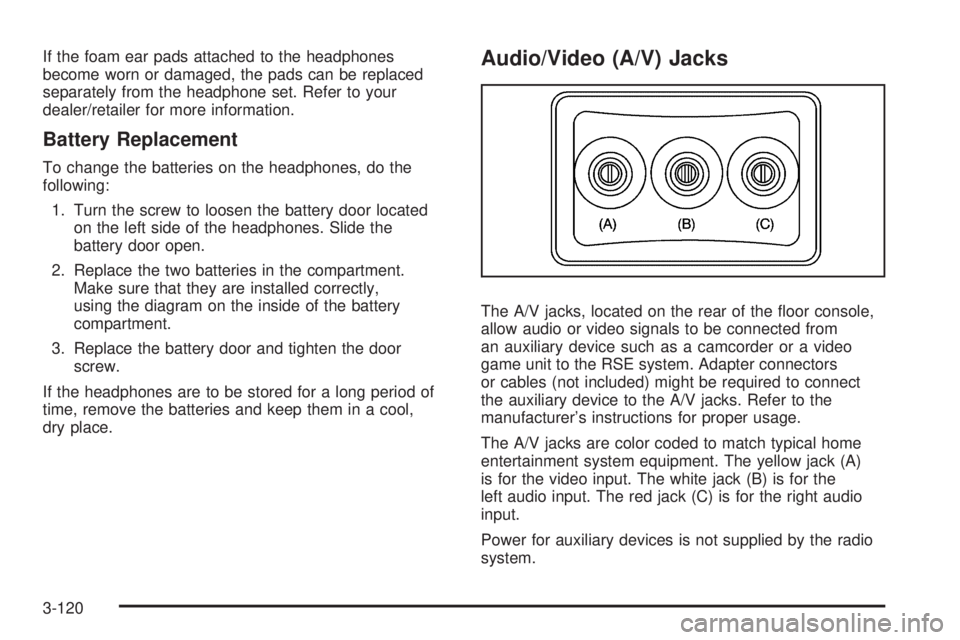
Audio/Video (A/V) Jacks
The A/V jacks, located on the rear of the oor console,
allow audio or video signals to be connected from
an auxiliary device such as a camcorder or a video
game unit to the RSE system. Adapter connectors
or cables (not included) might be required to connect
the auxiliary device to the A/V jacks. Refer to the
manufacturer’s instructions for proper usage.
The A/V jacks are color coded to match typical home
entertainment system equipment. The yellow jack (A)
is for the video input. The white jack (B) is for the
left audio input. The red jack (C) is for the right audio
input.
Power for auxiliary devices is not supplied by the radio
system.
3-120