Page 159 of 412
If you see an error message on the
audio display while playing a USB
f lash memory device, f ind the
solution in the chart to the right. If
you cannot clear the error message,
take your vehicle to your dealer.Solution
Error Message
The system cannot read the file(s). Check the files in the USB flash
memory device. There is a possibility that the files have been
damaged.
Appears when the unsupported USB flash memory device is inserted.
USB Flash Memory Device Error Messages (Models without navigation system)
156
UNPLAYABLE FILE
UNSUPPORTED
�\f���—�\f���—�\f���y�
�
��\f������\f�y���
�(�+�������\f�y�\f�
���
�y
2009 Civic Coupe
Page 180 of 412

To remove a disc f rom the audio unit,
f old back the screen by pressing the
OPEN button (see page ). Press
the disc eject button ( ) to
remove the disc. If you eject the disc,
but do not remove it f rom the slot,
the system will automatically reload
it af ter 10 seconds and put it in pause
mode. To begin playing, press the
CD button.
To return the screen to the upright
position, press the CLOSE button.
You cannot close the screen if a disc
is partially inserted into its slot.
You can also eject the disc when the
ignition switch is of f .
To play the radio when a disc is
playing, press the AM/FM button or
touch the FM1, FM2, AM, XM1, or
XM2 icon. If a PC card is in the audio
unit, touch the CARD icon to play
the PC card. Press the CD button
again or touch the CD icon to switch
back to the disc player.
If you turn the system of f while a
disc is playing, either with the
power/volume knob or by turning
of f the ignition switch, the disc will
stay in the drive. When you turn the
system back on, the disc will begin
playing where it lef t of f .
When playing a CD recorded with
text data, each track name is shown
on the audio display. With a disc
recorded in MP3 or WMA, the f older
number is also displayed.
To play an audio unit connected to
the auxiliary input jack or the USB
adapter cable when a disc is playing,
touch the AUX or USB icon.
If the disc was not recorded with text
data, only the track number is shown.
172
Removing a DiscTo Stop Playing a Disc
Playing a Disc (Models with navigation system)
Features
177
�\f���—�\f���—�\f���y�
�
��\f��������y���
�(�+�������\f�y�\f�
�����y
2009 Civic Coupe
Page 194 of 412
�Î
�Î
�Î
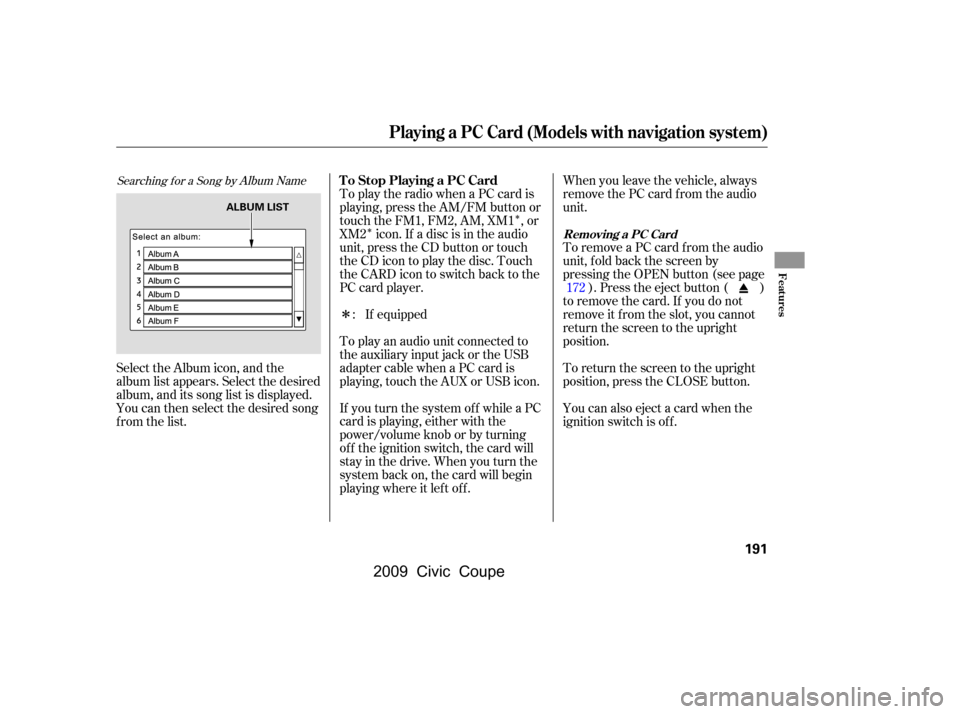
Searching f or a Song by Album Name
Select the Album icon, and the
album list appears. Select the desired
album, and its song list is displayed.
You can then select the desired song
from the list. To play the radio when a PC card is
playing, press the AM/FM button or
touch the FM1, FM2, AM, XM1 , or
XM2 icon. If a disc is in the audio
unit, press the CD button or touch
theCDicontoplaythedisc.Touch
the CARD icon to switch back to the
PC card player.
If equipped
To play an audio unit connected to
the auxiliary input jack or the USB
adapter cable when a PC card is
playing, touch the AUX or USB icon. You can also eject a card when the
ignition switch is of f . To return the screen to the upright
position, press the CLOSE button. To remove a PC card from the audio
unit, f old back the screen by
pressing the OPEN button (see page). Press the eject button ( )
to remove the card. If you do not
remove it f rom the slot, you cannot
return the screen to the upright
position. When you leave the vehicle, always
remove the PC card from the audio
unit.
If you turn the system of f while a PC
card is playing, either with the
power/volume knob or by turning
of f the ignition switch, the card will
stay in the drive. When you turn the
system back on, the card will begin
playing where it lef t of f . :
172
T o Stop Playing a PC Card
Playing a PC Card (Models with navigation system)
Removing a PC Card
Features
191
ALBUM LIST
�����—�����—�����y�
�
�����������y���
�(�+���������y���
�����y
2009 Civic Coupe
Page 196 of 412
�µ�´
Playing an iPod(Models with navigation system)
Features
193
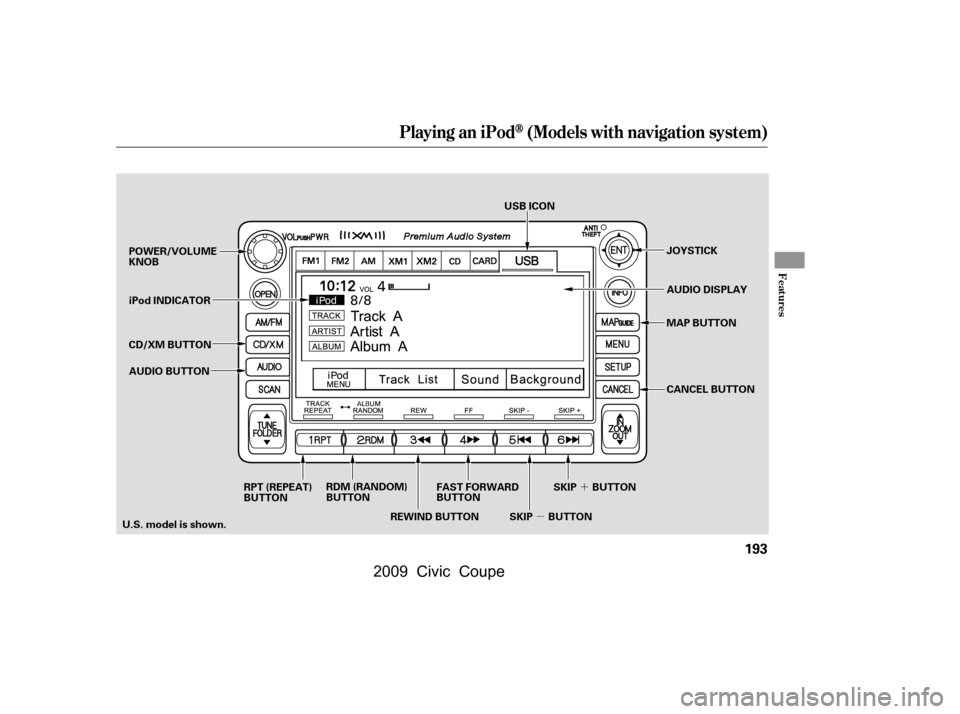
JOYSTICK
POWER/VOLUME
KNOB
MAP BUTTON
iPod INDICATOR
CD/XM BUTTON
REWIND BUTTON
AUDIO BUTTON USB ICON
AUDIO DISPLAY
RPT (REPEAT)
BUTTON RDM (RANDOM)
BUTTON
FAST FORWARD
BUTTON
SKIP BUTTONSKIP BUTTON CANCEL BUTTON
U.S. model is shown.
�\f���—�\f���—�\f���y�
�
��\f������
�y���
�(�+�������\f�y�\f�
�����y
2009 Civic Coupe
Page 197 of 412

�Î
�Î
iPods that are compatible with your
audio system are listed below.Use the latest f irmware.
This audio system can select and
play the audio f iles on the iPod
with
the same controls used f or the in-
dash disc player. To play an iPod,
connect it to the USB adapter cable
in the console compartment by using
your dock connector. Press the
AUDIO button beside the screen to
show the audio display and touch the
AUX icon. The ignition switch must
be in the ACCESSORY (I) or ON (II)
position. The iPod will also be
recharged with the ignition switch in
these positions.
You can also select an icon by
moving the joystick. Move it to lef t,
right, up, or down to change the
highlighting and scroll through lists,
then press ENT on the top of the
joystick to set your selection. To select the USB mode without
using the icon, press the CD/XM
button repeatedly. The status bar
appears on the bottom of the screen.
The audio system reads and plays
sound f iles to be playable on the iPod.
The system cannot operate an iPod
as a mass storage device. The
system will only play songs stored on
the iPod with iTunes.
iPod and iTunes are registered
trademarks owned by Apple Inc.
You can select the AUX mode by
using the navigation system voice
control buttons, but cannot operate
theplaymodefunctions.
UseonlycompatibleiPodswiththe
latest f irmware. iPods that are not
compatible will not work in this audio
unit.:Firmware
Ver. 1.2 or more
Ver. 1.0 or more
Ver. 1.2 or more
Ver. 1.1.2 or more
Ver. 1.0 or more
Ver. 1.1.1 or more
Ver. 1.1.1 or more
Model
iPod 5G
iPod classic
iPod nano
iPod nano
2nd generation
iPod nano
3rd generation
iPod touch
iPhone
To Play an iPod
Playing an iPod(Models with navigation system)
Voice Cont rol Syst em
194
�\f���—�\f���—�\f���y�
�
��\f������\f�y���
�(�+�������\f�y�\f�
�����y
2009 Civic Coupe
Page 198 of 412
Do not connect your iPod using a
hub.
DonotkeeptheiPodinthe
vehicle. Direct sunlight and high
heat will damage it.
Do not use an extension cable
between the USB adapter cable
equipped with your vehicle and
your dock connector.
We recommend backing up your
data bef ore playing it.
In AAC f ormat, DRM (digital rights
management) f iles cannot be played.
If the system finds a DRM file, the
audio unit displays UNPLAYABLE,
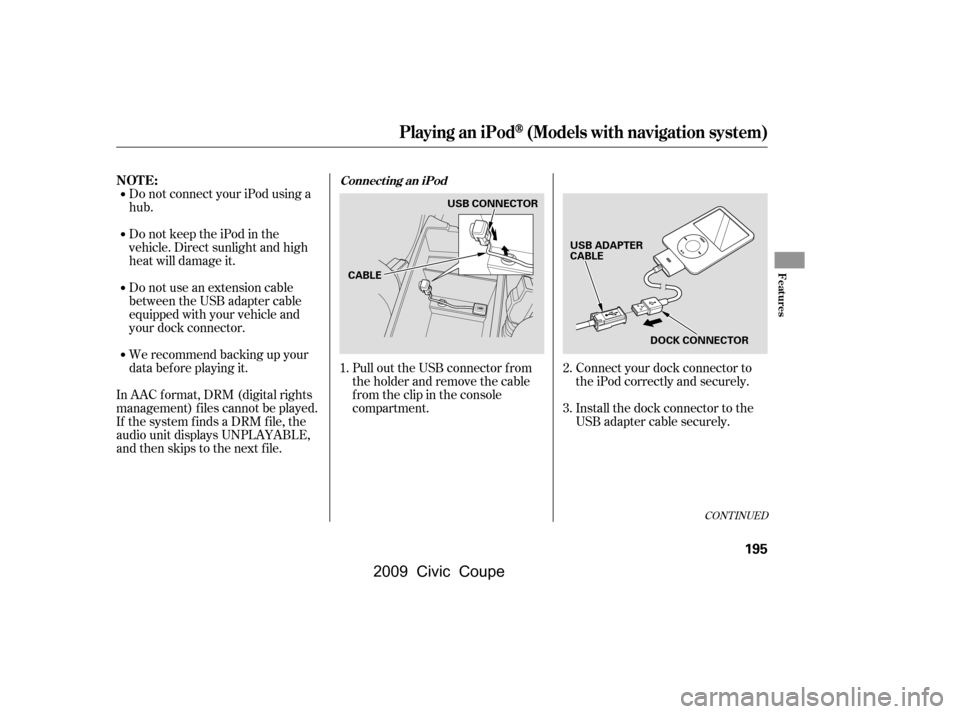
andthenskipstothenextfile. Install the dock connector to the
USB adapter cable securely.
Connect your dock connector to
the iPod correctly and securely.
Pull out the USB connector f rom
the holder and remove the cable
f rom the clip in the console
compartment.
1. 2.
3.
CONT INUED
NOT E:Connect ing an iPod
Playing an iPod(Models with navigation system)
Features
195
DOCK CONNECTOR
USB ADAPTER
CABLE
CABLE USB CONNECTOR
�\f���—�\f���—�\f���y�
�
��
�\f��\f�\f�y���
�(�+�������\f�y�\f���\f�\f�y
2009 Civic Coupe
Page 199 of 412
�Î
�Î
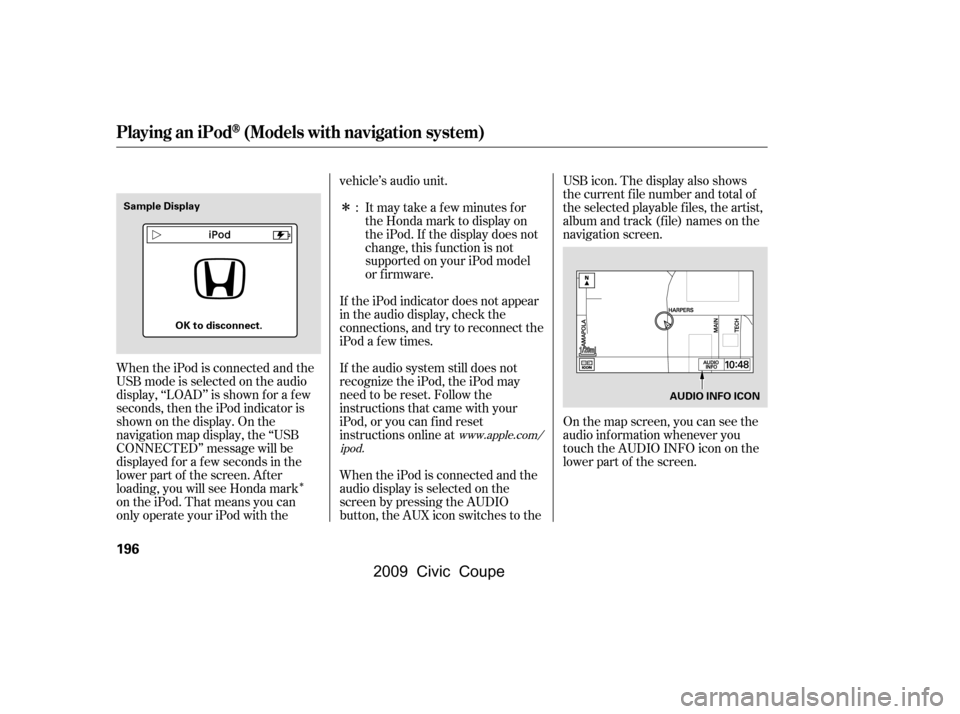
When the iPod is connected and the
USB mode is selected on the audio
display, ‘‘LOAD’’ is shown f or a f ew
seconds, then the iPod indicator is
shownonthedisplay.Onthe
navigation map display, the ‘‘USB
CONNECTED’’ message will be
displayed f or a f ew seconds in the
lower part of the screen. Af ter
loading, you will see Honda mark
on the iPod. That means you can
only operate your iPod with the vehicle’s audio unit.
If the audio system still does not
recognize the iPod, the iPod may
need to be reset. Follow the
instructions that came with your
iPod, or you can f ind reset
instructions online at
If the iPod indicator does not appear
in the audio display, check the
connections, and try to reconnect the
iPod a f ew times.
Itmaytakeafewminutesfor
the Honda mark to display on
the iPod. If the display does not
change, this f unction is not
supported on your iPod model
or f irmware.
When the iPod is connected and the
audio display is selected on the
screen by pressing the AUDIO
button, the AUX icon switches to the USB icon. The display also shows
the current f ile number and total of
the selected playable files, the artist,
album and track (file) names on the
navigation screen.
On the map screen, you can see the
audio inf ormation whenever you
touch the AUDIO INFO icon on the
lower part of the screen.
:
www.apple.com/
ipod.
Playing an iPod(Models with navigation system)
196
Sample Display
OK to disconnect. AUDIO INFO ICON
�\f���—�\f���—�\f���y�
�
��
�\f��\f���y���
�(�+�������\f�y�\f���\f�
�y
2009 Civic Coupe
Page 204 of 412

�Î
�Î
Available operating f unctions vary on
models or versions. Some f unctions
may not be available on the vehicle’s
audio system. To play the radio, press the AM/FM
button or touch the FM1, FM2, AM,
XM1, or XM2 icon. Press the CD
icon to switch to the disc mode (if a
disc is loaded). Each time you press
the CD/XM button, the audio mode
switches between iPod, disc and
XM
radio.
If a PC card is in the audio unit,
touch the CARD icon to play the PC
card.
You can disconnect the iPod at any
time when you see the ‘‘OK to
disconnect’’ message in the iPod
display. Always make sure you see
the ‘‘OK to disconnect’’ message in
the iPod display bef ore you
disconnect it. Make sure to f ollow
the iPod’s instructions on how to
disconnect the dock connector f rom
the USB adapter cable. The displayed message may
vary on models or versions. On
some models, there is no
message to disconnect.
When you disconnect the iPod while
it is playing, the audio screen (if
selected) shows NO DATA.
If you reconnect the same iPod, the
system may begin playing where it
lef t of f , depending on what mode the
iPod is in when it is reconnected.
If you see an error message in the
screen, see page . :
202
Playing an iPod(Models with navigation system)
NOT E: T o Stop Playing Your iPod iPod
Error MessagesDisconnect ing an iPod
Features
201
�\f���—�\f���—�\f���y�
�
��
�\f����\f�y���
�(�+�������\f�y�\f���\f���y
2009 Civic Coupe