2009 GMC SIERRA 1500 display
[x] Cancel search: displayPage 162 of 602

Rear Vision Camera (RVC)
This vehicle may have a Rear Vision Camera system.
Read this entire section before using it.
{CAUTION:
The Rear Vision Camera (RVC) system does not
replace driver vision. RVC does not:
Detect objects that are outside the camera’s
eld of view, below the bumper, or underneath
the vehicle.
Detect children, pedestrians, bicyclists, or pets.
Do not back the vehicle by only looking at the rear
vision camera screen, or use the screen during
longer, higher speed backing maneuvers or where
there could be cross-traffic. Your judged distances
using the screen will differ from actual distances.
So if you do not use proper care before backing up,
you could hit a vehicle, child, pedestrian, bicyclist,
or pet, resulting in vehicle damage, injury, or death.
Even though the vehicle has the RVC system,
always check carefully before backing up by
checking behind and around the vehicle.
Vehicles Without Navigation System
The rear vision camera system is designed to help
the driver when backing up by displaying a view of
the area behind the vehicle. When the key is in the
ON/RUN position and the driver shifts the vehicle into
R (Reverse), the video image automatically appears
on the inside rear view mirror. Once the driver shifts
out of R (Reverse), the video image automatically
disappears from the inside rear view mirror.
Turning the Rear Vision Camera System
OfforOn
To turn off the rear vision camera system, press and
hold
z, located on the inside rearview mirror, until the
left indicator light turns off. The rear camera vision
display is now disabled.
To turn the rear vision camera system on again, press
and hold
zuntil the left indicator light illuminates.
The rear vision camera system display is now enabled
and the display will appear in the mirror normally.
2-64
Page 163 of 602

Vehicles With Navigation System
The rear vision camera system is designed to help the
driver when backing up by displaying a view of the
area behind the vehicle. When the driver shifts the
vehicle into R (Reverse), the video image automatically
appears on the navigation screen. Once the driver
shifts out of R (Reverse), the navigation screen will go
back to the last screen that had been displayed,
after a delay.
Turning the Rear Vision Camera System
On or Off
To turn the rear vision camera system on or off:
1. Shift into P (Park).
2. Press the MENU button to enter the congure
menu options, then press the MENU hard key
to select Display or touch the Display screen button.
3. Select the Rear Camera Options screen button.
The Rear Camera Options screen will display.4. Select the Video screen button. When the Video
screen button is highlighted the RVC system is on.
The delay that is received after shifting out of
R (Reverse) is approximately 10 seconds. The delay
can be cancelled by performing one of the following:
Pressing a hard key on the navigation system.
Shifting in to P (Park).
Reach a vehicle speed of 5 mph (8 km/h).
There is a message on the rear vision camera screen
that states “Check Surroundings for Safety”.
2-65
Page 164 of 602

Adjusting the Brightness and Contrast of
the Screen
To adjust the brightness and contrast of the screen,
press the MENU button while the rear vision camera
image is on the display. Any adjustments made will only
affect the rear vision camera screen.
](Brightness):Touch the + (plus) or – (minus)
screen buttons to increase or decrease the brightness
of the screen.
_(Contrast):Touch the + (plus) or – (minus) screen
buttons to increase or decrease the contrast of the
screen.
Symbols
The navigation system may have a feature that lets the
driver view symbols on the navigation screen while
using the rear vision camera. The Ultrasonic Rear Park
Assist (URPA) system must not be disabled to use
the caution symbols. If URPA has been disabled and
the symbols have been turned on, the Rear Parking
Assist Symbols Unavailable error message may display.
SeeUltrasonic Rear Parking Assist (URPA) on
page 2-61.The symbols appear when an object has been detected
by the URPA system. The symbol may cover the
object when viewing the navigation screen.
To turn the symbols on or off:
1. Make sure that URPA has not been disabled.
2. Shift into P (Park).
3. Press the MENU hard key to enter the congure
menu options, then press the MENU hard key
repeatedly until Display is selected or touch
the Display screen button.
4. Select the Rear Camera Options screen button.
The Rear Camera Options screen will display.
5. Touch the Symbols screen button. The screen
button will be highlighted when on.Rear Vision Camera Error Messages
Service Rear Vision Camera System:This message
can display when the system is not receiving
information it requires from other vehicle systems.
If any other problem occurs or if a problem persists,
see your dealer/retailer.
2-66
Page 165 of 602
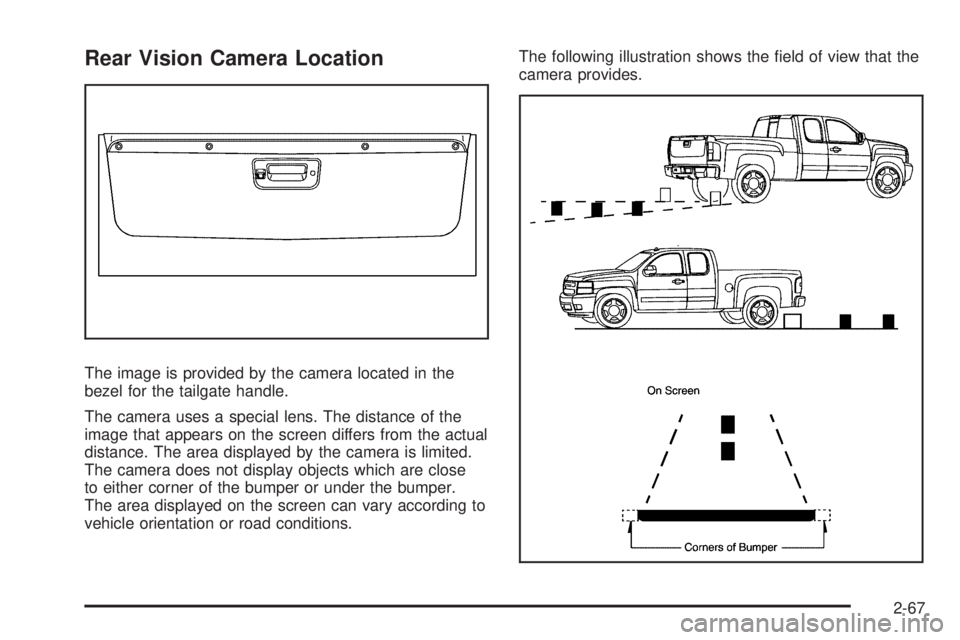
Rear Vision Camera Location
The image is provided by the camera located in the
bezel for the tailgate handle.
The camera uses a special lens. The distance of the
image that appears on the screen differs from the actual
distance. The area displayed by the camera is limited.
The camera does not display objects which are close
to either corner of the bumper or under the bumper.
The area displayed on the screen can vary according to
vehicle orientation or road conditions.The following illustration shows the eld of view that the
camera provides.
2-67
Page 167 of 602
When the System Does Not Seem To
Work Properly
The rear vision camera system might not work properly
or display a clear image if:
The RVC is turned off. See “Turning the Rear
Camera System On or Off” earlier in this section.
It is dark.
The sun or the beam of headlights is shining
directly into the camera lens.
Ice, snow, mud, or anything else builds up on the
camera lens. Clean the lens, rinse it with water,
and wipe it with a soft cloth.
The back of the vehicle is in an accident, the
position and mounting angle of the camera can
change or the camera can be affected. Be sure to
have the camera and its position and mounting
angle checked at your dealer/retailer.
There are extreme temperature changes.The rear vision camera system display in the rearview
mirror may turn off or not appear as expected due to
one of the following conditions. If this occurs the
left indicator light on the mirror will ash.
A slow ash may indicate a loss of video signal, or
no video signal present during the reverse cycle.
A fast ash may indicate that the display has been
on for the maximum allowable time during a
reverse cycle, or the display has reached an Over
Temperature limit.
The fast ash conditions are used to protect the
video device from high temperature conditions.
Once conditions return to normal the device
will reset and the green indicator will stop ashing.
During any of these fault conditions, the display will be
blank and the indicator will continue to ash as long
as the vehicle is in R (Reverse) or until the conditions
return to normal.
Pressing and holding
zwhen the left indicator light is
ashing will turn off the video display along with the
left indicator light.
2-69
Page 186 of 602

StabiliTrak®Indicator Light.............................3-44
Engine Coolant Temperature Gage
(US-Canada).............................................3-44
Tire Pressure Light.......................................3-45
Malfunction Indicator Lamp.............................3-45
Oil Pressure Gage (US-Canada).....................3-48
Oil Pressure Light.........................................3-49
Security Light...............................................3-50
Fog Lamp Light............................................3-50
Cruise Control Light......................................3-50
Highbeam On Light.......................................3-50
Four-Wheel-Drive Light..................................3-51
Tow/Haul Mode Light....................................3-51
Fuel Gage...................................................3-51
Low Fuel Warning Light.................................3-52
Driver Information Center (DIC).......................3-53
DIC Operation and Displays
(With DIC Buttons)....................................3-53
DIC Operation and Displays
(Without DIC Buttons)................................3-59DIC Compass..............................................3-63
DIC Warnings and Messages.........................3-66
DIC Vehicle Customization
(With DIC Buttons)....................................3-75
Audio System(s).............................................3-84
Setting the Clock..........................................3-85
Radio(s)......................................................3-87
Using an MP3 (Radio with CD or
Six-Disc CD Player).................................3-106
Using an MP3 (Radio with CD and
DVD Player)...........................................3-111
XM Radio Messages...................................3-117
Navigation/Radio System..............................3-118
Bluetooth
®.................................................3-118
Rear Seat Entertainment (RSE) System.........3-129
Rear Seat Audio (RSA)................................3-138
Theft-Deterrent Feature................................3-140
Audio Steering Wheel Controls......................3-140
Radio Reception.........................................3-141
Fixed Mast Antenna....................................3-142
XM™ Satellite Radio Antenna System............3-142
Section 3 Instrument Panel
3-2
Page 196 of 602

Windshield Washer
{CAUTION:
In freezing weather, do not use your washer until
the windshield is warmed. Otherwise the washer
uid can form ice on the windshield, blocking your
vision.
L(Washer Fluid):Push the paddle marked with the
windshield washer symbol at the top of the multifunction
lever, to spray washer uid on the windshield. The wipers
clear the window and then either stop or return to the
preset speed.
Heated Windshield Washer
For vehicles with the heated windshield washer uid
system it can be used to help clear ice, snow, tree sap,
or bugs from the windshield.
_(Heated Washer Fluid):Press the heated washer
uid button to activate the heated windshield washer uid
system. This activation initiates four heated wash/wipe
cycles. The rst heated wash/wipe cycle may take up to
40 seconds to occur, depending on outside temperature.
After the rst wash/wipe cycle, it may take up to
20 seconds for each of the remaining cycles to begin.Press the button again to turn off the heated windshield
washer uid system or it will automatically turn off after
four wipe cycles have been completed.
When the heated windshield washer uid system is
activated under certain outside temperature conditions,
steam may ow out of the washer nozzles for a short
period of time before washer uid is sprayed. This is a
normal condition.
HEATING WASH FLUID WASH WIPES PENDING is
displayed on the DIC when the washer system is heating
the uid. WASHER FLUID LOW ADD FLUID is displayed
when the washer uid is low. SeeDIC Warnings and
Messages on page 3-66.
Cruise Control
{CAUTION:
Cruise control can be dangerous where you cannot
drive safely at a steady speed. So, do not use the
cruise control on winding roads or in heavy traffic.
Cruise control can be dangerous on slippery roads.
On such roads, fast changes in tire traction can
cause excessive wheel slip, and you could lose
control. Do not use cruise control on slippery roads.
3-12
Page 205 of 602
Reading Lamps
For vehicles with reading lamps, they are located on the
overhead console.
To turn on the reading lamps, press the button located
next to each lamp. To turn them off, press the button
again.
The vehicle may also have reading lamps in other
locations. To turn the lamps on or off, press the button
located next to the lamp.
If the vehicle has a DVD Rear Seat Entertainment (RSE)
system, press the lamp lenses to turn the lamps on or off.
The lamps are xed and cannot be adjusted.
Cargo Lamp
The cargo lamps come on by turning the instrument panel
brightness control knob to the farthest clockwise position.
This knob is located on the instrument panel and also
turns on the dome lamps.
The cargo lamp can be used if more light is needed
in the cargo area of the vehicle or in the top-box
storage units.
Electric Power Management
The vehicle has Electric Power Management (EPM) that
estimates the battery’s temperature and state of charge.
It then adjusts the voltage for best performance and
extended life of the battery.
When the battery’s state of charge is low, the voltage is
raised slightly to quickly bring the charge back up. When
the state of charge is high, the voltage is lowered slightly
to prevent overcharging. If the vehicle has a voltmeter
gage or a voltage display on the Driver Information
Center (DIC), you may see the voltage move up or down.
This is normal. If there is a problem, an alert will be
displayed.
The battery can be discharged at idle if the electrical
loads are very high. This is true for all vehicles. This is
because the generator (alternator) may not be spinning
fast enough at idle to produce all the power that is
needed for very high electrical loads.
A high electrical load occurs when several of the following
are on, such as: headlamps, high beams, fog lamps, rear
window defogger, climate control fan at high speed,
heated seats, engine cooling fans, trailer loads, and loads
plugged into accessory power outlets.
3-21