2009 GMC SAVANA PASSENGER display
[x] Cancel search: displayPage 159 of 406
Driver Information Center (DIC)
Your vehicle has a Driver Information Center (DIC).
All messages will appear in the DIC display located at
the bottom of the instrument panel cluster. The DIC
buttons are located on the instrument panel, next to the
instrument panel cluster.
The DIC comes on when the ignition is on. After a short
delay, the DIC will display the information that was
last displayed before the engine was turned off.
The DIC displays trip, fuel, and vehicle system
information, and warning messages if a system problem
is detected.
If your vehicle has these features, the DIC also displays
the compass direction and the outside air temperature
when viewing the trip and fuel information. The compass
direction appears on the top right corner of the DIC
display. The outside air temperature automatically
appears in the bottom right corner of the DIC display.
If there is a problem with the system that controls
the temperature display, the numbers will be replaced
with dashes. If this occurs, have the vehicle serviced by
your dealer/retailer.
The DIC also allows some features to be customized.
SeeDIC Vehicle Customization on page 3-57for
more information.
DIC Operation and Displays
The DIC has different displays which can be accessed
by pressing the DIC buttons located on the instrument
panel, next to the instrument panel cluster.
DIC Buttons
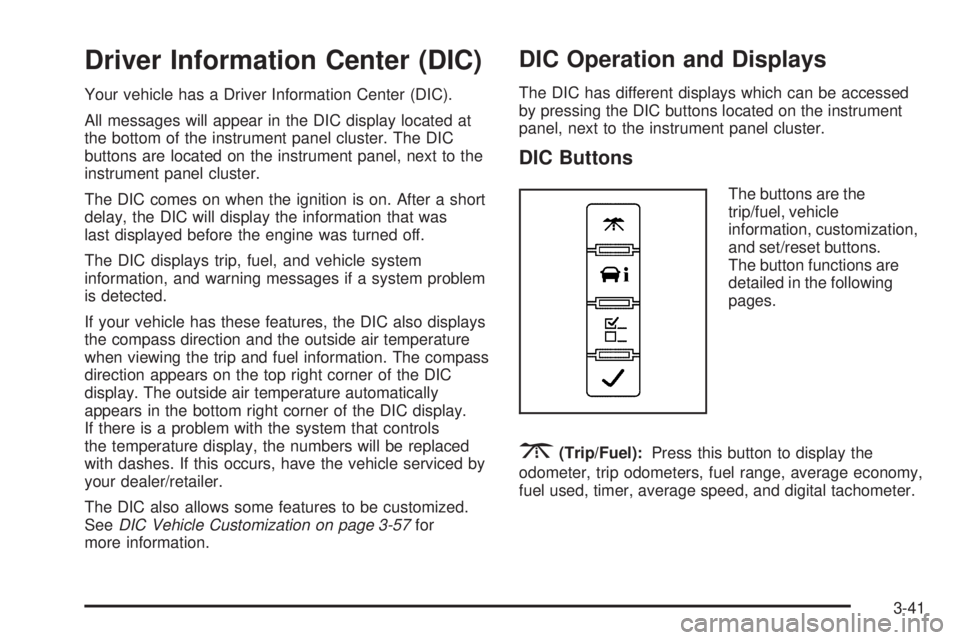
The buttons are the
trip/fuel, vehicle
information, customization,
and set/reset buttons.
The button functions are
detailed in the following
pages.
3(Trip/Fuel):Press this button to display the
odometer, trip odometers, fuel range, average economy,
fuel used, timer, average speed, and digital tachometer.
3-41
Page 160 of 406
T(Vehicle Information):Press this button to display
the oil life, units, tire pressure readings for vehicles
with the Tire Pressure Monitor System (TPMS), engine
hours, Tire Pressure Monitor System (TPMS)
programming for vehicles with the TPMS and without a
Remote Keyless Entry (RKE) transmitter, compass
zone and compass calibration on vehicles with
this feature, and RKE transmitter programming.
U(Customization):Press this button to customize the
feature settings on your vehicle. SeeDIC Vehicle
Customization on page 3-57for more information.
V(Set/Reset):Press this button to set or reset certain
functions and to turn off or acknowledge messages
on the DIC.
Trip/Fuel Menu Items
3
(Trip/Fuel):Press this button to scroll through the
following menu items:
Odometer
Press the trip/fuel button until XX mi (Km) displays.
This display shows the distance the vehicle has been
driven in either miles (mi) or kilometers (km).
Trip Odometers
Press the trip/fuel button until A or B displays. This
display shows the current distance traveled in either
miles (mi) or kilometers (km) since the last reset for each
trip odometer. Both trip odometers can be used at the
same time.
Each trip odometer can be reset to zero separately by
pressing the set/reset button while the desired trip
odometer is displayed.
The trip odometer has a feature called the retro-active
reset. This can be used to set the trip odometer to
the number of miles (kilometers) driven since the ignition
was last turned on. This can be used if the trip
odometer is not reset at the beginning of the trip.
To use the retro-active reset feature, press and hold the
set/reset button for at least four seconds. The trip
odometer will display the number of miles (mi) or
kilometers (km) driven since the ignition was last turned
on and the vehicle was moving. Once the vehicle begins
moving, the trip odometer will accumulate mileage. For
example, if the vehicle was driven 5 miles (8 km) before it
is started again, and then the retro-active reset feature is
activated, the display will show 5 miles (8 km). As the
vehicle begins moving, the display will then increase to
5.1 miles (8.2 km), 5.2 miles (8.4 km), etc.
3-42
Page 161 of 406
If the retro-active reset feature is activated after the
vehicle is started, but before it begins moving, the display
will show the number of miles (mi) or kilometers (km) that
were driven during the last ignition cycle.
Fuel Range
Press the trip/fuel button until FUEL RANGE displays.
This display shows the approximate number of
remaining miles (mi) or kilometers (km) the vehicle can
be driven without refueling. The display will show
LOW if the fuel level is low.
The fuel range estimate is based on an average of the
vehicle’s fuel economy over recent driving history
and the amount of fuel remaining in the fuel tank.
This estimate will change if driving conditions change.
For example, if driving in traffic and making frequent
stops, this display may read one number, but if
the vehicle is driven on a freeway, the number may
change even though the same amount of fuel is in the
fuel tank. This is because different driving conditions
produce different fuel economies. Generally, freeway
driving produces better fuel economy than city driving.
If your vehicle is low on fuel, the FUEL LEVEL LOW
message will be displayed. See “FUEL LEVEL LOW”
underDIC Warnings and Messages on page 3-48
for more information.
Average Economy
Press the trip/fuel button until AVG ECONOMY displays.
This display shows the approximate average miles per
gallon (mpg) or liters per 100 kilometers (L/100 km).
This number is calculated based on the number of mpg
(L/100 km) recorded since the last time this menu item
was reset. To reset AVG ECONOMY, press and hold the
set/reset button. The display will return to zero.
Fuel Used
Press the trip/fuel button until FUEL USED displays.
This display shows the number of gallons (gal) or
liters (L) of fuel used since the last reset of this menu
item. To reset the fuel used information, press and hold
the set/reset button while FUEL USED is displayed.
Timer
Press the trip/fuel button until TIMER displays.
This display can be used as a timer.
To start the timer, press the set/reset button while TIMER
is displayed. The display will show the amount of time
that has passed since the timer was last reset, not
including time the ignition is off. Time will continue to be
counted as long as the ignition is on, even if another
display is being shown on the DIC. The timer will record
up to 99 hours, 59 minutes and 59 seconds (99:59:59)
after which the display will return to zero.
3-43
Page 162 of 406
To stop the timer, press the set/reset button briefly while
TIMER is displayed.
To reset the timer to zero, press and hold the set/reset
button while TIMER is displayed.
Average Speed
Press the trip/fuel button until AVERAGE SPEED
displays. This display shows the average speed
of the vehicle in miles per hour (mph) or kilometers
per hour (km/h). This average is calculated based on the
various vehicle speeds recorded since the last reset of
this value. To reset the value, press and hold the
set/reset button. The display will return to zero.
Digital Tachometer
Press the trip/fuel button until Tachometer ##00 RPM
displays. This display shows the engine speed in
revolutions per minute (RPM).
Blank Display
This display shows no information.
Vehicle Information Menu Items
T
(Vehicle Information):Press this button to scroll
through the following menu items:
Oil Life
Press the vehicle information button until OIL LIFE
REMAINING displays. This display shows an estimate
of the oil’s remaining useful life. If you see 99% OIL LIFE
REMAINING on the display, that means 99% of the
current oil life remains. The engine oil life system
will alert you to change the oil on a schedule consistent
with your driving conditions.
When the remaining oil life is low, the CHANGE
ENGINE OIL SOON message will appear on the display.
See “CHANGE ENGINE OIL SOON” underDIC
Warnings and Messages on page 3-48. You should
change the oil as soon as possible. SeeEngine Oil on
page 5-15. In addition to the engine oil life system
monitoring the oil life, additional maintenance is
recommended in the Maintenance Schedule in this
manual. SeeScheduled Maintenance on page 6-4for
more information.
Remember, you must reset the OIL LIFE yourself after
each oil change. It will not reset itself. Also, be careful not
to reset the OIL LIFE accidentally at any time other than
when the oil has just been changed. It cannot be reset
accurately until the next oil change. To reset the engine
oil life system, seeEngine Oil Life System on page 5-18.
3-44
Page 163 of 406

Units
Press the vehicle information button until UNITS
displays. This display allows you to select between
English or Metric units of measurement. Once in this
display, press the set/reset button to select between
ENGLISH or METRIC units.
Tire Pressure
If your vehicle has the Tire Pressure Monitor System
(TPMS), the pressure for each tire can be viewed in the
DIC. The tire pressure will be shown in either pounds
per square inch (psi) or kilopascals (kPa). Press
the vehicle information button until the DIC displays
FRONT TIRES PSI (kPa) LEFT ## RIGHT ##. Press the
vehicle information button again until the DIC displays
REAR TIRES PSI (kPa) LEFT ## RIGHT ##.
If a low or high tire pressure condition is detected by
the system while driving, a message advising you
to check the pressure in a specific tire will appear in
the display. SeeInflation - Tire Pressure on page 5-63
andDIC Warnings and Messages on page 3-48for
more information.
If the tire pressure display shows dashes instead of
a value, there may be a problem with your vehicle. If this
consistently occurs, see your dealer/retailer for service.
Engine Hours
Press the vehicle information button until ENGINE
HOURS displays. This display shows the total number
of hours the engine has run.
Relearn Tire Positions
Your vehicle may have this display. To access this
display, the vehicle must be in P (Park). If your vehicle
has the Tire Pressure Monitor System (TPMS), after
rotating the tires or after replacing a tire or sensor, the
system must re-learn the tire positions. To re-learn
the tire positions, seeTire Pressure Monitor System on
page 5-65. SeeTire Inspection and Rotation on
page 5-70andDIC Warnings and Messages on
page 3-48for more information.
Change Compass Zone
Your vehicle may have this feature. To change the
compass zone through the DIC, seeDIC Compass on
page 3-46.
Calibrate Compass
Your vehicle may have this feature. The compass can
be manually calibrated. To calibrate the compass
through the DIC, seeDIC Compass on page 3-46.
3-45
Page 164 of 406
Relearn Remote Key
To access this display, the vehicle must be in P (Park).
This display allows you to match Remote Keyless
Entry (RKE) transmitters to your vehicle. This procedure
will erase all previously learned transmitters. Therefore,
they must be relearned as additional transmitters.
To match an RKE transmitter to your vehicle:
1. Press the vehicle information button until
PRESS
VTO RELEARN REMOTE KEY displays.
2. Press the set/reset button until REMOTE KEY
LEARNING ACTIVE is displayed.
3. Press and hold the lock and unlock buttons on the
first transmitter at the same time for about
15 seconds.
A chime will sound indicating that the transmitter is
matched.
4. To match additional transmitters at this time,
repeat Step 3.
Each vehicle can have a maximum of four
transmitters matched to it.
5. To exit the programming mode, you must cycle the
key to LOCK/OFF.
Blank Display
This display shows no information.
DIC Compass
Your vehicle may have a compass in the Driver
Information Center (DIC).
Compass Zone
Your dealer/retailer will set the correct zone for your
location.
Under certain circumstances, such as during a long
distance cross-country trip or moving to a new state or
province, it will be necessary to compensate for
compass variance by resetting the zone through the
DIC if the zone is not set correctly.
Compass variance is the difference between the earth’s
magnetic north and true geographic north. If the compass
is not set to the zone where you live, the compass may
give false readings. The compass must be set to the
variance zone in which the vehicle is traveling.
3-46
Page 165 of 406
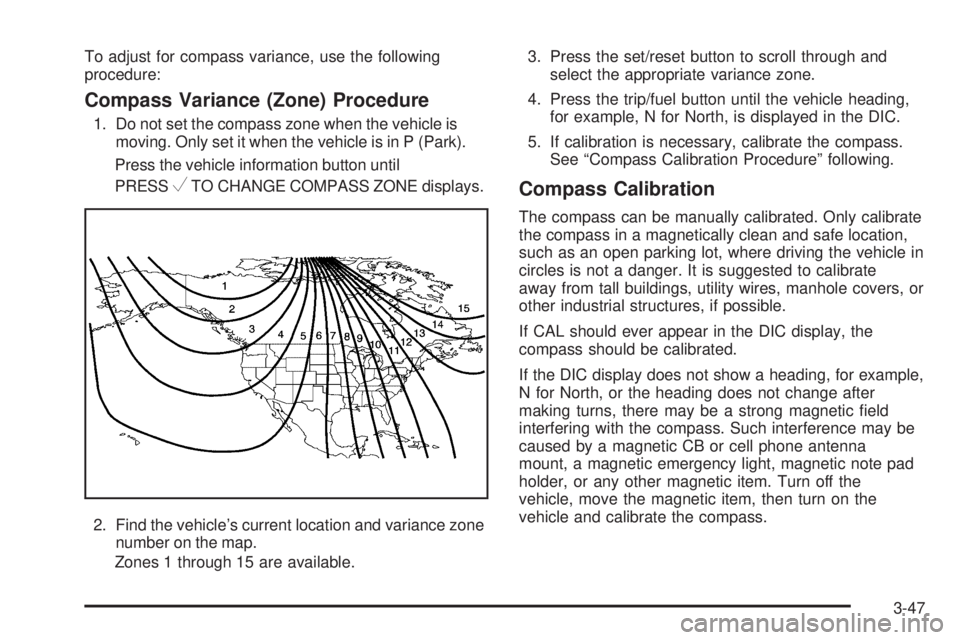
To adjust for compass variance, use the following
procedure:
Compass Variance (Zone) Procedure
1. Do not set the compass zone when the vehicle is
moving. Only set it when the vehicle is in P (Park).
Press the vehicle information button until
PRESS
VTO CHANGE COMPASS ZONE displays.
2. Find the vehicle’s current location and variance zone
number on the map.
Zones 1 through 15 are available.3. Press the set/reset button to scroll through and
select the appropriate variance zone.
4. Press the trip/fuel button until the vehicle heading,
for example, N for North, is displayed in the DIC.
5. If calibration is necessary, calibrate the compass.
See “Compass Calibration Procedure” following.Compass Calibration
The compass can be manually calibrated. Only calibrate
the compass in a magnetically clean and safe location,
such as an open parking lot, where driving the vehicle in
circles is not a danger. It is suggested to calibrate
away from tall buildings, utility wires, manhole covers, or
other industrial structures, if possible.
If CAL should ever appear in the DIC display, the
compass should be calibrated.
If the DIC display does not show a heading, for example,
N for North, or the heading does not change after
making turns, there may be a strong magnetic field
interfering with the compass. Such interference may be
caused by a magnetic CB or cell phone antenna
mount, a magnetic emergency light, magnetic note pad
holder, or any other magnetic item. Turn off the
vehicle, move the magnetic item, then turn on the
vehicle and calibrate the compass.
3-47
Page 166 of 406
To calibrate the compass, use the following procedure:
Compass Calibration Procedure
1. Before calibrating the compass, make sure the
compass zone is set to the variance zone in
which the vehicle is located. See “Compass
Variance (Zone) Procedure” earlier in this section.
Do not operate any switches such as window,
sunroof, climate controls, seats, etc. during
the calibration procedure.
2. Press the vehicle information button until
PRESS
VTO CALIBRATE COMPASS displays.
3. Press the set/reset button to start the compass
calibration.
4. The DIC will display CALIBRATING: DRIVE IN
CIRCLES. Drive the vehicle in tight circles at
less than 5 mph (8 km/h) to complete the calibration.
The DIC will display CALIBRATION COMPLETE
for a few seconds when the calibration is complete.
The DIC display will then return to PRESS
VTO
CALIBRATE COMPASS.
DIC Warnings and Messages
Messages are displayed on the DIC to notify the driver
that the status of the vehicle has changed and that
some action may be needed by the driver to correct the
condition. Multiple messages may appear one after
another.
Some messages may not require immediate action, but
you can press any of the DIC buttons on the instrument
panel to acknowledge that you received the messages
and to clear them from the display.
Some messages cannot be cleared from the DIC
display because they are more urgent. These messages
require action before they can be cleared. You should
take any messages that appear on the display seriously
and remember that clearing the messages will only
make the messages disappear, not correct the problem.
The following are the possible messages that can be
displayed and some information about them.
If your vehicle has the DURAMAX
®Diesel engine, see
the DURAMAX®Diesel manual for more information.
3-48