2009 GMC SAVANA lock
[x] Cancel search: lockPage 187 of 404
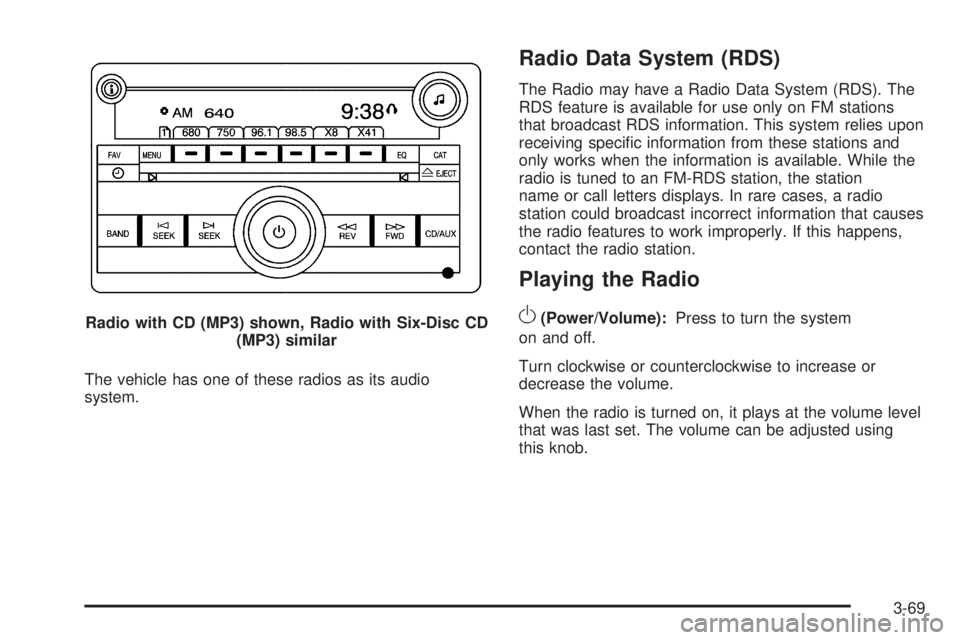
The vehicle has one of these radios as its audio
system.
Radio Data System (RDS)
The Radio may have a Radio Data System (RDS). The
RDS feature is available for use only on FM stations
that broadcast RDS information. This system relies upon
receiving specific information from these stations and
only works when the information is available. While the
radio is tuned to an FM-RDS station, the station
name or call letters displays. In rare cases, a radio
station could broadcast incorrect information that causes
the radio features to work improperly. If this happens,
contact the radio station.
Playing the Radio
O
(Power/Volume):Press to turn the system
on and off.
Turn clockwise or counterclockwise to increase or
decrease the volume.
When the radio is turned on, it plays at the volume level
that was last set. The volume can be adjusted using
this knob. Radio with CD (MP3) shown, Radio with Six-Disc CD
(MP3) similar
3-69
Page 188 of 404
4(Information) (AM-FM Radio and Radio with CD
(Base)):Press to switch the display between the radio
station frequency and the time. While the ignition is
off, press to display the time.
4(Information) (MP3 and RDS Features):Press to
display additional text information related to the current
FM-RDS station or MP3 song. A choice of additional
information such as: Channel, Song, Artist, and
CAT (category) can display. Continue pressing to
highlight the desired label, or press the pushbutton
positioned under any one of the labels and the
information about that label displays.
When information is not available, No Info displays.
H(Clock) (AM-FM Radio and Radio with CD (Base)):
The radio has a clock button for setting the time. With
this type of radio, the clock can be set with either
the radio turned on or off. SeeSetting the Clock on
page 3-66for more information.Speed Compensated Volume (SCV):Radios with
Speed Compensated Volume (SCV) automatically
adjusts the radio volume to compensate for road and
wind noise as you speed up or slow down while driving.
That way, the volume level should sound about the
same as you drive.
To activate SCV:
1. Set the radio volume to the desired level.
2. Press the MENU button to display the radio
setup menu.
3. Press the pushbutton under the AUTO VOLUM
label on the radio display.
4. Press the pushbutton under the desired Speed
Compensated Volume setting (OFF, Low, Med,
or High) to select the level of radio volume
compensation. The display times out after
approximately 10 seconds. Each higher setting
allows for more radio volume compensation at
faster vehicle speeds.
3-70
Page 189 of 404

Finding a Station
BAND:Press to switch between FM1 and FM2 and
AM. The selection displays.
f(Tune):Turn clockwise or counterclockwise to
increase or decrease the station frequency.
©SEEK¨:Press the arrows to go to the previous
or to the next station and stay there.
To scan stations, press and hold either arrow for
two seconds until a beep sounds. The radio goes to a
station, plays for a few seconds, then goes to the next
station. For AM-FM Radio and Radio with CD (Base), the
station frequency flashes while the radio is in the scan
mode. Press either arrow again to stop scanning.
The radio seeks and scans stations only with a strong
signal that are in the selected band.
For AM-FM Radio and Radio with CD (Base), scan
presets within the current selected band by pressing and
holding either SEEK arrow for four seconds until a double
beep sounds. The radio goes to a stored preset, plays for
a few seconds if a strong signal is present, then goes to
the next stored preset. The station frequency flashes
while the radio is in the scan mode.
Setting Preset Stations
If the radio does not have XM™, up to 18 stations
(six FM1, six FM2, and six AM), can be programmed on
the six numbered pushbuttons, by performing the
following steps:
1. Turn the radio on.
2. Press BAND to select FM1, FM2, or AM.
3. Tune in the desired station.
4. Press and hold one of the six numbered
pushbuttons for three seconds until a beep sounds.
When that pushbutton is pressed and released,
the station that was set, returns.
5. Repeat the Steps 2 through 4 for each pushbutton.
Storing a Radio Station as a Favorite
Drivers are encouraged to set up their radio station
favorites while the vehicle is parked. Tune to favorite
stations using the presets, favorites button, and steering
wheel controls, if the vehicle has this feature. See
Defensive Driving on page 4-2.
3-71
Page 191 of 404
Setting the Tone (Bass/Treble)
(AM-FM Radio and Radio with
CD (Base))
BASS/TREB Bass/Treble:To adjust the bass or treble,
press the
fknob or the EQ button until the desired tone
control label displays. Turn the
fknob clockwise or
counterclockwise to increase or decrease the setting.
The display shows the current bass or treble level.
If a station’s frequency is weak, or if there is static,
decrease the treble.
Unique BASS/TREB settings can be saved for each
source.
Setting the Tone
(Bass/Midrange/Treble)
BASS/MID/TREB (Bass, Midrange, or Treble):To
adjust bass, midrange, or treble, press the
fknob until
the tone control labels display. Continue pressing to
highlight the desired label, or press the pushbutton
positioned under the desired label. Turn the
fknob
clockwise or counterclockwise to adjust the highlighted
setting. You can also adjust the highlighted setting by
pressing either SEEK arrow,
\FWD, orsREV button
until the desired levels are obtained. If a station’s
frequency is weak or if there is static, decrease the treble.To quickly adjust bass, midrange, or treble to the middle
position, press the pushbutton positioned under the
BASS, MID, or TREB label for more than two seconds
and the level adjusts to the middle position.
To quickly adjust all tone and speaker controls to the
middle position, press the
fknob for more than
two seconds until a beep sounds.
EQ (Equalization):Press this button to choose bass
and treble equalization settings designed for different
types of music. The choices are pop, rock, country, talk,
jazz, and classical. Selecting MANUAL or changing
bass or treble, returns the EQ to the manual bass and
treble settings.
Unique EQ settings can be saved for each source.
Adjusting the Speakers (Balance/Fade)
(AM-FM Radio and Radio with
CD (Base))
`
(Balance/Fade):To adjust the balance or fade,
press the
`button or thefknob until the desired
speaker control label displays. Turn the
fknob
clockwise or counterclockwise to adjust the setting.
3-73
Page 192 of 404
Adjusting the Speakers (Balance/Fade)
BAL/FADE (Balance/Fade):To adjust balance or
fade, press the
fknob until the speaker control labels
display. Continue pressing to highlight the desired
label, or press the pushbutton positioned under the
desired label. Turn the
fknob clockwise or
counterclockwise to adjust the highlighted setting.
To quickly adjust balance or fade to the middle position,
press the pushbutton positioned under the BAL or
FADE label for more than two seconds. A beep sounds
and the level adjusts to the middle position.
To quickly adjust all speaker and tone controls to the
middle position, press the
fknob for more than
two seconds until a beep sounds.
Finding a Category (CAT) Station
CAT (Category):The CAT button is used to find XM™
stations while the radio is in the XM™ mode.
XM™ is a satellite radio service that is based in the
United States and Canada only.
For this vehicle, the XM™ function is not available.
Radio Messages
Calibration Error:The audio system has been
calibrated for the vehicle from the factory. If Calibration
Error displays, it means that the radio has not been
configured properly for the vehicle and it must be
returned to your dealer/retailer for service.
Locked or Loc:One of these messages will display
when the THEFTLOCK
®system has locked up the
radio. Take the vehicle to your dealer/retailer for service.
If any error occurs repeatedly or if an error cannot be
corrected, contact your dealer/retailer.
Playing a CD (Single CD Player)
Insert a CD partway into the slot, label side up. The
player pulls it in and the CD should begin playing.
Playing a CD(s) (Six-Disc CD Player)
LOAD^:Press to load CDs into the CD player.
This CD player holds up to six CDs.
To insert one CD, do the following:
1. Press and release the
^button.
2. Wait for the message to insert the disc.
3. Load a CD. Insert the CD partway into the slot,
label side up. The player pulls the CD in.
3-74
Page 197 of 404
Drivers are encouraged to set up any auxiliary device
while the vehicle is in P (Park). SeeDefensive Driving on
page 4-2for more information on driver distraction.
To use a portable audio player, connect a
3.5 mm (1/8 inch) cable to the radio’s front auxiliary
input jack. When a device is connected, press the
radio CD/AUX button to begin playing audio from
the device over the vehicle speakers.
O(Power/Volume):Turn clockwise or
counterclockwise to increase or decrease the
volume of the portable player. You might need
to do additional volume adjustments from the
portable device if the volume is not loud or soft
enough.
BAND:Press to listen to the radio while a portable audio
device is playing. The portable audio device continues
playing, so you might want to stop it or turn it off.
CD/AUX (CD/Auxiliary):Press to play a CD while a
portable audio device is playing. Press again and the
system begins playing audio from the connected portable
audio player. If a portable audio player is not connected,
the message No Aux Input Device displays.
Using an MP3
MP3 CD-R or CD-RW Disc
The radio plays MP3 files that were recorded on a CD-R
or CD-RW disc. The files can be recorded with the
following fixed bit rates: 32 kbps, 40 kbps, 56 kbps,
64 kbps, 80 kbps, 96 kbps, 112 kbps, 128 kbps,
160 kbps, 192 kbps, 224 kbps, 256 kbps, and 320 kbps or
a variable bit rate. Song title, artist name, and album are
available for display by the radio when recorded using
ID3 tags version 1 and 2.
Compressed Audio
The radio also plays discs that contain both
uncompressed CD audio (.CDA files) and MP3 files.
By default the radio shows the MP3 label on the left side
of the screen but plays both file formats in the order
in which they were recorded to the disc.
3-79
Page 202 of 404
Once the disc has scanned, the player defaults to playing
MP3 files in order by artist. The current artist playing is
shown on the second line of the display between the
arrows. Once all songs by that artist are played, the
player moves to the next artist in alphabetical order on
the CD-R/CD-RW and begins playing MP3 files by that
artist. If you want to listen to MP3 files by another artist,
press the pushbutton located below either arrow button.
You will go to the next or previous artist in alphabetical
order. Continue pressing either button until the desired
artist is displayed.
To change from playback by artist to playback by album,
press the pushbutton located below the Sort By label.
From the sort screen, push one of the buttons below the
album button. Press the pushbutton below the back label
to return to the main music navigator screen. Now the
album name is displayed on the second line between the
arrows and songs from the current album begins to play.
Once all songs from that album are played, the player
moves to the next album in alphabetical order on the
CD-R/CD-RW and begins playing MP3 files from that
album.
To exit music navigator mode, press the pushbutton
below the Back label to return to normal MP3 playback.
BAND:Press this button to listen to the radio when a
CD is playing. The inactive CD remains inside the radio
for future listening.CD/AUX (CD/Auxiliary):Press this button to play a CD
when listening to the radio. The CD icon and a
message showing disc and/or track number displays
when a CD is in the player. Press this button again and
the system automatically searches for an auxiliary
input device such as a portable audio player. If a
portable audio player is not connected, “No Input Device
Found” displays.
Theft-Deterrent Feature
Non-RDS Radios
THEFTLOCK®is designed to discourage theft of your
vehicle’s radio. The feature works automatically by
learning a portion of the Vehicle Identification Number
(VIN). If the radio is moved to a different vehicle, it does
not operate and LOC displays.
With THEFTLOCK
®activated, the radio does not
operate if stolen.
RDS Radios
THEFTLOCK®is designed to discourage theft of your
vehicle’s radio. The feature works automatically by
learning a portion of the Vehicle Identification Number
(VIN). If the radio is moved to a different vehicle, it does
not operate and LOCKED displays.
3-84
Page 203 of 404
When the radio and vehicle are turned off, the
blinking red light indicates that THEFTLOCK®
is armed.
With THEFTLOCK
®activated, the radio does not
operate if stolen.
Audio Steering Wheel Controls
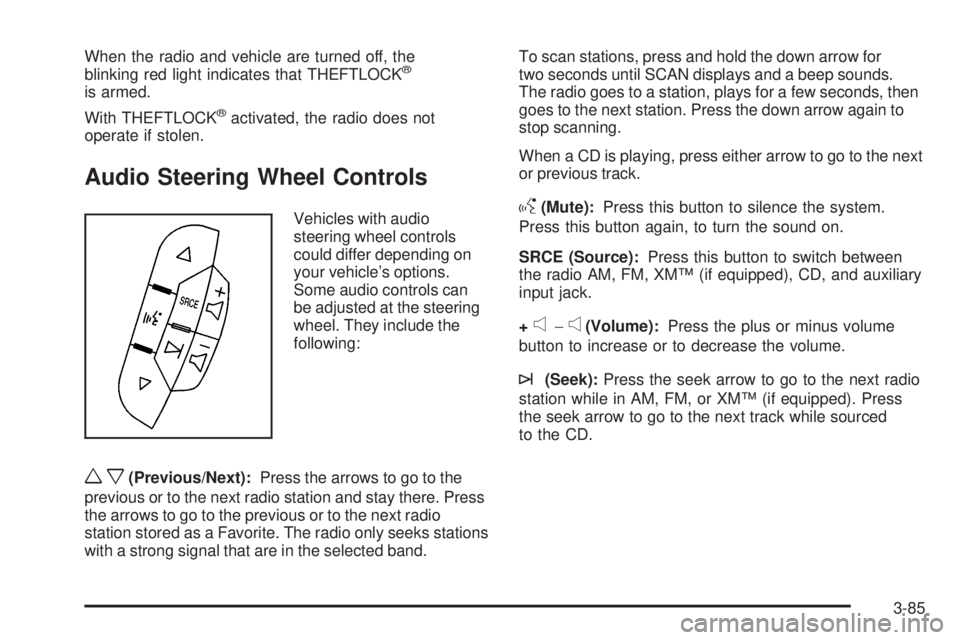
Vehicles with audio
steering wheel controls
could differ depending on
your vehicle’s options.
Some audio controls can
be adjusted at the steering
wheel. They include the
following:
wx(Previous/Next):Press the arrows to go to the
previous or to the next radio station and stay there. Press
the arrows to go to the previous or to the next radio
station stored as a Favorite. The radio only seeks stations
with a strong signal that are in the selected band.To scan stations, press and hold the down arrow for
two seconds until SCAN displays and a beep sounds.
The radio goes to a station, plays for a few seconds, then
goes to the next station. Press the down arrow again to
stop scanning.
When a CD is playing, press either arrow to go to the next
or previous track.
g(Mute):Press this button to silence the system.
Press this button again, to turn the sound on.
SRCE (Source):Press this button to switch between
the radio AM, FM, XM™ (if equipped), CD, and auxiliary
input jack.
+
e−e(Volume):Press the plus or minus volume
button to increase or to decrease the volume.
¨(Seek):Press the seek arrow to go to the next radio
station while in AM, FM, or XM™ (if equipped). Press
the seek arrow to go to the next track while sourced
to the CD.
3-85