2009 GMC ACADIA radio controls
[x] Cancel search: radio controlsPage 206 of 420

r/j(Play/Pause):Press either
the play or pause icon displayed on
the radio system, to toggle between
pausing or restarting playback of
a DVD.
If the forward arrow is showing
on display, the system is in
pause mode.
If the pause icon is showing
on display, the system is in
playback mode.
If the DVD screen is off, press the
play button to turn the screen on.
Some DVDs begin playing after the
previews have nished, although
there could be a delay of up
to 30 seconds. If the DVD does
not begin playing the movie
automatically, press the pushbutton
located under the play/pause
icon displayed on the radio. If the
DVD still does not play, refer to the
on-screen instructions, if available.
c(Stop):Press to stop playing,
rewinding, or fast forwarding a DVD.
r(Enter):Press to select the
choices that are highlighted in
any menu.
y(Menu):Press to access the
DVD menu. The DVD menu is
different on every DVD. Use the
pushbuttons located under the
navigation arrows to navigate the
cursor through the DVD menu.
After making a selection press this
button. This button only operates
when using a DVD.
Nav (Navigate):Press to display
directional arrows for navigating
through the menus.
q(Return):Press to exit the
current active menu and return
to the previous menu. This button
operates only when a DVD is
playing and a menu is active.DVD-A (Audio) Display Buttons
Once a DVD-A is inserted, the radio
display menu shows several
icons. Press the pushbuttons
located under any desired icon
during DVD playback. See the icon
list below for more information.
The rear seat operator can navigate
the DVD-A menus and controls
through the remote control.
See “Remote Control”, underRear
Seat Entertainment (RSE) System
on page 3-109for more information.
The Video Screen does not
automatically power on when the
DVD-A is inserted into the DVD slot.
It must be manually turned on by
the rear seat occupant through
the remote control power button.
3-86 Instrument Panel
Page 239 of 420

P(Power):Press to turn the RSA
on or off.
Volume: Turn to increase or to
decrease the volume of the wired
headphones. The left knob controls
the left headphones and the
right knob controls the right
headphones.
SRCE (Source): Press to switch
between the radio (AM/FM/XM™),
CD, and if the vehicle has these
features, DVD, front auxiliary, and
rear auxiliary.©¨(Seek): Press to go to the
previous or to the next station
and stay there. This function is
inactive, with some radios, if
the front seat passengers are
listening to the radio.
Press and hold
©or¨until the
display ashes to tune to an
individual station. The display stops
ashing after the buttons have not
been pushed for more than
two seconds. This function is
inactive, with some radios, if the
front seat passengers are listening
to the radio. While listening to a disc, press
¨to
go to the next track or chapter on the
disc. Press
©to go back to the
start of the current track or chapter
(if more than ten seconds have
played). This function is inactive,
with some radios, if the front seat
passengers are listening to the disc.
When a DVD video menu is being
displayed, press
©or¨to perform
a cursor up or down on the menu.
Hold
©or¨to perform a cursor left
or right on the menu.
PROG (Program): Press to go to
the next preset radio station or
channel set on the main radio.
This function is inactive, with some
radios, if the front seat passengers
are listening to the radio.
When a CD or DVD audio disc is
playing, press PROG to go to
the beginning of the CD or DVD
audio. This function is inactive,
with some radios, if the front seat
passengers are listening to the disc.
Instrument Panel 3-119
Page 241 of 420

Audio Steering Wheel
Controls
Vehicles with audio steering wheel
controls could differ depending
on the vehicle’s options. Some audio
controls can be adjusted at the
steering wheel.
w(Next):Press to go to the next
radio station stored as a favorite,
or the next track if a CD/DVD
is playing.
cx(Previous/End):Press to
go to the previous radio station
stored as a favorite, the next track if
a CD/DVD is playing, to reject an
incoming call, or end a current call.
bg(Mute/Push to Talk):Press
to silence the vehicle speakers only.
Press again to turn the sound on.
For vehicles with OnStar
®or
Bluetooth systems, press and hold
for longer than two seconds to
interact with those systems. See
OnStar
®System on page 2-41and
Bluetooth®on page 3-99in this
manual for more information.
SRCE (Source):Press to switch
between the radio (AM, FM, XM),
CD, and for vehicles with, DVD,
front auxiliary, and rear auxiliary.
For vehicles with the navigation
system, press and hold this button
for longer than one second to initiate
voice recognition. See “Voice
Recognition” in the Navigation
System manual for more information.+
e−e(Volume):Press to
increase or to decrease the radio
volume.
¨(Seek):Press to go to the next
radio station while in AM, FM, or
XM™. Press
¨to go to the next
track or chapter while sourced to the
CD or DVD slot. Press the
¨if
multiple discs are loaded to go to
the next disc while sourced to a
CD player.
Radio Reception
Frequency interference and static
can occur during normal radio
reception if items such as cell phone
chargers, vehicle convenience
accessories, and external electronic
devices are plugged into the
accessory power outlet. If there is
interference or static, unplug the item
from the accessory power outlet.
Instrument Panel 3-121
Page 409 of 420

A
Accessories and
Modications...................... 5-3
Accessory Power Outlets......3-20
Adding Equipment to Your
Airbag-Equipped Vehicle....1-60
Additives, Fuel...................... 5-5
Add-On Electrical
Equipment.......................5-89
Air Cleaner/Filter, Engine.......5-15
Air Conditioning...........3-22, 3-25
Airbag
Passenger Status
Indicator.......................3-36
Readiness Light................3-36
Airbag System.....................1-48
Adding Equipment to
Your Airbag-Equipped
Vehicle........................1-60
How Does an Airbag
Restrain?.....................1-53
Passenger Sensing
System........................1-55
Servicing Your
Airbag-Equipped
Vehicle........................1-59Airbag System (cont.)
What Makes an Airbag
Inate?........................1-53
What Will You See After
an Airbag Inates?........1-54
When Should an
Airbag Inate?..............1-51
Where Are the Airbags?.....1-50
All-Wheel Drive....................5-33
All-Wheel-Drive (AWD)
System............................. 4-7
Antilock Brake
System (ABS).................... 4-4
Antilock Brake, System
Warning Light...................3-39
Appearance Care
Aluminum or
Chrome-Plated Wheels . . . 5-86
Care of Safety Belts..........5-84
Chemical Paint Spotting.....5-88
Cleaning Exterior Lamps/
Lenses........................5-85
Fabric/Carpet...................5-83
Finish Care......................5-85
Finish Damage.................5-88
Instrument Panel, Vinyl,
and Other Plastic
Surfaces......................5-84Appearance Care (cont.)
Interior Cleaning...............5-81
Leather...........................5-83
Sheet Metal Damage........5-87
Tires...............................5-87
Underbody Maintenance....5-88
Washing Your Vehicle........5-84
Weatherstrips...................5-84
Windshield, Backglass,
and Wiper Blades..........5-86
Appointments, Scheduling
Service............................. 7-8
Audio System......................3-72
Audio Steering Wheel
Controls.....................3-121
Navigation/Radio System,
see Navigation Manual . . . 3-99
Radio Reception.............3-121
Rear Audio
Controller (RAC)..........3-120
Rear Seat Audio (RSA)....3-118
Setting the Clock..............3-73
Theft-Deterrent Feature....3-120
Audio System(s)..................3-74
Automatic Transmission
Fluid...............................5-16
Operation........................2-24
INDEX i-1
Page 415 of 420
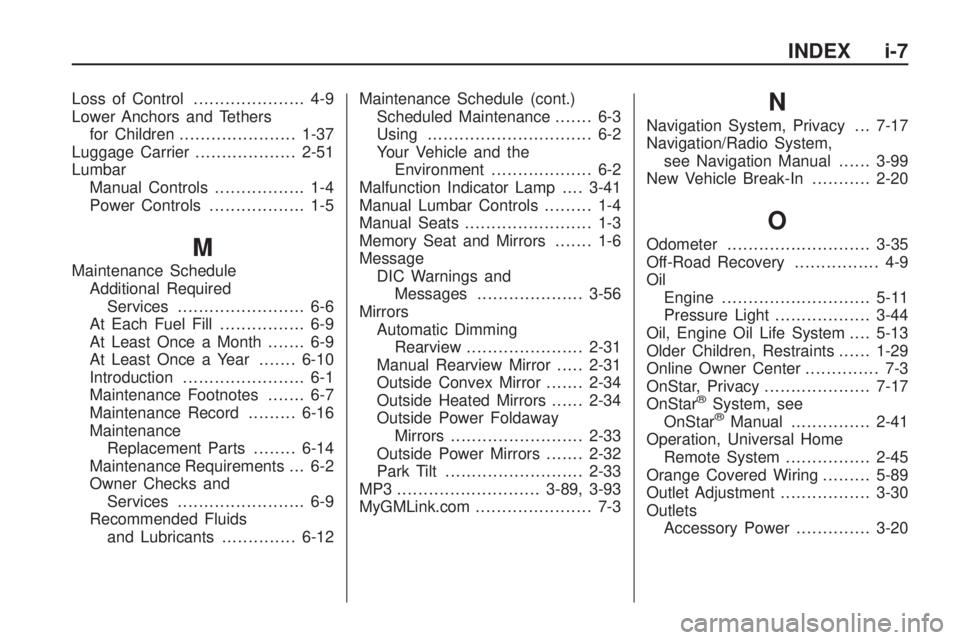
Loss of Control..................... 4-9
Lower Anchors and Tethers
for Children......................1-37
Luggage Carrier...................2-51
Lumbar
Manual Controls................. 1-4
Power Controls.................. 1-5
M
Maintenance Schedule
Additional Required
Services........................ 6-6
At Each Fuel Fill................ 6-9
At Least Once a Month....... 6-9
At Least Once a Year.......6-10
Introduction....................... 6-1
Maintenance Footnotes....... 6-7
Maintenance Record.........6-16
Maintenance
Replacement Parts........6-14
Maintenance Requirements . . . 6-2
Owner Checks and
Services........................ 6-9
Recommended Fluids
and Lubricants..............6-12Maintenance Schedule (cont.)
Scheduled Maintenance....... 6-3
Using............................... 6-2
Your Vehicle and the
Environment................... 6-2
Malfunction Indicator Lamp....3-41
Manual Lumbar Controls......... 1-4
Manual Seats........................ 1-3
Memory Seat and Mirrors....... 1-6
Message
DIC Warnings and
Messages....................3-56
Mirrors
Automatic Dimming
Rearview......................2-31
Manual Rearview Mirror.....2-31
Outside Convex Mirror.......2-34
Outside Heated Mirrors......2-34
Outside Power Foldaway
Mirrors.........................2-33
Outside Power Mirrors.......2-32
Park Tilt..........................2-33
MP3 ...........................3-89, 3-93
MyGMLink.com...................... 7-3
N
Navigation System, Privacy . . . 7-17
Navigation/Radio System,
see Navigation Manual......3-99
New Vehicle Break-In...........2-20
O
Odometer...........................3-35
Off-Road Recovery................ 4-9
Oil
Engine............................5-11
Pressure Light..................3-44
Oil, Engine Oil Life System....5-13
Older Children, Restraints......1-29
Online Owner Center.............. 7-3
OnStar, Privacy....................7-17
OnStar
®System, see
OnStar®Manual...............2-41
Operation, Universal Home
Remote System................2-45
Orange Covered Wiring.........5-89
Outlet Adjustment.................3-30
Outlets
Accessory Power..............3-20
INDEX i-7
Page 416 of 420

Outside
Convex Mirror..................2-34
Heated Mirrors.................2-34
Power Foldaway Mirrors....2-33
Power Mirrors..................2-32
Overheated Engine Protection
Operating Mode................5-23
Owner Checks and Services . . . 6-9
Owners, Canadian.................... ii
P
Paint, Damage.....................5-88
Parade Dimming..................3-15
Park
Shifting Into.....................2-27
Shifting Out of..................2-29
Park Aid.....................2-34, 2-37
Park Brake..........................2-27
Park Tilt Mirrors...................2-33
Parking
Assist.............................2-34
Over Things That Burn......2-29
Passenger Airbag Status
Indicator..........................3-36
Passenger Sensing System....1-55
Passing................................ 4-9PASS-Key
®III+ Electronic
Immobilizer......................2-17
PASS-Key
®III+ Electronic
Immobilizer Operation........2-18
Perchlorate Materials
Requirements, California...... 5-3
Phone
Bluetooth
®.......................3-99
Power
Door Locks........................ 2-8
Electrical System..............5-90
Liftgate............................2-11
Lumbar Controls................. 1-5
Outlet 115 Volt Alternating
Current........................3-21
Retained Accessory...........2-21
Seat................................. 1-4
Steering Fluid...................5-23
Windows.........................2-14
Privacy...............................7-16
Event Data Recorders.......7-16
Navigation System............7-17
OnStar............................7-17
Radio Frequency
Identication.................7-17
Programmable Automatic
Door Locks........................ 2-9
R
Radio Frequency Identication
(RFID), Privacy.................7-17
Radio(s).............................3-74
Radios
Navigation/Radio System,
see Navigation Manual . . . 3-99
Rear Audio
Controller (RAC)..........3-120
Rear Seat Audio.............3-118
Reception......................3-121
Setting the Clock..............3-73
Theft-Deterrent...............3-120
Reading Lamps...................3-15
Rear Air Conditioning and
Heating System................3-31
Rear Air Conditioning and
Heating System and
Electronic Climate
Controls..........................3-32
Rear Audio
Controller (RAC).............3-120
Rear Door Security Locks....... 2-9
Rear Seat Armrest...............2-51
Rear Seat Audio (RSA).......3-118
Rear Seat Entertainment
System..........................3-109
i-8 INDEX
Page 418 of 420

Service (cont.)
Engine Soon Lamp...........3-41
Publications Ordering
Information...................7-15
Service, Scheduling
Appointments..................... 7-8
Servicing Your
Airbag-Equipped Vehicle....1-59
Setting the Clock.................3-73
Sheet Metal Damage............5-87
Shifting Into Park.................2-27
Shifting Out of Park..............2-29
Signals, Turn and
Lane-Change..................... 3-6
Spare Tire
Compact.........................5-81
Installing..........................5-72
Removing........................5-69
Storing............................5-78
Specications, Capacities......5-96
Speedometer.......................3-35
StabiliTrak
®Indicator Light.....3-39
Stabilitrak®System................ 4-5
Start Vehicle, Remote............. 2-5
Starting the Engine..............2-22Steering............................... 4-8
Steering Wheel Controls,
Audio............................3-121
Steering Wheel, Tilt and
Telescopic......................... 3-6
Storage Areas
Cargo Management
System........................2-52
Center Console
Storage Area................2-49
Convenience Net..............2-52
Cupholders......................2-49
Glove Box.......................2-49
Instrument Panel
Storage Area................2-49
Luggage Carrier...............2-51
Rear Seat Armrest............2-51
Second Row Center
Console.......................2-50
Storing the Tire Sealant and
Compressor Kit................5-68
Stuck in Sand, Mud, Ice,
or Snow..........................4-15
Sun Visors..........................2-16
Sunroof..............................2-53
T
Tachometer.........................3-35
Telescopic Wheel................... 3-6
Theft-Deterrent, Radio.........3-120
Theft-Deterrent Systems........2-16
Content Theft-Deterrent.....2-16
PASS-Key
®III+ Electronic
Immobilizer...................2-17
PASS-Key
®III+ Electronic
Immobilizer Operation....2-18
Tilt Wheel............................. 3-6
Time, Setting.......................3-73
Tire
Pressure Light..................3-41
Tire Sealant
Storing............................5-68
Tires..................................5-35
Aluminum or
Chrome-Plated
Wheels, Cleaning..........5-86
Buying New Tires.............5-49
Chains............................5-54
Changing a Flat Tire.........5-69
Cleaning..........................5-87
i-10 INDEX