Page 171 of 469
![DODGE CHALLENGER 2009 3.G Owners Manual •Surround Sound Modes (If Equipped with Driver-
Selectable Surround [DSS])
The system allows the driver to select information by
pressing the following buttons mounted on the steering
wheel.
MENU Bu](/manual-img/12/5533/w960_5533-170.png "DODGE CHALLENGER 2009 3.G Owners Manual •Surround Sound Modes (If Equipped with Driver-
Selectable Surround [DSS])
The system allows the driver to select information by
pressing the following buttons mounted on the steering
wheel.
MENU Bu")
•Surround Sound Modes (If Equipped with Driver-
Selectable Surround [DSS])
The system allows the driver to select information by
pressing the following buttons mounted on the steering
wheel.
MENU Button
Press and release the MENU button and the
mode displayed will change between Trip
Functions, Performance Pages, uconnect™ gps
(If Equipped), System Warnings, System Sta-
tus, Personal Settings, and Surround Sound (If
Equipped).
FUNCTION SELECT Button
Press the FUNCTION SELECT button to accept
a selection. The FUNCTION SELECT button
also functions as a remote sound system con-
trol. Refer to “Remote Sound System Controls”
in this section.SCROLL Button
Press the SCROLL button to scroll through Trip
Functions, Performance Pages, uconnect™ gps
(If Equipped), System Status Messages, and
Personal Settings (Customer-Programmable
Features). The SCROLL button also functions as a remote
sound system control. Refer to “Remote Sound System
Controls” in this section.
AUDIO MODE Button
Press the AUDIO MODE button to select the
Compass/Temp/Audio screen. Along with
compass reading and outside temperature, this
screen will display radio and media mode
information depending on which radio is in the vehicle.
Refer to “Remote Sound System Controls” in this section.
4
UNDERSTANDING YOUR INSTRUMENT PANEL 169
Page 173 of 469

•Right Front Low Pressure (with a single chime)
•Right Rear Low Pressure (with a single chime)
•Check TPM System (with a single chime)
•ESP Off – Electronic Stability Program is deactivated
•ECO – Fuel Saver Indicator
•Check Gascap
•Key FOB Battery Low
•Service Keyless System
•Wrong Key
•Push Button or Insert Key/Turn To Run (refer to
“Remote Starting System” in Section 2)
•1–4 SKIPSHIFT
•Stereo (If Equipped with Driver-Selectable Surround
Sound [DSS])
•Audio Surround (If Equipped with Driver-Selectable
Surround Sound [DSS])
Engine Oil Change Indicator System
Oil Change Required
Your vehicle is equipped with an engine oil change
indicator system. The “Oil Change Required” message
will flash in the EVIC display for approximately 10 sec-
onds after a single chime has sounded, to indicate the
next scheduled oil change interval. The engine oil change
indicator system is duty cycle based, which means the
engine oil change interval may fluctuate, dependent
upon your personal driving style.
Unless reset, this message will continue to display each
time you turn the ignition switch to the ON/RUN
position. To turn off the message temporarily, press and
release the MENU button. To reset the oil change indica-
tor system (after performing the scheduled maintenance)
refer to the following procedure.
4
UNDERSTANDING YOUR INSTRUMENT PANEL 171
Page 179 of 469
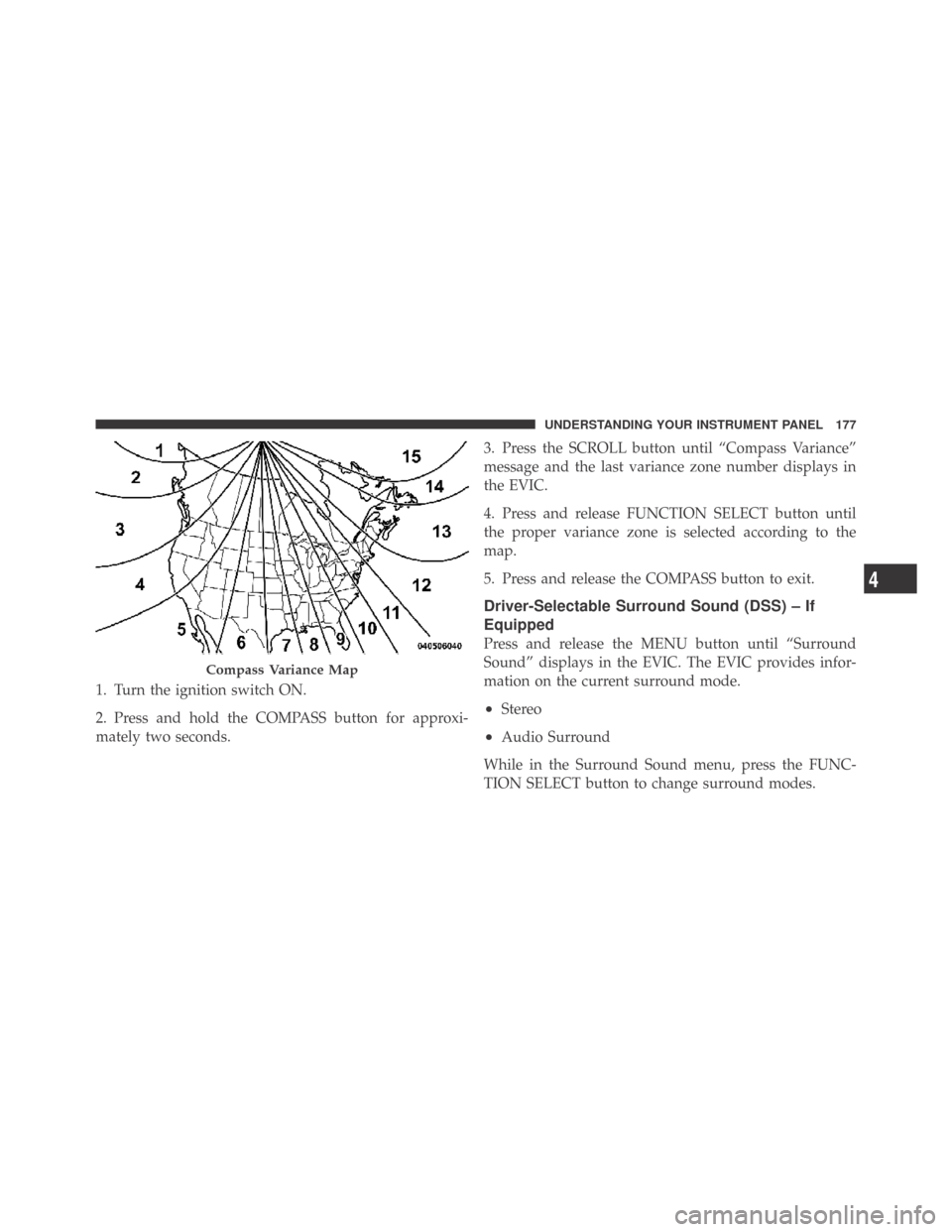
1. Turn the ignition switch ON.
2. Press and hold the COMPASS button for approxi-
mately two seconds.3. Press the SCROLL button until “Compass Variance”
message and the last variance zone number displays in
the EVIC.
4. Press and release FUNCTION SELECT button until
the proper variance zone is selected according to the
map.
5. Press and release the COMPASS button to exit.
Driver-Selectable Surround Sound (DSS) – If
Equipped
Press and release the MENU button until “Surround
Sound” displays in the EVIC. The EVIC provides infor-
mation on the current surround mode.
•Stereo
•Audio Surround
While in the Surround Sound menu, press the FUNC-
TION SELECT button to change surround modes.
Compass Variance Map
4
UNDERSTANDING YOUR INSTRUMENT PANEL 177
Page 184 of 469
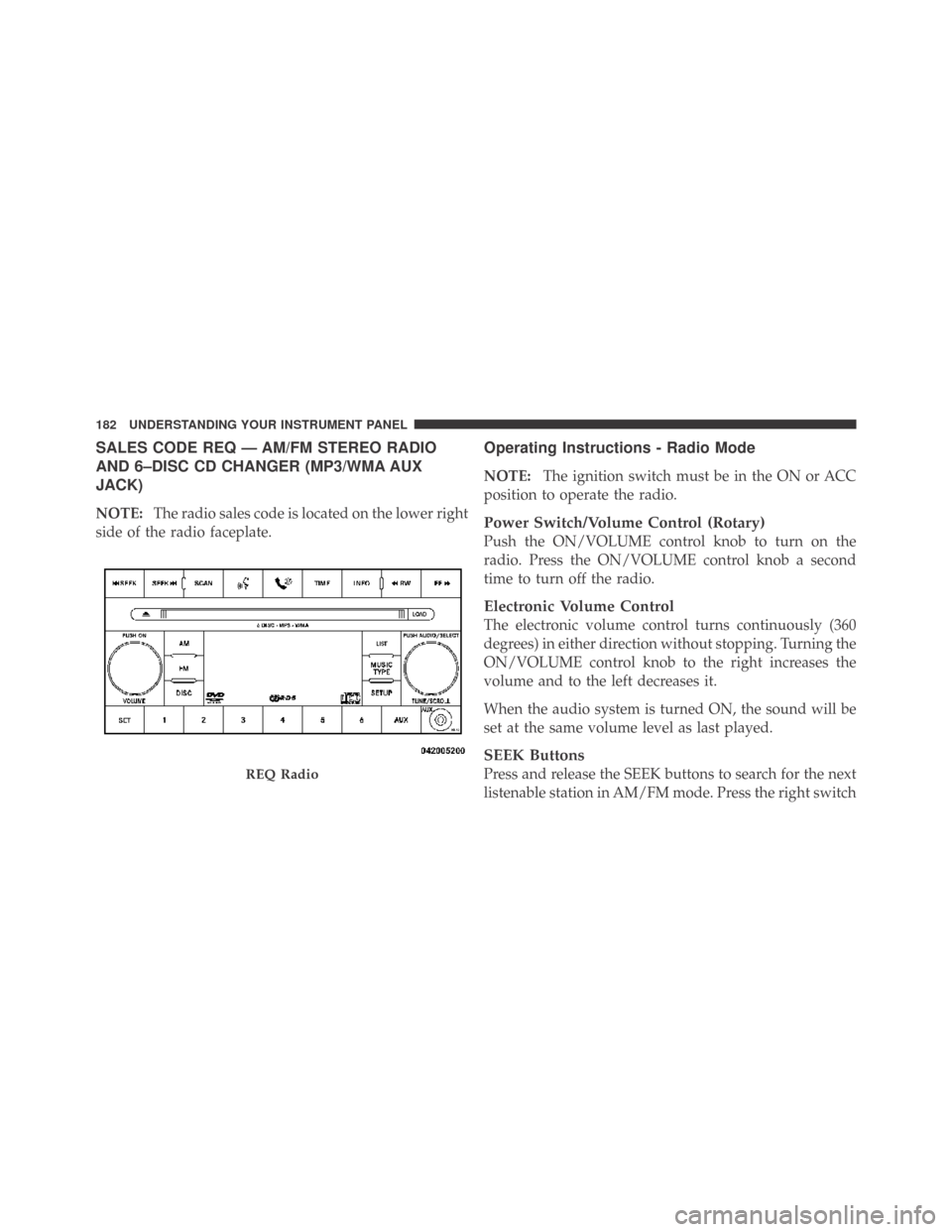
SALES CODE REQ — AM/FM STEREO RADIO
AND 6–DISC CD CHANGER (MP3/WMA AUX
JACK)
NOTE:The radio sales code is located on the lower right
side of the radio faceplate.
Operating Instructions - Radio Mode
NOTE:The ignition switch must be in the ON or ACC
position to operate the radio.
Power Switch/Volume Control (Rotary)
Push the ON/VOLUME control knob to turn on the
radio. Press the ON/VOLUME control knob a second
time to turn off the radio.
Electronic Volume Control
The electronic volume control turns continuously (360
degrees) in either direction without stopping. Turning the
ON/VOLUME control knob to the right increases the
volume and to the left decreases it.
When the audio system is turned ON, the sound will be
set at the same volume level as last played.
SEEK Buttons
Press and release the SEEK buttons to search for the next
listenable station in AM/FM mode. Press the right switchREQ Radio
182 UNDERSTANDING YOUR INSTRUMENT PANEL
Page 189 of 469
selected within five seconds after pressing the SET but-
ton, the station will continue to play but will not be
stored into pushbutton memory.
You may add a second station to each pushbutton by
repeating the above procedure with this exception: Press
the SET button twice and SET 2 will show in the display
window. Each button can be set for SET 1 and SET 2 in
both AM and FM. This allows a total of 12 AM, 12 FM,
and 12 Satellite (if equipped) stations to be stored into
pushbutton memory. The stations stored in SET 2
memory can be selected by pressing the pushbutton
twice.
Every time a preset button is used, a corresponding
button number will display.
Buttons1-6
These buttons tune the radio to the stations that you
commit to pushbutton memory {12 AM, 12 FM, and 12
Satellite (if equipped) stations}.
DISC Button
Pressing the DISC button will allow you to switch from
AM/FM modes to Disc modes.
Operation Instructions - (DISC MODE for CD and
MP3/WMA Audio Play)
NOTE:The ignition switch must be in the ON or ACC
position to operate the radio.
LOAD Button — Loading Compact Disc(s)
Press the LOAD button and the pushbutton with the
corresponding number (1-6) where the CD is being
loaded. The radio will display PLEASE WAIT and
prompt when to INSERT DISC. After the radio displays
�INSERT DISC,�insert the CD into the player.
Radio display will show�LOADING DISC�when the disc
is loading and “READING DISC” when the radio is
reading the disc.
4
UNDERSTANDING YOUR INSTRUMENT PANEL 187
Page 192 of 469
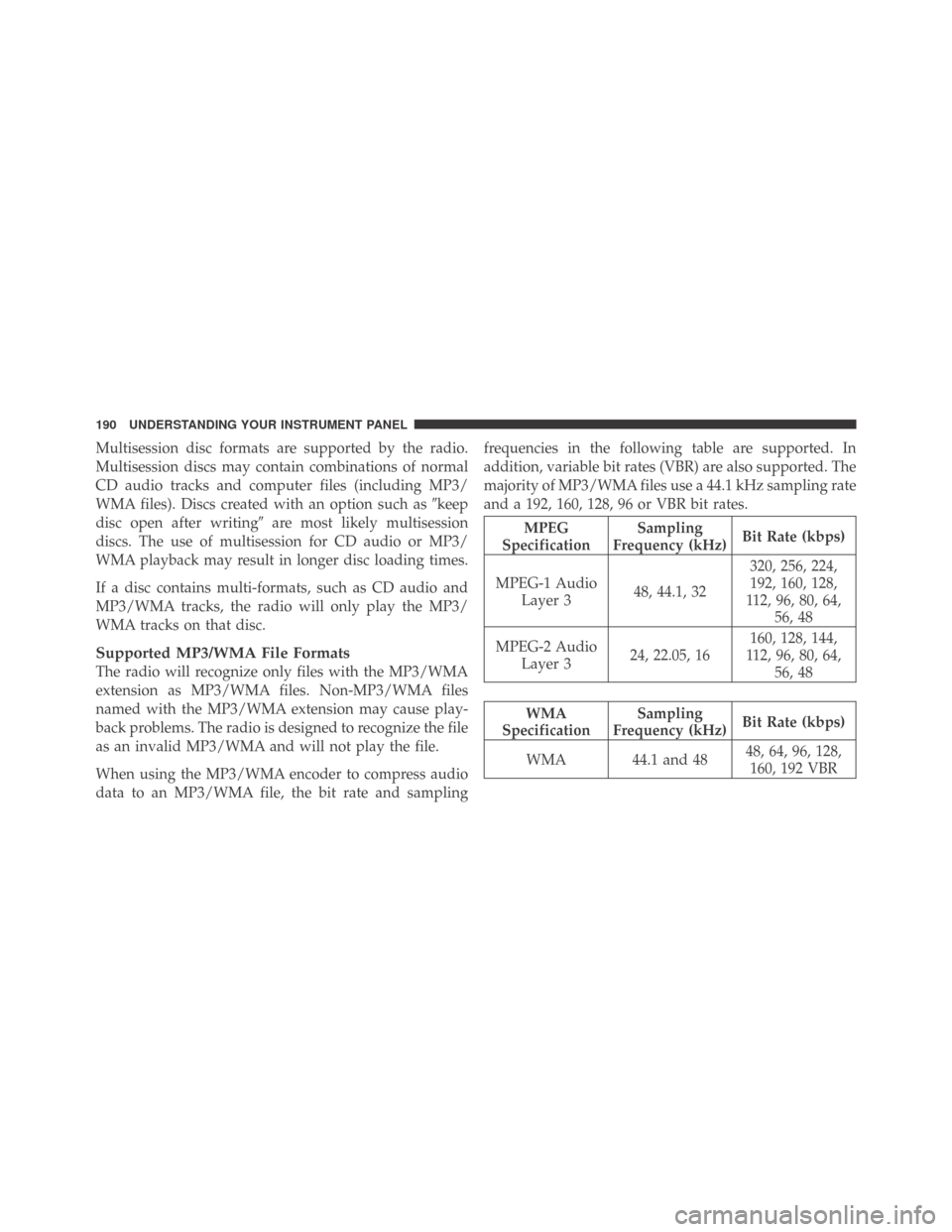
Multisession disc formats are supported by the radio.
Multisession discs may contain combinations of normal
CD audio tracks and computer files (including MP3/
WMA files). Discs created with an option such as�keep
disc open after writing�are most likely multisession
discs. The use of multisession for CD audio or MP3/
WMA playback may result in longer disc loading times.
If a disc contains multi-formats, such as CD audio and
MP3/WMA tracks, the radio will only play the MP3/
WMA tracks on that disc.
Supported MP3/WMA File Formats
The radio will recognize only files with the MP3/WMA
extension as MP3/WMA files. Non-MP3/WMA files
named with the MP3/WMA extension may cause play-
back problems. The radio is designed to recognize the file
as an invalid MP3/WMA and will not play the file.
When using the MP3/WMA encoder to compress audio
data to an MP3/WMA file, the bit rate and samplingfrequencies in the following table are supported. In
addition, variable bit rates (VBR) are also supported. The
majority of MP3/WMA files use a 44.1 kHz sampling rate
and a 192, 160, 128, 96 or VBR bit rates.
MPEG
SpecificationSampling
Frequency (kHz)Bit Rate (kbps)
MPEG-1 Audio
Layer 348, 44.1, 32320, 256, 224,
192, 160, 128,
112, 96, 80, 64,
56, 48
MPEG-2 Audio
Layer 324, 22.05, 16160, 128, 144,
112, 96, 80, 64,
56, 48
WMA
SpecificationSampling
Frequency (kHz)Bit Rate (kbps)
WMA 44.1 and 4848, 64, 96, 128,
160, 192 VBR
190 UNDERSTANDING YOUR INSTRUMENT PANEL
Page 194 of 469
INFO Button (DISC Mode for MP3/WMA Play)
Pressing the INFO button repeatedly will scroll through
the following TAG information: Song Title, Artist, File
Name, and Folder Name (if available).
Press the INFO button once more to return to�elapsed
time�priority mode.
Press and hold the INFO button for three seconds or
more and radio will display song titles for each file.
Press and hold the INFO button again for three seconds
to return to�elapsed time�display.
Operation Instructions - Auxiliary Mode
The auxiliary (AUX) jack is an audio input jack which
allows the user to plug in a portable device such as an
MP3/WMA player, cassette player, or microphone and
utilize the vehicle’s audio system to amplify the source
and play through the vehicle speakers.Pressing the AUX button will change the mode to auxil-
iary device if the AUX jack is connected.
NOTE:The AUX device must be turned on and the
device’s volume set to the proper level. If the AUX audio
is not loud enough, turn the device’s volume up. If the
AUX audio sounds distorted, turn the device’s volume
down.
SEEK Button (Auxiliary Mode)
No function.
SCAN Button (Auxiliary Mode)
No function.
EJECT Button (Auxiliary Mode)
No function.
192 UNDERSTANDING YOUR INSTRUMENT PANEL
Page 199 of 469
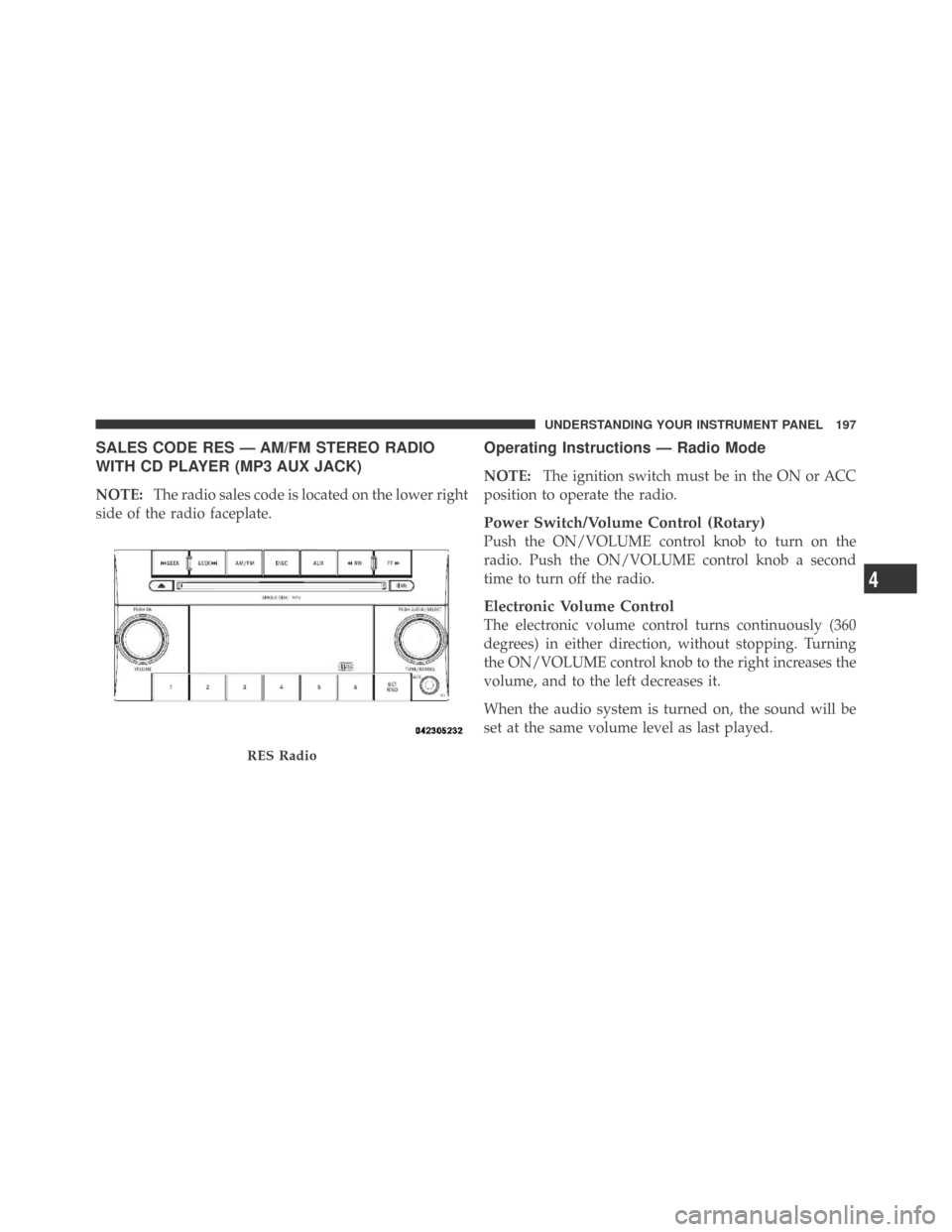
SALES CODE RES — AM/FM STEREO RADIO
WITH CD PLAYER (MP3 AUX JACK)
NOTE:The radio sales code is located on the lower right
side of the radio faceplate.
Operating Instructions — Radio Mode
NOTE:The ignition switch must be in the ON or ACC
position to operate the radio.
Power Switch/Volume Control (Rotary)
Push the ON/VOLUME control knob to turn on the
radio. Push the ON/VOLUME control knob a second
time to turn off the radio.
Electronic Volume Control
The electronic volume control turns continuously (360
degrees) in either direction, without stopping. Turning
the ON/VOLUME control knob to the right increases the
volume, and to the left decreases it.
When the audio system is turned on, the sound will be
set at the same volume level as last played.
RES Radio
4
UNDERSTANDING YOUR INSTRUMENT PANEL 197