2009 CHEVROLET TRAIL BLAZER display
[x] Cancel search: displayPage 216 of 484

Playing an MP3/WMA
Insert a CD partway into the slot, label side up. The
player pulls it in, and READING displays. The CD should
begin playing and the CD symbol displays. To insert a
CD while the ignition is off, rst press the
Zbutton
or the DISPL knob.
If the ignition or radio is turned off with a CD in the
player it stays in the player. When the ignition or radio
is turned on, the CD starts to play where it stopped,
if it was the last selected audio source.
As each new track starts to play, the track number and
song title displays.
1 FLD
x(Previous Folder):Press to go to the rst
track in the previous folder. Press 1 FLD
xwhile
in folder random mode to go to the rst track in the
previous folder and random the tracks in that folder.
2 FLD
w(Next Folder):Press to go to the rst track
in the next folder. Press 2 FLD
wwhile in folder random
mode to go to the rst track in the next folder and random
the tracks in that folder.3 REV (Reverse):Press and hold to reverse quickly
within a track. Press and hold 3 REV for less than
two seconds to reverse at 10 times the normal playing
speed. Press and hold 3 REV for more than two seconds
to reverse at 20 times the normal playing speed. Release
3 REV to play the passage. REV and the elapsed time of
the track displays.
4 FWD (Forward):Press and hold to advance quickly
within a track. Press and hold 4 FWD for less than
two seconds to advance at 10 times the normal playing
speed. Press and hold 4 FWD for more than two seconds
to advance at 20 times the normal playing speed.
Release 4 FWD to play the passage. FWD and the
elapsed time of the track displays.
6 RDM (Random):Press and release to play the
tracks of a current folder or playlist, in random order.
FLDR RDM displays. Once all of the tracks a current
folder or playlist have played the system moves on to
the next folder or playlist and play all of the tracks in
random order.
To play all tracks on the CD in random order, press and
hold 6 RDM for two seconds. A beep sounds and DISC
RDM displays. This feature does not work with playlists.
When in random, press and release either SEEK arrow to
go to the next or previous random track.
Press and release 6 RDM again to turn off random play.
NO RDM displays.
3-82
Page 217 of 484
oSEEKp:Press the left SEEK arrow to go to the
start of the previous track. Press the right SEEK arrow to
go to the start of the next track. Press either SEEK arrow
for more than two seconds to search the previous or next
tracks at two tracks per second. Release the button to
stop searching and to play the track.
oTUNEp:Turn to fast track reverse or
advance through the tracks in all folders or playlists.
The track number and le name displays for each track.
Turn
oTUNEpwhile in random to fast track reverse or
advance the tracks in sequential order.
DISPL (Display):Press to switch between track mode,
folder/playlist mode, and time of day mode. The display
shows only eight characters, but there can be up to
four pages of text. If there are more than eight characters
in the song, folder, or playlist name, they are displayed
if DISPL is not pressed again, pressing DISPL within
two seconds goes to the next display mode.
Track mode displays the current track number and
the ID3 tag song name.
Folder/playlist mode displays the current folder or
playlist number and the folder/playlist name.
Time of day mode displays the time of day and the
ID3 tag song name.To change the default on the display, press the DISPL
knob until the desired display appears, then press and
hold this knob for two seconds. The radio produces
one beep and the selected display becomes the default.
INFO (Information):INFO displays when a current
track has ID3 tag information. Press INFO to display
the artist name and album contained in the tag. INFO
disappears from the display when the information in the
ID3 tag has nished.
BAND:Press to listen to the radio when a CD is
playing. The inactive CD remains inside the radio for
future listening.
CD AUX (Auxiliary):Press to play a CD when listening
to the radio. The CD symbol displays when a CD is
loaded.
Z(Eject):Press to eject a CD. Eject can activate
while either the ignition or the radio is off. CDs can be
loaded while the ignition and the radio is off if this button
is pressed rst.
3-83
Page 230 of 484

Rear Seat Entertainment (RSE)
System
The vehicle may have a DVD Rear Seat
Entertainment (RSE) system. The RSE system
includes a DVD player, a video display screen,
two sets of wireless headphones, and a remote
control.
Before You Drive
The RSE system is for rear seat passengers only and is
not intended for the driver while driving.
Parental Control
This button is located behind the video screen. Press
this button while a DVD or CD is playing to freeze the
video and mute the audio. The video screen displays
Parental Control ON and the power indicator light on
the DVD player ashes. It also disables all other button
operations from the remote control and the DVD player,
with the exception of the eject button. Press this button
again to restore operation of the DVD player.
This button can also be used to turn the DVD player
power on and automatically resume play if the ignition
is in RUN, ACCESSORY, or if Retained Accessory
Power (RAP) is active.
Headphones
The RSE system includes two sets of wireless
headphones.
Each set of headphones has an ON/OFF control.
An indicator light illuminates on the headphones when
they are on. If the light does not illuminate, the batteries
may need to be replaced. See “Battery Replacement”
following for more information.
Each set of headphones has a volume knob. To adjust
the volume, adjust this knob.
The transmitters are located below the video display
screen. The headphones shut off automatically if
they lose the signal from the system after about
four minutes to save battery power. The signal can
be lost if the system is turned off or if the headphones
are out of range of the transmitters.
When using the wired headphones, if the front seat
passengers play a CD in the Radio with Six-Disc CD
or use XM Satellite Radio Service, audio is heard
from these sources, instead of the DVD or CD that
is currently playing through the RSE.
Notice:Do not store the headphones in heat or
direct sunlight. This could damage the headphones
and repairs will not be covered by the warranty.
Storage in extreme cold can weaken the batteries.
Keep the headphones stored in a cool, dry place.
3-96
Page 232 of 484

How to Change the Video Format when in
the Auxiliary Mode
The auxiliary input video format is preset to NTSC.
In some countries, the video format may be in the
PAL system. To change the video format:
1. Press the
zdisplay menu button.
2. Press the down
qnavigation arrow to highlight the
Video Format option.
3. Press the
rbutton to select Video Format.
4. Press the left
por rightonavigation arrows to
select the desired video format.
5. Press the
rbutton to accept the change.
Audio Output
Audio from the DVD player or auxiliary inputs can be
heard through the following possible sources:
Wireless Headphones
Vehicle Speakers
Vehicle wired headphone jacks on the Rear Seat
Audio system (if equipped)The RSE system always transmits the audio signal to
the wireless headphones, if there is audio available.
See “Headphones” earlier in this section for more
information.
The RSE system is capable of outputting audio to the
vehicle speakers by using the radio. The RSE system can
be selected as an audio source on the radio if the RSE
system power is on. Once the RSE system is selected as
an audio source on the radio, adjust the speaker volume
on the radio, if necessary. If the RSE system power is not
on, the RSE system is not an available source on the
radio. See the vehicle’s radio information.
The RSE system is capable of outputting audio to the
wired headphone jacks on the rear seat audio system
(if equipped). The RSE system can be selected as
an audio source on the rear seat audio system if the
RSE system power is on. SeeRear Seat Audio (RSA)
on page 3-108for more information.
3-98
Page 233 of 484
Video Screen
The video screen is located in the overhead console.
To use the video screen:
1. Push forward on the release button located on the
DVD display console.
2. Pull the screen down, away from you, and adjust its
position as desired.
When the video screen is not in use, push it up into its
locked position.
If a DVD is playing and the screen is raised to its locked
position, the screen shuts off, but the DVD continues
to play through the previous audio or video source.
The video screen contains the IR transmitters for the
wireless headphones and the IR receivers for the remote
control. If the screen is in the closed position, the signals
are not available for the operation of the headphones or
the remote control.
Notice:Avoid directly touching the video screen,
as damage may occur. See “Cleaning the Video
Screen” later in this section for more information.
DVD Player
The DVD player is located in the overhead console and
is controlled by the buttons on the DVD player or on
the remote control. See “Remote Control” later in
this section for more information.
The DVD player power can be turned on while the
ignition is in ON/RUN, ACC/ACCESSORY, or when
Retained Accessory Power (RAP) is active.
The RSE system DVD player is only compatible with
DVDs of the appropriate region code in the country that
the vehicle was sold. The DVD region code is printed
on the jacket of most DVDs.
Standard audio CDs, CD-R, CD-RW, Video CD and
Photo CD/CD-R media are fully supported by this DVD
player. DVD-R and DVD-RW media is supported if
formatted as DVD-Video. DVD+R and DVD+RW media
may or may not be supported by the DVD player. The
DVD player does not support DVD-RAM, DVD-ROM,
and DVD Audio media. An error message displays if
this type of media is inserted into the DVD player.
When using the wired headphones, not included, if
the front seat passengers play a CD in the Radio with
Six-Disc CD (if equipped) or use XM™ Satellite Radio
Service (if equipped), the audio for these sources will be
heard, instead of the DVD or CD that is currently playing
through the RSE.
If an error message displays on the video screen, see
“DVD Messages” later in this section.
3-99
Page 234 of 484
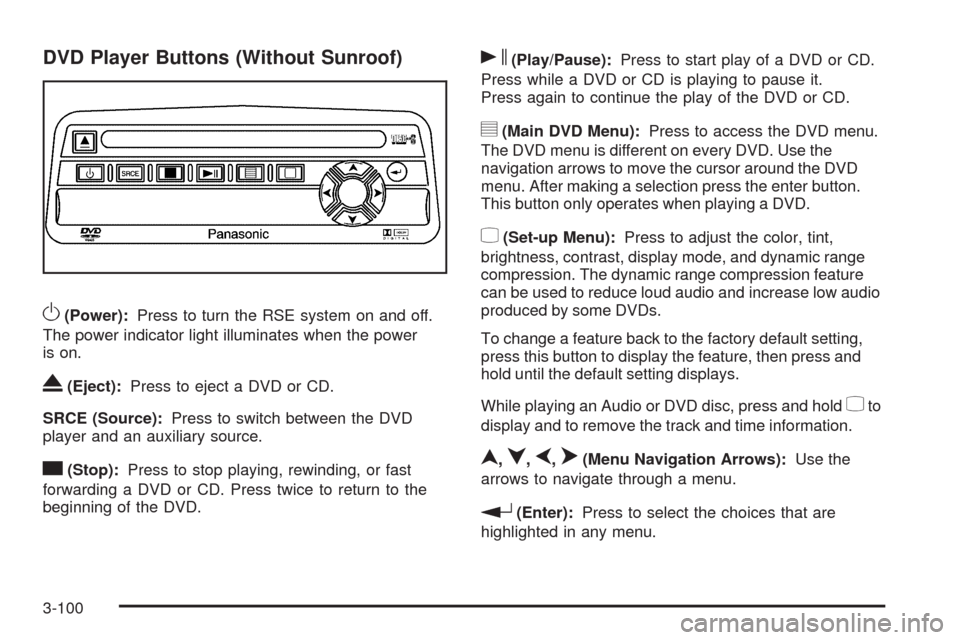
DVD Player Buttons (Without Sunroof)
O(Power):Press to turn the RSE system on and off.
The power indicator light illuminates when the power
is on.
X(Eject):Press to eject a DVD or CD.
SRCE (Source):Press to switch between the DVD
player and an auxiliary source.
c(Stop):Press to stop playing, rewinding, or fast
forwarding a DVD or CD. Press twice to return to the
beginning of the DVD.
s(Play/Pause):Press to start play of a DVD or CD.
Press while a DVD or CD is playing to pause it.
Press again to continue the play of the DVD or CD.
y(Main DVD Menu):Press to access the DVD menu.
The DVD menu is different on every DVD. Use the
navigation arrows to move the cursor around the DVD
menu. After making a selection press the enter button.
This button only operates when playing a DVD.
z(Set-up Menu):Press to adjust the color, tint,
brightness, contrast, display mode, and dynamic range
compression. The dynamic range compression feature
can be used to reduce loud audio and increase low audio
produced by some DVDs.
To change a feature back to the factory default setting,
press this button to display the feature, then press and
hold until the default setting displays.
While playing an Audio or DVD disc, press and hold
zto
display and to remove the track and time information.
n,q,p,o(Menu Navigation Arrows):Use the
arrows to navigate through a menu.
r(Enter):Press to select the choices that are
highlighted in any menu.
3-100
Page 237 of 484

Remote Control Buttons
O(Power):Press to turn the DVD player on and off.
v(Title):Press to return the DVD to the main menu of
the DVD.
n,q,p,o(Menu Navigation Arrows):Use the
arrows to navigate through a menu.
z(Set-up Menu):Press to adjust the color, tint,
brightness, contrast, display mode, and dynamic range
compression. The dynamic range compression feature
can be used to reduce loud audio and increase low audio
produced by some DVDs.
e(Audio):Press to display a menu that only appears
while a DVD is being played. The format and content
of this function will vary for each disc.
r(Fast Reverse):Press to fast reverse the DVD or
CD. To stop fast reversing, press again. This button
might not work when the DVD is playing the copyright
information or the previews.
SRCE (Source):Press to switch between the DVD
player and an auxiliary source.
c(Stop):Press to stop playing, rewinding, or fast
forwarding a DVD or CD. Press twice to return to the
beginning of the DVD.
t(Previous Track/Chapter):Press to return to the
start of the current track or chapter. Press again to return
to the previous track or chapter. This button might not
work while the DVD is playing the copyright information
or the previews.
1 through 0 (Numeric Keypad):The numeric keypad
provides the capability of direct chapter, title, and
track number selection.
}10 (Double Digit Entries):Press to select chapter,
title, and track numbers greater than 9. Press before
inputting the number.
3-103
Page 239 of 484

Battery Replacement
To change the remote control batteries:
1. Remove the battery compartment door located on
the bottom of the remote control.
2. Replace the two batteries in the compartment.
Make sure that they are installed correctly,
using the diagram on the inside of the battery
compartment.
3. Close the battery door securely.
If the remote control is to be stored for a long period
of time, remove the batteries and keep them in a cool,
dry place.
Problem Recommended Action
No power. The ignition might
not be in ON/RUN or
ACC/ACCESSORY.
The parental control
button might have been
turned on. The power
indicator light ashes.
Disc will not play. The system might be off.
The parental control
button might have been
turned on. The power
indicator light ashes.
The system might be
in auxiliary mode.
The disc is upside down
or is not compatible.
The picture does not ll
the screen. There are
black borders on the top
and bottom or on both
sides or it looks
stretched out.Check the display
mode settings in the
display menu.
The disc was ejected, but
it was pulled back into the
DVD player.The disc is being stored in
the DVD player. Press the
eject button again to eject
the disc.
3-105