2009 CHEVROLET EQUINOX remote control
[x] Cancel search: remote controlPage 238 of 442
Power for auxiliary devices is not supplied by the radio
system.
To use the auxiliary inputs of the RSE system, connect an
external auxiliary device to the color-coded A/V jacks and
turn both the auxiliary device and the video screen power
on. If the video screen is in the DVD player mode,
pressing the AUX button on the remote control switches
the video screen from the DVD player mode to the
auxiliary device. The radio can listen to the audio of the
connected auxiliary device by sourcing to auxiliary.
SeeRadio(s) on page 3-67for more information.
How to Change the RSE Video Screen
Settings
The screen display mode (normal, full, and zoom),
screen brightness, and setup menu language can be
changed from the on screen setup menu. To change any
feature, perform the following:
1. Press the
z(display menu) button on the remote
control.
2. Use the remote control menu
n,q,p,o
(navigation) arrows and ther(enter) button
to use the setup menu.
3. Press the
zbutton again to remove the setup
menu from the screen.
Audio Output
Audio from the DVD player or auxiliary inputs may be
heard through the following possible sources:
Wireless Headphones
Vehicle Speakers
Vehicle wired headphone jacks on the rear seat
audio system, if the vehicle has this feature.
The RSE system always transmits the audio signal to
the wireless headphones, if there is audio available.
See “Headphones” earlier in this section for more
information.
When a device is connected to the radio’s auxiliary
input jack, if the vehicle has this feature, or A/V jacks,
the rear seat passengers are able to hear audio from
the auxiliary device through the wireless or wired
headphones. The front seat passengers are able to
listen to playback from this device through the vehicle
speakers by selecting AUX as the source on the radio.
3-110
Page 239 of 442
Video Screen
The video screen is located in the overhead console.
To use the video screen, do the following:
1. Push the release button located on the overhead
console.
2. Move the screen to the desired position.
When the video screen is not in use, push it up into its
locked position.
If a DVD is playing and the screen is raised to its locked
position, the screen remains on, this is normal, and
the DVD continues to play through the previous audio
source. Use the remote control
Obutton orZthe disc
to turn off the screen.
The overhead console contains the IR transmitters for
the wireless headphones and the IR receivers for
the remote control. They are located at the rear of the
console.
Notice:Avoid directly touching the video screen,
as damage may occur. See “Cleaning the Video
Screen” later in this section for more information.
Remote Control
To use the remote control, aim it at the transmitter
window at the rear of the RSE overhead console and
press the desired button. Direct sunlight or very
bright light can affect the ability of the RSE transmitter
to receive signals from the remote control. If the remote
control does not seem to be working, the batteries
may need to be replaced. See “Battery Replacement”
later in this section. Objects blocking the line of sight can
also affect the function of the remote control.
If a CD or DVD is in the Radio DVD slot, the remote
control power button can be used to turn on the video
screen display and start the disc. The radio can also
turn on the video screen display. SeeRadio(s) on
page 3-67for more information.
Notice:Storing the remote control in a hot area or
in direct sunlight can damage it, and the repairs
will not be covered by the warranty. Storage in
extreme cold can weaken the batteries. Keep the
remote control stored in a cool, dry place.
3-111
Page 240 of 442
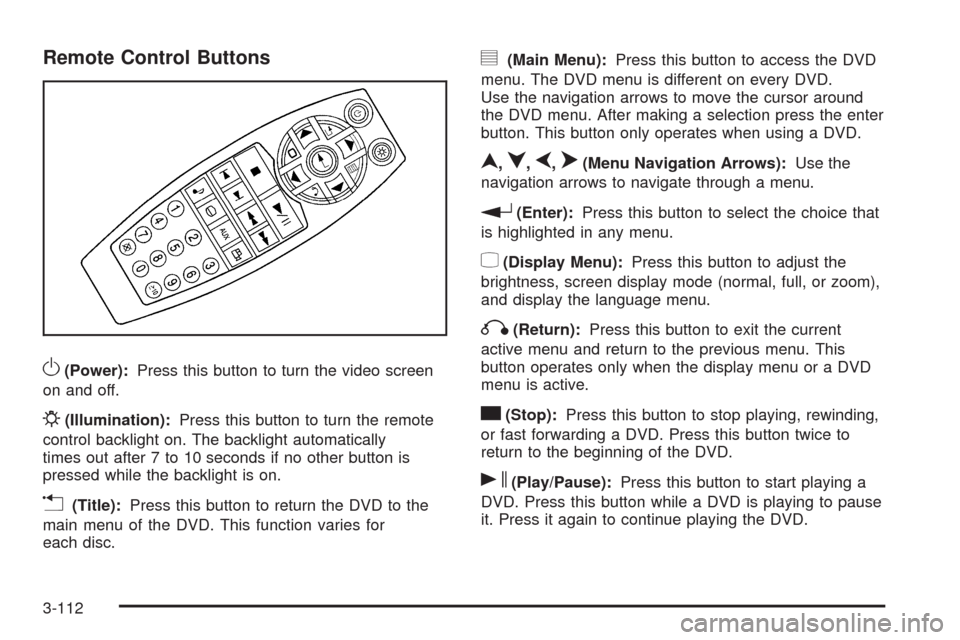
Remote Control Buttons
O(Power):Press this button to turn the video screen
on and off.
P(Illumination):Press this button to turn the remote
control backlight on. The backlight automatically
times out after 7 to 10 seconds if no other button is
pressed while the backlight is on.
v(Title):Press this button to return the DVD to the
main menu of the DVD. This function varies for
each disc.
y(Main Menu):Press this button to access the DVD
menu. The DVD menu is different on every DVD.
Use the navigation arrows to move the cursor around
the DVD menu. After making a selection press the enter
button. This button only operates when using a DVD.
n,q,p,o(Menu Navigation Arrows):Use the
navigation arrows to navigate through a menu.
r(Enter):Press this button to select the choice that
is highlighted in any menu.
z(Display Menu):Press this button to adjust the
brightness, screen display mode (normal, full, or zoom),
and display the language menu.
q(Return):Press this button to exit the current
active menu and return to the previous menu. This
button operates only when the display menu or a DVD
menu is active.
c(Stop):Press this button to stop playing, rewinding,
or fast forwarding a DVD. Press this button twice to
return to the beginning of the DVD.
s(Play/Pause):Press this button to start playing a
DVD. Press this button while a DVD is playing to pause
it. Press it again to continue playing the DVD.
3-112
Page 242 of 442
\(Clear):Press this button within three seconds after
inputting a numeric selection, to clear all numeric
inputs.
}10 (Double Digit Entries):Press this button to
select chapter or track numbers greater than 9.
Press this button before inputting the number.
If the remote control becomes lost or damaged, a new
universal remote control can be purchased. If this
happens, make sure the universal remote control uses
a code set of Toshiba
®.
Battery Replacement
To change the remote control batteries, do the following:
1. Slide the rear cover back on the remote control.
2. Replace the two batteries in the compartment.
Make sure that they are installed correctly, using
the diagram on the inside of the battery
compartment.
3. Replace the battery cover.
If the remote control is to be stored for a long period of
time, remove the batteries and keep them in a cool,
dry place.
Problem Recommended Action
No power. The ignition might not be
turned ON/RUN or in
ACC/ACCESSORY.
The picture does not ll
the screen. There are
black borders on the
top and bottom or on
both sides or it looks
stretched out.Check the display mode
settings in the setup menu
by pressing the display
menu button on the
remote control.
In auxiliary mode, the
picture moves or scrolls.Check the auxiliary input
connections at both
devices.
The remote control does
not work.Check to make sure there
is no obstruction between
the remote control and the
transmitter window.
Check the batteries to
make sure they are not
dead or installed
incorrectly.
After stopping the player,
I push Play but
sometimes the DVD
starts where I left off
and sometimes at the
beginning.If the stop button was
pressed one time, the
DVD player resumes
playing where the DVD
was stopped. If the stop
button was pressed
two times the DVD player
begins to play from the
beginning of the DVD.
3-114
Page 385 of 442
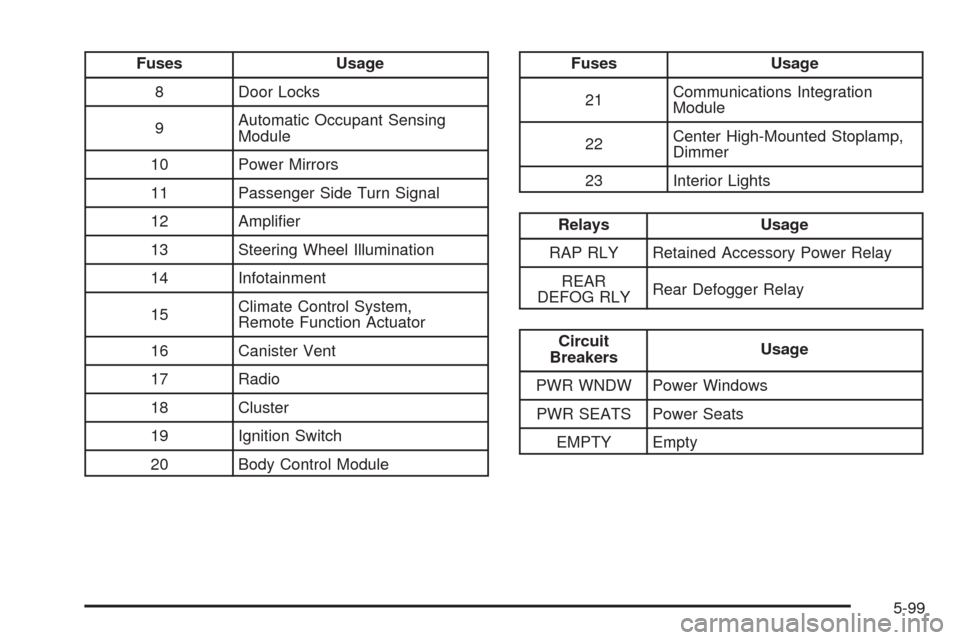
Fuses Usage
8 Door Locks
9Automatic Occupant Sensing
Module
10 Power Mirrors
11 Passenger Side Turn Signal
12 Amplier
13 Steering Wheel Illumination
14 Infotainment
15Climate Control System,
Remote Function Actuator
16 Canister Vent
17 Radio
18 Cluster
19 Ignition Switch
20 Body Control ModuleFuses Usage
21Communications Integration
Module
22Center High-Mounted Stoplamp,
Dimmer
23 Interior Lights
Relays Usage
RAP RLY Retained Accessory Power Relay
REAR
DEFOG RLYRear Defogger Relay
Circuit
BreakersUsage
PWR WNDW Power Windows
PWR SEATS Power Seats
EMPTY Empty
5-99
Page 440 of 442
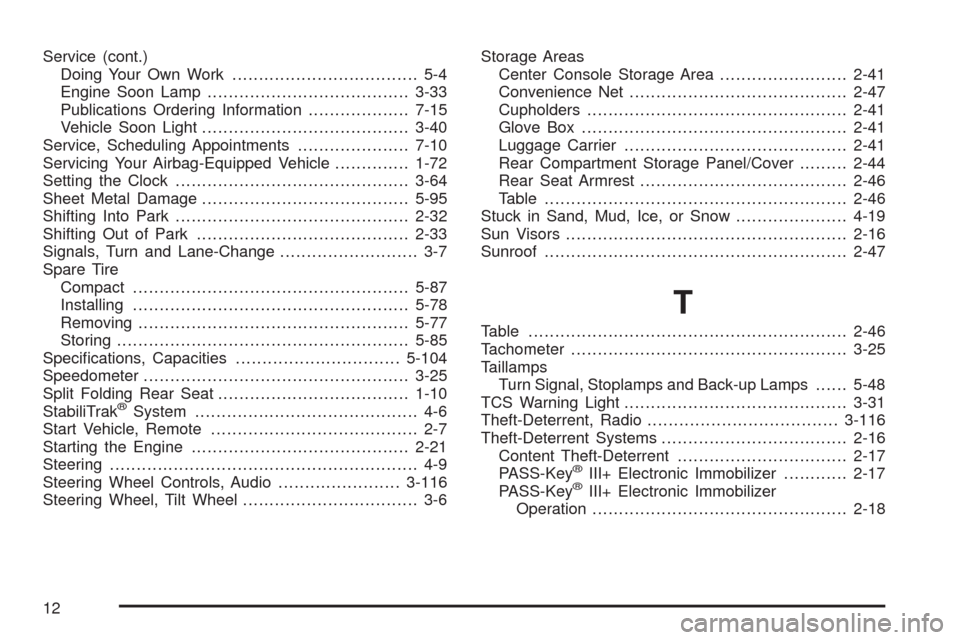
Service (cont.)
Doing Your Own Work................................... 5-4
Engine Soon Lamp......................................3-33
Publications Ordering Information...................7-15
Vehicle Soon Light.......................................3-40
Service, Scheduling Appointments.....................7-10
Servicing Your Airbag-Equipped Vehicle..............1-72
Setting the Clock............................................3-64
Sheet Metal Damage.......................................5-95
Shifting Into Park............................................2-32
Shifting Out of Park........................................2-33
Signals, Turn and Lane-Change.......................... 3-7
Spare Tire
Compact....................................................5-87
Installing....................................................5-78
Removing...................................................5-77
Storing.......................................................5-85
Specications, Capacities...............................5-104
Speedometer..................................................3-25
Split Folding Rear Seat....................................1-10
StabiliTrak
®System.......................................... 4-6
Start Vehicle, Remote....................................... 2-7
Starting the Engine.........................................2-21
Steering.......................................................... 4-9
Steering Wheel Controls, Audio.......................3-116
Steering Wheel, Tilt Wheel................................. 3-6Storage Areas
Center Console Storage Area........................2-41
Convenience Net.........................................2-47
Cupholders.................................................2-41
Glove Box..................................................2-41
Luggage Carrier..........................................2-41
Rear Compartment Storage Panel/Cover.........2-44
Rear Seat Armrest.......................................2-46
Table.........................................................2-46
Stuck in Sand, Mud, Ice, or Snow.....................4-19
Sun Visors.....................................................2-16
Sunroof.........................................................2-47
T
Table............................................................2-46
Tachometer....................................................3-25
Taillamps
Turn Signal, Stoplamps and Back-up Lamps......5-48
TCS Warning Light..........................................3-31
Theft-Deterrent, Radio....................................3-116
Theft-Deterrent Systems...................................2-16
Content Theft-Deterrent................................2-17
PASS-Key
®III+ Electronic Immobilizer............2-17
PASS-Key®III+ Electronic Immobilizer
Operation................................................2-18
12
Page 442 of 442
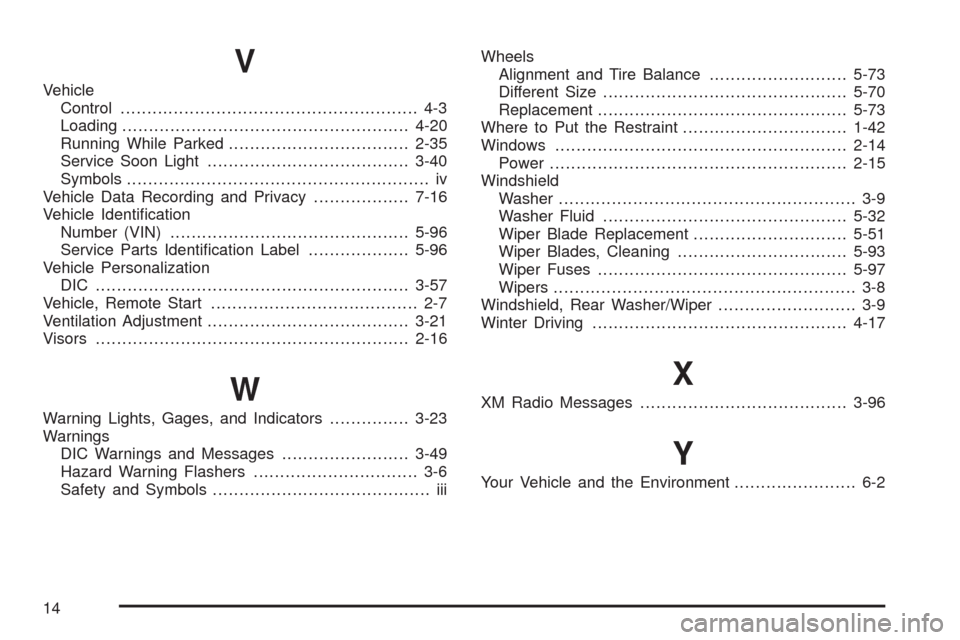
V
Vehicle
Control........................................................ 4-3
Loading......................................................4-20
Running While Parked..................................2-35
Service Soon Light......................................3-40
Symbols......................................................... iv
Vehicle Data Recording and Privacy..................7-16
Vehicle Identication
Number (VIN).............................................5-96
Service Parts Identication Label...................5-96
Vehicle Personalization
DIC ...........................................................3-57
Vehicle, Remote Start....................................... 2-7
Ventilation Adjustment......................................3-21
Visors...........................................................2-16
W
Warning Lights, Gages, and Indicators...............3-23
Warnings
DIC Warnings and Messages........................3-49
Hazard Warning Flashers............................... 3-6
Safety and Symbols......................................... iiiWheels
Alignment and Tire Balance..........................5-73
Different Size..............................................5-70
Replacement...............................................5-73
Where to Put the Restraint...............................1-42
Windows.......................................................2-14
Power ........................................................2-15
Windshield
Washer........................................................ 3-9
Washer Fluid..............................................5-32
Wiper Blade Replacement.............................5-51
Wiper Blades, Cleaning................................5-93
Wiper Fuses...............................................5-97
Wipers......................................................... 3-8
Windshield, Rear Washer/Wiper.......................... 3-9
Winter Driving................................................4-17
X
XM Radio Messages.......................................3-96
Y
Your Vehicle and the Environment....................... 6-2
14