Page 241 of 462
Enter Destination
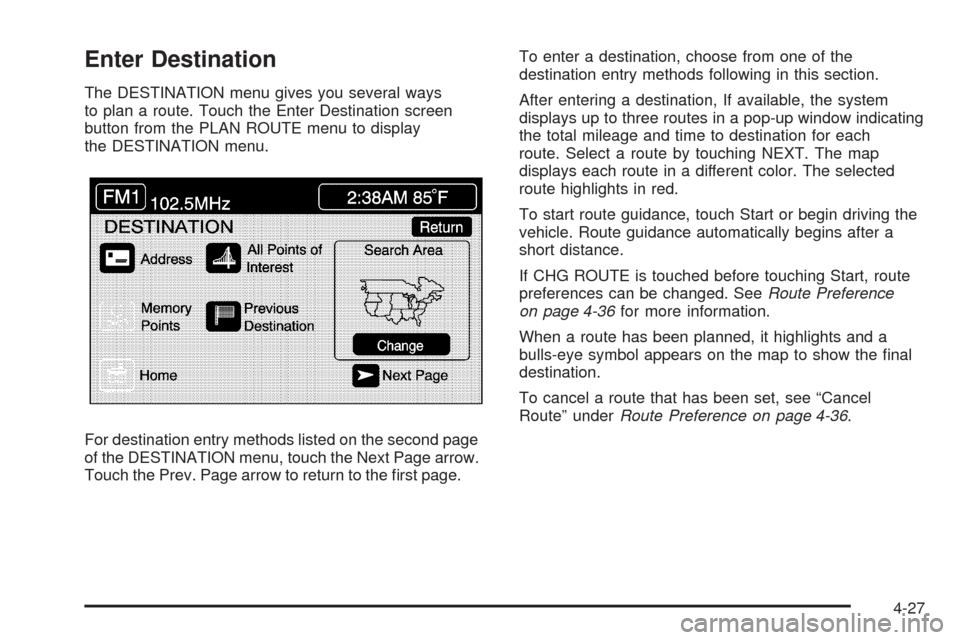
The DESTINATION menu gives you several ways
to plan a route. Touch the Enter Destination screen
button from the PLAN ROUTE menu to display
the DESTINATION menu.
For destination entry methods listed on the second page
of the DESTINATION menu, touch the Next Page arrow.
Touch the Prev. Page arrow to return to the rst page.To enter a destination, choose from one of the
destination entry methods following in this section.
After entering a destination, If available, the system
displays up to three routes in a pop-up window indicating
the total mileage and time to destination for each
route. Select a route by touching NEXT. The map
displays each route in a different color. The selected
route highlights in red.
To start route guidance, touch Start or begin driving the
vehicle. Route guidance automatically begins after a
short distance.
If CHG ROUTE is touched before touching Start, route
preferences can be changed. SeeRoute Preference
on page 4-36for more information.
When a route has been planned, it highlights and a
bulls-eye symbol appears on the map to show the nal
destination.
To cancel a route that has been set, see “Cancel
Route” underRoute Preference on page 4-36.
4-27
Page 245 of 462
The system lists all POIs available. Sort by name using
NAME SORT or touch DIST SORT to list POIs by
distance from the current location.
Select a location from the list. The system shows the
selected POI on the map. If available, a pop-up window
displays. Touch INFO to view the POI’s name,
address, city, and phone number, if available.
Touch Enter to plan the route.Memory Points
This destination entry method allows a memory point
to be set as the destination. Each time a destination
from the map screen is stored, the destination is stored
under MARKED POINT. SeeEdit Memory Point on
page 4-19for more information.
Destinations must be stored as memory points to select
from PERSONAL, BUSINESS, ENTERTAINMENT,
or MARKED POINT. If you have renamed the memory
point category name(s), the name(s) appear as you
changed them.
4-31
Page 250 of 462
Route Preference
To change the planning options:
1. Press the ROUTE key.
2. Touch Route Preference.The following options are available from the ROUTE
PREFERENCE menu:Detour
This feature allows you to choose a distance in
miles/kilometers to detour. Select the detour distance
desired for residential roads and freeways.
These settings are retained the next time Detour is used
until the settings are changed.
Alternate can also be touched to provide a new route
that does not use previously stored detour settings.
Touch Return to go back to the previous screen.
4-36
Page 251 of 462

Route Setting
This feature displays and changes the planning methods
used each time you plan a route. Planning method
options, allowing selection of the fastest route based on
time or distance, using only major roads, toll roads,
and using ferries based on the navigation system’s
information and information contained on the map DVD.
The following options are available from the ROUTE
SETTING menu:
Minimize Time/Distance:The system calculates the
fastest route or shortest route possible. Choose Time for
the fastest route or Dist for the shortest route.Use Major Roads:Choose Yes to calculate the best
route using only major roads unless a route cannot
be found without the use of a secondary road.
This selection will not always offer the shortest distance
or time to your destination.
Use Toll Roads:Choose Yes to calculate the best route
using toll roads wherever possible. This selection will
not always offer the shortest distance or time to your
destination.
Use Ferries:Choose Yes to calculate the best route
using ferries when possible. This selection will not
always offer the shortest distance or time to your
destination.
Display Whole Route
This feature allows the entire planned route to be
displayed. Total mileage and time to destination
for the planned route displays on the map screen.
Touch Return to go back to the previous menu.
Calculate Route
This feature allows route calculation for the selected
destination.
Cancel Route
To cancel a planned route while traveling on it, touch
Cancel Route. The system will ask for conrmation by
touching YES. Touch YES to conrm cancellation of the
planned route or touch Return to keep the planned route.
4-37
Page 253 of 462

Installing the DVD Map Disc
Your dealer/retailer may have installed the map DVD.
If the map DVD was not installed, do the following
to load it:
1. Turn the ignition on.
2. With the vehicle in P (Park), press and hold the
TILT key until a beep is heard. The system’s
faceplate opens.
3. If already loaded, the map DVD or a CD ejects from
the slot.
4. Load the map DVD into the slot by inserting it
partway. The system pulls it in.
5. Press and release the TILT key to close the
faceplate.Notice:Shifting out of P (Park) with the system’s
faceplate open will cause the faceplate to close
automatically. This could cause damage to a
CD, DVD or the system if it is partially loaded.
Before shifting out of P (Park), make sure that the
DVD or CD is loaded properly. The vehicle must
be shifted back into P (Park) to close the faceplate.
Once the map DVD is inserted correctly, you will
have the following two choices:
LANGUAGE
I AGREE
The language can be changed at this time. See
“Language” underNavigation Audio System on
page 4-52for more information on choosing a language.
Once a language has been selected, touch I AGREE
to plan a route. The map appears showing the current
vehicle position.
4-39
Page 264 of 462

Vehicle Positioning
At times, the position of the vehicle on the map may be
inaccurate due to one or more of the following reasons:
The road system has changed.
The vehicle is driving on slippery road surfaces such
as in sand, gravel, and/or snow.
The vehicle is traveling on winding roads.
The vehicle is on a long straight road.
The vehicle is approaching a tall building or a large
vehicle.
The surface streets run parallel to a freeway.
The vehicle has just been transferred by a vehicle
carrier or a ferry.
The current position calibration is set incorrectly.
The vehicle is traveling at high speed.
The vehicle changes directions more than once, or
when the vehicle is turning on a turn table in a
parking lot.
The vehicle is entering and/or exiting a parking lot,
garage, or a lot with a roof.
The GPS signal is not received.
A roof carrier is installed on the vehicle.
The vehicle is being driven with tire chains.
The tires are replaced.
The tire pressure for the tires is incorrect.
The tires are worn.
The rst time the map DVD is inserted.
The battery is disconnected for several days.
The vehicle is driving in heavy traffic where driving is
at low speeds, and the vehicle is stopped and started
repeatedly.
If problems are experienced with the navigation system,
see “Adjust Vehicle Position” underSetup Menu on
page 4-12to calibrate the system.
4-50
Page 265 of 462

Problems with Route Guidance
Inappropriate route guidance may occur under one or
more of the following conditions:
You have not turned onto the road indicated.
Route guidance may not be available when using
automatic rerouting for the next right or left turn.
The route may not be changed when using
automatic rerouting.
There is no route guidance when turning at an
intersection.
Plural names of places may be announced
occasionally.
It may take a long time to operate automatic
rerouting during high-speed driving.
Automatic rerouting may display a route returning to
the set waypoint if you are heading for a destination
without passing through a set waypoint.
The route prohibits the entry of a vehicle due to a
regulation by time or season or any other regulation
which may be given.
Some routes may not be searched.
The route to the destination may not be shown if
there are new roads, if roads have recently
changed, or if certain roads are not listed on the
map DVD. SeeOrdering Map DVDs on page 4-52.
To recalibrate the vehicle’s position on the map, see
“Adjust Vehicle Position” underSetup Menu on
page 4-12to calibrate the system.
If the System Needs Service
If the navigation system needs service and the steps
listed here have been followed but there are still
problems, see your dealer/retailer for assistance.
4-51
Page 269 of 462

GPS TIME:The current GPS time displays to the right of
this screen button. Touch GPS TIME to set the navigation
system time to match current GPS time. If the seconds for
the present minute are greater than thirty when GPS
TIME is selected, the clock rounds up to the next minute.
Daylight Saving Time:Touch this screen button to
increase the time setting by one hour. Then touch GPS
TIME to save the new setting. If the screen button is light
blue, the daylight savings time feature is on. If the button
is dark blue, the daylight savings time feature is off.
TIME ZONE:The selected time zone appears to the
right of this screen button. Touch this screen button to
toggle between time zones and select the desired
one. The time of the selected zone displays to the right
of the GPS TIME screen button. To set the clock to
the new setting, touch GPS TIME.
If the system is not receiving GPS information, the time
can still be set manually as described above but the
GPS time and Daylight Saving Time features will not
be available.
Touch Return to go back to the previous menu.Screen Adjust Menu
The following options are available from this menu:
K(Contrast):Touch the plus (+) or minus (−) signs to
adjust the contrast of the screen. The screen changes.
Touch SET to conrm the setting.
!(Brightness):Touch the plus (+) or minus (−) signs
to adjust the brightness of the screen. The screen
changes. Touch SET to conrm the setting.
AUTO:This setting automatically adjusts the contrast
and brightness of the screen depending on exterior
lighting conditions.
4-55

