2009 CADILLAC ESCALADE ECU
[x] Cancel search: ECUPage 264 of 586

SOURCE:Press to select between Monitor 3,
Monitor 4, or the AV INPUT.
Each video display screen can be adjusted
independently, as well as display information from
both DVD players and both A/V inputs.
Infrared Remote Sensor:Located in the top center
of the video display screen. Do not block the signal from
the remote to the sensor.
Infrared Transmitters:Located in the top center of
the video display screen. Do not block the signal from
the headphones to the transmitter.
Video Display Screen:Located on the back of each
headrest.
AV OUTPUT (Audio/Video Output Jack):Located on
the lower left side of the screen and is identied on
the video screen panel as the AV OUTPUT.
Headphone Jack:Wired headphones can be
plugged into the headphone jack with one-eighth inch
stereo plugs.AV INPUT: (Audio/Video Input Jack):The audio/video
input jack is located below the video display screen
and allows viewing of auxiliary sources such as portable
DVD players, game stations, or video cameras, on
each screen.
Video Input — The yellow connector is used for
video input.
L Audio — The white connector is used for the
left side audio.
R Audio — The red connector is used for the
right side audio.
Level Lock and Release Latch:The viewing angle of
the video screen can be adjusted by releasing the
latch and gently moving the screen. Then lock it into a
secure position.
3-98
Page 276 of 586
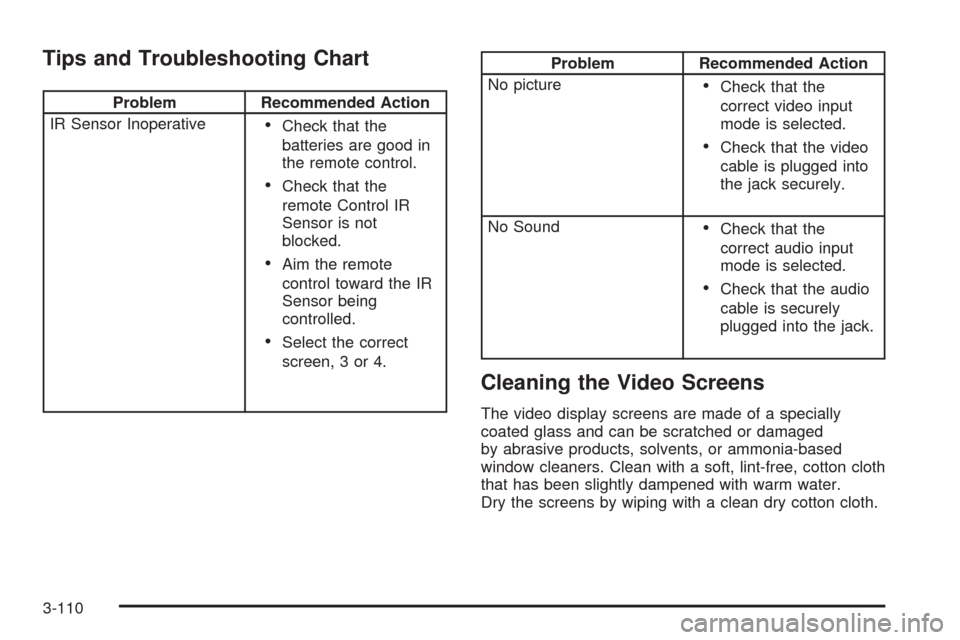
Tips and Troubleshooting Chart
Problem Recommended Action
IR Sensor Inoperative
Check that the
batteries are good in
the remote control.
Check that the
remote Control IR
Sensor is not
blocked.
Aim the remote
control toward the IR
Sensor being
controlled.
Select the correct
screen, 3 or 4.
Problem Recommended Action
No picture
Check that the
correct video input
mode is selected.
Check that the video
cable is plugged into
the jack securely.
No Sound
Check that the
correct audio input
mode is selected.
Check that the audio
cable is securely
plugged into the jack.
Cleaning the Video Screens
The video display screens are made of a specially
coated glass and can be scratched or damaged
by abrasive products, solvents, or ammonia-based
window cleaners. Clean with a soft, lint-free, cotton cloth
that has been slightly dampened with warm water.
Dry the screens by wiping with a clean dry cotton cloth.
3-110
Page 349 of 586

No Artist Info:No artist information is available.
The system is working properly.
No Title Info:No song title information is available.
The system is working properly.
No CAT Info:No category information is available.
The system is working properly.
CAT Not Found:There are no channels available for
the selected category. The system is working properly.
No Information:No text or informational messages
are available. The system is working properly.
XM Theftlocked:The XM™ receiver may have
previously been in another vehicle. For security
purposes, XM™ receivers cannot be swapped between
vehicles. If this message is received after having
your vehicle serviced, check with your dealer/retailer.
XM Radio ID:If tuned to channel 0, this message
will alternate with the XM™ Radio eight digit radio
ID label. This label is needed to activate the service.
Unknown:If this message is received when tuned
to channel 0, there may be a receiver fault. Consult
with your dealer/retailer.
Check XM Receiver:If this message does not clear
within a short period of time, the receiver may have
a fault. Consult with your dealer/retailer.CD Player
The player can be used for CD, MP3, DVD audio, and
as a DVD video player. SeeDVD Player on page 4-74
for more information about DVD audio and video.
Six-Disc CD Player
While playing a CD, the navigation system is available.
When you insert a CD, the CD tab displays. If a
DSP setting is selected for the CD, it activates each
time you play a CD.
If the ignition or radio is turned off with a CD in the
player, it stays in the player. When the ignition or radio
is turned on, the CD starts playing where it stopped,
if it was the last selected audio source.
As each new track starts to play, the track number
displays.
If an error appears on the display, see “CD Messages”
later in this section.
If viewing a map screen, touch the CD screen button.
The display will split between the audio screen and
the map screen. If you do not want to view a split screen
or you are not on a map screen, press the AUDIO
key then press the AUDIO key repeatedly until CD is
selected or touch the CD screen button.
4-67
Page 383 of 586

Loading Your Vehicle for Off-Road
Driving
{CAUTION:
Cargo on the load oor piled higher than the
seatbacks can be thrown forward during a
sudden stop. You or your passengers could
be injured. Keep cargo below the top of the
seatbacks.
Unsecured cargo on the load oor can be
tossed about when driving over rough terrain.
You or your passengers can be struck by
ying objects. Secure the cargo properly.
Heavy loads on the roof raise the vehicle’s
center of gravity, making it more likely to roll
over. You can be seriously or fatally injured if
the vehicle rolls over. Put heavy loads inside
the cargo area, not on the roof. Keep cargo in
the cargo area as far forward and low as
possible.There are some important things to remember about
how to load your vehicle.
The heaviest things should be on the oor, forward
of the rear axle. Put heavier items as far forward
as you can.
Be sure the load is properly secured, so things are
not tossed around.
You will nd other important information underLoading
the Vehicle on page 5-32andTires on page 6-56.
Environmental Concerns
Off-road driving can provide wholesome and satisfying
recreation. However, it also raises environmental
concerns. We recognize these concerns and urge every
off-roader to follow these basic rules for protecting
the environment:
Always use established trails, roads, and areas that
have been specially set aside for public off-road
recreational driving and obey all posted regulations.
Avoid any driving practice that could damage
shrubs, owers, trees, or grasses or disturb wildlife.
This includes wheel-spinning, breaking down
trees, or unnecessary driving through streams or
over soft ground.
5-15
Page 405 of 586

Using heavier suspension components to get
added durability might not change your weight
ratings. Ask your dealer to help you load
your vehicle the right way.
If you put things inside your vehicle — like
suitcases, tools, packages, or anything else — they
will go as fast as the vehicle goes. If you have to
stop or turn quickly, or if there is a crash, they will
keep going.
{CAUTION:
Things you put inside your vehicle can strike
and injure people in a sudden stop or turn, or
in a crash.
Put things in the cargo area of your
vehicle. Try to spread the weight evenly.
Never stack heavier things, like
suitcases, inside the vehicle so that some
of them are above the tops of the seats.
Do not leave an unsecured child restraint
in your vehicle.
When you carry something inside the
vehicle, secure it whenever you can.
Do not leave a seat folded down unless
you need to.There is also important loading information for
off-road driving in this manual. See “Loading Your
Vehicle for Off-Road Driving” underOff-Road
Driving on page 5-13.
Add-On Equipment
When you carry removable items, you may need to
put a limit on how many people you can carry inside
your vehicle. Be sure to weigh your vehicle before
you buy and install the new equipment.
Notice
:Overloading your vehicle may cause
damage. Repairs would not be covered by your
warranty. Do not overload your vehicle.
Remember not to exceed the Gross Axle Weight
Rating (GAWR) of the front or rear axle.
Automatic Level Control
The automatic level control rear suspension
comes as a part of the Road Sensing Suspension.
SeeRoad Sensing Suspension on page 5-9.
This type of level control is fully automatic and will
provide a better leveled riding position as well as
better handling under a variety of passenger and
loading conditions. An air compressor connected
to the rear shocks will raise or lower the rear of
the vehicle to maintain proper vehicle height.
5-37
Page 409 of 586

Dolly Towing (Rear Wheels Off the Ground)
Use the following procedure to dinghy tow a
two-wheel-drive vehicle from the rear:
1. Attach the dolly to the tow vehicle following the
dolly manufacturer’s instructions.
2. Drive the rear wheels onto the dolly.
3. Firmly set the parking brake. SeeParking Brake on
page 2-34.
4. Put the transmission in P (Park).
5. Secure the vehicle to the dolly following the
manufacturer’s instructions.6. Use an adequate clamping device designed for
towing to ensure that the front wheels are locked
into the straight position.
7. Turn the ignition to LOCK/OFF.
Level Control
Automatic Level Control
The automatic level control rear suspension is available
on light-duty vehicles and comes as a part of the
Autoride
®suspension, if equipped.
This type of level control is fully automatic and will
provide a better leveled riding position as well as better
handling under a variety of passenger and loading
conditions. An air compressor connected to the rear
shocks will raise or lower the rear of the vehicle
to maintain proper vehicle height. The system is
activated when the ignition key is turned to ON/RUN
and will automatically adjust vehicle height thereafter.
The system may exhaust (lower vehicle height) for up to
ten minutes after the ignition key has been turned off.
You may hear the air compressor operating when
the height is being adjusted.
If a weight-distributing hitch is being used, it is
recommended to allow the shocks to inate, thereby
leveling the vehicle prior to adjusting the hitch.
5-41
Page 412 of 586

Weight of the Trailer
How heavy can a trailer safely be?
It depends on how the rig is used. For example, speed,
altitude, road grades, outside temperature and how
much the vehicle is used to pull a trailer are all
important. It can depend on any special equipment on
the vehicle, and the amount of tongue weight the vehicle
can carry. See “Weight of the Trailer Tongue” later in
this section for more information.Maximum trailer weight is calculated assuming only the
driver is in the tow vehicle and it has all the required
trailering equipment. The weight of additional optional
equipment, passengers and cargo in the tow vehicle
must be subtracted from the maximum trailer weight.
Use the following chart to determine how much the
vehicle can weigh, based upon the vehicle model and
options.
Vehicle Axle Ratio Maximum Trailer Weight GCWR*
Escalade 2WD 6.2L V8 3.42 8,300 lbs (3 765 kg) 14,000 lbs (6 350 kg)
Escalade AWD 6.2L V8 3.42 8,100 lbs (3 674 kg) 14,000 lbs (6 350 kg)
Escalade ESV 2WD 6.2L V8 3.42 7,600 lbs (3 447 kg) 14,000 lbs (6 350 kg)
Escalade ESV AWD 6.2L V8 3.42 7,800 lbs (3 538 kg) 14,000 lbs (6 350 kg)
*The Gross Combination Weight Rating (GCWR) is the total allowable weight of the completely loaded vehicle and
trailer including any passengers, cargo, equipment and conversions. The GCWR for the vehicle should not be
exceeded.
Ask your dealer/retailer for our trailering information or
advice, or write us at our Customer Assistance
Offices. SeeCustomer Assistance Offices on page 8-5
for more information.
5-44
Page 419 of 586

Towing a trailer requires a certain amount of experience.
Get to know the rig before setting out for the open
road. Get acquainted with the feel of handling and
braking with the added weight of the trailer. And always
keep in mind that the vehicle you are driving is now
longer and not as responsive as the vehicle is by itself.
Before starting, check all trailer hitch parts and
attachments, safety chains, electrical connectors, lamps,
tires and mirror adjustments. If the trailer has electric
brakes, start the vehicle and trailer moving and
then apply the trailer brake controller by hand to be sure
the brakes are working. This checks the electrical
connection at the same time.
During the trip, check occasionally to be sure that the
load is secure, and that the lamps and any trailer brakes
are still working.
Following Distance
Stay at least twice as far behind the vehicle ahead as
you would when driving the vehicle without a trailer. This
can help to avoid situations that require heavy braking
and sudden turns.
Passing
More passing distance is needed when towing a trailer.
Because the rig is longer, it is necessary to go much
farther beyond the passed vehicle before returning
to the lane.
Backing Up
Hold the bottom of the steering wheel with one hand.
Then, to move the trailer to the left, move that hand
to the left. To move the trailer to the right, move your
hand to the right. Always back up slowly and, if possible,
have someone guide you.
Making Turns
Notice:Making very sharp turns while trailering
could cause the trailer to come in contact with the
vehicle. The vehicle could be damaged. Avoid
making very sharp turns while trailering.
When turning with a trailer, make wider turns than
normal. Do this so the trailer will not strike soft
shoulders, curbs, road signs, trees or other objects.
Avoid jerky or sudden maneuvers. Signal well in
advance.
5-51