2009 CADILLAC ESCALADE CD player
[x] Cancel search: CD playerPage 283 of 586

Overview.........................................................4-2
Navigation System Overview............................4-2
Getting Started...............................................4-4
Cleaning the Display.....................................4-11
Features and Controls....................................4-12
Using the Navigation System..........................4-12
Maps ..........................................................4-14
Symbols......................................................4-17
Destination..................................................4-24
Congure Menu............................................4-42
Global Positioning System (GPS)....................4-56Vehicle Positioning........................................4-57
Problems with Route Guidance.......................4-58
If the System Needs Service..........................4-58
Ordering Map DVDs......................................4-59
Database Coverage Explanations....................4-59
Navigation Audio System................................4-59
CD Player...................................................4-67
DVD Player.................................................4-74
Care of Your CDs and DVDs.........................4-80
Auxiliary Devices..........................................4-81
Voice Recognition..........................................4-82
Section 4 Navigation System
4-1
Page 285 of 586
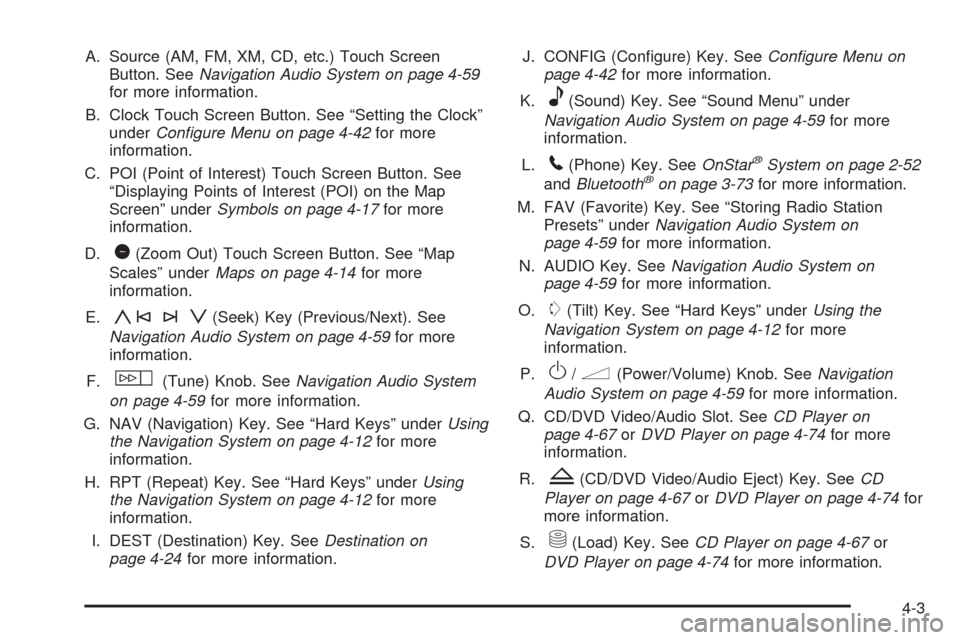
A. Source (AM, FM, XM, CD, etc.) Touch Screen
Button. SeeNavigation Audio System on page 4-59
for more information.
B. Clock Touch Screen Button. See “Setting the Clock”
underConfigure Menu on page 4-42for more
information.
C. POI (Point of Interest) Touch Screen Button. See
“Displaying Points of Interest (POI) on the Map
Screen” underSymbols on page 4-17for more
information.
D.
1(Zoom Out) Touch Screen Button. See “Map
Scales” underMaps on page 4-14for more
information.
E.
y©¨z(Seek) Key (Previous/Next). See
Navigation Audio System on page 4-59for more
information.
F.
w(Tune) Knob. SeeNavigation Audio System
on page 4-59for more information.
G. NAV (Navigation) Key. See “Hard Keys” underUsing
the Navigation System on page 4-12for more
information.
H. RPT (Repeat) Key. See “Hard Keys” underUsing
the Navigation System on page 4-12for more
information.
I. DEST (Destination) Key. SeeDestination on
page 4-24for more information.J. CONFIG (Congure) Key. SeeConfigure Menu on
page 4-42for more information.
K.
e(Sound) Key. See “Sound Menu” under
Navigation Audio System on page 4-59for more
information.
L.
5(Phone) Key. SeeOnStar®System on page 2-52
andBluetooth®on page 3-73for more information.
M. FAV (Favorite) Key. See “Storing Radio Station
Presets” underNavigation Audio System on
page 4-59for more information.
N. AUDIO Key. SeeNavigation Audio System on
page 4-59for more information.
O.
m(Tilt) Key. See “Hard Keys” underUsing the
Navigation System on page 4-12for more
information.
P.
O/n(Power/Volume) Knob. SeeNavigation
Audio System on page 4-59for more information.
Q. CD/DVD Video/Audio Slot. SeeCD Player on
page 4-67orDVD Player on page 4-74for more
information.
R.
Z(CD/DVD Video/Audio Eject) Key. SeeCD
Player on page 4-67orDVD Player on page 4-74for
more information.
S.
M(Load) Key. SeeCD Player on page 4-67or
DVD Player on page 4-74for more information.
4-3
Page 294 of 586

Features and Controls
Using the Navigation System
This section presents basic information needed to
operate the navigation system.
Use the hard keys located on the navigation system
along with the available touch-sensitive screen buttons
on the navigation screen to operate the system.
SeeNavigation System Overview on page 4-2for more
information.
Once the vehicle is moving, various functions are
disabled to reduce driver distractions.
Hard Keys
The following hard keys are located on the navigation
system:
O/n(Power/Volume):Press to turn the system on
and off. Turn to increase or decrease the volume to
the audio system.
Press and hold for more than two seconds to turn off
the navigation system, the Rear Seat Entertainment
(RSE), and Rear Seat Audio (RSA). If the vehicle has
not been tuned off, the RSE and the RSA can be turned
back on by pressing this knob and continues play of
the last active source.
w(Tune):Turn to go to the next or previous radio
station or disc track or chapter. SeeNavigation Audio
System on page 4-59,CD Player on page 4-67,orDVD
Player on page 4-74for more information.
Z(DVD Map Disc Eject):Press to eject the DVD
map disc. This button is located next to the upper disc
slot. SeeMaps on page 4-14for more information.
M(Load):Press to load CDs or audio/video DVDs.
SeeCD Player on page 4-67orDVD Player on
page 4-74for more information.
Z(CD/DVD Eject):Press to eject CDs or audio/video
DVDs. This button is located under the load button.
SeeCD Player on page 4-67orDVD Player on
page 4-74for more information.
m(Tilt):Press up or down to tilt the screen.
AUDIO:Press access the full Audio screen to change
AM, FM, XM™ Satellite Radio Service (if equipped),
CD/DVD, and auxiliary input. See “Audio” under
Navigation Audio System on page 4-59for more
information.
FAV (Favorite):Press to access the preset stations.
See “Storing Radio Station Presets” underNavigation
Audio System on page 4-59for more information.
4-12
Page 295 of 586

5(Phone):Press to access calling through OnStar®.
SeeOnStar®System on page 2-52andBluetooth®
on page 3-73for more information.
e(Sound):Press to access the Sound screen to
adjust bass, midrange, treble, and Digital Signal
Processing (DSP). See “Sound Menu” underNavigation
Audio System on page 4-59for more information.
DEST (Destination):Press to access the Destination
Entry screen to plan a destination. SeeDestination
on page 4-24for more information.
CONFIG (Congure Menu):Press to adjust features
for sound, radio, navigation, and the display. See
Configure Menu on page 4-42for more information.
NAV (Navigation):Press to view your vehicle’s current
position on the map screen. Each press of this key
cycles through Full Map and the tab that displays the
current audio source (AM, FM, CD, etc.). Full Map
displays the screen in full map view. Selecting the audio
tab splits the screen between the map screen and the
current audio source screen menu. See “Audio”
underNavigation Audio System on page 4-59for
more information.
RPT (Navigation Repeat):Press to repeat the last
voice guidance prompt.
y©¨z(Seek): Press the seek arrows to seek
and scan radio stations, to seek tracks on a CD, and
to seek chapters on a DVD. SeeNavigation Audio
System on page 4-59,CD Player on page 4-67,
orDVD Player on page 4-74for more information.
Touch-Sensitive Screen Buttons
Touch-sensitive screen buttons are located on the
screen. When a screen button has been selected, a
beep sounds. Screen buttons are highlighted when
a feature is available.
Alpha-Numeric Keyboard
Letters of the alphabet, symbols, punctuation, and
numbers, when available, displays on the navigation
screen as an alpha or numeric keyboard. The alpha
keyboard displays when the system requires entry
of a city or street name.
All characters are touch-sensitive screen buttons.
Touch a character to select it.
A-Y (Accent Alphabet):Select to enter letters with
accent symbols. This button may toggle to A-Z.
A-Z (Alphabet):Select to enter letters from the
alphabet. This button may toggle to A-Y.
0-9 (Numbers):Select to enter numbers.
4-13
Page 341 of 586

Ordering Map DVDs
The map DVD in your vehicle is the most up-to-date
information available when your vehicle was produced.
The map DVD is updated periodically, provided that
the map information has changed.
If you have any questions about the operation of the
navigation system or the update process, contact the
GM Nav Disc Center toll-free phone number,
1-877-NAV-DISC (1-877-628-3472) or go to the center’s
website, gmnavdisc.com. If you need any updates or a
replacement disc, because the current disc is lost,
damaged, or needs to be updated, call the GM Nav Disc
Center or order a new disc online. To order a disc, have
your Vehicle Identication Number (VIN) available. This
helps the center make sure you receive the correct and
most up-to-date DVD map disc for your vehicle. See
“Vehicle Identication Number (VIN)” in the Index of your
vehicle’s owner manual for more information.
After receiving the updated disc, replace the old disc in
the navigation system. See “Installing the DVD Map
Disc” and “Ejecting the DVD Map Disc” underMaps on
page 4-14. Dispose of the old disc to avoid confusion
about which disc is the most current.
Database Coverage Explanations
Coverage area depends upon the map detail available.
Some areas have greater map detail than others. The
navigation system works only as well as the information
provided on the map disc. SeeOrdering Map DVDs on
page 4-59on how to obtain updated map information.
Navigation Audio System
Notice:Before adding any sound equipment to the
vehicle, such as an audio system, CD player, CB
radio, mobile telephone, or two-way radio, make sure
that it can be added by checking with your dealer/
retailer. Also, check federal rules covering mobile
radio and telephone units. If sound equipment can be
added, it is very important to do it properly. Added
sound equipment can interfere with the operation of
the vehicle’s engine, radio, or other systems, and
even damage them. The vehicle’s systems can
interfere with the operation of sound equipment that
has been added.
Notice:The chime signals related to safety belts,
parking brake, and other functions of the vehicle
operate through the navigation system. If that
equipment is replaced or additional equipment is
added to the vehicle, the chimes may not work. Make
sure that replacement or additional equipment is
compatible with the vehicle before installing it. See
“Accessories and Modications” in the Index of the
vehicle’s owner manual.
4-59
Page 342 of 586

Playing the Radio
O
/n(Power/Volume):Press to turn the audio
system on and off. Turn to increase or to decrease the
volume.
Press and hold for more than two seconds to turn off
the navigation system, the Rear Seat Entertainment
(RSE) video screen, and Rear Seat Audio (RSA). If the
vehicle has not been turned off, press this knob to
turn RSE and RSA back on and to continue playback of
the last active source.
w(Tuning Knob):Turn to go to the next or
previous frequency or disc track or chapter. SeeCD
Player on page 4-67orDVD Player on page 4-74
for more information.
AUDIO:Press to display the audio screen. Press to
switch between AM, FM, or XM, if equipped, DISC, or
AUX (Auxiliary), or touch the screen button. SeeCD
Player on page 4-67,DVD Player on page 4-74,
andAuxiliary Devices on page 4-81for more
information.
Finding a Station
If viewing a map screen, touch the source screen
(AM, FM, XM, CD, etc.) button. The display splits
between the audio screen and the map screen.
All station-changing functions can be performed
from this screen.AM source shown, other sources similar
4-60
Page 349 of 586

No Artist Info:No artist information is available.
The system is working properly.
No Title Info:No song title information is available.
The system is working properly.
No CAT Info:No category information is available.
The system is working properly.
CAT Not Found:There are no channels available for
the selected category. The system is working properly.
No Information:No text or informational messages
are available. The system is working properly.
XM Theftlocked:The XM™ receiver may have
previously been in another vehicle. For security
purposes, XM™ receivers cannot be swapped between
vehicles. If this message is received after having
your vehicle serviced, check with your dealer/retailer.
XM Radio ID:If tuned to channel 0, this message
will alternate with the XM™ Radio eight digit radio
ID label. This label is needed to activate the service.
Unknown:If this message is received when tuned
to channel 0, there may be a receiver fault. Consult
with your dealer/retailer.
Check XM Receiver:If this message does not clear
within a short period of time, the receiver may have
a fault. Consult with your dealer/retailer.CD Player
The player can be used for CD, MP3, DVD audio, and
as a DVD video player. SeeDVD Player on page 4-74
for more information about DVD audio and video.
Six-Disc CD Player
While playing a CD, the navigation system is available.
When you insert a CD, the CD tab displays. If a
DSP setting is selected for the CD, it activates each
time you play a CD.
If the ignition or radio is turned off with a CD in the
player, it stays in the player. When the ignition or radio
is turned on, the CD starts playing where it stopped,
if it was the last selected audio source.
As each new track starts to play, the track number
displays.
If an error appears on the display, see “CD Messages”
later in this section.
If viewing a map screen, touch the CD screen button.
The display will split between the audio screen and
the map screen. If you do not want to view a split screen
or you are not on a map screen, press the AUDIO
key then press the AUDIO key repeatedly until CD is
selected or touch the CD screen button.
4-67
Page 350 of 586

M(Load):To load one disc, do the following:
1. Press the load hard key and follow the screen
message displayed.
2. When the system displays “Insert Disc (number)”,
insert the disc partway into the slot, label side up.
The system will pull it into the rst available slot and
start playing. The system will display the type of
disc inserted.
To load multiple discs, do the following:
1. Press and hold the load hard key and follow the
screen message displayed.
2. When the system displays “Insert Disc (number)”,
insert the disc partway into the slot, label side up.
The system will pull it in.
3. Once a disc is loaded, the system will display
“Insert Disc (number)” again. Load the next
disc. Repeat this procedure for each disc. The
player takes up to six discs, do not try to load more
than six. The system does not display the disc
types when loading all, until the discs have been
read by the system.Z(Eject):To eject a disc, do the following:
1. Press the eject hard key.
2. The system displays “Ejecting Disc”.
Press the DISC screen button to display the Disc
Changer screen. Select the disc to eject. If a
selection is not made, the system will eject the disc
from the current slot. If the disc is not removed
from the slot, the system pulls it back in after
10 seconds and starts playing it.
To eject all discs, press and hold the eject hard key.
The system displays the disc number being ejected.
4-68