2009 CADILLAC ESCALADE ad blue
[x] Cancel search: ad bluePage 249 of 586

Voice Pass-Thru
Voice Pass-Thru allows access to the voice recognition
commands on the cell phone. See the cell phone
manufacturers user guide to see if the cell phone
supports this feature. This feature can be used to
verbally access contacts stored in the cell phone.
1. Press and hold
bgfor two seconds. The system
responds with “Ready” followed by a tone.
2. Say “Bluetooth
®”. The system responds with
“Bluetooth®ready” followed by a tone.
3. Say “Voice”. The system responds with “OK,
accessing
The cell phone’s normal prompt messages will
go through its cycle according to the phone’s
operating instructions.
Dual Tone Multi-Frequency (DTMF)
Tones
The in-vehicle Bluetooth®system can send numbers
and numbers stored as name tags during a call. This is
used when calling a menu driven phone system.
Account numbers can be programmed into the
phonebook for retrieval during menu driven calls.
Sending a Number During a Call
1. Pressbg. The system responds with “Ready”
followed by a tone.
2. Say “Dial”. The system responds with “Say a
number to send tones” followed by a tone.
3. Say the number to send.
If the system clearly recognizes the number it
responds with “OK, Sending Number” and the
dial tones are sent and the call continues.
If the system is not sure it recognized the
number properly, it responds “Dial Number,
Please say yes or no?” followed by a tone. If the
number is correct, say “Yes”. The system
responds with “OK, Sending Number” and the
dial tones are sent and the call continues.
3-83
Page 250 of 586

Sending a Stored Name Tag During a Call
1. Pressbg. The system responds with “Ready”
followed by a tone.
2. Say “Send name tag.” The system responds
with “Say a name tag to send tones” followed
by a tone.
3. Say the name tag to send.
If the system clearly recognizes the name tag it
responds with “OK, Sending
the dial tones are sent and the call continues.
If the system is not sure it recognized the name
tag properly, it responds “Dial
Please say yes or no?” followed by a tone. If the
name tag is correct, say “Yes”. The system
responds with “OK, Sending
the dial tones are sent and the call continues.
Clearing the System
Unless information is deleted out of the in-vehicle
Bluetooth®system, it will be retained indenitely. This
includes all saved name tags in the phonebook and
phone pairing information. For information on how
to delete this information, see the above sections on
Deleting a Paired Phone and Deleting Name Tags.
Other Information
The Bluetooth®word mark and logos are owned by the
Bluetooth®SIG, Inc. and any use of such marks by
General Motors is under license. Other trademarks and
trade names are those of their respective owners.
This device complies with Part 15 of the FCC Rules.
Operation is subject to the following two conditions:
1. This device may not cause harmful interference.
2. This device must accept any interference received,
including interference that may cause undesired
operation.
This device complies with RSS-210 of Industry Canada.
Operation is subject to the following two conditions:
1. This device may not cause interference.
2. This device must accept any interference received,
including interference that may cause undesired
operation of the device.
Changes or modications to this system by other than
an authorized service facility could void authorization to
use this equipment.
3-84
Page 279 of 586

PROG (Program):Press this button to go to the next
preset radio station or channel set on the main
radio. This function is inactive, with some radios, if the
front seat passengers are listening to the radio.
When a CD or DVD audio disc is playing, press this
button to go to the beginning of the CD or DVD audio.
This function is inactive, with some radios, if the
front seat passengers are listening to the disc.
When a disc is playing in the CD or DVD changer,
press this button to select the next disc, if multiple discs
are loaded. This function is inactive, with some radios,
if the front seat passengers are listening to the disc.
When a DVD video menu is being displayed, press the
PROG button to perform the menu function, enter.
Theft-Deterrent Feature
THEFTLOCK®is designed to discourage theft of the
vehicle’s radio by learning a portion of the Vehicle
Identication Number (VIN). The radio does not operate
if it is stolen or moved to a different vehicle.
Audio Steering Wheel Controls
Vehicles with audio
steering wheel controls
could differ depending
on the vehicle’s options.
Some audio controls
can be adjusted at the
steering wheel.
w(Next):Press to go to the next radio station stored
as a favorite, or the next track if a CD/DVD is playing.
xc(Previous/End):Press to go to the previous
radio station stored as a favorite, the next track if
a CD/DVD is playing, to reject an incoming call, or end
a current call.
bg(Mute/Push to Talk):Press to silence the vehicle
speakers only. Press again to turn the sound on.
For vehicles with OnStar
®or Bluetooth®systems press
and hold
bgfor longer than two seconds to interact
with those systems. SeeOnStar®System on page 2-52
andBluetooth®on page 3-73for more information.
3-113
Page 285 of 586
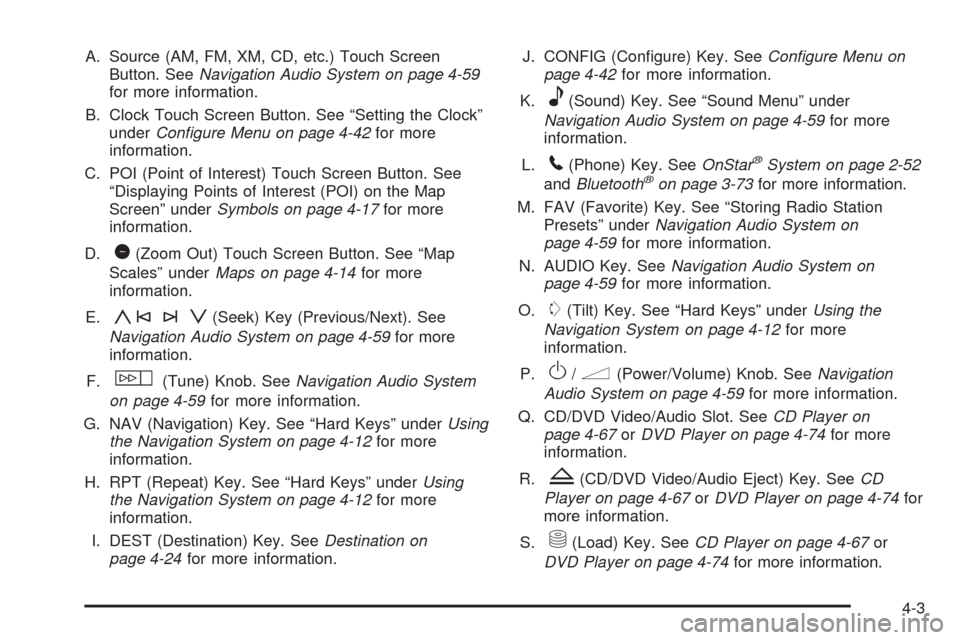
A. Source (AM, FM, XM, CD, etc.) Touch Screen
Button. SeeNavigation Audio System on page 4-59
for more information.
B. Clock Touch Screen Button. See “Setting the Clock”
underConfigure Menu on page 4-42for more
information.
C. POI (Point of Interest) Touch Screen Button. See
“Displaying Points of Interest (POI) on the Map
Screen” underSymbols on page 4-17for more
information.
D.
1(Zoom Out) Touch Screen Button. See “Map
Scales” underMaps on page 4-14for more
information.
E.
y©¨z(Seek) Key (Previous/Next). See
Navigation Audio System on page 4-59for more
information.
F.
w(Tune) Knob. SeeNavigation Audio System
on page 4-59for more information.
G. NAV (Navigation) Key. See “Hard Keys” underUsing
the Navigation System on page 4-12for more
information.
H. RPT (Repeat) Key. See “Hard Keys” underUsing
the Navigation System on page 4-12for more
information.
I. DEST (Destination) Key. SeeDestination on
page 4-24for more information.J. CONFIG (Congure) Key. SeeConfigure Menu on
page 4-42for more information.
K.
e(Sound) Key. See “Sound Menu” under
Navigation Audio System on page 4-59for more
information.
L.
5(Phone) Key. SeeOnStar®System on page 2-52
andBluetooth®on page 3-73for more information.
M. FAV (Favorite) Key. See “Storing Radio Station
Presets” underNavigation Audio System on
page 4-59for more information.
N. AUDIO Key. SeeNavigation Audio System on
page 4-59for more information.
O.
m(Tilt) Key. See “Hard Keys” underUsing the
Navigation System on page 4-12for more
information.
P.
O/n(Power/Volume) Knob. SeeNavigation
Audio System on page 4-59for more information.
Q. CD/DVD Video/Audio Slot. SeeCD Player on
page 4-67orDVD Player on page 4-74for more
information.
R.
Z(CD/DVD Video/Audio Eject) Key. SeeCD
Player on page 4-67orDVD Player on page 4-74for
more information.
S.
M(Load) Key. SeeCD Player on page 4-67or
DVD Player on page 4-74for more information.
4-3
Page 295 of 586

5(Phone):Press to access calling through OnStar®.
SeeOnStar®System on page 2-52andBluetooth®
on page 3-73for more information.
e(Sound):Press to access the Sound screen to
adjust bass, midrange, treble, and Digital Signal
Processing (DSP). See “Sound Menu” underNavigation
Audio System on page 4-59for more information.
DEST (Destination):Press to access the Destination
Entry screen to plan a destination. SeeDestination
on page 4-24for more information.
CONFIG (Congure Menu):Press to adjust features
for sound, radio, navigation, and the display. See
Configure Menu on page 4-42for more information.
NAV (Navigation):Press to view your vehicle’s current
position on the map screen. Each press of this key
cycles through Full Map and the tab that displays the
current audio source (AM, FM, CD, etc.). Full Map
displays the screen in full map view. Selecting the audio
tab splits the screen between the map screen and the
current audio source screen menu. See “Audio”
underNavigation Audio System on page 4-59for
more information.
RPT (Navigation Repeat):Press to repeat the last
voice guidance prompt.
y©¨z(Seek): Press the seek arrows to seek
and scan radio stations, to seek tracks on a CD, and
to seek chapters on a DVD. SeeNavigation Audio
System on page 4-59,CD Player on page 4-67,
orDVD Player on page 4-74for more information.
Touch-Sensitive Screen Buttons
Touch-sensitive screen buttons are located on the
screen. When a screen button has been selected, a
beep sounds. Screen buttons are highlighted when
a feature is available.
Alpha-Numeric Keyboard
Letters of the alphabet, symbols, punctuation, and
numbers, when available, displays on the navigation
screen as an alpha or numeric keyboard. The alpha
keyboard displays when the system requires entry
of a city or street name.
All characters are touch-sensitive screen buttons.
Touch a character to select it.
A-Y (Accent Alphabet):Select to enter letters with
accent symbols. This button may toggle to A-Z.
A-Z (Alphabet):Select to enter letters from the
alphabet. This button may toggle to A-Y.
0-9 (Numbers):Select to enter numbers.
4-13
Page 303 of 586

Go:Select this screen button, next to the desired POI,
to make this POI a destination or a stopover.
Select a POI name to receive information about the
POI. From this screen you can select: Address Book,
Go, Map, or Call (if Bluetooth
®or OnStar®personal
calling is activated).
Address Book:Press to add this POI to the address
book. See “Nav” underConfigure Menu on page 4-42for
information on editing address book entries.
Go:Select to make this POI a destination or a stopover.
Map:Select to display the map showing the location
of the POI.
Call:Select to dial the phone number using your
Bluetooth
®phone (if “paired” with the vehicle) or the
OnStar®HandsFree Calling system. For more
information about Bluetooth®calling, seeBluetooth®on
page 3-73. For more information about OnStar®
HandsFree calling, see the OnStar®Owner Guide.OK:Select to display the map screen.
Show POI:Select to display or remove the POI icons
from the map screen.
List all Categories:Select to list all POIs sorted
alphabetically.
Delete:To delete a specic POI category, select the
category.
Clear All:Select this screen button to clear all selected
POI categories.
4-21
Page 316 of 586

Map Destination Screen Functions
If the map screen is used to show destinatiion, it will have
map screen capabilities such as Go, Mark, Zoom, Scroll,
etc. The address is shown at the top of the screen.
OnStar®Destination Download
OnStar®Destination Download (if equipped) is a service
available for OnStar* subscribers that makes operating
your navigation system much simpler. It allows
subscribers to request and receive navigation assistance
on-the-go.
Using OnStar®Destination Download
Press the blue OnStar®button and an Advisor can
locate a point-of-interest or an address and download
the necessary information or coordinates to your
navigation system. Once the destination is downloaded,
the navigation system will search for the address in
the mapping disc’s database. When the address
is found, it will be shown on your navigation system’s
screen along with the buttons described below.
Destination Map Screen
4-34
Page 317 of 586

Select Go, the navigation system calculates
route(s). Select a route (i.e. Shortest Route),
and Start Guidance.
Select Map, the navigation system displays
the Destination Map Screen.
Select Call, the navigation system initiates a call
to your destination with your Bluetooth®phone
(if available) or OnStar®Hands-Free Calling
(if minutes are available).
Select Add to Address Book, the navigation system
copies the downloaded destination to the address
book and displays the new address book entry.
Select Back, the navigation system cancels your
OnStar®Destination Download and returns to
the previous screen.
Route Guidance Not Active
If an OnStar®destination is downloaded while route
guidance is not active, the navigation system displays an
OnStar
®Destination Download Screen and operations
will continue as outlined in the Using OnStar®
Destination Download section:
Route Guidance Active
If OnStar®downloads a destination while route guidance
is already active, the navigation system adds the
downloaded destination as the next waypoint in the
existing route. All features such as Call and Add
to Address Book will be available for the waypoint.
Refer to the section on Waypoints for more information. OnStar
®Download Screen
4-35