2009 BMW X5 XDRIVE 35D Repeat
[x] Cancel search: RepeatPage 167 of 317
Navigation
Driving tips
165Reference
At a glance
Controls
Communications
Entertainment
Mobility
To exit from the menu: Select the arrow and press the controller.
Destination guidance via
voice instructions
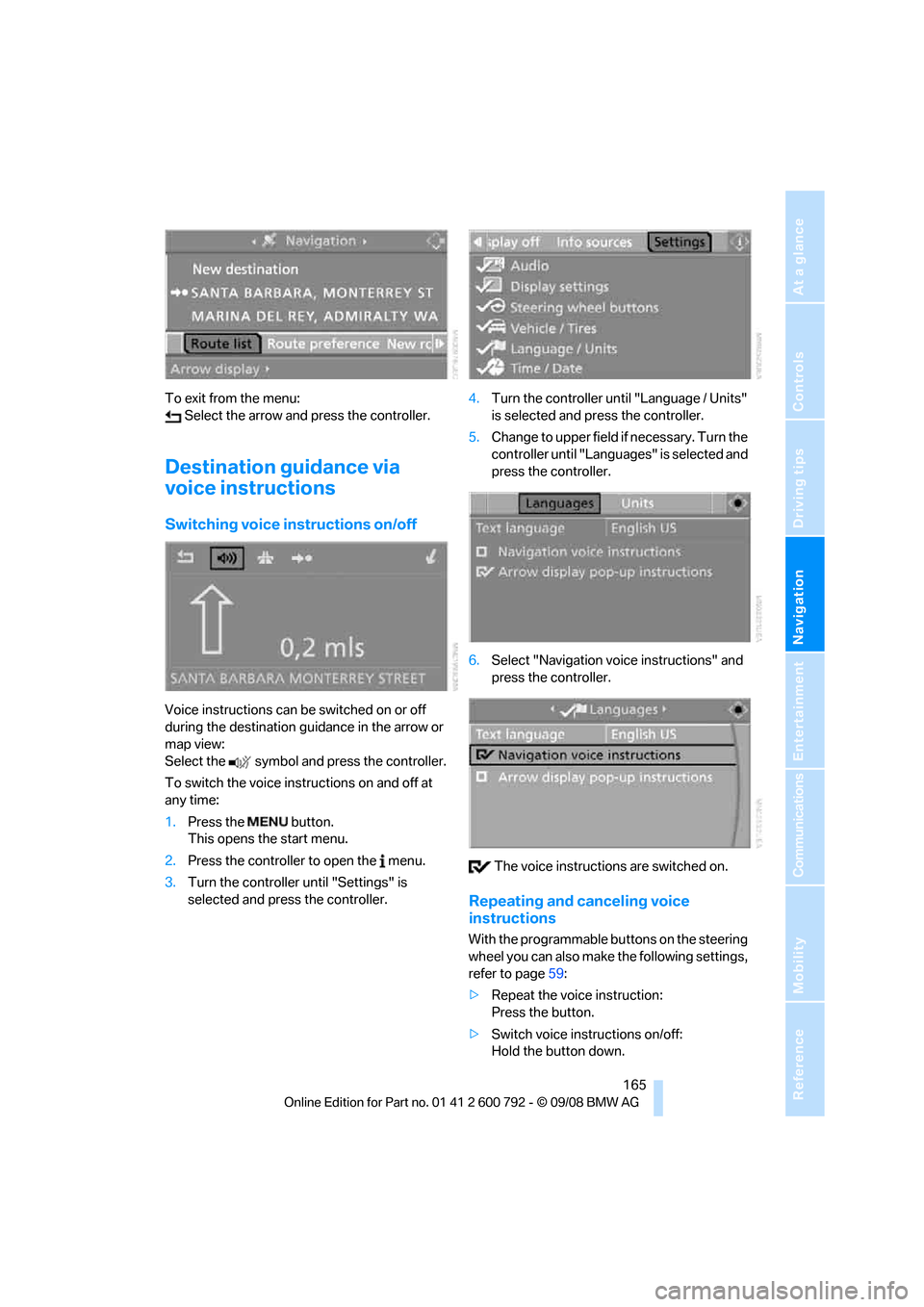
Switching voice in structions on/off
Voice instructions can be switched on or off
during the destination guidance in the arrow or
map view:
Select the symbol and press the controller.
To switch the voice instructions on and off at
any time:
1.Press the button.
This opens the start menu.
2. Press the controller to open the menu.
3. Turn the controller until "Settings" is
selected and press the controller. 4.
Turn the controller until "Language / Units"
is selected and pr ess the controller.
5. Change to upper field if necessary. Turn the
controller until "Languages" is selected and
press the controller.
6. Select "Navigation voice instructions" and
press the controller.
The voice instructio ns are switched on.
Repeating and canceling voice
instructions
With the programmable buttons on the steering
wheel you can also make the following settings,
refer to page59:
> Repeat the voice instruction:
Press the button.
> Switch voice instructions on/off:
Hold the button down.
Page 168 of 317

Destination guidance
166
Setting volume of voice instructions
The volume can only be adjusted while a voice
instruction is being output.
1.Repeat the last voice instruction, if neces-
sary.
2. Turn the knob during the voice instruction
to select the desired volume.
This volume is independen t of the volume of the
audio sources.
The setting is stored fo r the remote control cur-
rently in use.
Changing route
During destination guidan ce, you can revise the
navigation system's route recommendations to
avoid particular stretches of road. Enter the
number of miles/kilomete rs that you want to
travel before returning to the original route.
1. Select "Navigation" and press the control-
ler.
2. Change into the third field from the top.
Turn the controller until "New route" is
selected and press the controller.
3. Turn the controller to enter the desired
number and press the controller. The route is recalculated.
To exit from the menu without changing the
route:
Select the arrow and press the controller.
Traffic information*
In many congested areas, you can receive traf-
fic information transmitted by radio stations.
The traffic conditions ar e monitored by traffic
management centers and the traffic information
is periodically updated.
During destination guid ance, the traffic infor-
mation relevant to your planned route is auto-
matically displayed and, if you wish, taken into
account in the route planning. Whether destina-
tion guidance is active or not, you can have the
traffic information displayed in the map view or
in the traffic info list.
Switching reception of traffic
information on/off
iDrive, for operating pr inciple refer to page16.
1. Press the button.
This opens the start menu.
2. Press the controller to open the menu.
3. Turn the controller until "Settings" is
selected and press the controller.
4. Turn the controller until "Traffic Info set-
tings" is selected and press the controller.
Page 185 of 317

Navigation
Entertainment
Driving tips
183Reference
At a glance
Controls
Communications
Mobility
Displaying additional information
With the digital stations, additional information
on the current track is displayed, e.g. the name
of the artist.
1. Select a station and press the controller.
2. Select "Details" and press the controller.
The information is displayed.
If a digital station is received again when the
station is changed, the additional information
will be displayed again following a brief interrup-
tion.
Weather news flashes*
Weather Radio is a service of the National Oce-
anic and Atmospheric Administration (NOAA)
of the US Department of Trade. Weather news
flashes are repeated every four to six minutes
and are routinely updated at intervals of one to
three hours, and more often when necessary.
Most stations operate 24 ho urs a day. In case of
a storm, the National Weather Service inter-
rupts the routine weather news and transmits
special warning messages in stead. If you have a
question about NOAA Weather Radio, please
contact the nearest offi ce of the National Weather Service. Details are also provided on
the Internet at www.nws.noaa.gov.
Calling up weather news flashes
1.
Select "WB" and press the controller.
2. Select a station.
The station for weather news flashes may be
unavailable in some regions.
Page 190 of 317

CD player and CD changer
188
4.
Change to the second field from the top if
necessary. Select the desired CD and press
the controller.
At the end of the last tr ack, the next CD will be
selected.
Via programmable memory buttons
You can store a CD compartment of the CD
changer on the programmable memory but-
tons. To start the CD changer, refer to page 21.
Selecting a track
Buttons on CD player
Press the button for the corresponding
direction repeatedly until you reach the desired
track.
The track is displayed on the Control Display.
You can also change tracks using the buttons
on the steering wheel, refer to page 11.
Via iDrive
Select a track by turning the controller.
Compressed audio files
1.Select the directory if necessary and press
the controller.
2. Select the track and press the controller.
To change the directory:
Select the directory and press the controller.
To exit from the menu: Select the arrow and press the controller.
For equipment with two drives, you can save a
certain track on the programmable memory
buttons, refer to page 21.
Displaying information on track
With compressed audio files, you can display
any information stored on the current track, e.g.
the name of the artist.
Page 191 of 317

Navigation
Entertainment
Driving tips
189Reference
At a glance
Controls
Communications
Mobility
1.Press the controller.
2. Select "Details" and press the controller.
The information for the current track are dis-
played.
The setting is stored for the remote control cur-
rently in use.
Sampling tracks, scan
The system automatically plays a brief sample
from each of the trac ks on the current CD.
1. Select "Set" and press the controller.
Other menu items are displayed.
2. Select "Scan" and press the controller. To end sampling:
1.
Press the controller.
2. Select "Scan" and press the controller.
This cancels sampling of the tracks, and the
player remains on the current track.
Compressed audio files
1. Select the current track and press the con-
troller.
2. Select the desired menu item:
>To sample all tracks of the current direc-
tory, select "Scan directory" and press
the controller.
> To sample all tracks of the CD, select
"Scan all" and press the controller.
To end sampling:
1. Press the controller.
2. Select "Scan directory" or "Scan all" and
press the controller.
This cancels sampling, and the player remains
on the current track.
Repeating a track
1. Select "Set" and press the controller.
Other menu items are displayed.
Page 192 of 317

CD player and CD changer
190
2.
Select "Repeat" and press the controller.
The current track on the CD is repeated.
To stop repeating:
1. Press the controller again.
2. Select "Repeat" and press the controller.
Compressed audio files
1.Select the current track and press the con-
troller.
2. Select the desired menu item:
>To repeat the selected track, select
"Repeat track" and press the controller.
> To repeat all tracks of the current direc-
tory, select "Repeat directory" and press
the controller.
To stop repeating:
1. Press the controller.
2. Select "Repeat track" or "Repeat directory"
and press the controller.
Random play sequence
In this mode, the tracks on the current CD are
played once in a random sequence.
1.Select "Set" and press the controller.
Other menu items are displayed.
2. Select "Random" and press the controller.
To stop random function:
1. Press the controller.
2. Select "Random" and press the controller.
Compressed audio files
1.Select the current track and press the con-
troller.
2. Select the desired menu item:
>To play all tracks of the current directory
in random order, select "Random direc-
tory" and press the controller.
> To play all tracks of the CD in random
order, select "Random all" and press the
controller.
To stop random function:
1. Press the controller.
2. Select "Random directory" or "Random all"
and press the controller.
Fast forward/reverse
Buttons on CD player:
Press and hold the button for the corre-
sponding direction.
The tracks can be listene d to with some distor-
tion.
Page 193 of 317

Navigation
Entertainment
Driving tips
191Reference
At a glance
Controls
Communications
Mobility
CD changer
The BMW CD changer for six CDs is installed in
the glove compartment.
Controls and displays
1LEDs on CD bay
Flash when the CD can be inserted.
2 Buttons for CD compartments
LED lights up when CD compartment is
filled.
Filling CD changer
1.Press the button.
The LED on the first empty compartment
flashes.
2. Select another CD compartment if neces-
sary:
Press the ... button.
3. When the LEDs 1 o n t h e C D b a y f l a s h , i n s e r t
an individual CD.
The CD is automatica lly pulled in and
inserted into the selected CD compartment.
Do not push in the CD until the
LEDs 1 on the CD bay are flashing;
otherwise, the CD or the CD changer may
be damaged. Do not continue to push on the CD; this may
cause it to jam and prevent it from being
able to eject again.
<
4. To fill additional CD compartments:
Repeat steps 1 to 3.
Filling empty CD compartments
1.Hold down the button.
The LEDs on the empty CD compartments
flash.
2. When the LEDs 1 o n t h e C D b a y f l a s h , i n s e r t
an individual CD.
The CD is automati cally pulled in and
inserted into the first available CD compart-
ment.
Do not push in the CD until the
LEDs 1 on the CD bay are flashing;
otherwise, the CD or the CD changer may
be damaged.
Do not continue to push on the CD; this may
cause it to jam and prevent it from being
able to eject again. <
3. Wait until the CD has been pulled in.
4. To fill additional CD compartments:
Repeat steps 2 and 3.
Removing CDs from CD changer
1.Press the button.
2. Press the ... button to select the
CD compartment.
The CD is pushed partially out of the CD
changer.
3. Remove the CD.
Removing all CDs from CD changer
1.Hold down the button.
The CDs are pushed partially out of the CD
changer in sequence.
2. Remove the CDs.
Page 195 of 317

Navigation
Entertainment
Driving tips
193Reference
At a glance
Controls
Communications
Mobility
DVD changer
Installation position
The BMW DVD changer for six DVDs is installed
in the glove compartment.
Controls and displays
1LEDs on DVD bay
Flash when the DVD can be inserted.
2 Buttons for DVD compartments
The LED lights up when DVD compartment
is filled.
Filling the DVD changer
1.Press the button.
The LED on the first empty compartment
flashes.
2. Select another DVD compartment if neces-
sary:
Press the ... button.
3. When the LEDs 1 on the DVD bay flash,
insert an individual DVD.
The DVD is automatically pulled in and
inserted into the selected DVD compart-
ment. Do not push in the DVD until the
LEDs
1 on the DVD bay are flashing;
otherwise, the DVD or the DVD changer
may be damaged.
Do not continue to push on the DVD; this
may cause it to jam and prevent it from
being able to eject again. <
4. To fill additional DVD compartments:
Repeat steps 1 to 3.
Filling empty DVD compartments
1.Hold down the button.
The LEDs on the empty DVD compart-
ments flash.
2. When the LEDs 1 on the DVD bay flash,
insert an individual DVD.
The DVD is automatically pulled in and
inserted into the first available DVD com-
partment.
Do not continue to push on the DVDs;
this may cause them to jam and pre-
vent them from being able to eject again. <
3. Wait until the DVD has been pulled in and
the LEDs 1 on the DVD bay are flashing
again.
Do not push in the DVD until the
LEDs 1 on the DVD bay are flashing;
otherwise, the DVD or the DVD changer
may be damaged. <
4. To fill additional DVD compartments:
Repeat steps 2 and 3.
Removing DVDs from the DVD changer
1.Press the button.
2. Press the ... button in order to
select the DVD compartment.
The DVD is pushed partially out of the DVD
changer.
3. Remove the DVD.
If the DVD is not removed, it is pulled back
in again after about 10 seconds. <
*