2009 BMW M3 navigation
[x] Cancel search: navigationPage 117 of 246

Navigation
This chapter describes how you can
enter destinations and specify your route
so that your navigation system guides you
reliably to your destination.
Navigation
ba8_E90M3_cic.book Seite 115 Dienstag, 19. August 2008 11:51 11
Page 118 of 246

Navigation system
116
Navigation system
General information
With the help of satellites, the navigation sys-
tem is able to ascertain the precise position of
the vehicle and guide you reliably to any desti-
nation you enter.
The navigation data is stored in the vehicle and
can be updated using navigation DVDs.
Make all entries while the vehicle is sta-
tionary
Enter data only when the vehicle is stationary,
and always give priority to the applicable traffic
regulations in the event of any contradiction
between traffic and road conditions and the
instructions issued by the navigation system.
Failure to take to this precaution can place you
in violation of the law and put vehicle occupants
and other road users in danger.<
Updating the navigation data
The navigation data is stored in the vehicle and
can be updated using a navigation DVD. Please
contact the BMW center if you have any ques-
tions.
Inserting navigation DVD
1.Insert the navigation DVD into the DVD
player with the labeled side facing up.
2.Follow the instructions on the display.
3.Enter the authorization code of the naviga-
tion DVD and change the DVD if needed.
Displaying information on the version
1."Navigation"
2.Open "Options".
3."Navigation system version". Information
on the data version is displayed.
Removing navigation DVD
1. Press button 1.
The DVD emerges slightly from the drive.
2.Remove the DVD.
If the DVD is not ejected, the drive may be
blocked. In this case, a message will appear on
the Control Display.
*
ba8_E90M3_cic.book Seite 116 Dienstag, 19. August 2008 11:51 11
Page 119 of 246

Navigation
Driving tips
117Reference
At a glance
Controls
Communications
Entertainment
Mobility
Destination entry
In entering your destination you can select from
the following options:
>Entering a destination manually, see below
>Selecting destination from address book,
refer to page119
>Last destinations, refer to Last destinations,
page120
>Special destinations, refer to page120
>Entering a destination on the map, refer to
page122
>Selecting home address, refer to page120
>Entering a destination by voice com-
mands*, refer to page123
You can also store a navigation destination on
the programmable memory keys, refer to
page20.
Enter data only when the vehicle is sta-
tionary, and always give priority to the
applicable traffic regulations in the event of any
contradiction between traffic and road condi-
tions and the instructions issued by the naviga-
tion system. Otherwise, vehicle occupants and
other road users may be endangered.<
Entering a destination
manually
The system's word-matching principle makes it
easier for you to enter the names of towns or
streets. This allows you to enter different spell-
ings and completes your entry automatically so
that stored names can be called up quickly.1."Navigation"
2."Enter address"
The system also supports you with the follow-
ing features:
>If you do not enter a street, the system will
guide you to the downtown a r e a o f a t o w n o r
city.
>You can skip the entry of state/province and
locality if the current entries should be
retained for your new destination.
Entering a state/province
1."Navigation"
2."Enter address"
3.Select "State/Province" or the displayed
state/province.
Entering a town/city
1.Select "Town/City/Zip Code" or the dis-
played town/city, or select letters.
ba8_E90M3_cic.book Seite 117 Dienstag, 19. August 2008 11:51 11
Page 120 of 246

Destination entry
118 Delete letters, if necessary:
>To delete individual letters:
Turn the controller to select , and
then press the controller.
>To delete all letters:
Turn the controller to select , and
then press the controller for an extended
period.
>To enter spaces:
Select the symbol.
The list gradually grows smaller each time
you enter a new letter.
2.Move the controller to the right.
3.Select the name of the town/city from the
list. The three destinations stored last are
displayed.
If there are several towns/cities with the same
name:
1.Change to the list of town/city names.
2.Highlight the town/city: a preview map is
displayed.
3.Select the town/city.
Entering the postal code
1.Select "Town/City/Zip Code" or the dis-
played town/city.
2.Select the symbol.
3.Select the digits.
4.Change to the list of postal codes and
towns/cities.
5.Highlight the postal code. A preview map is
displayed in the assistance window.
6.Select the postal code.
Entering street and intersection
1.Select "Street" or the displayed street.
2.Enter a street and intersection as you would
the town/city.
After the street you can also enter the intersec-
tion or the house number.
If there are several streets with the same name:1.Change to the list of street names.
2.Highlight the street: a preview map is dis-
played.
3.Select the street.
Entering a street without a destination
town/city
You can also enter a street without specifying a
town/city. In this case, all streets of the same
name in the specified state/province are
offered. The corresponding town/city is dis-
played after the street name.
If a town/city has already been entered, you can
negate this entry. This could be helpful in
instances where the desired street does not
exist in the entered town/city because it
belongs to another suburb, for example.
1."Navigation"
2."Enter address"
3.Select "Street" or the displayed street.
4.Change to the list of street names.
5."Find streets in" the state/province cur-
rently displayed.
6.Select the letters.
7.Change to the list of street names.
8.Highlight the street. A preview map is dis-
played in the assistance window.
9.Select the street.
Entering a house number
You can enter any house number stored in the
navigation data for the street.
1."House number"
2.Select the digits.
ba8_E90M3_cic.book Seite 118 Dienstag, 19. August 2008 11:51 11
Page 121 of 246

Navigation
Driving tips
119Reference
At a glance
Controls
Communications
Entertainment
Mobility
3.Change to the list of house numbers.
4.Select a house number or range of house
numbers.
Selection after destination entry
>"Start guidance".
Destination guidance is started immedi-
ately.
>"Route preference"
refer to page127.
>"Points of Interest at dest."
refer to page120.
If a new town/city is selected during destination
guidance, the current destination guidance is
terminated.
Address book
To create contacts, refer to page173.
Selecting a destination from the
address book
1."Navigation"
2."Address book"
Contacts with addresses are displayed.
3.Select a contact from the list or, if neces-
sary, using "A-Z search".
4.Select "Business address" or "Home
address".
5."Start guidance"
Storing a destination in the address
book
Store the destination in the address book after
entering the destination.1.Open "Options".
2."Store as new contact" or "Add to existing
contact"
3.Select an existing contact, if available.
4.Select "Business address" or "Home
address".
5.Enter "Last name" and, if necessary, "First
name".
6."Store in "My Contacts""
Storing the position
Your current position can be stored in the
address book.
1."Navigation"
2.Open "Options".
3."Store position as contact" or "Add position
to contact"
4.Depending on the selection, select an exist-
ing contact from the list or the type of
address and enter the last and first name.
5."Store in "My Contacts""
Editing or deleting an address
1."Navigation"
2."Address book"
ba8_E90M3_cic.book Seite 119 Dienstag, 19. August 2008 11:51 11
Page 122 of 246
Destination entry
120 3.Highlight the entry.
4.Open "Options".
5."Edit in Contacts" or "Delete entry".
Using home address as destination
The home address must be stored as a destina-
tion. Refer to Specifying a contact as the home
address, page173.
1."Navigation"
2."Address book"
3."Home address"
4."Start guidance"
Last destinations
The last destinations are stored automatically.
These destinations can be called up and used
as a destination for destination guidance.
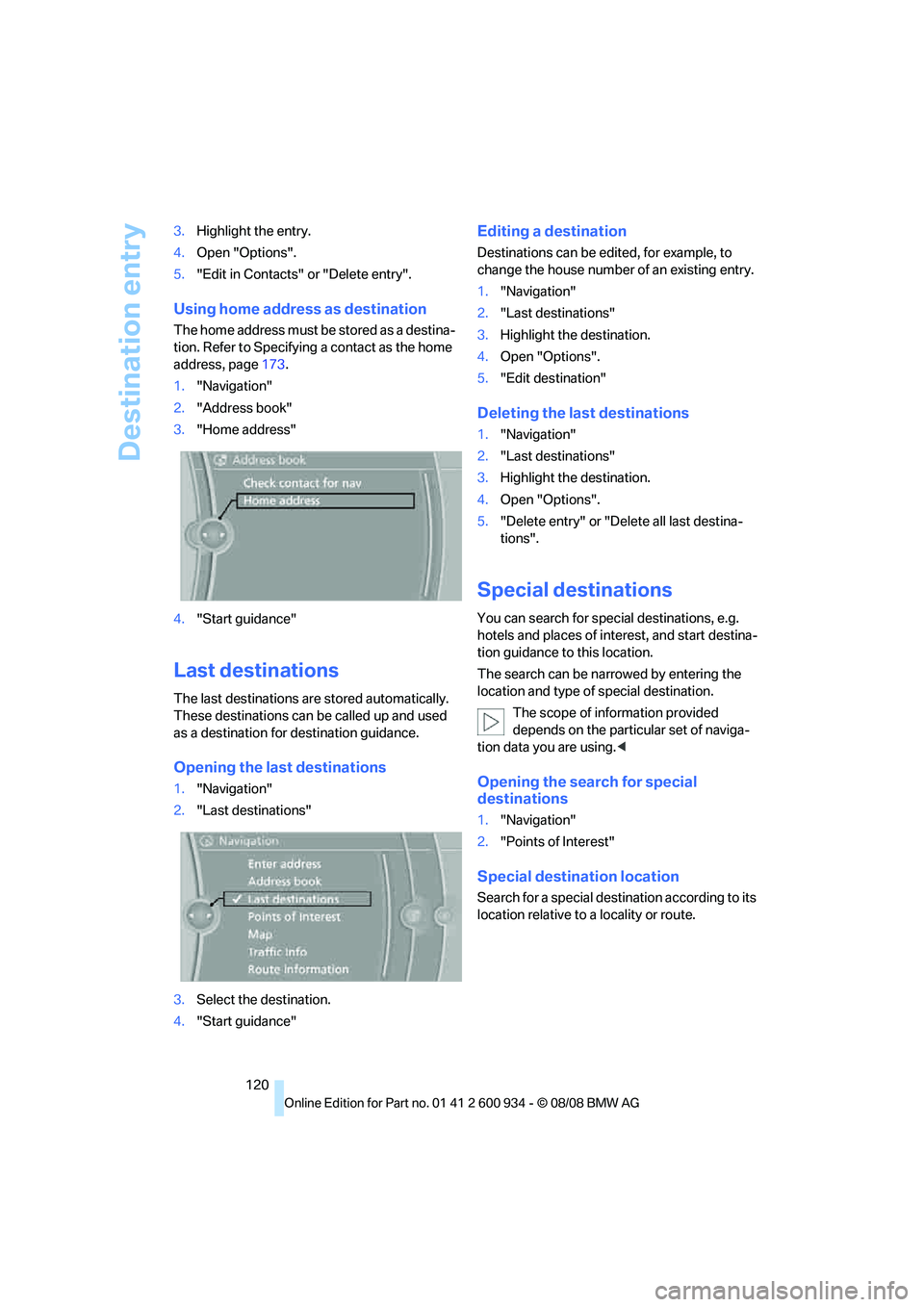
Opening the last destinations
1."Navigation"
2."Last destinations"
3.Select the destination.
4."Start guidance"
Editing a destination
Destinations can be edited, for example, to
change the house number of an existing entry.
1."Navigation"
2."Last destinations"
3.Highlight the destination.
4.Open "Options".
5."Edit destination"
Deleting the last destinations
1."Navigation"
2."Last destinations"
3.Highlight the destination.
4.Open "Options".
5."Delete entry" or "Delete all last destina-
tions".
Special destinations
You can search for special destinations, e.g.
hotels and places of interest, and start destina-
tion guidance to this location.
The search can be narrowed by entering the
location and type of special destination.
The scope of information provided
depends on the particular set of naviga-
tion data you are using.<
Opening the search for special
destinations
1."Navigation"
2."Points of Interest"
Special destination location
Search for a special destination according to its
location relative to a locality or route.
ba8_E90M3_cic.book Seite 120 Dienstag, 19. August 2008 11:51 11
Page 123 of 246

Navigation
Driving tips
121Reference
At a glance
Controls
Communications
Entertainment
Mobility
1."Search destination"
2.Select the location where the system is to
search for the special destination:
>"At current location"
>"At destination"
>"At a different destination"
>"Along route"
Special destination category
1."Category"
2.Select "All" or a specific category, e.g.
hotels or restaurants.
3."Route Points of Interest"*
Category details
Additional details can be displayed for some
special destinations, e.g. Italian restaurants.
1."Points of Interest"
2."Category details"
Starting the search for special
destinations
1."Start search" after the criteria have been
defined.
2.A list of the special destinations is dis-
played.
>Special destinations "At current loca-
tion" are listed according to their dis-
tance from the current location and are
displayed with a directional arrow point-
ing to the destination.
>Destinations of the selected category
are displayed in the map display as sym-
bols. The display depends on the map
scale and the category.
>Special destinations "At destination",
"At a different destination", "Along
route" are listed according to their dis-
tance from the location where the search
is being performed.
3.Highlight the special destination. The desti-
nation is displayed in the preview map.
4.Select the special destination.
5.Select the symbol. Destination guid-
ance to the special destination is started.
If a phone number is available, a connection
can be established, if desired.
Entering special destinations by name
1."Name, A-Z search"
2.Enter the letters.
Depending on the distance, the search may
take some time. The list can contain a max-
imum of 100 entries.
3.Change to the list of special destinations.
4.Highlight the special destination. The desti-
nation is displayed in the preview map.
5.Select the special destination.
6.Select the symbol to start destination
guidance.
Displaying special destinations in the
map
To display symbols of the special destinations
in the map:
ba8_E90M3_cic.book Seite 121 Dienstag, 19. August 2008 11:51 11
Page 124 of 246

Destination entry
122 1."Navigation"
2."Map"
3.Open "Options".
4."Display Points of Interest"
5.Select the settings.
Entering the destination via
the map
If you only know the location of the town or
street, you can enter the destination using the
map.
Opening the map
1."Navigation"
2."Map"
A map section is displayed on the Control Dis-
play. The map shows the current position of the
vehicle.
Selecting the destination
1.Select the symbol. The interactive map
is started.
2.Select the destination with the cross-hairs.
>Turn the controller: change the scale.
>Move the controller in one direction:
move the map.
>First move the controller and turn it at
the same time: move the map diagonally
to select a destination in one of the four
regions.
3.Press the controller to display additional
menu items:
>Select the symbol: start destination
guidance.
Specifying the street
If the system cannot recognize a street or town/
city, it displays a street name in the vicinity or
the coordinates of the destination.
Interactive map
In the interactive map, the scale can be adjusted
and the visible map section can be shifted. In
ba8_E90M3_cic.book Seite 122 Dienstag, 19. August 2008 11:51 11