Page 98 of 238

OTHER FUNCTIONS
11 42008 TUNDRA Navigation from Oct.07 Prod.(OM34469U)
Maintenance information —
— Maintenance information
setting
When the Navigation System is turned on, the
“Information” screen displays when it is time
to replace a part or certain components. (See
page 18.)
XS00203
1. Push the “INFO” button.
RS02028
2. Touch “Maintenance”.
5U5077G
3. Touch the desired touchscreen but-
ton.
For details of each touch−screen button, see
“INFORMATION ITEMS” on page 115.
“Delete All”: To cancel all conditions which
have been inputted.
“Reset All”: To reset the item which has sat-
isfied a condition.“Set Dealer”: To register or edit dealer infor-
mation. (See “ — Dealer setting” on page
116.)
If “ON” is selected, the system gives mainte-
nance information with the “Information”
screen when the system is turned on. (See
page 18.)
If “OFF” is selected, the “Information” screen
is disabled.
When the vehicle needs to be serviced, the
touch−screen button color will change to
orange.
Page 99 of 238
OTHER FUNCTIONS
11 52008 TUNDRA Navigation from Oct.07 Prod.(OM34469U) INFORMATION ITEMS
“ENGINE OIL”: Replace engine oil
“OIL FILTER”: Replace engine oil filter
“ROTATION”: Rotate tires
“TIRES”: Replace tires
“BATTERY”: Replace battery
“BRAKE PAD”: Replace brake linings
“WIPERS”: Replace wiper blades
“LLC”: Replace engine coolant
“BRAKE OIL”: Replace brake fluid
“ATF”: Replace ATF
“SERVICE”: Scheduled maintenance
“AIR FILTER”: Replace air filter
“PERSONAL”: New information items can
be created separately from provided ones
5U5060G
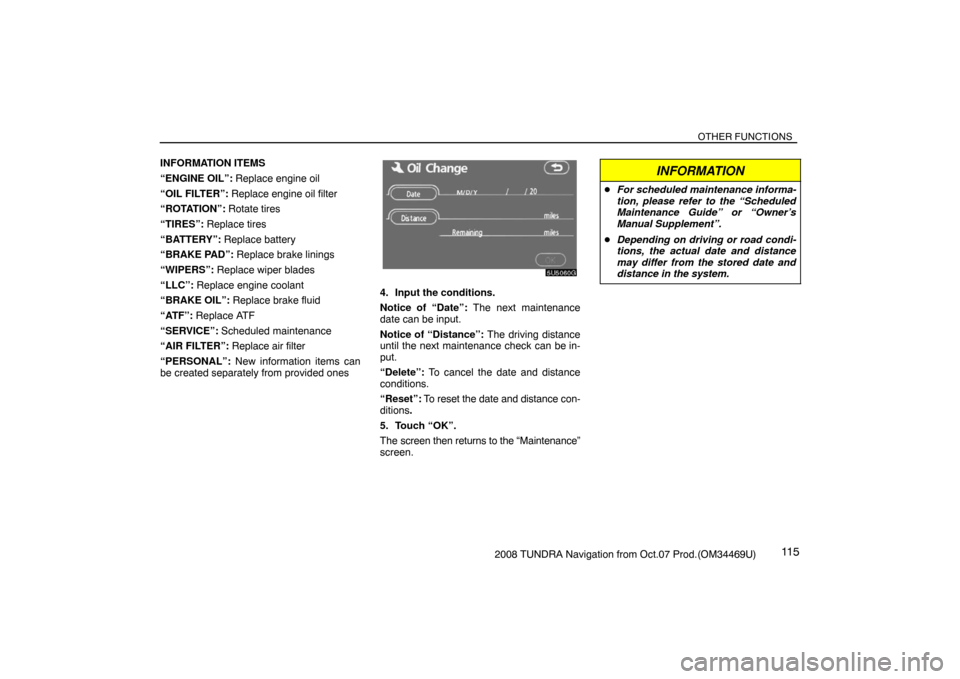
4. Input the conditions.
Notice of “Date”: The next maintenance
date can be input.
Notice of “Distance”: The driving distance
until the next maintenance check can be in-
put.
“Delete”: To cancel the date and distance
conditions.
“Reset”: To reset the date and distance con-
ditions.
5. Touch “OK”.
The screen then returns to the “Maintenance”
screen.
INFORMATION
�For scheduled maintenance informa-
tion, please refer to the “Scheduled
Maintenance Guide” or “Owner’s
Manual Supplement”.
�Depending on driving or road condi-
tions, the actual date and distance
may differ from the stored date and
distance in the system.
Page 204 of 238

AUDIO/VIDEO SYSTEM
2202008 TUNDRA Navigation from Oct.07 Prod.(OM34469U) 1. Volume control switch
Push “+” side to increase the volume. The
volume continues to increase while the switch
is being pushed.
Push “” side to decrease the volume. The
volume continues to decrease while the
switch is being pushed.
2. “MODE” switch
Push “MODE” switch to select an audio
mode. Each push changes the mode sequen-
tially if the desired mode is ready to use.
To turn the audio system on, push the
“MODE” switch.
To turn the audio system off, push and hold
the “MODE” switch until the system turns off.
3. “��” switch
Radio
This switch has the following features—
To select a preset station:
Quickly push and release the “�” or “�”
side of the switch. Do this again to select the
next preset station.
To seek a station:
Push and hold the “�” or “�” side of the
switch until you hear a beep. Do this again to
find the next station. If you push the switch on
either side during the seek mode, seeking will
be cancelled.To step up or down the frequency, push and
hold the switch even after you hear a beep.
When you release from the switch, the radio
will begin seeking up or down for a station. Do
this again to find the next station.
XM
� Satellite Radio∗—
To select a preset channel, push the “�” or
“�” side of the switch. Repeat until a desired
channel is found.
∗: Use of satellite radio requires XM� tuner
and service. Contact your Toyota dealer
for details.
Compact disc player
Use this switch to skip up or down to a differ-
ent track in either direction.
Quickly push and release the “�” or “�”
side of the switch until the track you want to
listen to is set. If you want to return to the be-
ginning of the current track, push the “�”
side of the switch once, quickly.
With compact disc changer only—
Push and hold the “�” or “�” side of the
switch until the disc you want to listen to is set.
MP3/WMA player
To select a desired file:
Quickly push and release the “�” or “�”
side of the switch until the file you want to lis-
ten to is set. If you want to return to the begin-
ning of the current file, push the “�” side of
the switch once, quickly.To select a desired folder:
Push and hold the “�” or “�” side of the
switch until you hear a beep. Repeat this until
the folder you want to listen to is set.
With compact disc changer only—
To select a desired disc:
Push and hold the “�” or “�” side of the
switch until you hear a beep. Repeat this until
the disc you want to listen to is set.