Page 299 of 596
299
3-3. Using the rear audio/video system
3
Interior features
Opening and closing the display
Press the lock release button to
open the display.
Pull the display down to an easily
viewable angle (between 90 and
125 ).
To close the display, push the
display up until a click is heard.
The illumination of the screen is
automatically turned off when the
display is closed. However, the
rear seat entertainment system is
not turned off.
Loading a disc
Insert the disc into the slot with
the label side up.
The DISC indicator light turns on
while the disc is loaded.
The player will play the track or
chapter, and will repeat it after it
reaches the end.
Page 300 of 596
300 3-3. Using the rear audio/video system
Ejecting a discPress and remove the disc.
Headphone jacks To use headphones, connect
them to the jack.
To adjust the volume
Turn the knob clockwise to
increase the volume.
Turn the knob counterclock-
wise to decrease the volume.
Page 301 of 596
301
3-3. Using the rear audio/video system
3
Interior features
■
The rear seat entertainmen t system can be used when
The engine switch is in the ACC or ON position.
■ Discs that can be used
Discs with the marks shown below can be used.
Playback may not be possible depending on recording format or disc fea-
tures, or due to scratches, dirt or deterioration.
■ When appears on the screen
It indicates that the selected switch cannot work.
■ Rear seat entertainment system lock
P. 293
■ Error messages
Refer to the following table and take the appropriate measures. If the prob-
lem is not rectified, take the vehicle to your Toyota dealer.
MessageCauseCorrection
Procedures
DISC CHECK
• The disc may be dirty or damaged
• The disc may be inserted upside down• Clean the disc
• Insert the disc cor- rectly
REGION CODE ERRORThe DVD region code
is incompatibleConfirm the disc’s
region code
DVD ERRORThere is a problem
within the systemEject the disc
Page 302 of 596
302 3-3. Using the rear audio/video system
■Before using the remote controller (for new vehicle owners)
■ When the remote controller battery is fully depleted
■ If the remote controller batteries are discharged
The following symptoms may occur.
●The rear seat entertainment system control will not function properly.
● The operational range is reduced.
■ When replacing the AA batteries
Batteries can be purchased at your Toyota dealer, electric appliance shop, or
camera stores.
Replace only with the same or equivalent type recommended by a Toyota
dealer.
Dispose of used batteries according to local laws.
Remove the cover.
Remove the insulating sheet.
Remove the depleted batteries and install
3 new AA batteries.
Page 303 of 596

303
3-3. Using the rear audio/video system
3
Interior features
■
Headphones
With some headphones generally available in the market, sound quality may
be poor. Toyota recommends the use of Toyota genuine wireless head-
phones.
Please contact your Toyota dealer for further details.
■ Vo l u m e
●Adjust the volume when you connect the headphones to the jack. Loud
sounds may have a significant impact on the human body.
● Conversational speech on some DVDs is recorded at a low volume to
emphasize the impact of sound effects. If you adjust the volume assum-
ing that the conversations represent the maximum volume level that the
DVD will play, you may be startled by louder sound effects or when you
change to a different audio source. Be sure to adjust the volume with this
in mind.
CAUTION
■While driving
Do not use headphones.
Doing so may cause an accident, resulting in death or serious injury.
■ When the rear seat entert ainment system is not used
Keep the display closed.
In the event of an accident or sudden braking, the opened display may hit an
occupant's body, resulting in injury.
■ To prevent accidents and electric shock
Do not disassemble or modify the remote controller.
■ When the remote controller is not used
Stow the remote controller.
Injuries may result in the event of an accident or sudden braking.
■ Removed batteries and other parts
Keep away from children.
These parts are small and if swallowed by a child they can cause choking.
Page 304 of 596
304 3-3. Using the rear audio/video system
NOTICE
■For normal operation after replacing the batteries
Observe the following precautions to prevent accidents.
●Always work with dry hands.
Moisture may cause the battery to rust.
● Do not touch or move any other components inside the remote controller.
● Do not bend any of the battery terminals.
Page 305 of 596
305
3-3. Using the rear audio/video system
3
Interior features
Using the DVD player (DVD video)
■Remote controller
Turning on the DVD mode
Turning on/off the control
icon screen
Selecting a chapter
Reversing a disc
Turning on the menu screen
Turning on the title selection
screen
Searching the title
Changing the screen angle
Inputting the selected con-
trol icon
Turning off the screen
Selecting a control icon
Playing/pausing a disc
Fast-forwarding a disc
Stopping a disc
Changing the subtitle lan-
guage
Changing the audio lan-
guage
Page 306 of 596
306 3-3. Using the rear audio/video system
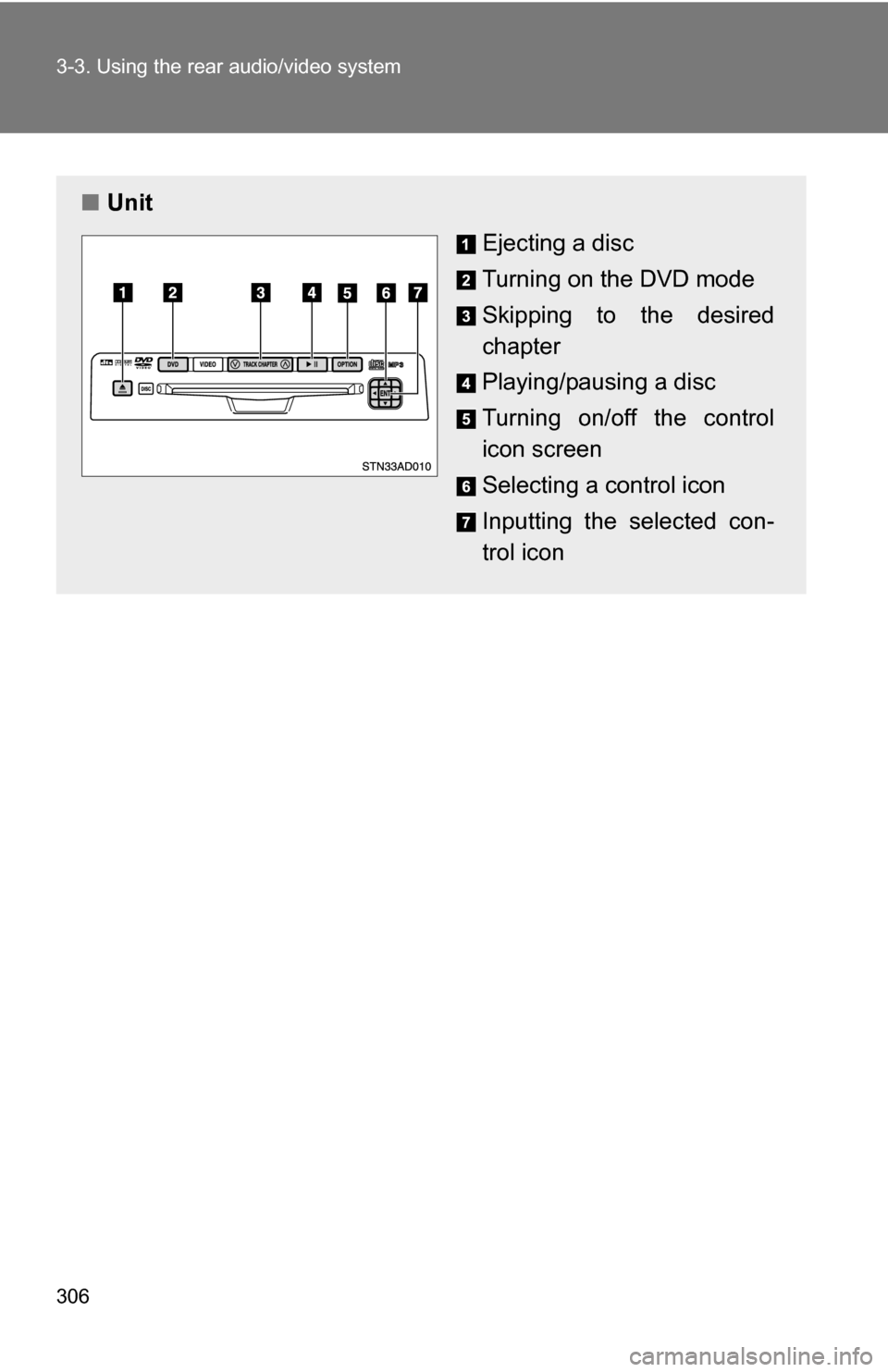
■Unit
Ejecting a disc
Turning on the DVD mode
Skipping to the desired
chapter
Playing/pausing a disc
Turning on/off the control
icon screen
Selecting a control icon
Inputting the selected con-
trol icon