Page 194 of 268
AUDIO/VIDEO SYSTEM
214 �
Searching for a desired file
While the disc is playing, touch
“SCAN” on the screen or push the
“SCAN” button briefly.
“SCAN” appears on the screen. The
changer will play the next file in the folder
for 10 seconds, then scan again. To select
a file, touch “SCAN” on the screen or push
the “SCAN” button once again. If the
changer reaches the end of the folder, it
will continue scanning from file 1.
After all the files are scanned in one pass,
normal play resumes.
�Searching for a desired folder
While the disc is playing, touch
“SCAN” on the screen or push the
“SCAN” button and hold it until the
“FLD·SCAN” appears on the screen.
The program at the beginning of each fold-
er will be played for 10 seconds. To contin-
ue listening to the program of your choice,
touch “SCAN” on the screen or push the
“SCAN” button once again.
After all the folders are scanned in one
pass, normal play resumes.
Page 195 of 268

AUDIO/VIDEO SYSTEM
215 �
Other functions
“RPT”: Use it for automatic repeat of the
file or folder you are currently listening to.
Repeating a file —
While the file is playing, touch“RPT”
briefly.
“RPT” appears on the screen. When the
file is finished, the changer will automati-
cally go back to the beginning of the file
and play the file again. To cancel it, touch
“RPT” once again.
Repeating a folder —
While the folder is playing, touch “RPT”
and hold it until the “FLD·RPT” appears
on the screen.
When the folder is finished, the changer
will automatically go back to the beginning
of the folder and play the folder again. To
cancel it, touch “RPT” once again.“RAND”: Use it for automatic and random
selection of the folder or the disc which you
are currently listening to.
Playing the files in one folder in random
order —
While the disc is playing, touch
“RAND” briefly.
“RAND” appears on the screen. The sys-
tem selects a file in the folder you are cur-
rently listening to. To cancel it, touch
“RAND” once again.
Playing the files in all the folders on one
disc in random order —
While the disc is playing, touch
“RAND” and hold it until the
“FLD·RAND” appears on the screen.
The system selects a file in all the folders.
To cancel it, touch “RAND” once again.
When a file is skipped or the system is in-
operative, touch “RAND” to reset.
If a MP3/WMA disc with text data is in-
serted, the title of the folder and file will be
displayed. Up to 29 letters can be dis-
played.
Page 196 of 268

AUDIO/VIDEO SYSTEM
216
(f) Operating a DVD disc
NOTE: The playback condition of some
DVD discs may be determined by a DVD
software producer. This DVD changer
plays a disc as the software producer in-
tended. So some functions may not work
properly. Be sure to read the instruction
manual for the DVD disc separately pro-
vided. For the detailed information about
DVD video discs, see “(g) DVD player and
DVD video disc information” on page 231.
�Precautions on DVD video disc
When recording with a DVD video, DVD
audio or video CD, audio tracks may not
record in some cases while the menu is
displayed. As audio will not play in this
case, verify that the video tracks are play-
ing and then activate playback.
When playback of a disc is completed:
�If an audio CD or MP3/WMA disc is
playing, the first track or file starts.
�If a DVD video, DVD audio or video CD
is playing, playback will stop or the
menu screen will be displayed.
The title/chapter number and playback
time display may not appear while playing
back certain DVD video discs.
CAUTION
Conversational speech on some
DVDs is recorded at a low volume to
emphasize the impact of sound ef-
fects. If you adjust the volume as-
suming that the conversations repre-
sent the maximum volume level that
the DVD will play, you may be startled
by louder sound effects or when you
change to a different audio source.
The louder sounds may have a signif-
icant impact on the human body or
pose a driving hazard. Keep this in
mind when you adjust the volume.
This “DVD Hint!” screen appears when
the video screen is first displayed after
the “ENGINE START STOP” switch is in
the ACCESSORY or IGNITION ON
mode.
Touch “OK” when you read the message.
Page 199 of 268

AUDIO/VIDEO SYSTEM
219
TOP PAGE OF DVD AUDIO CONTROLS
“Top Menu”: If you touch this button, the
menu screen for DVD audio appears. (For
operation, refer to the DVD audio disc
manual that is provided separately.)
“AUDIO”: The audio changing screen ap-
pears. (See page 223.)
: The menu control key appears on
the screen. (See page 219.)
: Touch this button to pause the
disc.
: Touching this will fast reverse.
: Touching this will stop the disc.
: Touching this will resume normal
play after stop or pause.
: Touch this button to fast forward
during the playback. During pause, touch
this button briefly to advance frame by
frame, or touch and hold it to play slowly.
SECOND PAGE OF DVD AUDIO
CONTROLS
“Setup”: The initial setup screen ap-
pears. (See page 224.)
“Select Number”: The track or number
search screen appears. (See page 220.)
“Search”: The group search screen ap-
pears. (See page 221.)
“Return”: Touching this will display the
predetermined scene and start playing
from there.
“Prev. Still”: Touch this button to reverse
the still pictures. (See page 222.)
“Next Still”: Touch this button to forward
the still pictures. (See page 222.)
“Subtitle”: The subtitle changing screen
appears. (See page 222.)
“Angle”: The angle selection screen ap-
pears. (See page 224.)
�Selecting a menu item
Enter the menu item using �, �, and
� buttons and touch “Enter”.
The changer starts playing video for that
menu item. (For details, see the manual
that comes with the DVD video disc pro-
vided separately.)
Each time you touch “Move Buttons”, the
controls on the screen move upward and
downward.
When you touch “<
will disappear. To display them again,
touch “>>ON”.
When you touch
, the previous
screen returns.
Page 200 of 268
AUDIO/VIDEO SYSTEM
220 �
Searching by title
DVD video only —
Enter the title number and touch “En-
ter”.
The player starts playing video for that title
number.
When you push the “
” or “” button of
“SEEK·TRACK”, you can select a chap-
ter.
If you enter the wrong numbers, touch
“Clear” to delete the numbers.
When you touch
, the previous
screen returns.
�Searching by track
DVD audio only —
Enter the track numbers on the search-
ing track screen and touch “Enter”.
The changer starts playing video for that
title number.
You can select a track number by pushing
the “
” or “” button of
“SEEK·TRACK”.
If you enter the wrong numbers, touch
“Clear” to delete the numbers.
Touch
, and the previous screen re-
turns.
Page 201 of 268
AUDIO/VIDEO SYSTEM
221 �
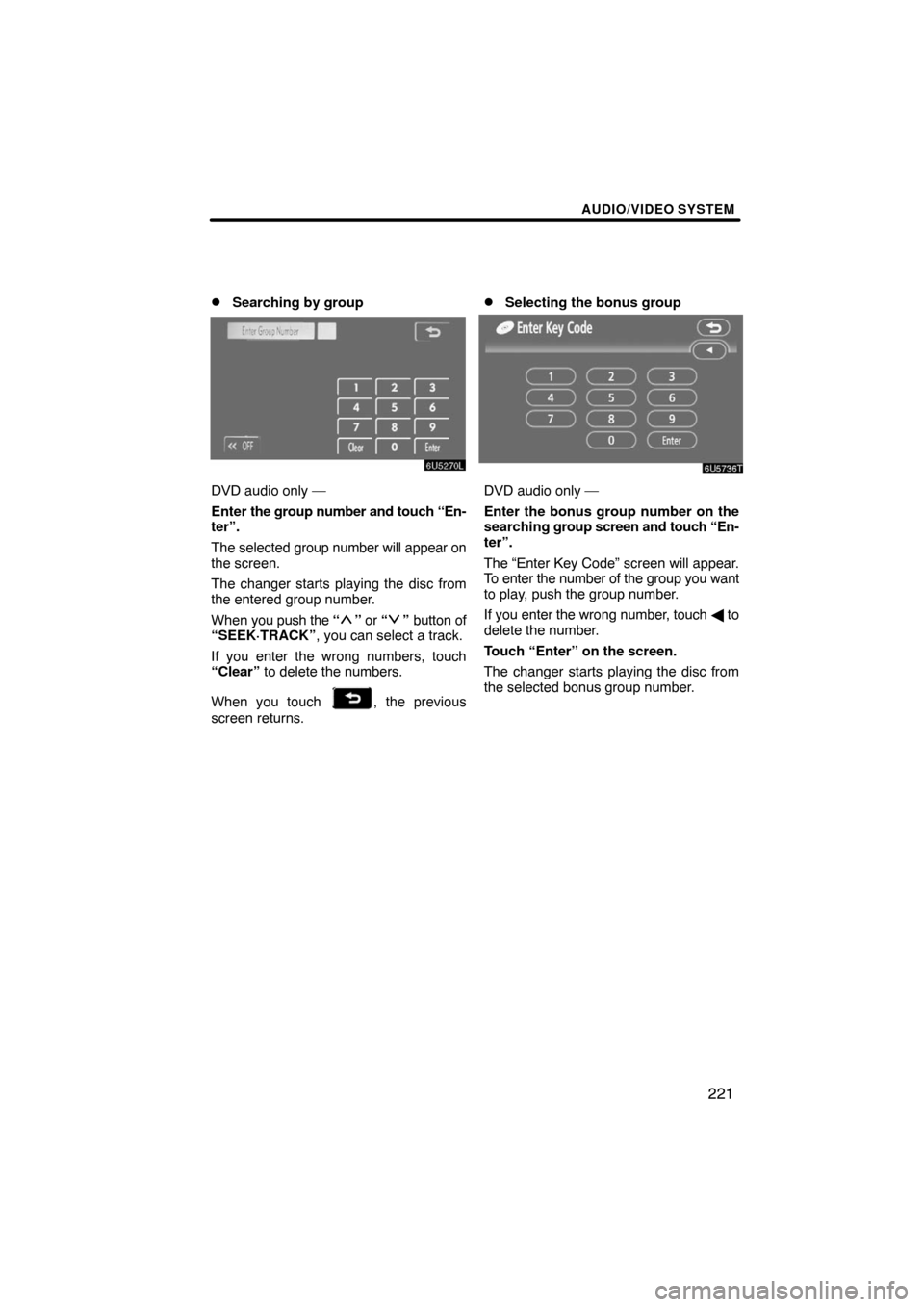
Searching by group
DVD audio only —
Enter the group number and touch “En-
ter”.
The selected group number will appear on
the screen.
The changer starts playing the disc from
the entered group number.
When you push the “
” or “” button of
“SEEK·TRACK”, you can select a track.
If you enter the wrong numbers, touch
“Clear” to delete the numbers.
When you touch
, the previous
screen returns.
�Selecting the bonus group
DVD audio only —
Enter the bonus group number on the
searching group screen and touch “En-
ter”.
The “Enter Key Code” screen will appear.
To enter the number of the group you want
to play, push the group number.
If you enter the wrong number, touch � to
delete the number.
Touch “Enter” on the screen.
The changer starts playing the disc from
the selected bonus group number.
Page 209 of 268

AUDIO/VIDEO SYSTEM
229 �
Displaying operation buttons
If you touch the part where touch−screen
buttons are not located while you are
watching video on the video CD, video CD
operation buttons will appear.
“>Page2”: Use this button to display the
operation buttons on the second page.
“
operation buttons on the top page.
“Hide Buttons”: Use this button to turn off
the operation buttons from the display.
If “
” appears on the display when you
touch the button, the operation is not per-
mitted.
�Description of each button
BUTTONS ON TOP PAGE
“Select Number”: The track or number
search screen appears. (See page 230.)
“Return”: Touching this will display the
predetermined scene and start playing
from there.
“Prev. Menu”: When you touch this button
while the disc menu is displayed, the pre-
vious page appears on the screen. If you
touch this button while the changer is play-
ing video, the previous track is searched
and played.
“Next Menu”: When you touch this button
while the disc menu is displayed, the next
page appears on the display. If you touch
this button while the changer is playing vid-
eo, the next track is searched and played.
“Main/Sub”: A multiplex transmission
changing button. The mode changes from
Main/Sub to Main, to Sub and back to
Main/Sub by touching this button.
BUTTONS ON SECOND PAGE
: Use this button to pause the video
screen.
: Touch this button to fast reverse
during playback.
: Touch this button during pause to
resume playing.
: Touch this button to fast forward
during the playback. During pause, touch
this button briefly to advance frame by
frame, or touch and hold it to play slowly.
Page 210 of 268

AUDIO/VIDEO SYSTEM
230 �
Searching by track
Enter the track numbers on the search-
ing track screen and touch “Enter”.
The changer starts playing video for that
title number.
You can select a track number by pushing
the “
” or “” button of
“SEEK·TRACK”.
If you enter the wrong numbers, touch
“Clear” to delete the numbers.
Touch
, and the previous screen re-
turns.(h) If the changer malfunctions
If the changer or another unit equipped
with the changer malfunction, your audio/
video system will display following mes-
sages.
If “No Disc” appears on the display: It
indicates that there is no disc in the DVD
changer.
If “DISC � Check” appears on the dis-
play: It indicates that the disc dirty, dam-
aged, or it was inserted upside down.
Clean the disc or insert it correctly. If a disc
which is not playable is inserted, “DISC �
Check” will also appear on the screen. For
appropriate discs for this player, see “Au-
dio/video system operating hints” on page
234.
If “Region Code Error” appears on the
display: It indicates that the DVD region
code is not set properly.
If “DVD Error” appears on the display:
The following causes are possible.�There is a trouble inside the system.
Eject the disc.
�The inside of the changer unit may be
too hot due to the very high ambient
temperature. Eject the disc and allow
the changer to cool down.
If “NO MUSIC FILE” appears on the dis-
play: It indicates that the disc has no play-
able data.
If the malfunction is not rectified: Take
your vehicle to your dealer.
If an MP3/WMA disc contains CD−DA
files, only CD−DA files are played. If an
MP3/WMA disc contains files other than
CD−DA, only MP3/WMA files are played.