2008 SUZUKI FORENZA clock
[x] Cancel search: clockPage 92 of 226

3-16
INSTRUMENT PANEL
85Z04-03E
(Defog):
This mode directs air to the windshield,
side window outlets and floor outlets.
When you select this mode, the system
runs the air-conditioning compressor. To
defog the windows faster, turn the temper-
ature control knob clockwise to the warm-
est setting. (Defrost):
This mode directs most of the air to the
windshield, with some air directed to the
side window outlets. When you select this
mode, the system runs the air-conditioning
compressor. To defrost the windows faster,
turn the temperature control knob clock-
wise to the warmest setting.
Rear Window and Outside Rearview
Mirror DefoggerYour vehicle may have a rear window and
outside mirror defogger.
The rear window defogger uses a warming
grid to remove fog or frost from the rear
window. This feature will only work when
the ignition is in ON.
(Rear):
Press the button to turn the rear window
and outside mirror defogger on or off. The
defogger will turn off approximately 10 min-
utes after the button is pressed. Be sure to
clear as much snow from the rear window
as possible. An indicator light on the button
will come on to let you know that the fea-
ture is activated.
N4U3030B
N4U3032B
N4U3032AN4U3032A
Climate Controls:
Page 102 of 226
3-26
INSTRUMENT PANEL
85Z04-03E
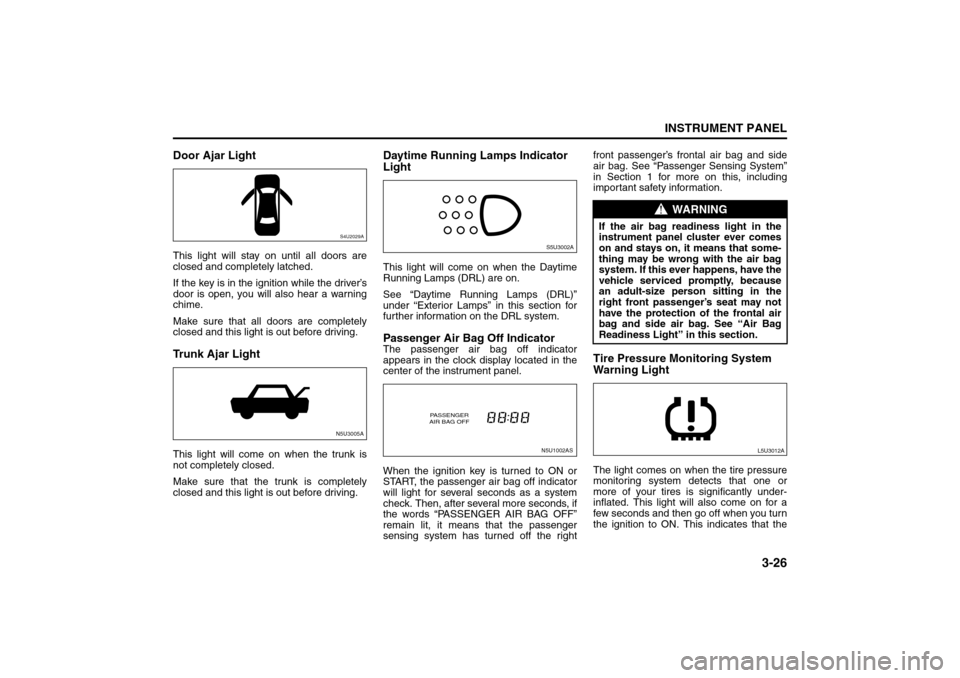
Door Ajar LightThis light will stay on until all doors are
closed and completely latched.
If the key is in the ignition while the driver’s
door is open, you will also hear a warning
chime.
Make sure that all doors are completely
closed and this light is out before driving.Trunk Ajar LightThis light will come on when the trunk is
not completely closed.
Make sure that the trunk is completely
closed and this light is out before driving.
Daytime Running Lamps Indicator
LightThis light will come on when the Daytime
Running Lamps (DRL) are on.
See “Daytime Running Lamps (DRL)”
under “Exterior Lamps” in this section for
further information on the DRL system.Passenger Air Bag Off IndicatorThe passenger air bag off indicator
appears in the clock display located in the
center of the instrument panel.
When the ignition key is turned to ON or
START, the passenger air bag off indicator
will light for several seconds as a system
check. Then, after several more seconds, if
the words “PASSENGER AIR BAG OFF”
remain lit, it means that the passenger
sensing system has turned off the rightfront passenger’s frontal air bag and side
air bag. See “Passenger Sensing System”
in Section 1 for more on this, including
important safety information.
Tire Pressure Monitoring System
Warning LightThe light comes on when the tire pressure
monitoring system detects that one or
more of your tires is significantly under-
inflated. This light will also come on for a
few seconds and then go off when you turn
the ignition to ON. This indicates that the
S4U2029AN5U3005A
S5U3002AN5U1002AS
PASSENGER
AIR BAG OFF
WARNING
If the air bag readiness light in the
instrument panel cluster ever comes
on and stays on, it means that some-
thing may be wrong with the air bag
system. If this ever happens, have the
vehicle serviced promptly, because
an adult-size person sitting in the
right front passenger’s seat may not
have the protection of the frontal air
bag and side air bag. See “Air Bag
Readiness Light” in this section.
L5U3012A
Warning Lights, Gauges and Indicators:
Audio System:
Page 107 of 226

3-31INSTRUMENT PANEL
85Z04-03E
PLAYING THE RADIO
Power/Volume knob (1):
Press this knob to turn the system on and
off.
Turn the Power/Volume knob clockwise or
counterclockwise to increase or decrease
the volume.
Press this button for a short time to MUTE
the radio. Press the button again to cancel
MUTE.
Finding a Station
AM button (2):
Press this button to switch to an AM sta-
tion. The display will show the selection.
FM button (3):
Press this button to switch to an FM sta-
tion. The display will show the selection.
TUNE button (4):
Press this button to select radio stations.
(Manual tuning)
Press the up arrows to increase the fre-
quency.
Press the down arrows to decrease the fre-
quency.
The frequency of the AM band changes
10 kHz each time and the frequency of the
FM band changes 200 kHz each time.
SEEK button (5):
Press this button to search for and select
receivable radio stations. (Seek tuning)
To search for the next receivable higher
station, press the up arrows. To search for the previous receivable lower
station, press the down arrows.
SCAN/AST button (6):
Press this button to scan radio stations.
(Scan tuning)
Scan
The radio will go to a station, play for a few
seconds, and then go on to the next sta-
tion. Press this button again to stop scan-
ning.
The radio will only scan stations with a
strong signal that are in the selected band.
Automatic Store
Press and hold this button to use Auto
Store.
FM1’s 6 preset stations with the strongest
signal in the region can be automatically
stored. The display will show “AUTO
SCANNING”, and “SCANNING” will flash
on display.
Stored stations will flash for a short time on
display in sequence. Once the stations are
stored, the radio will switch to FM-A and
the first preset station will begin to play.
FM-A will appear on the display when lis-
tening to the automatically stored stations.
Press the AM or FM button to stop auto-
matic store.Preset station buttons (7):
Setting Preset Stations
Up to 36 stations (six FM1, six FM2, six
FM-A and six AM1, six AM2, six AM-A),
can be programmed on the six numbered
preset buttons, by performing the following
steps:
1) Turn the radio on.
2) Press the AM or FM button to select
FM1, FM2, FM-A, AM1, AM2 or AM-A.
3) Tune in the desired station.
4) Press and hold one of the six numbered
preset buttons.
The preset button number (Display:
CH#1 ~ CH#6) will flash on the display
when the station has been set. When-
ever that numbered preset button is
pressed, the memorized station will
return.
5) Repeat the previous four steps for each
preset button.
Page 112 of 226

3-36
INSTRUMENT PANEL
85Z04-03E
AUX Mod e
Press this button to listen to the audio con-
tents from other devices; Walkman, Porta-
ble CD Player, Portable MP3 Player, i-pod,
XM receiver, etc.
1) Connect the output port of the device to
the aux jack of the head unit with an
aux connector.
2) Turn the device on.
3) Press this button.
If you want to control the volume level, use
the volume buttons of the head unit or the
device.
Using the Auxiliary Input Jack
Your radio system has an auxiliary input
jack located on the lower right side of the
faceplate. This is not an audio output; do
not plug a headphone set into the front
auxiliary input jack. You can however, con-
nect an external audio device such as an
iPod, laptop computer, MP3 player, CD
changer, or cassette tape player, etc. to the
auxiliary input jack for use as another
source for audio listening.
The auxiliary input jack will also accept cell
phone connectors. Plug the cell phone
connector into the auxiliary input jack to
hear the other side of a cell phone’s con-
versation through the vehicle sound sys-
tem.
Drivers are encouraged to set up their por-
table audio player while the vehicle isparked. See Defensive Driving for more
information on driver distraction.
To use a portable audio player, connect a
3.5 mm (1/8 inch) cable to the radio’s front
auxiliary input jack. When a device is con-
nected, press the radio CD/AUX button as
needed to begin playing audio from the
device over the car speakers.
CD/AUX (CD/Auxiliary) button (9):
Press this button once to play a CD while a
portable audio device is playing. Press this
button a second time and the system will
begin playing audio from the connected
portable audio player. Once in this mode,
“Auxinput” will appear on the display. If the
auxiliary jack does not detect the presence
of an output jack, the aux mode will be pre-
vented from coming up.
Power/Volume knob (1):
Turn this knob clockwise or counterclock-
wise to increase or decrease the volume of
the portable player. You may need to make
additional volume adjustments from the
portable device if the volume does not go
loud or soft enough.
STEERING WHEEL REMOTE OPER-
ATION (if equipped in the vehicle)Power Button
Press this button to turn the system on and
off. Press this button for a short time to
MUTE the sound. Press the button again
to cancel MUTE.
Volume Up Button
Press this button to increase the volume
level.
Volume Down Button
Press this button to decrease the volume
level.
Seek Button
RADIO MODE
Press the Seek Button for a short time to
search for stored radio channels.
84Z025
Press and hold the Seek Button to search
for the next receivable higher-frequency.
CH4 CH5
CH1 CH2
CH6
CH3
Page 114 of 226

3-38
INSTRUMENT PANEL
85Z04-03E
PLAYING THE RADIO
Power/Volume knob (1):
Press this knob to turn the system on and
off.
Turn the Power/Volume knob clockwise or
counterclockwise to increase or decrease
the volume.
Press this button for a short time to MUTE
the radio. Press the button again to cancel
MUTE.
Finding a Station
AM button (2):
Press this button to switch to an AM sta-
tion. The display will show the selection.
FM button (3):
Press this button to switch to an FM sta-
tion. The display will show the selection.
TUNE button (4):
Press this button to select radio stations.
(Manual tuning)
Press the up arrows to increase the fre-
quency.
Press the down arrows to decrease the fre-
quency.
The frequency of the AM band changes
10 kHz each time and the frequency of the
FM band changes 200 kHz each time.
SEEK button (5):
Press this button to search for and select
receivable radio stations. (Seek tuning)
To search for the next receivable higher
station, press the up arrows. To search for the previous receivable lower
station, press the down arrows.
SCAN/AST button (6):
Press this button to scan radio stations.
(Scan tuning)
Scan
The radio will go to a station, play for a few
seconds, and then go on to the next sta-
tion. Press this button again to stop scan-
ning.
The radio will only scan stations with a
strong signal that are in the selected band.
Automatic Store
Press and hold this button to use Auto
Store.
FM1’s 6 preset stations with the strongest
signal in the region can be automatically
stored. The display will show “AUTO
SCANNING”, and “SCANNING” will flash
on display.
Stored stations will flash for a short time on
display in sequence. Once the stations are
stored, the radio will switch to FM-A and
the first preset station will begin to play.
FM-A will appear on the display when lis-
tening to the automatically stored stations.
Press the AM or FM button to stop auto-
matic store.Preset station buttons (7):
Setting Preset Stations
Up to 36 stations (six FM1, six FM2, six
FM-A and six AM1, six AM2, six AM-A),
can be programmed on the six numbered
preset buttons, by performing the following
steps:
1) Turn the radio on.
2) Press the AM or FM button to select
FM1, FM2, FM-A, AM1, AM2 or AM-A.
3) Tune in the desired station.
4) Press and hold one of the six numbered
preset buttons.
The preset button number (Display:
CH#1 ~ CH#6) will flash on the display
when the station has been set. When-
ever that numbered preset button is
pressed, the memorized station will
return.
5) Repeat the previous four steps for each
preset button.
Page 119 of 226

3-43INSTRUMENT PANEL
85Z04-03E
CD Messages
CHECK CD:
If this message appears on the display
and/or the CD comes out, it could be for
one of the following reasons:
It is very hot. When the temperature
returns to normal, the CD will play.
You are driving on a very rough road.
When the road becomes smoother, the
CD will play.
The CD is dirty, scratched, wet, or
upside down.
The air is very humid. If so, wait about an
hour and try again.
The format of the CD may not be com-
patible. See “MP3/WMA Format” earlier
in this section.
There may have been a problem while
burning the CD.
The label may be caught in the CD
player.
If the CD is not playing correctly, for any
other reason, try a known good CD.
If any error occurs repeatedly or if an error
cannot be corrected, contact your SUZUKI
dealer. If the radio displays an error mes-
sage, write it down and provide it to your
SUZUKI dealer when reporting the prob-
lem.AUX Mod e
Press this button to listen to the audio con-
tents from other devices; Walkman, Porta-
ble CD Player, Portable MP3 Player, i-pod,
XM receiver, etc.
1) Connect the output port of the device to
the aux jack of the head unit with an
aux connector.
2) Turn the device on.
3) Press this button.
If you want to control the volume level, use
the volume buttons of the head unit or the
device.
Using the Auxiliary Input Jack
Your radio system has an auxiliary input
jack located on the lower right side of the
faceplate. This is not an audio output; do
not plug a headphone set into the front
auxiliary input jack. You can however, con-
nect an external audio device such as an
iPod, laptop computer, MP3 player, CD
changer, or cassette tape player, etc. to the
auxiliary input jack for use as another
source for audio listening.
The auxiliary input jack will also accept cell
phone connectors. Plug the cell phone
connector into the auxiliary input jack to
hear the other side of a cell phone’s con-
versation through the vehicle sound sys-
tem.
Drivers are encouraged to set up their por-
table audio player while the vehicle isparked. See Defensive Driving for more
information on driver distraction.
To use a portable audio player, connect a
3.5 mm (1/8 inch) cable to the radio’s front
auxiliary input jack. When a device is con-
nected, press the radio CD/AUX button as
needed to begin playing audio from the
device over the car speakers.
CD/AUX (CD/Auxiliary) button (9):
Press this button once to play a CD while a
portable audio device is playing. Press this
button a second time and the system will
begin playing audio from the connected
portable audio player. Once in this mode,
“Auxinput” will appear on the display. If the
auxiliary jack does not detect the presence
of an output jack, the aux mode will be pre-
vented from coming up.
Power/Volume knob (1):
Turn this knob clockwise or counterclock-
wise to increase or decrease the volume of
the portable player. You may need to make
additional volume adjustments from the
portable device if the volume does not go
loud or soft enough.
Page 123 of 226

3-47INSTRUMENT PANEL
85Z04-03E
The CD changer is operated by the main
unit.
1) Press the power button on the main unit
to turn the audio system on.
2) If a disc is already inserted inside the
CD changer, press the “CD” button.
Playback starts at the beginning of the
track that you were previously listening
to.
3) If a disc is not inserted yet, load a disc
in the magazine. (Refer to “How to
change discs”.)
Then, press the “CD” button to play.
Playback starts from the No. 1 disc.
CD Changer Play:
To play the CD Changer while operating
the radio, press the “CD” button if a disc is
already inserted in the CD changer.
The mode is transferred to the CD changer
and the CD is played back from the track
that you were previously listening to.
If a disc is not in the CD changer, the mode
is not changed to the CD changer when
you press this button.
Track Up & Down:
The track up & down knob/button allows
you to make quick selections from your
playing disc.
1) To play the next track, rotate this knob
clockwise for less than 1 second or
press the track up button once. Each
time you rotate the knob or press thebutton, the disc will skip to the next
track.
2) To play the previous track, rotate this
knob counterclockwise for less than 1
second or press the track down button
once. Each time you rotate the knob or
press the button, the disc will skip to the
previous track.
Cue & Review:
This function allows desired point-search
within a track at a faster than normal play-
back speed.
1) To search for the desired point of a
track, rotate this knob and hold it or
press and hold the track up/down but-
ton. The audio level is reduced and the
disc will play at a faster than normal
playback speed. When the disc reaches
the desired point, release the knob/but-
ton and normal play will resume.
2) To cue (forward) the track, rotate this
knob clockwise or press the track up
button. To review (backward) the track,
rotate this knob counterclockwise or
press the track down button.
Repeat Play:
To repeatedly listen to the current track,
press the “2/RPT” button.
“RPT” is displayed in VFD and the current
track will be played back repeatedly until
this function is canceled.
To cancel this function, press this button
again.Track Introduction:
To quickly and conveniently scan the track,
use the “3 or 4/INT” button.
“INTRO” will be displayed in VFD and the
audio system will play the first 10 seconds
of each track.
When the player reaches the desired track,
press this button again and normal play will
resume.
Random Play:
To play a CD disc in random order, press
the “4 or 5/RDM” button.
“RDM” will be displayed in VFD and the
audio system will play the CD in random
order.
To cancel this function, press this button
again.
Disc Up / Down Button
To select another disc in ascending order,
press the “3 or 6/UP” button. The number
of the selected disc will appear on the
VFD.
To select another disc in descending order,
press the “5 or 6/DN” button. The number
of the selected disc will appear on the
VFD.
Page 130 of 226

4-6
DRIVING YOUR VEHICLE
85Z04-03E
Steering in Emergencies
There are times when steering can be
more effective than braking. For example,
you come over a hill and find a truck
stopped in your lane, or a car suddenly
pulls out from nowhere, or a child darts out
from between parked cars and stops right
in front of you. You can avoid these prob-
lems by braking – if you can stop in time.
But sometimes you can’t; there isn’t room.
That’s the time for evasive action – steer-
ing around the problem.
Your vehicle can perform very well in emer-
gencies like these. First apply your brakes
but, unless you have anti-lock, not enough
to lock your wheels.
See “Braking” in this section. It is better to
remove as much speed as you can from a
possible collision. Then steer around the
problem, to the left or right depending on
the space available.An emergency like this requires close
attention and a quick decision. If you are
holding the steering wheel at the recom-
mended 9 and 3 o’clock positions, you can
turn it a full 180 degrees very quickly with-
out removing either hand. But you have to
act fast, steer quickly, and just as quickly
straighten the wheel once you have
avoided the object.
The fact that such emergency situations
are always possible is a good reason to
practice defensive driving at all times and
wear safety belts properly.
Off-Road RecoveryYou may find that your right wheels have
dropped off the edge of a road onto the
shoulder while you’re driving.If the level of the shoulder is only slightly
below the pavement, recovery should be
fairly easy. Ease off the accelerator and
then, if there is nothing in the way, steer so
that your vehicle straddles the edge of the
pavement. You can turn the steering wheel
up to one-quarter turn until the right front
tire contacts the pavement edge. Then turn
your steering wheel to go straight down the
roadway.
Passing
The driver of a vehicle about to pass
another on a two-lane highway waits for
just the right moment, accelerates, moves
around the vehicle ahead, then goes back
into the right lane again. A simple maneu-
ver?
Not necessarily! Passing another vehicle
on a two-lane highway is a potentially dan-
Your Driving, the Road, and Your Vehicle: