2008 SAAB 9-7X change time
[x] Cancel search: change timePage 184 of 426

XM™ Satellite Radio Service
XM™ is a satellite radio service that is based in the
48 contiguous United States and 10 Canadian provinces.
XM™ Satellite Radio has a wide variety of programming
and commercial-free music, coast-to-coast, and in
digital-quality sound. During your trial or when you
subscribe, you will get unlimited access to XM™ Radio
Online for when you are not in your vehicle. A service
fee is required to receive the XM™ service. For more
information, contact XM™ at www.xmradio.com or
call 1-800-929-2100 in the U.S. and www.xmradio.ca
or call 1-877-438-9677 in Canada.
Playing the Radio
P
(Power/Volume):Press this knob to turn the
system on and off.
Turn this knob clockwise or counterclockwise to increase
or to decrease the volume.
DISP (Display):Press this knob to display the time,
while the ignition is turned off.
For XM™ (if equipped), press the DISP button while
in XM™ mode to retrieve four different categories
of information related to the current song or
channel: Artist, Song Title, Category or PTY,
Channel Number/Channel Name.To change the default on the display, press the DISP
button until the desired option displays, then hold
this knob for two seconds. One beep sounds and the
selected display becomes the default.
AUTO VOL (Automatic Volume):With automatic
volume, the audio system adjusts automatically to
make up for road and wind noise as you drive.
Set the volume at the desired level. Press this button to
select LOW, MEDIUM, or HIGH. Each higher setting
allows for more volume compensation at faster vehicle
speeds. Then as you drive, automatic volume increases
the volume, as necessary, to overcome noise at any
speed. The volume level should always sound the
same while driving. NONE displays if the radio cannot
determine the vehicle speed. To turn automatic volume
off, press this button until AVOL OFF (automatic
volume off) displays.
Finding a Station
BAND:Press this button to switch between FM1,
FM2, AM, or XM1 or XM2 (if equipped). The selection
displays.
e(Tune):Turn this knob to select radio stations.
tSEEKu:Press and release the right or the
left arrow to go to the next or to the previous station
and stay there.
3-62
ProCarManuals.com
Page 192 of 426

DISP (Display):Press this button to see how long the
current track has been playing. The elapsed time of
the track appears on the display. To change the default
on the display, track or elapsed time, press this
button until the desired option displays, then hold the
button for two seconds. One beep sounds and the
selected display becomes the default.
BAND:Press this button to listen to the radio when a
CD is playing. The inactive CD remains inside the radio
for future listening.
B(CD):Press this button to play a CD when listening
to the radio. The CD symbol displays when a CD is
loaded.
AUTO EQ (Automatic Equalization):Press AUTO EQ
to select an equalization setting while playing a CD.
The equalization is set whenever a CD is played. See
“AUTO EQ” listed previously for more information. If you
select an EQ setting for your CD, it is activated each
time a CD plays.
Playing an MP3 CD-R Disc
Your vehicle’s radio system may have the MP3 feature.
If it has this feature, it is capable of playing an MP3
CD-R disc. For more information on how to play an
MP3 CD-R disc, seeUsing an MP3 on page 3-71
later in this section.
CD Messages
CHECK CD:If this message displays and/or the CD
ejects, it could be for one of the following reasons:
It is very hot. When the temperature returns
to normal, the CD should play.
You are driving on a very rough road. When the
road becomes smoother, the CD should play.
The CD is dirty, scratched, wet, or upside down.
The air is very humid. If so, wait about an hour
and try again.
The format of the CD may not be compatible. See
Using an MP3 on page 3-71later in this section.
There could have been a problem while burning
the CD.
The label could be caught in the CD player.
If the CD is not playing correctly, for any other reason,
try a known good CD.
If any error occurs repeatedly or if an error cannot be
corrected, contact your dealer. If the radio displays
an error message, write it down and provide it to your
dealer when reporting the problem.
3-70
ProCarManuals.com
Page 196 of 426

DISP (Display):Press this knob to switch between
track mode, folder/playlist mode, and time of day mode.
The display shows only eight characters, but there
can be up to four pages of text. If there are more than
eight characters in the song, folder, or playlist name,
pressing this knob within two seconds takes the CD to
the next page of text. If there are no other pages to
be shown, pressing this knob within two seconds takes
the CD to the next display mode.
Track mode displays the current track number
and the ID3 tag song name.
Folder/playlist mode displays the current folder
or playlist number and the folder/playlist name.
Time of day mode displays the time of day and
the ID3 tag song name.
To change the default on the display, press the
DISP knob until the desired option displays, then
hold this knob for two seconds. One beep sounds
and the selected display becomes the default.
4(Information):INFO displays whenever a current
track has ID3 tag information. Press this button to
display the artist name and album contained in the tag.
INFO disappears from the display when the information
in the ID3 tag has nished.
BAND:Press this button to listen to the radio when
a CD is playing. The inactive CD remains inside
the radio for future listening.
B(CD):Press this button to play a CD when listening
to the radio. The CD symbol displays when a CD is
loaded.
AUTO EQ (Automatic Equalization):Press AUTO EQ
to select an equalization setting while playing a CD.
The equalization is set whenever a CD is played. See
“AUTO EQ” listed previously for more information. If you
select an EQ setting for your CD, it is activated each
time a CD plays.
Z(Eject):Press this button to eject a CD. Eject may
be activated with either the ignition or radio off. CDs
may be loaded with the ignition and radio off if this
button is pressed rst.
XM Radio Messages
If you have a Radio with CD, you will receive these
radio display messages.
XL (Explicit Language Channels):These channels,
or any others, can be blocked at a customer’s request,
by calling 1-800-852-XMXM (9696).
Updating:The encryption code in the receiver is
being updated, and no action is required. This process
should take no longer than 30 seconds.
3-74
ProCarManuals.com
Page 200 of 426

Battery Replacement
To change the batteries on the headphones,
do the following:
1. Turn the screw to loosen the battery door
located on the left side of the headphones.
Slide the battery door open.
2. Replace the two batteries in the compartment.
Make sure that they are installed correctly,
using the diagram on the inside of the battery
compartment.
3. Replace the battery door and tighten the
door screw.
If the headphones are to be stored for a long period of
time, remove the batteries and keep them in a cool,
dry place.
Stereo RCA Jacks
The RCA jacks are located behind the video screen.
The RCA jacks allow audio and video signals to
be connected from an auxiliary device such as a
camcorder or a video game unit to the RSE system.
Standard RCA cables, not included, are needed
to connect the auxiliary device to the RCA jacks.
The yellow connector inputs video and the red and
white connectors input right and left audio. Refer to
the manufacturer’s instructions for proper connection
of the auxiliary device.To use the auxiliary inputs on the RSE system,
connect an external auxiliary device to the color-coded
RCA jacks and turn both the auxiliary device and
the RSE system power on. If the RSE system had
been previously in the DVD player mode, pressing the
SRCE button on the faceplate or the remote control
will switch the RSE system between the auxiliary device
and the DVD player.
How to Change the Video Format when
in the Auxiliary Mode
The auxiliary input video format is preset to NTSC.
In some countries, the video format may be in the
PAL system. To change the video format, perform
the following:
1. Press the display menu button.
2. Press the down arrow button to highlight the
Video Format option.
3. Press the enter button to select Video Format.
4. Press the right or left arrow button to select
the desired video format.
5. Press the enter button to accept the change.
3-78
ProCarManuals.com
Page 203 of 426

DVD Player Buttons (Without Sunroof)
O(Power):Press this button to turn the RSE system
on and off. The power indicator light will illuminate
when the power is on.
X(Eject):Press this button to eject a DVD or CD.
SRCE (Source):Press this button to switch between
the DVD player and an auxiliary source.
c(Stop):Press this button to stop playing, rewinding,
or fast forwarding a DVD or CD. Press this button
twice to return to the beginning of the DVD.
s(Play/Pause):Press this button to start play of a
DVD or CD. Press this button while a DVD or CD is
playing to pause it. Press this button again to continue
the play of the DVD or CD.
y(Main DVD Menu):Press this button to access
the DVD menu. The DVD menu is different on every
DVD. Use the up, down, left, and right arrow buttons to
move the cursor around the DVD menu. After making
a selection press the enter button. This button only
operates when playing a DVD.
z(Set-up Menu):Press this button to adjust the color,
tint, brightness, contrast, display mode, and dynamic
range compression. The dynamic range compression
feature can be used to reduce loud audio and increase
low audio produced by some DVDs.
To change a feature back to the factory default setting,
press this button to display the feature, then press
and hold this button. The default setting will appear
on the display.
While playing an Audio or DVD disc, press and hold
this button to display and to remove the track and time
information.
n,q,p,o(Menu Navigation Arrows):Use the
arrow buttons to navigate through a menu.
r(Enter):Press this button to select the choices
that are highlighted in any menu.
3-81
ProCarManuals.com
Page 207 of 426
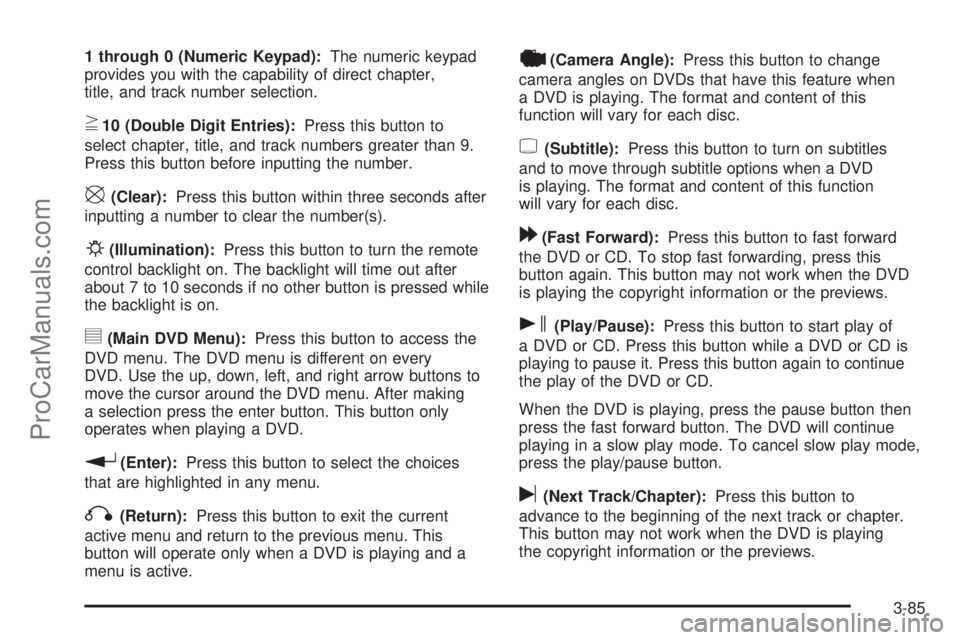
1 through 0 (Numeric Keypad):The numeric keypad
provides you with the capability of direct chapter,
title, and track number selection.
}10 (Double Digit Entries):Press this button to
select chapter, title, and track numbers greater than 9.
Press this button before inputting the number.
\(Clear):Press this button within three seconds after
inputting a number to clear the number(s).
P(Illumination):Press this button to turn the remote
control backlight on. The backlight will time out after
about 7 to 10 seconds if no other button is pressed while
the backlight is on.
y(Main DVD Menu):Press this button to access the
DVD menu. The DVD menu is different on every
DVD. Use the up, down, left, and right arrow buttons to
move the cursor around the DVD menu. After making
a selection press the enter button. This button only
operates when playing a DVD.
r(Enter):Press this button to select the choices
that are highlighted in any menu.
q(Return):Press this button to exit the current
active menu and return to the previous menu. This
button will operate only when a DVD is playing and a
menu is active.
|(Camera Angle):Press this button to change
camera angles on DVDs that have this feature when
a DVD is playing. The format and content of this
function will vary for each disc.
{(Subtitle):Press this button to turn on subtitles
and to move through subtitle options when a DVD
is playing. The format and content of this function
will vary for each disc.
[(Fast Forward):Press this button to fast forward
the DVD or CD. To stop fast forwarding, press this
button again. This button may not work when the DVD
is playing the copyright information or the previews.
s(Play/Pause):Press this button to start play of
a DVD or CD. Press this button while a DVD or CD is
playing to pause it. Press this button again to continue
the play of the DVD or CD.
When the DVD is playing, press the pause button then
press the fast forward button. The DVD will continue
playing in a slow play mode. To cancel slow play mode,
press the play/pause button.
u(Next Track/Chapter):Press this button to
advance to the beginning of the next track or chapter.
This button may not work when the DVD is playing
the copyright information or the previews.
3-85
ProCarManuals.com
Page 208 of 426
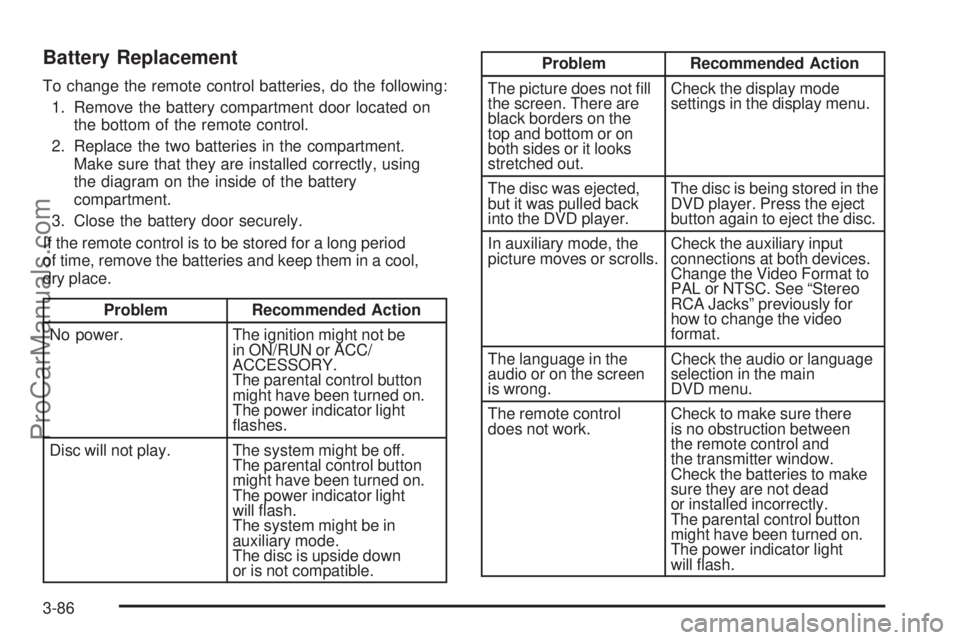
Battery Replacement
To change the remote control batteries, do the following:
1. Remove the battery compartment door located on
the bottom of the remote control.
2. Replace the two batteries in the compartment.
Make sure that they are installed correctly, using
the diagram on the inside of the battery
compartment.
3. Close the battery door securely.
If the remote control is to be stored for a long period
of time, remove the batteries and keep them in a cool,
dry place.
Problem Recommended Action
No power. The ignition might not be
in ON/RUN or ACC/
ACCESSORY.
The parental control button
might have been turned on.
The power indicator light
ashes.
Disc will not play. The system might be off.
The parental control button
might have been turned on.
The power indicator light
will ash.
The system might be in
auxiliary mode.
The disc is upside down
or is not compatible.
Problem Recommended Action
The picture does not ll
the screen. There are
black borders on the
top and bottom or on
both sides or it looks
stretched out.Check the display mode
settings in the display menu.
The disc was ejected,
but it was pulled back
into the DVD player.The disc is being stored in the
DVD player. Press the eject
button again to eject the disc.
In auxiliary mode, the
picture moves or scrolls.Check the auxiliary input
connections at both devices.
Change the Video Format to
PAL or NTSC. See “Stereo
RCA Jacks” previously for
how to change the video
format.
The language in the
audio or on the screen
is wrong.Check the audio or language
selection in the main
DVD menu.
The remote control
does not work.Check to make sure there
is no obstruction between
the remote control and
the transmitter window.
Check the batteries to make
sure they are not dead
or installed incorrectly.
The parental control button
might have been turned on.
The power indicator light
will ash.
3-86
ProCarManuals.com
Page 219 of 426

Let us say the road is wet and you are driving safely.
Suddenly, an animal jumps out in front of you. You slam
on the brakes and continue braking. Here is what
happens with ABS:
A computer senses that wheels are slowing down. If
one of the wheels is about to stop rolling, the computer
will separately work the brakes at each front wheel
and at both rear wheels.
ABS can change the brake pressure faster than any
driver could. The computer is programmed to make the
most of available tire and road conditions. This can
help you steer around the obstacle while braking hard.
As you brake, the computer keeps receiving updates
on wheel speed and controls braking pressure
accordingly.
Remember: ABS does not change the time you need to
get your foot up to the brake pedal or always decrease
stopping distance. If you get too close to the vehicle
in front of you, you will not have time to apply the brakes
if that vehicle suddenly slows or stops. Always leave
enough room up ahead to stop, even though you
have ABS.
Using ABS
Do not pump the brakes. Just hold the brake pedal down
rmly and let antilock work for you. You might feel the
brakes vibrate or notice some noise, but this is normal.
Braking in Emergencies
With ABS, you can steer and brake at the same time.
In many emergencies, steering can help you more than
even the very best braking.
Limited-Slip Rear Axle
Your vehicle may have this feature. A limited-slip rear
axle can give you additional traction on snow, mud, ice,
sand or gravel. It works like a standard axle most of
the time, but when one of the rear wheels has no
traction and the other does, this feature will allow the
wheel with traction to move the vehicle.
StabiliTrak®System
Your vehicle is equipped with StabiliTrak®, Electronic
Stability Control (ESC) which combines antilock
brake, traction and stability control systems and helps
the driver maintain directional control of the vehicle
in most driving conditions.
Traction control activates when the controller senses
wheel spin. StabiliTrak
®will selectively apply the brakes
and reduce engine torque to help regain traction.
4-5
ProCarManuals.com