Page 178 of 444
Black plate (174,1)
Model "Z51-D" EDITED: 2008/ 6/ 26
User Guide:
Displays a simplified operation manual of the
voice recognition system and how to use the
voice commands.
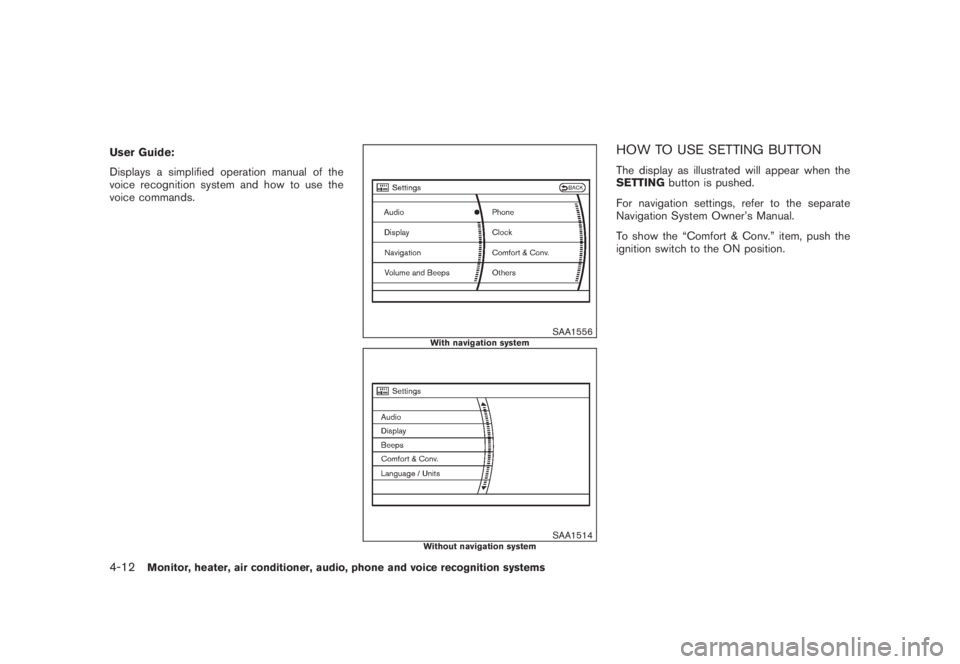
SAA1556
With navigation system
SAA1514
Without navigation system
HOW TO USE SETTING BUTTONThe display as illustrated will appear when the
SETTINGbutton is pushed.
For navigation settings, refer to the separate
Navigation System Owner’s Manual.
To show the “Comfort & Conv.” item, push the
ignition switch to the ON position.
4-12
Monitor, heater, air conditioner, audio, phone and voice recognition systems
Page 179 of 444
Black plate (175,1)
Model "Z51-D" EDITED: 2008/ 6/ 26
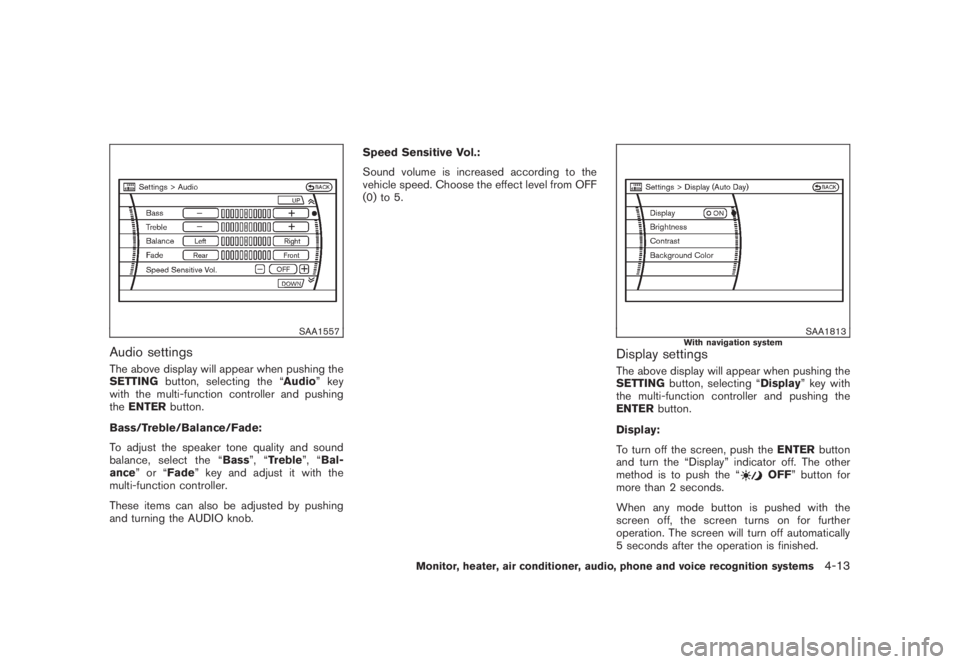
SAA1557
Audio settingsThe above display will appear when pushing the
SETTINGbutton, selecting the “Audio” key
with the multi-function controller and pushing
theENTERbutton.
Bass/Treble/Balance/Fade:
To adjust the speaker tone quality and sound
balance, select the “Bass”, “Treble”, “Bal-
ance”or“Fade” key and adjust it with the
multi-function controller.
These items can also be adjusted by pushing
and turning the AUDIO knob.Speed Sensitive Vol.:
Sound volume is increased according to the
vehicle speed. Choose the effect level from OFF
(0) to 5.
SAA1813
With navigation system
Display settingsThe above display will appear when pushing the
SETTINGbutton, selecting “Display” key with
the multi-function controller and pushing the
ENTERbutton.
Display:
To turn off the screen, push theENTERbutton
and turn the “Display” indicator off. The other
method is to push the “
OFF” button for
more than 2 seconds.
When any mode button is pushed with the
screen off, the screen turns on for further
operation. The screen will turn off automatically
5 seconds after the operation is finished.
Monitor, heater, air conditioner, audio, phone and voice recognition systems
4-13
Page 180 of 444

Black plate (176,1)
Model "Z51-D" EDITED: 2008/ 6/ 26
To turn on the screen, set this item to the ON
position, or push the “
OFF” button.
Brightness/Contrast/Background Color:
To adjust the brightness and contrast of the
screen, select the “Brightness”or“Contrast”
key and push theENTERbutton.
Then, you can adjust the brightness to “Darker”
or “Brighter”, and the contrast to “Lower” or
“Higher” using the multi-function controller.
For information on the “Background Color”
key, refer to the separate Navigation System
Owner’s Manual.
Navigation settings (if so equipped)For the details of “Navigation” settings, refer to
the separate Navigation System Owner’s Man-
ual.
SAA1814
Rear Display settings (if so equipped)The above display will appear when pushing the
SETTINGbutton, selecting the“Rear Display”
key with the multi-function controller and push-
ing theENTERbutton.
Rear Display :
To open the rear display, push theENTER
button. The rear display is flipped down auto-
matically. To close the rear display, push the
ENTERbutton and turn the “OK” indicator off.
The rear display will be closed automatically
when the ignition switch is pushed to the OFF
position.
The rear display can be also opened or closedusing the remote controller. (See “NISSAN
MOBILE ENTERTAINMENT SYSTEM (MES)”
later in this section.)
4-14
Monitor, heater, air conditioner, audio, phone and voice recognition systems
Page 181 of 444
Black plate (177,1)
Model "Z51-D" EDITED: 2008/ 6/ 26
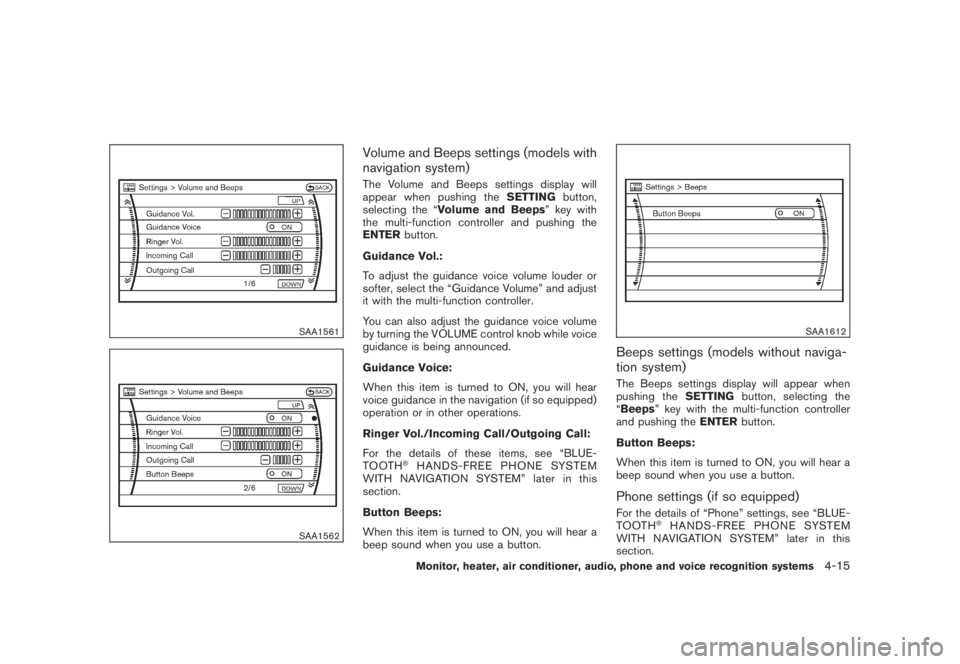
SAA1561SAA1562
Volume and Beeps settings (models with
navigation system)The Volume and Beeps settings display will
appear when pushing theSETTINGbutton,
selecting the “Volume and Beeps” key with
the multi-function controller and pushing the
ENTERbutton.
Guidance Vol.:
To adjust the guidance voice volume louder or
softer, select the “Guidance Volume” and adjust
it with the multi-function controller.
You can also adjust the guidance voice volume
by turning the VOLUME control knob while voice
guidance is being announced.
Guidance Voice:
When this item is turned to ON, you will hear
voice guidance in the navigation (if so equipped)
operation or in other operations.
Ringer Vol./Incoming Call/Outgoing Call:
For the details of these items, see “BLUE-
TOOTH
®HANDS-FREE PHONE SYSTEM
WITH NAVIGATION SYSTEM” later in this
section.
Button Beeps:
When this item is turned to ON, you will hear a
beep sound when you use a button.
SAA1612
Beeps settings (models without naviga-
tion system)The Beeps settings display will appear when
pushing theSETTINGbutton, selecting the
“Beeps” key with the multi-function controller
and pushing theENTERbutton.
Button Beeps:
When this item is turned to ON, you will hear a
beep sound when you use a button.Phone settings (if so equipped)For the details of “Phone” settings, see “BLUE-
TOOTH
®HANDS-FREE PHONE SYSTEM
WITH NAVIGATION SYSTEM” later in this
section.
Monitor, heater, air conditioner, audio, phone and voice recognition systems
4-15
Page 184 of 444
Black plate (180,1)
Model "Z51-D" EDITED: 2008/ 6/ 26
Return All Settings to Default:
Select this item, push theENTERbutton and
choose “YES” if you want to return all settings to
the default.
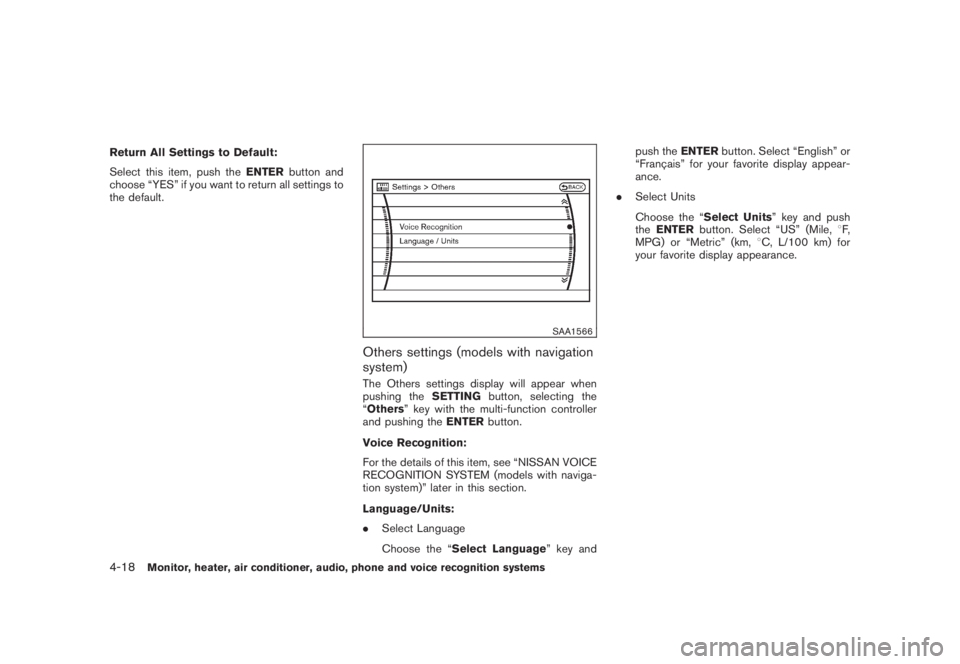
SAA1566
Others settings (models with navigation
system)The Others settings display will appear when
pushing theSETTINGbutton, selecting the
“Others” key with the multi-function controller
and pushing theENTERbutton.
Voice Recognition:
For the details of this item, see “NISSAN VOICE
RECOGNITION SYSTEM (models with naviga-
tion system)” later in this section.
Language/Units:
.Select Language
Choose the “Select Language” key andpush theENTERbutton. Select “English” or
“Franc¸ ais” for your favorite display appear-
ance.
.Select Units
Choose the “Select Units” key and push
theENTERbutton. Select “US” (Mile,8F,
MPG) or “Metric” (km,8C, L/100 km) for
your favorite display appearance.
4-18
Monitor, heater, air conditioner, audio, phone and voice recognition systems
Page 185 of 444

Black plate (181,1)
Model "Z51-D" EDITED: 2008/ 6/ 26
SAA1092
Language/Units settings (models without
navigation system)The Language/Units settings display will appear
when pushing theSETTINGbutton, selecting
the “Language/Units”keywiththemulti-
function controller and pushing theENTER
button.
Select Language:
Choose the “Select Language” key and push
theENTERbutton. From the following display,
select “English”, “Franc¸ ais” or “Espan˜
ol” for your
favorite display appearance.Select Units:
Choose the “Select Units” key and push the
ENTERbutton. From the following display,
select “US” (Mile,8F, MPG) or “Metric” (km,
8C, L/100 km) for your favorite display appear-
ance.When the selector lever is shifted into the R
(Reverse) position, the monitor display shows
view to the rear of the vehicle.
The system is designed as an aid to the driver in
detecting large stationary objects to help avoid
damaging the vehicle. The system will not detect
small objects below the bumper and may not
detect objects close to the bumper or on the
ground.
WARNING
.The rear view camera is a conve-
nience but it is not a substitute for
proper backing up. Always turn and
check that it is safe to do so before
backing up. Always back up slowly.
.Objects viewed in the RearView
Monitor differ from actual distance
because a wide-angle lens is used.
Objects in the RearView Monitor
will appear visually opposite than
when viewed in the rear view and
outside mirrors.
.Make sure that the lift gate is
securely closed when backing up.
.Underneath the bumper and the
corner areas of the bumper cannot
be viewed on the RearView MonitorREARVIEW MONITOR (if so
equipped)
Monitor, heater, air conditioner, audio, phone and voice recognition systems
4-19
Page 203 of 444
Black plate (199,1)
Model "Z51-D" EDITED: 2008/ 6/ 26
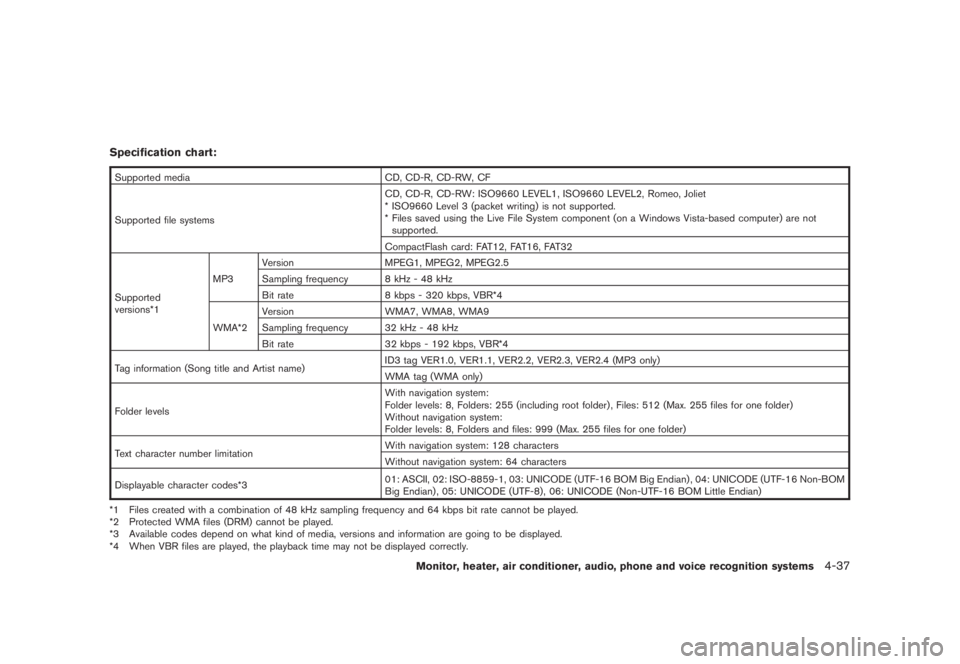
Specification chart:Supported media CD, CD-R, CD-RW, CF
Supported file systemsCD, CD-R, CD-RW: ISO9660 LEVEL1, ISO9660 LEVEL2, Romeo, Joliet
* ISO9660 Level 3 (packet writing) is not supported.
* Files saved using the Live File System component (on a Windows Vista-based computer) are not
supported.
CompactFlash card: FAT12, FAT16, FAT32
Supported
versions*1MP3Version MPEG1, MPEG2, MPEG2.5
Sampling frequency 8 kHz - 48 kHz
Bit rate 8 kbps - 320 kbps, VBR*4
WMA*2Version WMA7, WMA8, WMA9
Sampling frequency 32 kHz - 48 kHz
Bit rate 32 kbps - 192 kbps, VBR*4
Tag information (Song title and Artist name)ID3 tag VER1.0, VER1.1, VER2.2, VER2.3, VER2.4 (MP3 only)
WMA tag (WMA only)
Folder levelsWith navigation system:
Folder levels: 8, Folders: 255 (including root folder) , Files: 512 (Max. 255 files for one folder)
Without navigation system:
Folder levels: 8, Folders and files: 999 (Max. 255 files for one folder)
Text character number limitationWith navigation system: 128 characters
Without navigation system: 64 characters
Displayable character codes*301: ASCII, 02: ISO-8859-1, 03: UNICODE (UTF-16 BOM Big Endian) , 04: UNICODE (UTF-16 Non-BOM
Big Endian) , 05: UNICODE (UTF-8) , 06: UNICODE (Non-UTF-16 BOM Little Endian)
*1 Files created with a combination of 48 kHz sampling frequency and 64 kbps bit rate cannot be played.
*2 Protected WMA files (DRM) cannot be played.
*3 Available codes depend on what kind of media, versions and information are going to be displayed.
*4 When VBR files are played, the playback time may not be displayed correctly.
Monitor, heater, air conditioner, audio, phone and voice recognition systems
4-37
Page 210 of 444
Black plate (206,1)
Model "Z51-D" EDITED: 2008/ 6/ 26
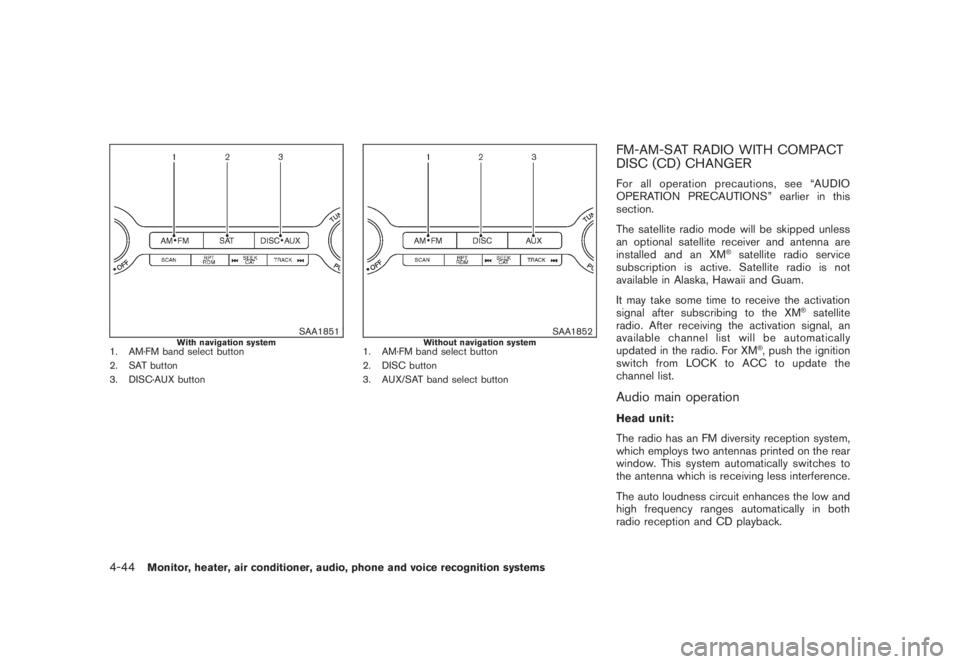
SAA1851
With navigation system
1. AM·FM band select button
2. SAT button
3. DISC·AUX button
SAA1852
Without navigation system
1. AM·FM band select button
2. DISC button
3. AUX/SAT band select button
FM-AM-SAT RADIO WITH COMPACT
DISC (CD) CHANGERFor all operation precautions, see “AUDIO
OPERATION PRECAUTIONS” earlier in this
section.
The satellite radio mode will be skipped unless
an optional satellite receiver and antenna are
installed and an XM
®satellite radio service
subscription is active. Satellite radio is not
available in Alaska, Hawaii and Guam.
It may take some time to receive the activation
signal after subscribing to the XM
®satellite
radio. After receiving the activation signal, an
available channel list will be automatically
updated in the radio. For XM
®, push the ignition
switch from LOCK to ACC to update the
channel list.
Audio main operationHead unit:
The radio has an FM diversity reception system,
which employs two antennas printed on the rear
window. This system automatically switches to
the antenna which is receiving less interference.
The auto loudness circuit enhances the low and
high frequency ranges automatically in both
radio reception and CD playback.
4-44
Monitor, heater, air conditioner, audio, phone and voice recognition systems