2008 NISSAN MURANO display
[x] Cancel search: displayPage 258 of 444
Black plate (254,1)
Model "Z51-D" EDITED: 2008/ 6/ 26
.Keypad
Send a dial tone to the caller for using
network services such as voice mail.
.Cancel Mute
This will appear after “Mute” is selected.
Mute will be canceled.
To adjust the person’s voice to be louder or
quieter, push the volume control switch (+ or)
on the steering wheel or turn the volume control
knob on the instrument panel while talking on
the phone. This adjustment is also available in
the SETTING mode.
SAA1580
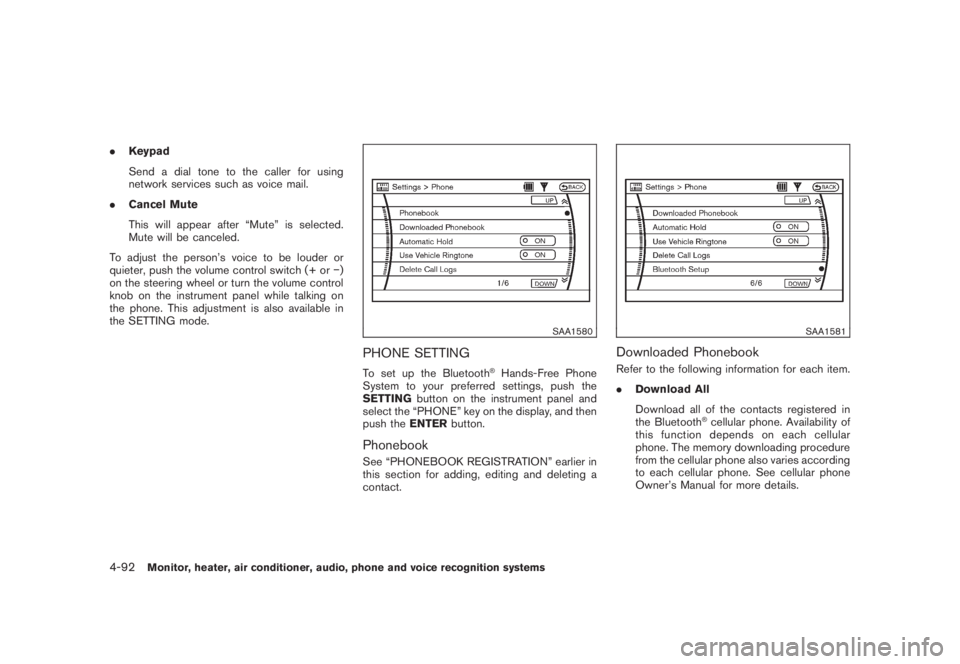
PHONE SETTINGTo set up the Bluetooth
®Hands-Free Phone
System to your preferred settings, push the
SETTINGbutton on the instrument panel and
select the “PHONE” key on the display, and then
push theENTERbutton.
PhonebookSee “PHONEBOOK REGISTRATION” earlier in
this section for adding, editing and deleting a
contact.
SAA1581
Downloaded PhonebookRefer to the following information for each item.
.Download All
Download all of the contacts registered in
the Bluetooth
®cellular phone. Availability of
this function depends on each cellular
phone. The memory downloading procedure
from the cellular phone also varies according
to each cellular phone. See cellular phone
Owner’s Manual for more details.
4-92
Monitor, heater, air conditioner, audio, phone and voice recognition systems
Page 259 of 444
Black plate (255,1)
Model "Z51-D" EDITED: 2008/ 6/ 26
.Delete Downloaded Phonebook
Delete a downloaded phonebook.
.Delete an Entry of Downloaded Phone-
book
Delete an entry from the downloaded
phonebook.Automatic HoldIf this item is turned on, an incoming call will be
placed on hold automatically after several rings.Use Vehicle RingtoneIf this item is turned on, a specific ringtone that is
different from the cellular phone’s will sound
when receiving a call.Delete Call LogsDelete all of the incoming or outgoing call logs
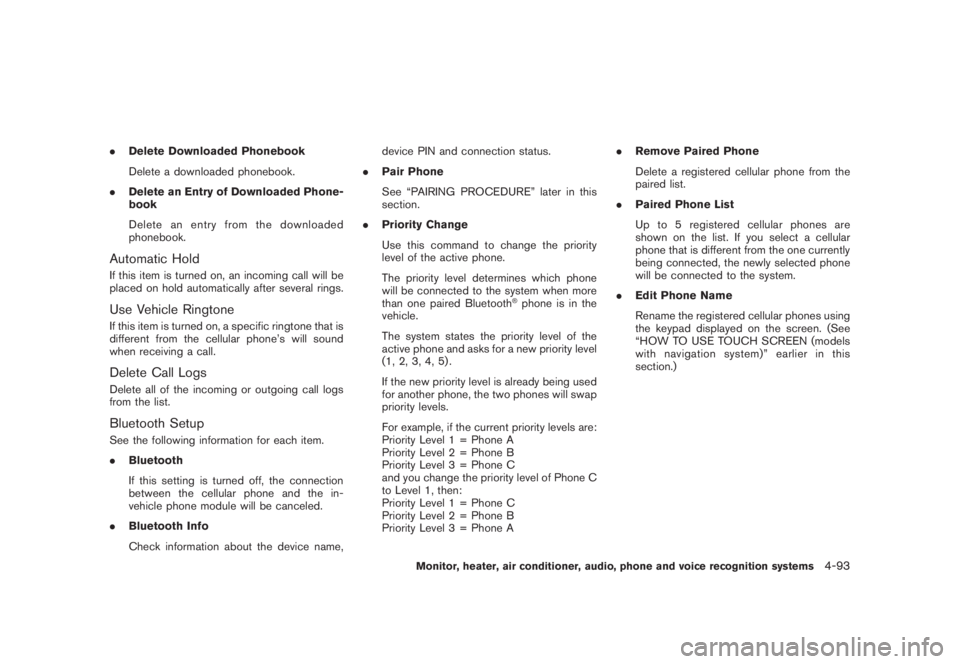
from the list.Bluetooth SetupSee the following information for each item.
.Bluetooth
If this setting is turned off, the connection
between the cellular phone and the in-
vehicle phone module will be canceled.
.Bluetooth Info
Check information about the device name,device PIN and connection status.
.Pair Phone
See “PAIRING PROCEDURE” later in this
section.
.Priority Change
Use this command to change the priority
level of the active phone.
The priority level determines which phone
will be connected to the system when more
than one paired Bluetooth
®phone is in the
vehicle.
The system states the priority level of the
active phone and asks for a new priority level
(1, 2, 3, 4, 5) .
If the new priority level is already being used
for another phone, the two phones will swap
priority levels.
For example, if the current priority levels are:
Priority Level 1 = Phone A
Priority Level 2 = Phone B
Priority Level 3 = Phone C
and you change the priority level of Phone C
to Level 1, then:
Priority Level 1 = Phone C
Priority Level 2 = Phone B
Priority Level 3 = Phone A.Remove Paired Phone
Delete a registered cellular phone from the
paired list.
.Paired Phone List
Up to 5 registered cellular phones are
shown on the list. If you select a cellular
phone that is different from the one currently
being connected, the newly selected phone
will be connected to the system.
.Edit Phone Name
Rename the registered cellular phones using
the keypad displayed on the screen. (See
“HOW TO USE TOUCH SCREEN (models
with navigation system)” earlier in this
section.)
Monitor, heater, air conditioner, audio, phone and voice recognition systems
4-93
Page 262 of 444
Black plate (258,1)
Model "Z51-D" EDITED: 2008/ 6/ 26
.Some cellular phones or other devices may
cause interference or a buzzing noise to
come from the audio system speakers.
Storing the device in a different location
may reduce or eliminate the noise.
.Refer to the cellular phone Owner’s Manual
regarding the telephone pairing procedure
specific to your phone, battery charging,
cellular phone antenna, etc.
.The antenna display on the monitor will not
coincide with the antenna display of some
cellular phones.
.Keep the interior of the vehicle as quiet as
possible to hear the caller’s voice clearly as
well as to minimize its echoes.
.If reception between callers is unclear,
adjusting the incoming or outgoing call
volume may improve the clarity.REGULATORY INFORMATION
FCC Regulatory information— CAUTION: To maintain compliance with
FCC’s RF exposure guidelines, use only
the supplied antenna. Unauthorized antenna,
modification, or attachments could damage
the transmitter and may violate FCC regula-
tions.
— Operation is subject to the following two
conditions:1) this device may not cause interference and
2) this device must accept any interference,
including interference that may cause un-
desired operation of the device
IC Regulatory information— Operation is subject to the following two
conditions: (1) this device may not cause
interference, and (2) this device must accept
any interference, including interference that
may cause undesired operation of the
device.
— This Class B digital apparatus meets all
requirements of the Canadian Interference-
Causing Equipment Regulations.
Bluetooth trademark:
BLUETOOTH
®is a trademark
owned by Bluetooth SIG, Inc.,
U.S.A.
INITIALIZATIONWhen the ignition switch is pushed to the ON
position, NISSAN Voice Recognition is initia-
lized, which takes a few seconds. If thebutton is pushed before the initialization com-
pletes, the system will announce “Hands-free
phone system not ready” and will not react to
voice commands.
OPERATING TIPSTo get the best performance out of the NISSAN
Voice Recognition system, observe the follow-
ing:
.Keep the interior of the vehicle as quiet as
possible. Close the windows to eliminate
surrounding noises (traffic noises, vibration
sounds, etc.) , which may prevent the system
from recognizing voice commands correctly.
.Wait until the tone sounds before speaking a
command. Otherwise, the command will not
be received properly.
.Start speaking a command within 5 seconds
after the tone sounds.
.Speak in a natural voice without pausing
between words.GIVING VOICE COMMANDSTo operate NISSAN Voice Recognition, push
and release the
button located on the
steering wheel. After the tone sounds, speak a
command.
Thecommandgivenispickedupbythe
microphone, and voice feedback is given when
the command is accepted.
.If you need to hear the available commands
for the current menu again, say “Help” and
the system will repeat them.
4-96
Monitor, heater, air conditioner, audio, phone and voice recognition systems
Page 275 of 444
Black plate (271,1)
Model "Z51-D" EDITED: 2008/ 6/ 26
NISSAN Voice Recognition allows hands-free
operation of the systems equipped on this
vehicle, such as phone and vehicle information
as a factory default setting (Standard Mode) .
Commands that are available are always shown
on the display and announced by the system.
You can complete your desired operation by
simply following the prompts given by the
system. In this mode, hands-free operation of
Audio, Climate Control and Display is not
available through NISSAN Voice Recognition.
For advanced operation, you can change to an
Alternate Command Mode that enables the
operation of the display, audio, and climate
control through NISSAN Voice Recognition.
When this mode is active, an expanded list of
commands can be spoken after pushing the
TALK
switch, and the voice command
menu prompts are turned off. Note that in this
mode the recognition success rate may be
affected as the number of available commands
and the ways of speaking each command are
increased. (See “NISSAN VOICE RECOGNI-
TION ALTERNATE COMMAND MODE” later in
this section for details about Alternate Com-
mand Mode.)
To improve the recognition success rate when
Alternate Command Mode is active, try using the
Speaker Adaptation Function available in that
mode. (See “SPEAKER ADAPTATION FUNC-
TION” later in this section.) Otherwise, it isrecommended that Alternate Command Mode
be turned off and Standard Mode be used for
the best recognition performance.
For the voice commands for the navigation
system, refer to the Navigation System Owner’s
Manual of your vehicle.
NISSAN VOICE RECOGNITION
STANDARD MODE
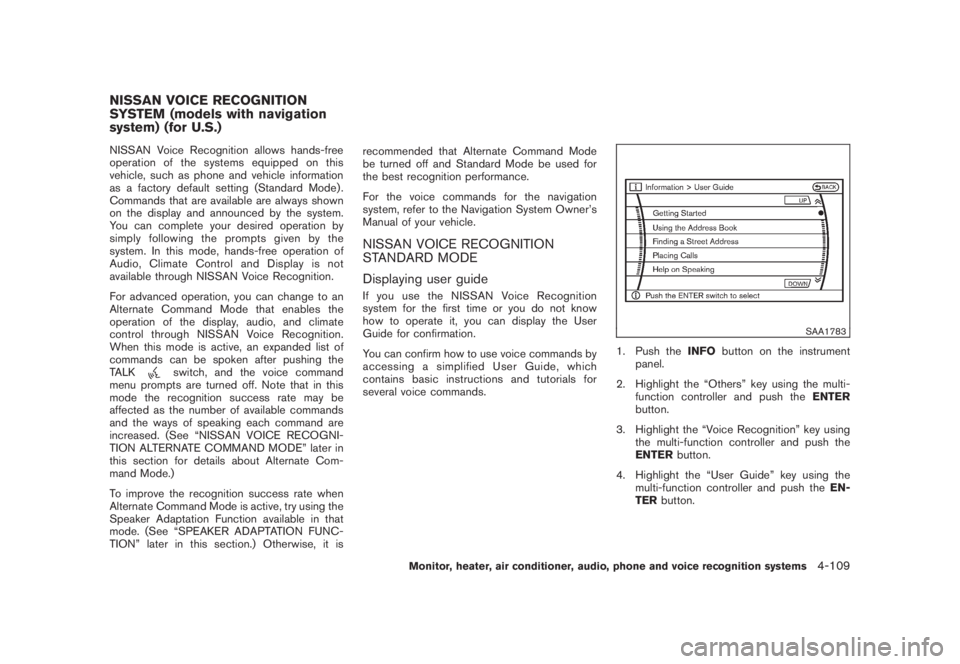
Displaying user guideIfyouusetheNISSANVoiceRecognition
system for the first time or you do not know
how to operate it, you can display the User
Guide for confirmation.
You can confirm how to use voice commands by
accessing a simplified User Guide, which
contains basic instructions and tutorials for
several voice commands.
SAA1783
1. Push theINFObutton on the instrument
panel.
2. Highlight the “Others” key using the multi-
function controller and push theENTER
button.
3. Highlight the “Voice Recognition” key using
the multi-function controller and push the
ENTERbutton.
4. Highlight the “User Guide” key using the
multi-function controller and push theEN-
TERbutton.
NISSAN VOICE RECOGNITION
SYSTEM (models with navigation
system) (for U.S.)
Monitor, heater, air conditioner, audio, phone and voice recognition systems
4-109
Page 276 of 444

Black plate (272,1)
Model "Z51-D" EDITED: 2008/ 6/ 26
SAA1920
5. Highlight an item using the multi-function
controller and push theENTERbutton.
You can skip steps 1 to 3 above if you say
“Help”.
Available items:
.Getting Started
Describes the basics of how to operate the
NISSAN Voice Recognition system.
.Finding a Street Address
Tutorial for entering a destination by street
address..Placing Calls
Tutorial for making a phone call by voice
command operation.
.Help on Speaking
Displays useful tips of speaking for correct
command recognition by the system.
.Voice Recognition Settings
Describes the available voice recognition
settings.
Note that the Command List feature is only
available when Alternate Command Mode is
active.
SAA1904
Getting StartedBefore using the NISSAN Voice Recognition
system for the first time, you can confirm how to
use commands by viewing the Getting Started
section of the User Guide.
1. Highlight “Getting Started” and push the
ENTERbutton.
2. You can confirm the page by scrolling the
screen using the multi-function controller.
Tutorials on the operation of the NISSAN
Voice Recognition system
If you choose “Finding a Street Address” or
“Placing Calls”, you can view tutorials on how to
perform these operations using NISSAN Voice
4-110
Monitor, heater, air conditioner, audio, phone and voice recognition systems
Page 277 of 444
Black plate (273,1)
Model "Z51-D" EDITED: 2008/ 6/ 26
Recognition.
SAA1905
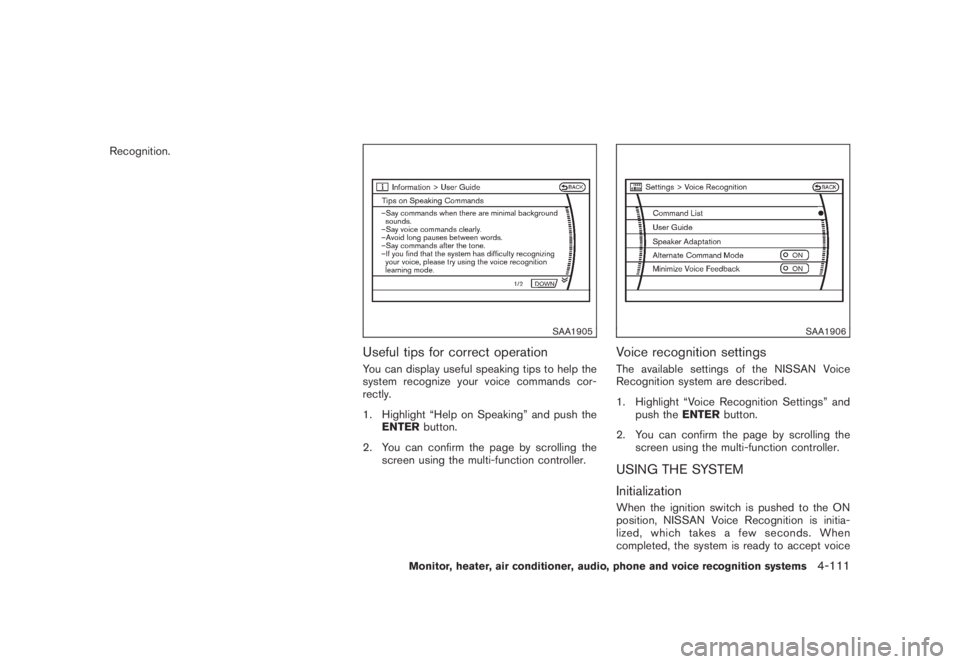
Useful tips for correct operationYou can display useful speaking tips to help the
system recognize your voice commands cor-
rectly.
1. Highlight “Help on Speaking” and push the
ENTERbutton.
2. You can confirm the page by scrolling the
screen using the multi-function controller.
SAA1906
Voice recognition settingsThe available settings of the NISSAN Voice
Recognition system are described.
1. Highlight “Voice Recognition Settings” and
push theENTERbutton.
2. You can confirm the page by scrolling the
screen using the multi-function controller.USING THE SYSTEM
InitializationWhen the ignition switch is pushed to the ON
position, NISSAN Voice Recognition is initia-
lized, which takes a few seconds. When
completed, the system is ready to accept voice
Monitor, heater, air conditioner, audio, phone and voice recognition systems
4-111
Page 278 of 444
Black plate (274,1)
Model "Z51-D" EDITED: 2008/ 6/ 26
commands. If the TALK
switch is pushed
before the initialization completes, the display
will show the message: “Phonetic data down-
loaded. Please wait.” or a beep sounds.
BEFORE STARTINGTo get the best recognition performance from
NISSAN Voice Recognition, observe the follow-
ing:
.The interior of the vehicle should be as quiet
as possible. Close the windows to eliminate
the surrounding noises (traffic noise and
vibration sounds, etc.) , which may prevent
the system from correctly recognizing the
voice commands.
.Wait until the tone sounds before speaking a
command.
.Speak in a natural conversational voice
without pausing between words.
.If the air conditioner is set to “Auto”, the fan
speed is automatically lowered so that your
commands can be recognized more easily.
SAA1859
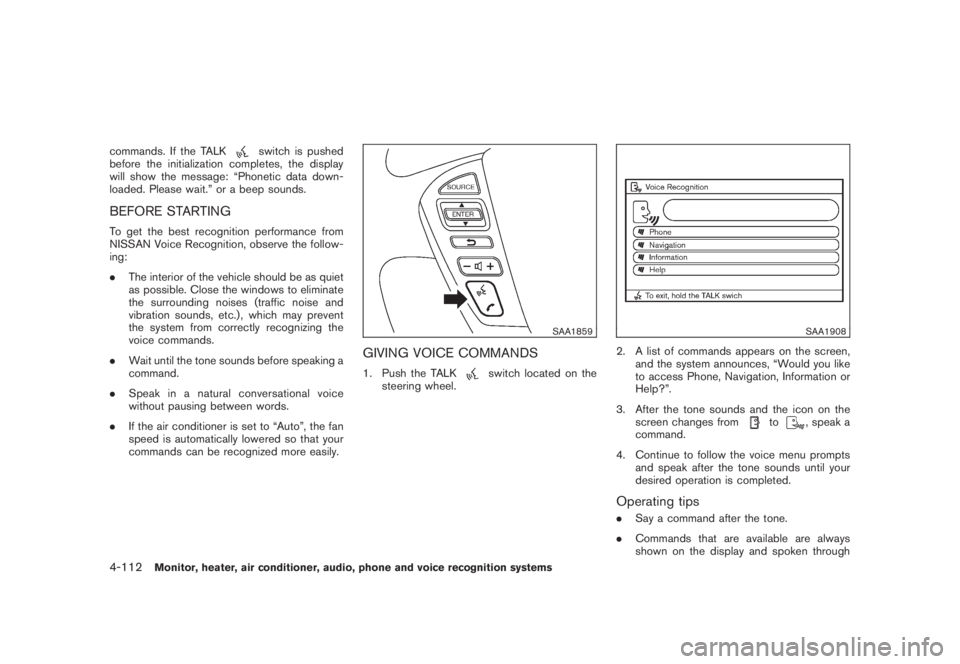
GIVING VOICE COMMANDS1. Push the TALK
switch located on the
steering wheel.
SAA1908
2. A list of commands appears on the screen,
and the system announces, “Would you like
to access Phone, Navigation, Information or
Help?”.
3. After the tone sounds and the icon on the
screen changes from
to
, speak a
command.
4. Continue to follow the voice menu prompts
and speak after the tone sounds until your
desired operation is completed.
Operating tips.Say a command after the tone.
.Commands that are available are always
shown on the display and spoken through
4-112
Monitor, heater, air conditioner, audio, phone and voice recognition systems
Page 279 of 444
Black plate (275,1)
Model "Z51-D" EDITED: 2008/ 6/ 26
voice menu prompts. Commands other than
those that are displayed are not accepted.
Please follow the prompts given by the
system.
.If the command is not recognized, the
system announces, “Please say again”.
Repeat the command in a clear voice.
.Push theBACKbutton once to return to the
previous screen.
.If you want to cancel the command, push
and hold the TALK
switch. The
message, “Voice cancelled” will be an-
nounced.
.Push the TALK
switch to pause the
operation. Push the TALK
switch again
to restart the operation.
.If you want to adjust the volume of the
system feedback, push the volume control
buttons [+] or [] on the steering switch or
use the audio system volume knob while the
system is making an announcement.
How to speak numbersNISSAN Voice Recognition requires a certain
way to speak numbers when giving voice
commands. Refer to the following examples.General rule:
Only single digits 0 (zero) to 9 can be used. (For
example, if you would like to say 500, “five zero
zero” can be used, but “five hundred” cannot.)
Examples:
.1-800-662-6200
— “One eight zero zero six six two six two
zero zero”
Improving Recognition of Phone numbers:
You can improve the recognition of phone
numbers by saying the phone number in three
groups of numbers. For example, when you try to
call 800-662-6200, say “eight zero zero” first,
and the system will then ask you for the next
three digits. Then, say “six six two”. After
recognition, the system will then ask for the last
four digits. Say, “six two zero zero”. Using this
method of phone digit entry can improve
recognition performance.
When speaking a house number, speak the
number “0” as “zero”. If the letter “o (Oh)” is
included in the house number, it will not be
recognized as the number “0 (zero)” even if you
speak “oh” instead of “zero”.You can only say
“zero” for “0 (zero)”. You can say either
“zero” or “ oh” for “o (Oh)”.
Monitor, heater, air conditioner, audio, phone and voice recognition systems
4-113