Page 198 of 801

197 Control systems
COMAND navigation (introduction)
1Crosshair
2Details of the crosshair position
3Map scaleAdjusting the map scale
�
Rotate ymz.
Rotating clockwise zooms in, rotating
counterclockwise zooms out.
Saving crosshair position as destination
in last destinations list
�
Showing menu system, if neces-
sary: Press n.
�
Saving: Select “Position” � “Save Po-
sition”.
COMAND saves the crosshair position
as a destination in the last destinations
list (
�page 258).
Hiding the crosshair
�
Press back button L in the center
console (
�page 88).
The crosshair disappears and the map
is centered on the vehicle position.
or
�
Set the map to the vehicle or destina-
tion position, see the explanation be-
low.
Centering the map on the vehicle or
destination position
�
Centering on the vehicle’s position:
Select “Navi” � “Position” � “Vehicle
Position Map”.
or
�
Press back button L when the
crosshair is displayed.
�
Centering on the destination:
Select “Navi” � “Position” � “Destina-
tion Position Map”.
i
Display 2 may be the name of a road, for
example, provided the digital map contains the
necessary data.
If no data is available, display 2 shows:
�
the coordinates of the crosshair if the
geo-coordinate display is switched on
(�page 200) and the GPS signal is strong
enough
�
no display if the geo-coordinate display is
switched off (
�page 200)
i
If you have moved the map, you can use this
function to rapidly return the map to the position
of the vehicle or destination. It is only possible to
center the map on the destination position when
route guidance is active.
Page 227 of 801
226 Control systemsCOMAND navigation system (entering a destination)Moving the map and selecting the des-
tination�
Moving map: Slide qmr, omp or
wmx.
�
Adjusting map scale: Rotate ymz.
Rotating clockwise enlarges the map,
rotating counterclockwise reduces it.
�
Selecting a destination: Press n.
If the crosshair is located off the edge
of the digital map, a route cannot be
calculated to this destination and you
will see the message “The destination is
located off the map.”.
�
Select “OK”.
�
Move the map and select a destination
again.
If the destination is within the limits of
the digital map, COMAND attempts to
attribute the destination to the map,
which can take approximately
2 seconds.
If the destination can be attributed, you
will see the address of the destination.
If not, you will see the display “Destina-
tion from map”.
�
Starting route calculation:
Select “Start”, see also (
�page 222).
Entering a stopoveri
When route guidance is active, you can en-
ter a stopover. Stopovers can be predefined des-
tinations from the following predefined
categories:
�
“Mercedes-Benz Center”
�
“Hospital”
�
“Gas station”
�
“Parking lot”
�
“Restaurant”
However, you can also enter destinations other
than the predefined ones.
i
You can use the stopover function to influ-
ence the route guidance calculation to the main
destination. When you have reached your stop-
over, COMAND automatically calculates the
route to the main destination.
Page 246 of 801

245 Control systems
COMAND navigation system (during route guidance)
Displaying info�
Select “Info” in map view with the
menu system displayed (
�page 196).
The route information appears.
Example display with main destination and
stopover1Symbol = for stopover
2Distance to the destination
3Sequence of destinations (appears
with at least one stopover)
4Street
5City and abbreviation for province
(CDN) or state (USA)
6Country
7Symbol < for main destination
8Estimated driving time to the destina-
tion
9Estimated arrival time
i
COMAND uses the time set in COMAND as
the basis for calculating the estimated arrival
time. The clock must be set correctly in
COMAND (
�page 259). The calculation of the
estimated arrival time does not additionally take
into account whether Daylight Saving Time or
standard time is applicable at the destination. If
the destination is in a different time zone, arrival
time display 8
is in local time. This is indicated
by “LT” in the display.
The following data cannot be seen until the route
calculation has been completed:
�
Distance to destination
1
�
Estimated arrival time
8
�
Estimated remaining travel time
7
If the destination is located within a partially dig-
itized area, the following data may differ from the
facts:�
Distance to destination
1
�
Estimated arrival time
8
�
Estimated remaining travel time
7
Page 247 of 801
246 Control systemsCOMAND navigation system (during route guidance)Displaying route information�
Select “Route” � “ Route Info” in map
view with the menu system displayed
(�page 196).
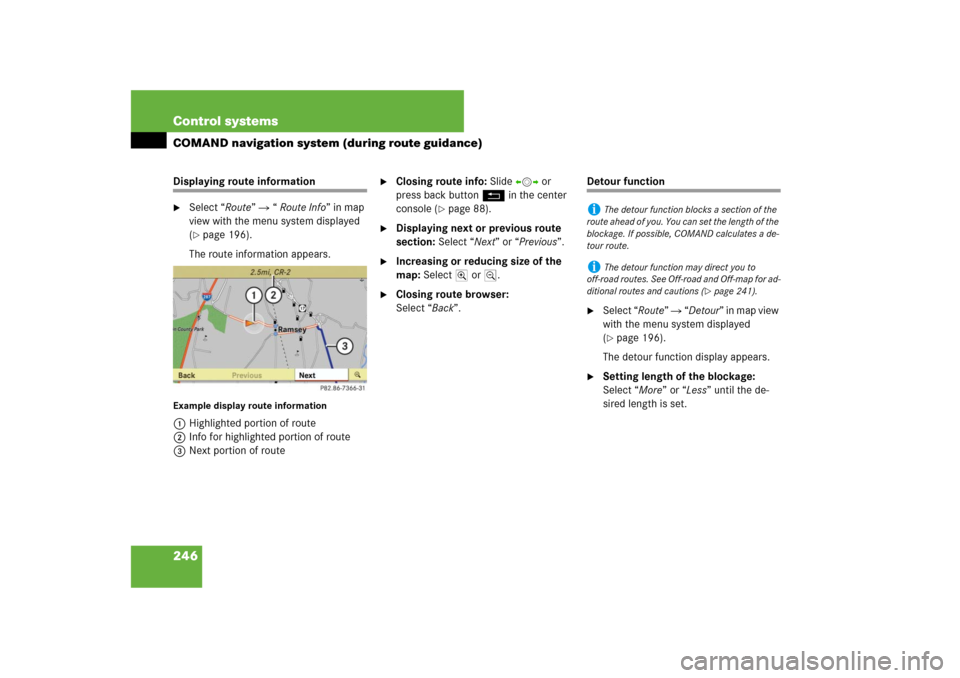
The route information appears.
Example display route information1Highlighted portion of route
2Info for highlighted portion of route
3Next portion of route
�
Closing route info: Slide omp or
press back button L in the center
console (
�page 88).
�
Displaying next or previous route
section: Select “Next” or “Previous”.
�
Increasing or reducing size of the
map: Select; or :.
�
Closing route browser:
Select “Back”.
Detour function�
Select “Route” � “Detour” in map view
with the menu system displayed
(�page 196).
The detour function display appears.
�
Setting length of the blockage:
Select “More” or “Less” until the de-
sired length is set.
i
The detour function blocks a section of the
route ahead of you. You can set the length of the
blockage. If possible, COMAND calculates a de-
tour route.
i
The detour function may direct you to
off-road routes. See Off-road and Off-map for ad-
ditional routes and cautions (
�page 241).
Page 248 of 801
247 Control systems
COMAND navigation system (during route guidance)
1Blocked route section
2Current vehicle position; the triangle in-
dicates the vehicle’s direction of travel
3Information about the blocked route
section
�
Starting route calculation:
Select “Start”, see also (
�page 222).
�
Deleting blockage: Select “Navi” �
“Route” � “Detour” � “Delete”.
�
Select “Back”.
i
Blocked route section 1 is always highlight-
ed in red/white. The information about blocked
route section 3 shows which section of the
route is blocked and the length of the blocked
section.
Page 249 of 801

248 Control systemsCOMAND navigation system (real-time traffic)A RDS-TMC (Radio Data System-Traffic
Message Channel) radio transmitter
broadcasts traffic reports COMAND can
receive and incorporate into the navigation
system. Traffic report messages and map
symbols can then be viewed in the
COMAND display. Events displayed are
those within receivable range of the vehi-
cle's location.Real-time traffic notifications in the
map
COMAND can display certain traffic events
in the map. The notifications are shown at
the map scales from 0.05 mi (50 m) to
500 mi (500 km).�
Set the map scale: Turn ymz until the
desired map scale is set.
Turning clockwise enlarges the map,
turning counterclockwise reduces it.
Display example for a traffic jam on the
route1Symbol for event on the route
2Marker symbols for the affected route
section
3Current vehicle position and direction
of travel
4Map scale
i
Actual road and traffic conditions may be
different from the received messages.
i
COMAND marks the entire route section af-
fected with the appropriate symbols2, inde-
pendently of its actual length on the route
section. The symbols2 are shown in the direc-
tion of travel on the left or right of the route.Thus,
they also indicate which side of the roadway is
affected by the event.
Page 250 of 801
249 Control systems
COMAND navigation system (real-time traffic)
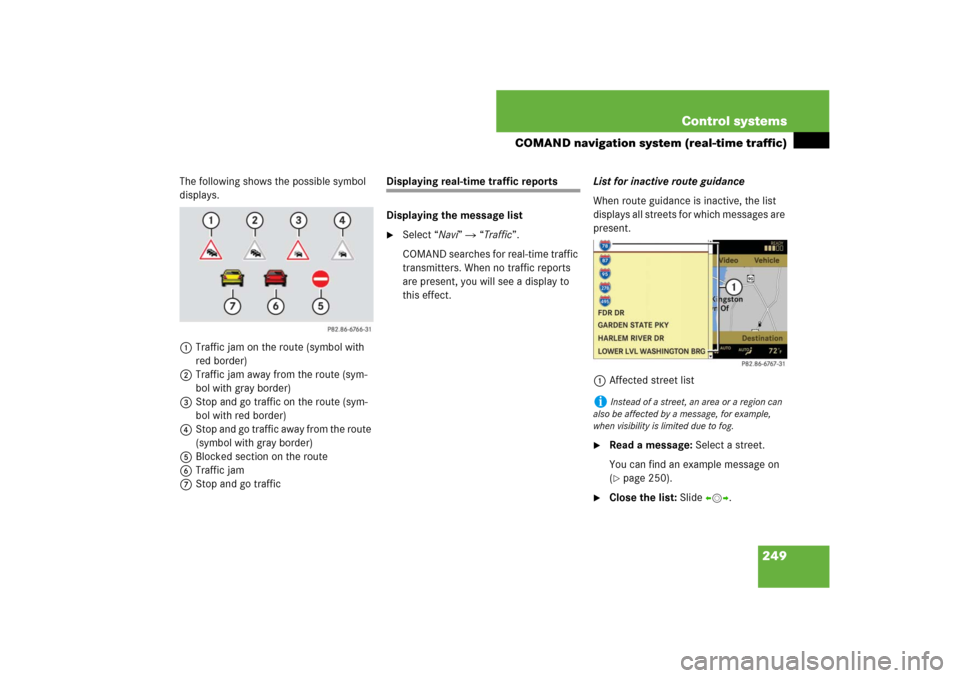
The following shows the possible symbol
displays.
1Traffic jam on the route (symbol with
red border)
2Traffic jam away from the route (sym-
bol with gray border)
3Stop and go traffic on the route (sym-
bol with red border)
4Stop and go traffic away from the route
(symbol with gray border)
5Blocked section on the route
6Traffic jam
7Stop and go traffic
Displaying real-time traffic reports
Displaying the message list�
Select “Navi” � “Traffic”.
COMAND searches for real-time traffic
transmitters. When no traffic reports
are present, you will see a display to
this effect.List for inactive route guidance
When route guidance is inactive, the list
displays all streets for which messages are
present.
1Affected street list
�
Read a message: Select a street.
You can find an example message on
(�page 250).
�
Close the list: Slide omp.
i
Instead of a street, an area or a region can
also be affected by a message, for example,
when visibility is limited due to fog.
Page 251 of 801
250 Control systemsCOMAND navigation system (real-time traffic)List for active route guidance
When route guidance is active, the list dis-
plays only the streets which are part of the
route and for which messages are present.
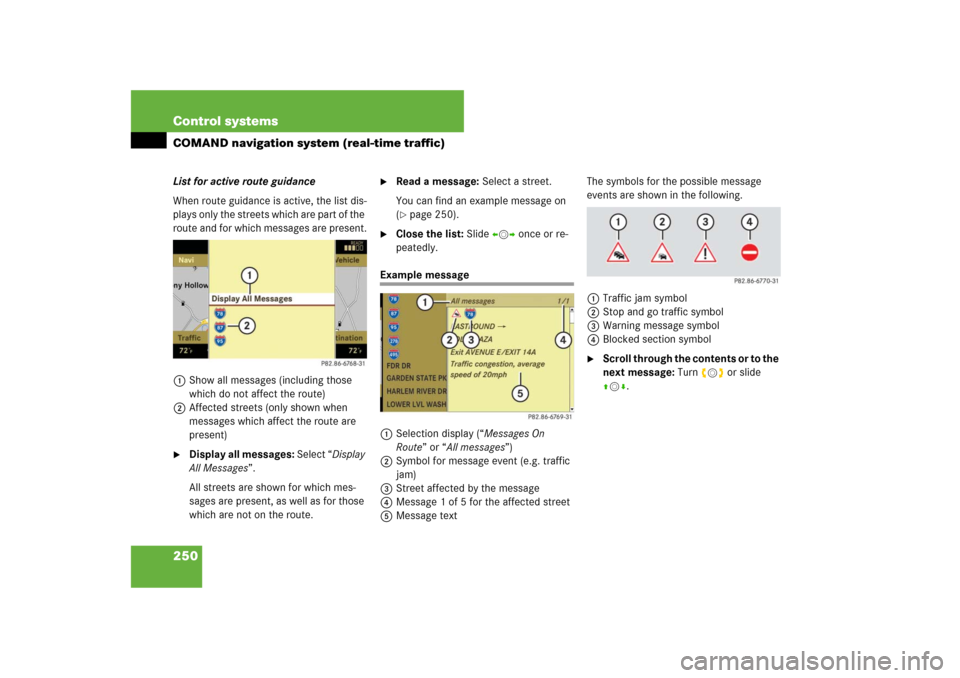
1Show all messages (including those
which do not affect the route)
2Affected streets (only shown when
messages which affect the route are
present)�
Display all messages: Select “Display
All Messages”.
All streets are shown for which mes-
sages are present, as well as for those
which are not on the route.
�
Read a message: Select a street.
You can find an example message on
(�page 250).
�
Close the list: Slide omp once or re-
peatedly.
Example message
1Selection display (“Messages On
Route” or “All messages”)
2Symbol for message event (e.g. traffic
jam)
3Street affected by the message
4Message 1 of 5 for the affected street
5Message textThe symbols for the possible message
events are shown in the following.
1Traffic jam symbol
2Stop and go traffic symbol
3Warning message symbol
4Blocked section symbol
�
Scroll through the contents or to the
next message: Turn ymz or slide
qmr.
