Page 18 of 225
17 At a glance
COMAND control system
Tilting and folding COMAND display
! Do not place any objects in front of or be-
hind the COMAND display and/or secure any
objects to the COMAND display itself. This may
obstruct the movement when the display is being
folded in/out.
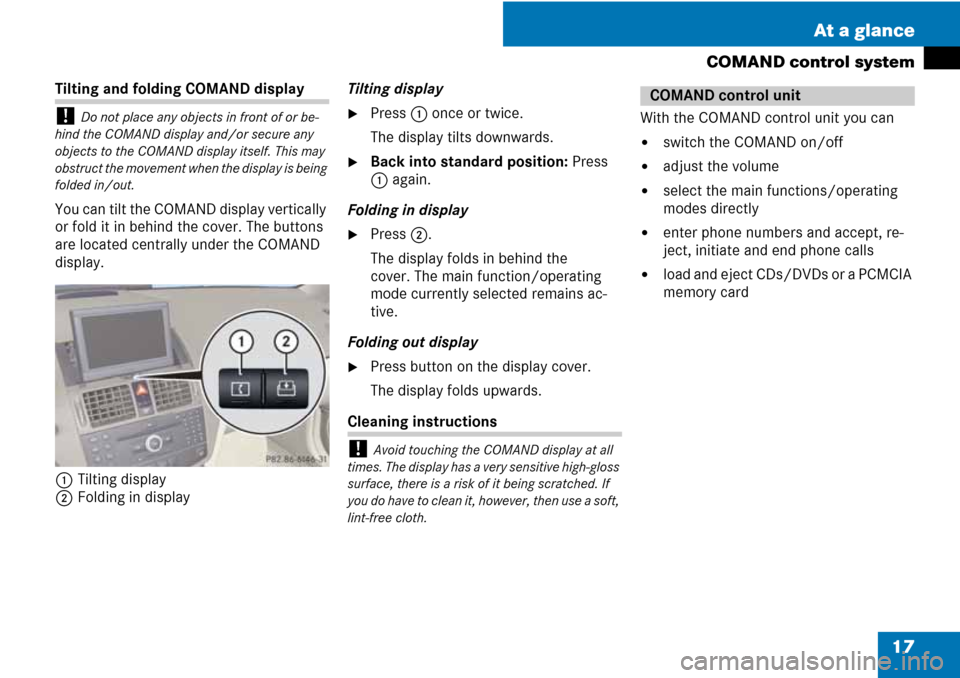
You can tilt the COMAND display vertically
or fold it in behind the cover. The buttons
are located centrally under the COMAND
display.
1Tilting display
2Folding in displayTilting display
�Press 1 once or twice.
The display tilts downwards.
�Back into standard position: Press
1 again.
Folding in display
�Press 2.
The display folds in behind the
cover. The main function/operating
mode currently selected remains ac-
tive.
Folding out display
�Press button on the display cover.
The display folds upwards.
Cleaning instructions
! Avoid touching the COMAND display at all
times. The display has a very sensitive high-gloss
surface, there is a risk of it being scratched. If
you do have to clean it, however, then use a soft,
lint-free cloth.
With the COMAND control unit you can
�switch the COMAND on/off
�adjust the volume
�select the main functions/operating
modes directly
�enter phone numbers and accept, re-
ject, initiate and end phone calls
�load and eject CDs/DVDs or a PCMCIA
memory card
COMAND control unit
Page 20 of 225
19 At a glance
COMAND control system
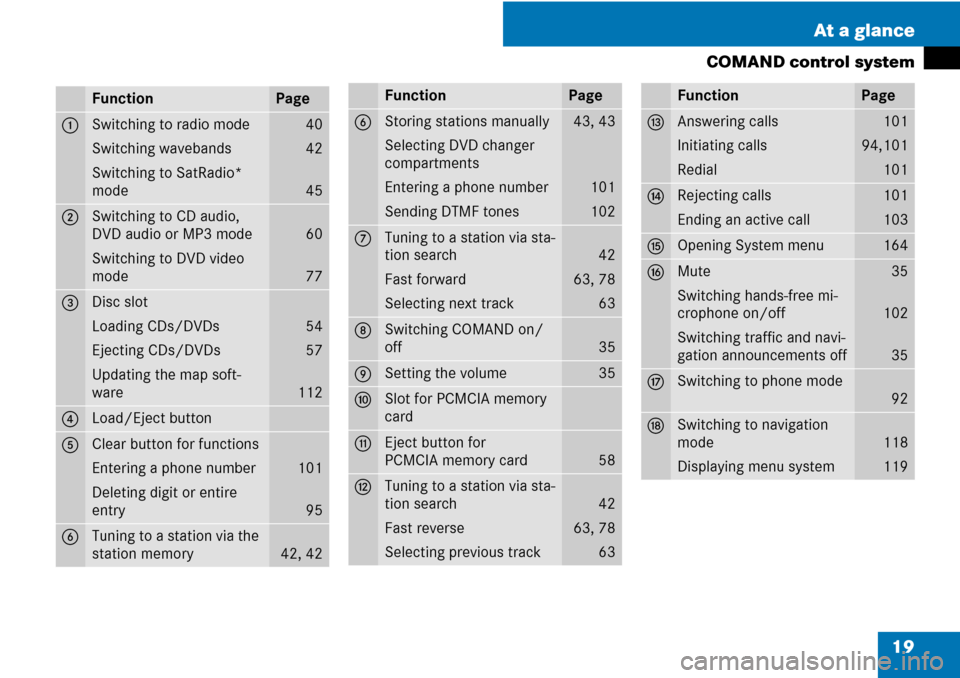
FunctionPage
1Switching to radio mode
Switching wavebands
Switching to SatRadio*
mode40
42
45
2Switching to CD audio,
DVD audio or MP3 mode
Switching to DVD video
mode
60
77
3Disc slot
Loading CDs/DVDs
Ejecting CDs/DVDs
Updating the map soft-
ware
54
57
112
4Load/Eject button
5Clear button for functions
Entering a phone number
Deleting digit or entire
entry
101
95
6Tuning to a station via the
station memory
42, 42
6Storing stations manually
Selecting DVD changer
compartments
Entering a phone number
Sending DTMF tones43, 43
101
102
7Tuning to a station via sta-
tion search
Fast forward
Selecting next track
42
63, 78
63
8Switching COMAND on/
off
35
9Setting the volume35
aSlot for PCMCIA memory
card
bEject button for
PCMCIA memory card
58
cTuning to a station via sta-
tion search
Fast reverse
Selecting previous track
42
63, 78
63
FunctionPage
dAnswering calls
Initiating calls
Redial101
94,101
101
eRejecting calls
Ending an active call101
103
fOpening System menu164
gMute
Switching hands-free mi-
crophone on/off
Switching traffic and navi-
gation announcements off35
102
35
hSwitching to phone mode
92
jSwitching to navigation
mode
Displaying menu system
118
119
FunctionPage
Page 22 of 225
21 At a glance
COMAND control system
SymbolHow to use the COMAND controllerFunction
n�Press briefly.�Select menu item.
�Exit full-screen image with Navi.
�Press and hold until the selected
action has been carried out.�Accept destination for navigation.
ymz�Rotate.�Move through vertical or horizontal menus.
�Move through text.
�Program settings.
qmr �Slide.�Move through vertical menus.
�Exit horizontal menus.
�Slide and hold.�Moves through a navigation map.
omp�Slide.�Move through horizontal menus.
�Exit vertical menus.
�Slide and hold.�Fast forward or reverse for audio CD or audio DVD playback.
�Move through a navigation map.
wmx�Slide and hold.�Move through a navigation map.
Page 26 of 225
25 At a glance
Multifunction steering wheel
Multifunction display menus
MenusFunctions and submenus
Navi (�page 26)�Navigation messages
Audio (�page 27)�Selecting radio stations
�Operating the DVD changer/Music register /Memory card
Tel (�page 29)�Accepting a call
�Selecting a phone book entry
�Calls dialed
Page 29 of 225
28 At a glance
Multifunction steering wheel
Operating the DVD changer/Music reg-
ister/Memory card
�Switch on COMAND and select “Disc“,
“Memory card“ (
�page 60) or “Music
register“ (
�page 67).
�Select the “Audio“ menu.
Example: view of the CD player
1Current disc
2Current track
�To select the next or previous track:
briefly press % or $.
or
�To search for the next or previous
track: press and hold % or $.
i If you are playing a CD or DVD with track in-
formation, the multi-function display shows the
name and number of the track. The track is dis-
played on MP3s.
Operating the DVD video
�Switch on COMAND and select DVD
video (
�page 77).
�Select the Audio menu.
1Current disc
2Current scene
�To select the next or previous
scene: briefly press % or $.
Page 38 of 225
37 At a glance
Basic functions of COMAND
�To save setting: Press n.
The setting is stored and the menu is
exited.
�To exit menu without changes: Press
the Back button
í.
Your vehicle is equipped with the harman/
kardon LOGIC7
® Surround Sound system.
You can select between “
LOGIC7®On” and
“
LOGIC7®Off”.
harman/kardon LOGIC7
® Surround Sound
is available for the following operating
modes:
�Radio (FM only)
�SatRadio*
�CD audio
�DVD audio (MLP, DTS, PCM and Dolby
Digital audio formats)
�MP3 (including PCMCIA memory card)
�Aux
�DVD video (PCM, DTS and Dolby Digital
audio formats)
i As some DVDs contain both stereo and also
multi-channel audio formats, it may be neces-
sary to set the audio format (
�page 66).
i The “LOGIC7®On” function of the harman/
kardon LOGIC7® Surround Sound system per-
mits the playback of discrete 5.1 and stereo re-
cordings with an optimal surround sound
platform for each passenger. Music and films on
CD or audio and video DVDs with high-resolution
surround formats, such as MLP, DTS or Dolby
Digital, are played with optimum sound.
The LOGIC7
® distributes the 5.1 surround infor-
mation over the 12-channel system architecture
to provide the optimum sound in all seats. This
produces the sound characteristics as intended
by the sound engineer during the original record-
ing.
harman/kardon LOGIC7
® converts all two-chan-
nel stereo sound sources into multi-channel sur-
round sound. The surround information stored
during the original recording is read out using
LOGIC7
® and likewise distributed over the
12 channels. No effects are created during the
process, anything that was always on the record-
ing is just made audible again.
Moreover, harman/kardon LOGIC7
® draws the
audible sound source away from the individual
loudspeakers, thus creating a natural 360°
sound platform for each passenger.
i By selecting “LOGIC7® Off”, the playback
of all playable formats is performed as on the ex-
isting medium. Due to the spatial conditions in
the vehicle, optimal sound is not possible in all
seats.
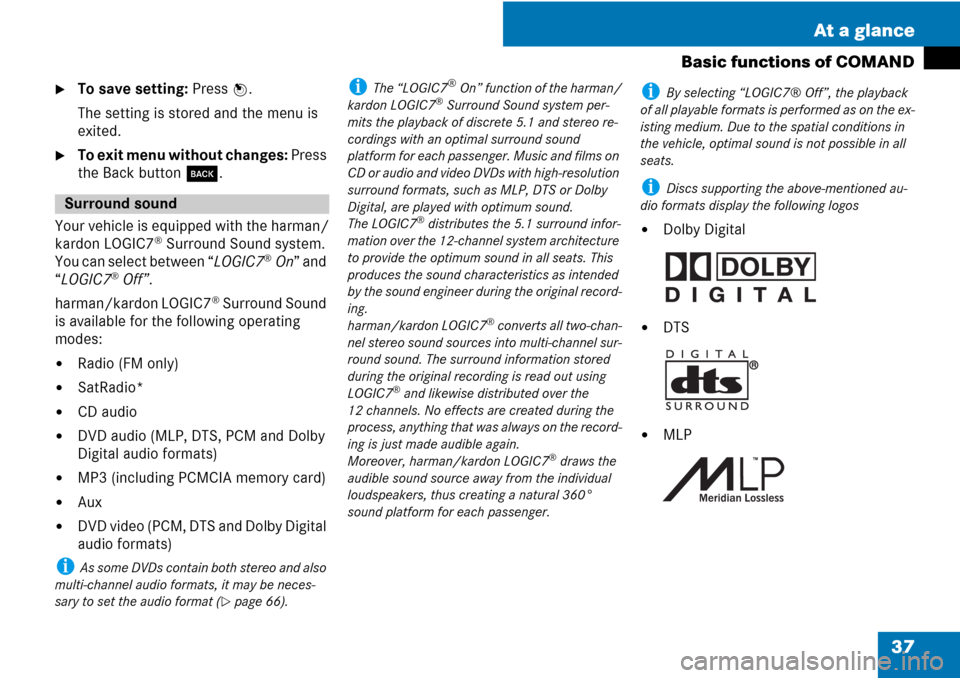
i Discs supporting the above-mentioned au-
dio formats display the following logos
�Dolby Digital
�DTS
�MLP
Surround sound
Page 39 of 225
38
Setting the surround sound
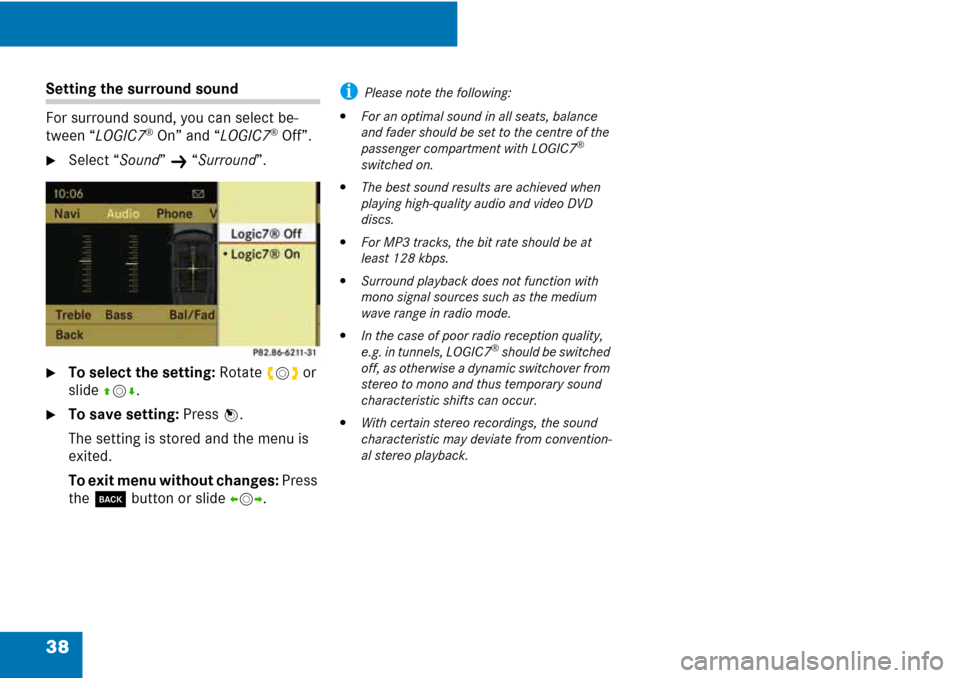
For surround sound, you can select be-
tween “
LOGIC7®On” and “LOGIC7®Off”.
�Select “Sound” K “Surround”.
�To select the setting: Rotate ymz or
slide
qmr.
�To save setting: Press n.
The setting is stored and the menu is
exited.
To exit menu without changes: Press
the
í button or slide omp.
i Please note the following:
�For an optimal sound in all seats, balance
and fader should be set to the centre of the
passenger compartment with LOGIC7
®
switched on.
�The best sound results are achieved when
playing high-quality audio and video DVD
discs.
�For MP3 tracks, the bit rate should be at
least 128 kbps.
�Surround playback does not function with
mono signal sources such as the medium
wave range in radio mode.
�In the case of poor radio reception quality,
e.g. in tunnels, LOGIC7® should be switched
off, as otherwise a dynamic switchover from
stereo to mono and thus temporary sound
characteristic shifts can occur.
�With certain stereo recordings, the sound
characteristic may deviate from convention-
al stereo playback.
Page 40 of 225
39 Audio
Radio ...............................................40
Satellite radio* ..............................45
CD audio/DVD audio/MP3...........52
Music Register ...............................67
Audio Aux .......................................71


