Page 192 of 360

4119
Features of your vehicle
1. XM Selector This is XM selector and it will turn to
each mode in the following order each
time you press the button.
- XM1 XM2 XM3
When you press this button when you
are listening to CD or RADIO, the sys-
tem will automatically turn to XM
mode.
When ignition switch of the automobile
is set to ACC (1st notch) or ON (2nd
notch) and when you press this button,
XM will be on even when the audio
system was turned off.2. LCD (Liquid Crystal Display)It displays the XM1, XM2, XM3, Preset
Number, Title of the Channel Received,
EQ Mode (CLASSIC, POP, ROCK,
JAZZ), and SCAN Status when listening
to XM.
3. SCAN ButtonWhen you press this button, the player
will play 10 seconds of each channel
(LCD will display "SCAN"). Press it again
to cancel scanning. Also, press and this
button for more than 0.8 seconds to play
the channels memorized to the preset
buttons for 10 seconds each. (LCD will
display "corresponding channel number",
"
", and "SCAN".) Press it again to
cancel scanning.4. Information ButtonYou can see the information of the chan-
nel currently received and you can switch
to different information by pressing this
button in the following order.
- Title Name Category Current
State
5. Channel Move (Seek Up/Down)
Button When you press this button, the chan-
nel will move automatically and stop at
the next available channel and play the
channel. The display will cycle once
through the Channel, Title, Name and
Category for selected channel.
(Press [ ] to move to the higher fre-
quencies, press [ ] to the lower fre-
quencies automatically.)
Press and hold either the down or up at
a fast rate. The display will show the
Channel Name and Number while tun-
ing at the fast rate.
Radio ID :Seek or tune to XM channel
0 to display the Radio ID.6. Preset Memory ButtonPress this button and hold for less than
0.8 seconds to listen to the channel
memorized to the button. Also, when you
are listening to the channel other than
the channel memorized to the button
using TUNE or SEEK, press the button
you wish to memorize current channel to
and hold for more than 0.8 seconds until
it beeps to memorize the channel.
Page 196 of 360
4123
Features of your vehicle
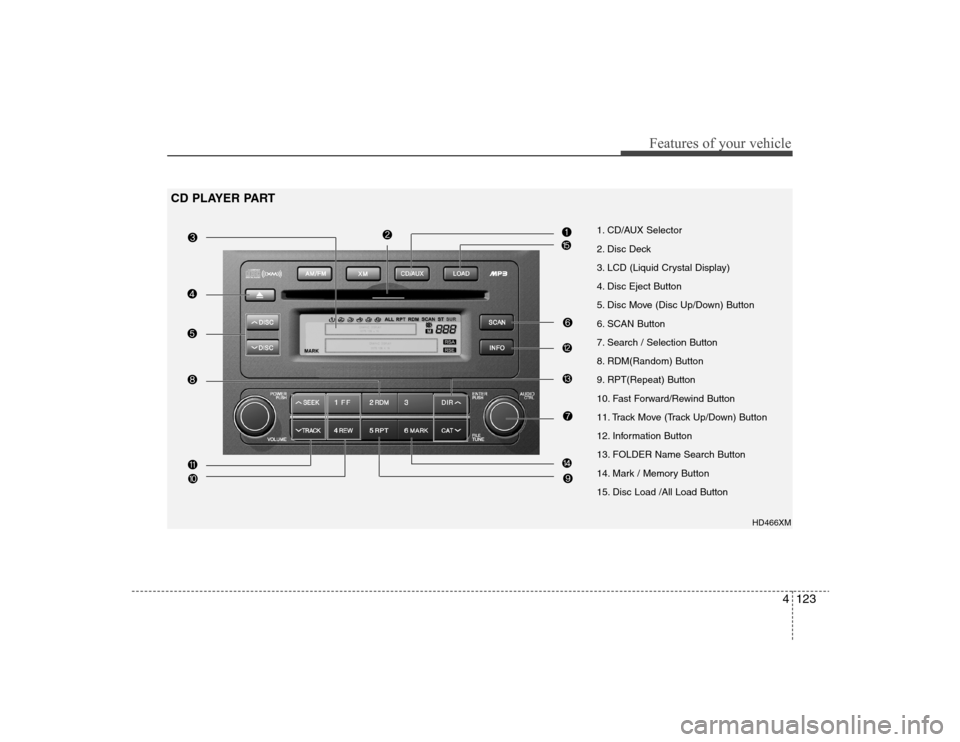
1. CD/AUX Selector
2. Disc Deck
3. LCD (Liquid Crystal Display)
4. Disc Eject Button
5. Disc Move (Disc Up/Down) Button
6. SCAN Button
7. Search / Selection Button
8. RDM(Random) Button
9. RPT(Repeat) Button
10. Fast Forward/Rewind Button
11. Track Move (Track Up/Down) Button
12. Information Button
13. FOLDER Name Search Button
14. Mark / Memory Button
15. Disc Load /All Load Button
HD466XM
CD PLAYER PART
Page 197 of 360

Features of your vehicle124 41. CD/AUX Selector The system will start playing the CD
when you press this button while C186
radio or XM is on. (If no CD is found,
the LCD will display "NO DISC" for 3
seconds.)
If the ignition switch of the automobile
is set to ACC (1st notch) or ON (2nd
notch), the system will be turned on
and automatically play the CD from the
last played part when you press this
button even if the power of the audio
system is off (However, only when the
disc is placed inside the system)2. Disc DeckThis is the place you insert or eject the
CD. To open the deck, press [LOAD] but-
ton. This CD changer can only play audio
CD/MP3/WMA discs and 12cm discs.
Also, if you insert a video CD or a DATA
CD then the LCD will display "ERROR7"
and it will turn to the previous mode
(radio or XM). When the ignition switch of
the automobile is set to ACC (1st notch)
or ON (2nd notch), if you press [LOAD]
button the power will be on and you will
be able to insert the disc even when the
audio system's power is off.
✽ ✽
NOTICE• Do not use 8cm discs.
• The system will not play AAC/WAVE
formats.
• Make sure the printed side of the disk
faces upward when you insert the
disk.3. LCD (Liquid Crystal Display)It displays the state of the song currently
played as well as the information of the
disc including the track, number, CD,
RPT, RDM, SCAN, runtime, EQ mode
(CLASSIC, POP, ROCK, JAZZ), READ-
ING, WAIT, INSERT, NO DISC and so
forth.4. Disc Eject ButtonPress this button to eject the disk when
the disk is in the deck. If no CD is in the
deck, LCD will display “NO DISC” for 3
seconds. (The disk will be ejected when
you press this button even when the igni-
tion switch (ACC) of the automobile is set
to OFF or when the power of the audio
system is off.)✽ ✽
NOTICEALL EJECT: Press and hold this button
for more than 0.8 seconds to eject all
discs inside the deck in respective order.
5. Disc Move (Disc Up/Down)
ButtonIf you want to listen to another disk while
using the CD changer, press [DISC ] ,
[DISC ] button to move to the disc you
want to listent to and play the disc. If all 6
decks of the changer is not full, the num-
ber of the empty deck will not be select-
ed but only the decks with discs will be
played. When moving through discs, the
selected disc will be displayed as "U."6. SCAN ButtonWhen you press this button, the player
will play 10 seconds of each track (LCD
will display “SCAN”). Press it again to
cancel scanning.7. Search / Selection ButtonTurn the search control to the left or right
while playing CD then the track number
on the LCD will change correspondingly.
When you find the track you want to lis-
ten to, press the button to play the select-
ed song. (The search will be canceled
when you do not select the track within 5
seconds after searching the track.)
Page 200 of 360

4127
Features of your vehicle
1. XM Selector This is XM selector and it will turn to
each mode in the following order each
time you press the button.
- XM1 XM2 XM3
When you press this button when you
are listening to CD or RADIO, the sys-
tem will automatically turn to XM
mode.
When ignition switch of the automobile
is set to ACC (1st notch) or ON (2nd
notch) and when you press this button,
XM will be on even when the audio
system was turned off.2. LCD (Liquid Crystal Display)It displays the XM1, XM2, XM3, Preset
Number, Title of the Channel Received,
EQ Mode (CLASSIC, POP, ROCK,
JAZZ), and SCAN Status when listening
to XM.
3. SCAN ButtonWhen you press this button, the player
will play 10 seconds of each channel
(LCD will display "SCAN"). Press it again
to cancel scanning. Also, press and this
button for more than 0.8 seconds to play
the channels memorized to the preset
buttons for 10 seconds each. (LCD will
display "corresponding channel number",
"
", and "SCAN".) Press it again to
cancel scanning.4. Information ButtonYou can see the information of the chan-
nel currently received and you can switch
to different information by pressing this
button in the following order.
- Title Name Category Current
State
5. Channel Move (Seek Up/Down)
Button When you press this button, the chan-
nel will move automatically and stop at
the next available channel and play the
channel. The display will cycle once
through the Channel, Title, Name and
Category for selected channel.
(Press [ ] to move to the higher fre-
quencies, press [ ] to the lower fre-
quencies automatically.)
Press and hold either the down or up at
a fast rate. The display will show the
Channel Name and Number while tun-
ing at the fast rate.
Radio ID :Seek or tune to XM channel
0 to display the Radio ID.6. Preset Memory ButtonPress this button and hold for less than
0.8 seconds to listen to the channel
memorized to the button. Also, when you
are listening to the channel other than
the channel memorized to the button
using TUNE or SEEK, press the button
you wish to memorize current channel to
and hold for more than 0.8 seconds until
it beeps to memorize the channel.
Page:
< prev 1-8 9-16 17-24