Page 58 of 392
19.MENU:Press to access the DVD disc menu for selections. Press
MENU again when in the DVD disc menu to access the system set-up
menu.
20.SUBTITLE(DVD dependent): Press to turn the subtitle feature ON
or OFF.
21.LANGUAGE(DVD dependent): Press to select the desired
language.
22.ENTER:Press to select the highlighted menu option.
23.ILLUMINATION: Press to illuminate the remote control and
backlight all of the buttons.
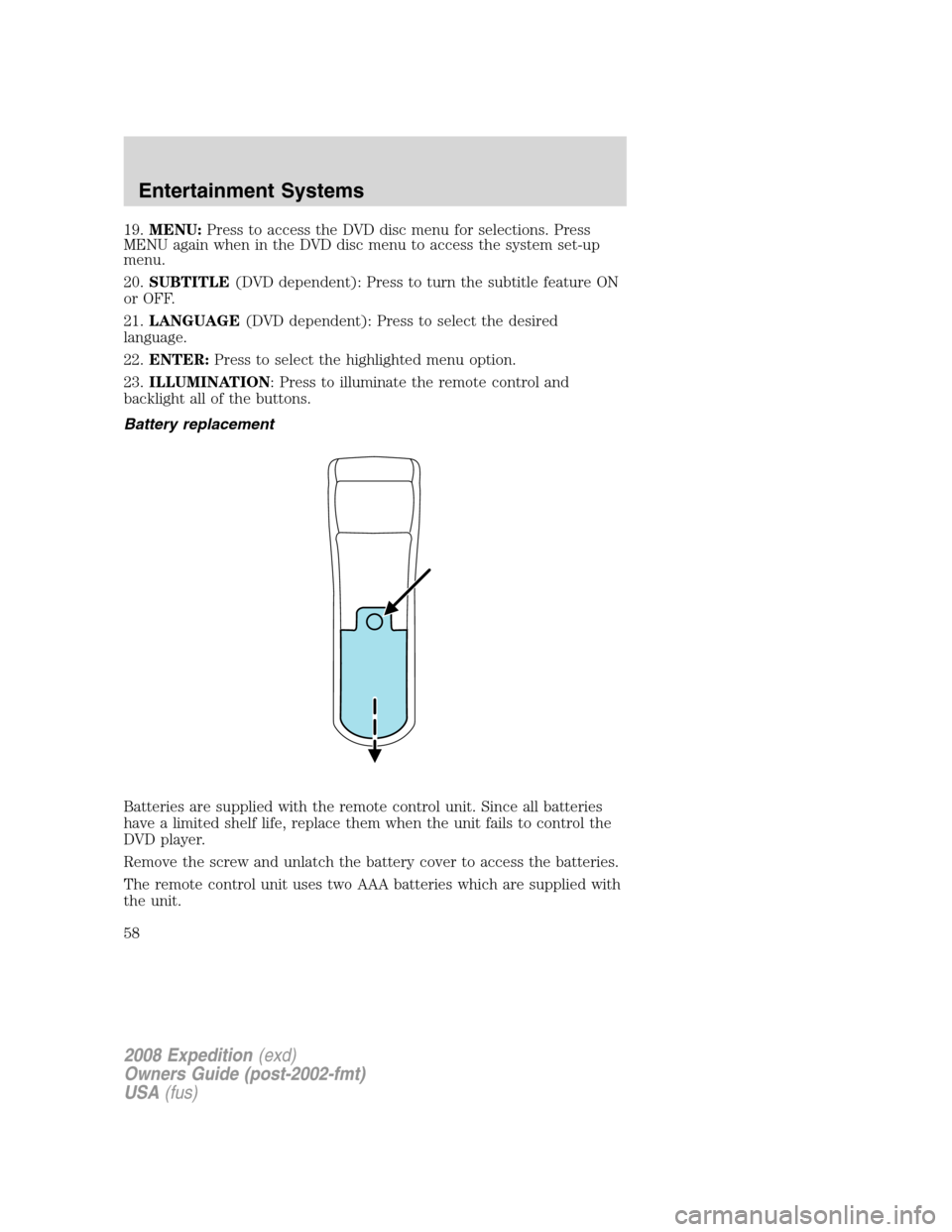
Battery replacement
Batteries are supplied with the remote control unit. Since all batteries
have a limited shelf life, replace them when the unit fails to control the
DVD player.
Remove the screw and unlatch the battery cover to access the batteries.
The remote control unit uses two AAA batteries which are supplied with
the unit.
2008 Expedition(exd)
Owners Guide (post-2002-fmt)
USA(fus)
Entertainment Systems
58
Page 59 of 392
Headphones
Wireless headphones
Your FES system is equipped with
two sets of battery powered, infrared
wireless headphones. Two AAA
batteries are needed to operate the
headphones. (Batteries are included.)
Additional infrared wireless
headphones may be purchased for
use with the system. Also, wired
headphones may be purchased and
plugged in where indicated on the
left and right hand sides of the
system. Refer toWired
Headphonesbelow.
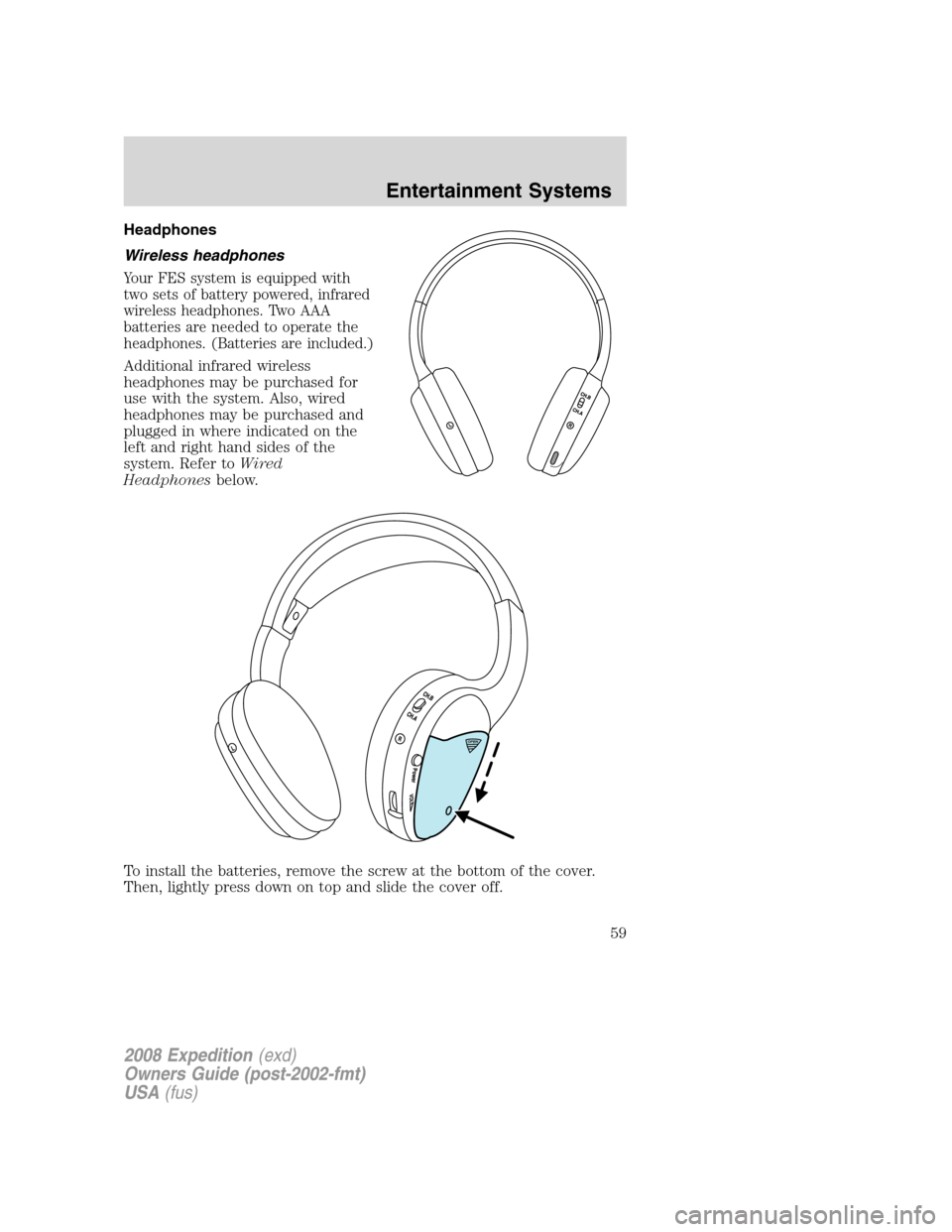
To install the batteries, remove the screw at the bottom of the cover.
Then, lightly press down on top and slide the cover off.
2008 Expedition(exd)
Owners Guide (post-2002-fmt)
USA(fus)
Entertainment Systems
59
Page 60 of 392
When replacing the batteries, use two new batteries (alkaline
recommended) and install them with the correct orientation as indicated
in the battery housing.
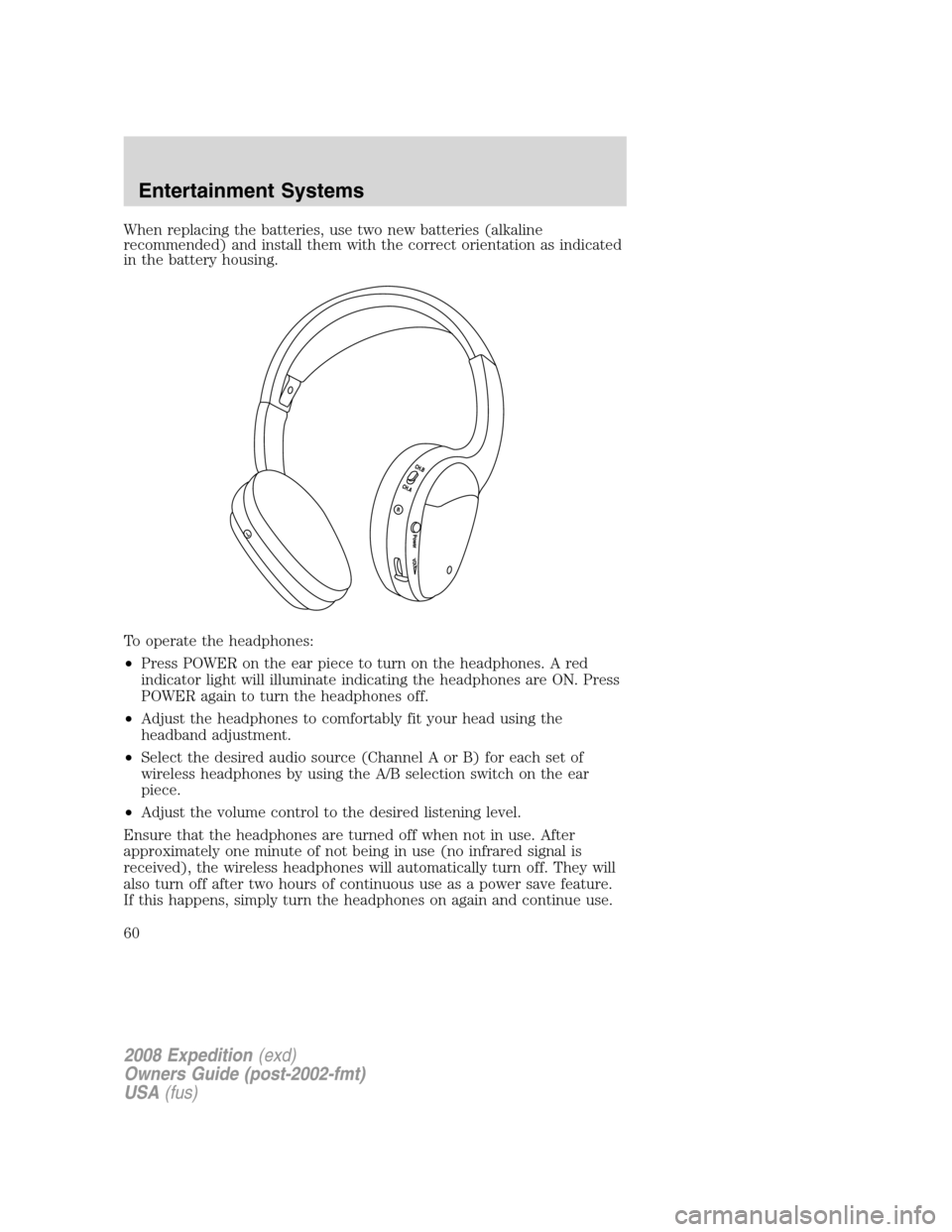
To operate the headphones:
•Press POWER on the ear piece to turn on the headphones. A red
indicator light will illuminate indicating the headphones are ON. Press
POWER again to turn the headphones off.
•Adjust the headphones to comfortably fit your head using the
headband adjustment.
•Select the desired audio source (Channel A or B) for each set of
wireless headphones by using the A/B selection switch on the ear
piece.
•Adjust the volume control to the desired listening level.
Ensure that the headphones are turned off when not in use. After
approximately one minute of not being in use (no infrared signal is
received), the wireless headphones will automatically turn off. They will
also turn off after two hours of continuous use as a power save feature.
If this happens, simply turn the headphones on again and continue use.
2008 Expedition(exd)
Owners Guide (post-2002-fmt)
USA(fus)
Entertainment Systems
60
Page 62 of 392
DVD and Rear Seat Controls turned ON, the rear seat passengers may
choose to listen to the radio, CD, MP3, DVD, or DVD-AUX media sources
over headphones while the front speakers play the chosen selection for
the front audio system, they may listen to another over the headphones.
DUAL PLAY will appear in the radio display.
When both the front seat passengers and the rear seat passengers listen
to the same audio source, SHARED MODE will appear on the radio.
Note:If the front seat passengers are listening to the radio, the rear seat
passengers can also listen to the radio, however they will be limited to
listening to the same radio channel.
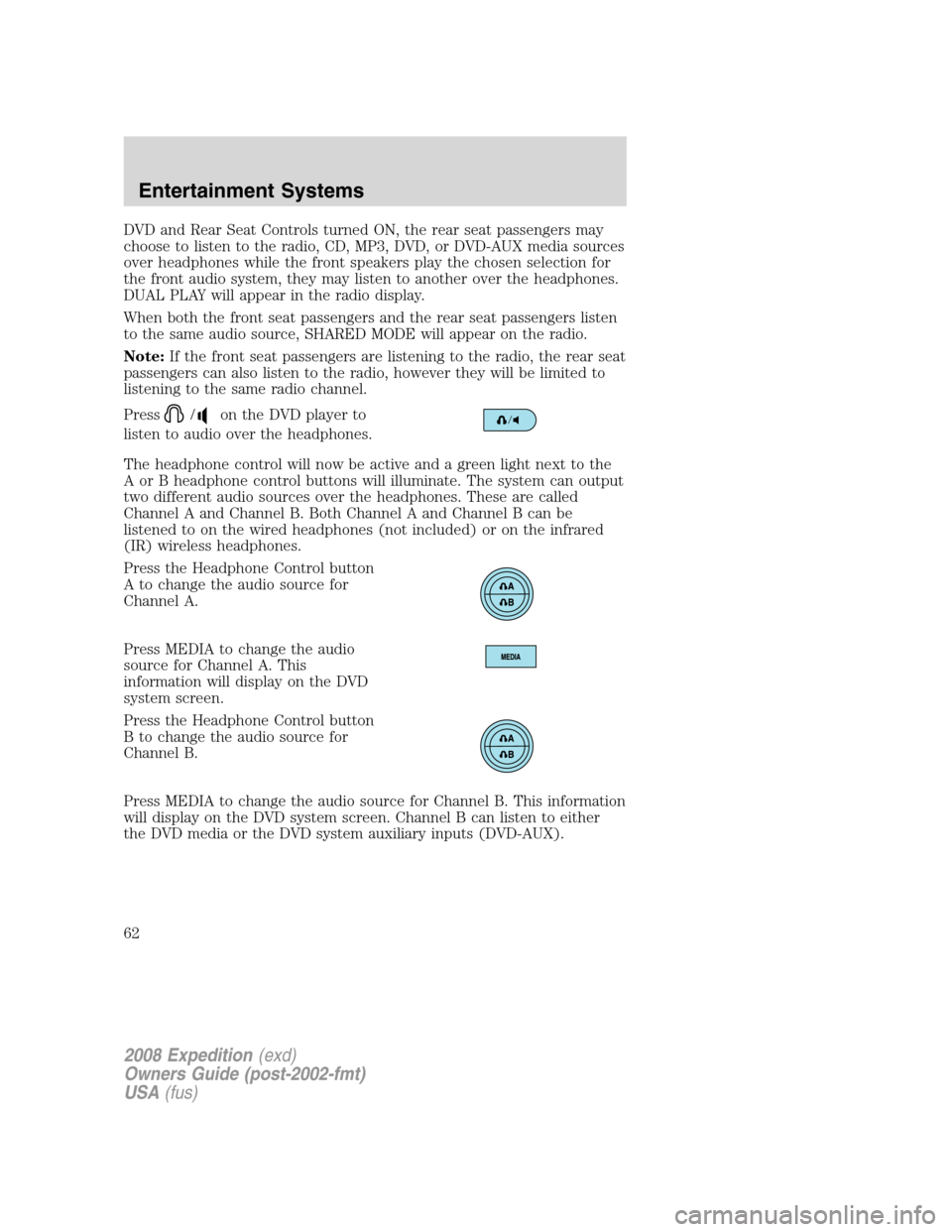
Press
/on the DVD player to
listen to audio over the headphones.
The headphone control will now be active and a green light next to the
A or B headphone control buttons will illuminate. The system can output
two different audio sources over the headphones. These are called
Channel A and Channel B. Both Channel A and Channel B can be
listened to on the wired headphones (not included) or on the infrared
(IR) wireless headphones.
Press the Headphone Control button
A to change the audio source for
Channel A.
Press MEDIA to change the audio
source for Channel A. This
information will display on the DVD
system screen.
Press the Headphone Control button
B to change the audio source for
Channel B.
Press MEDIA to change the audio source for Channel B. This information
will display on the DVD system screen. Channel B can listen to either
the DVD media or the DVD system auxiliary inputs (DVD-AUX).
2008 Expedition(exd)
Owners Guide (post-2002-fmt)
USA(fus)
Entertainment Systems
62
Page 65 of 392
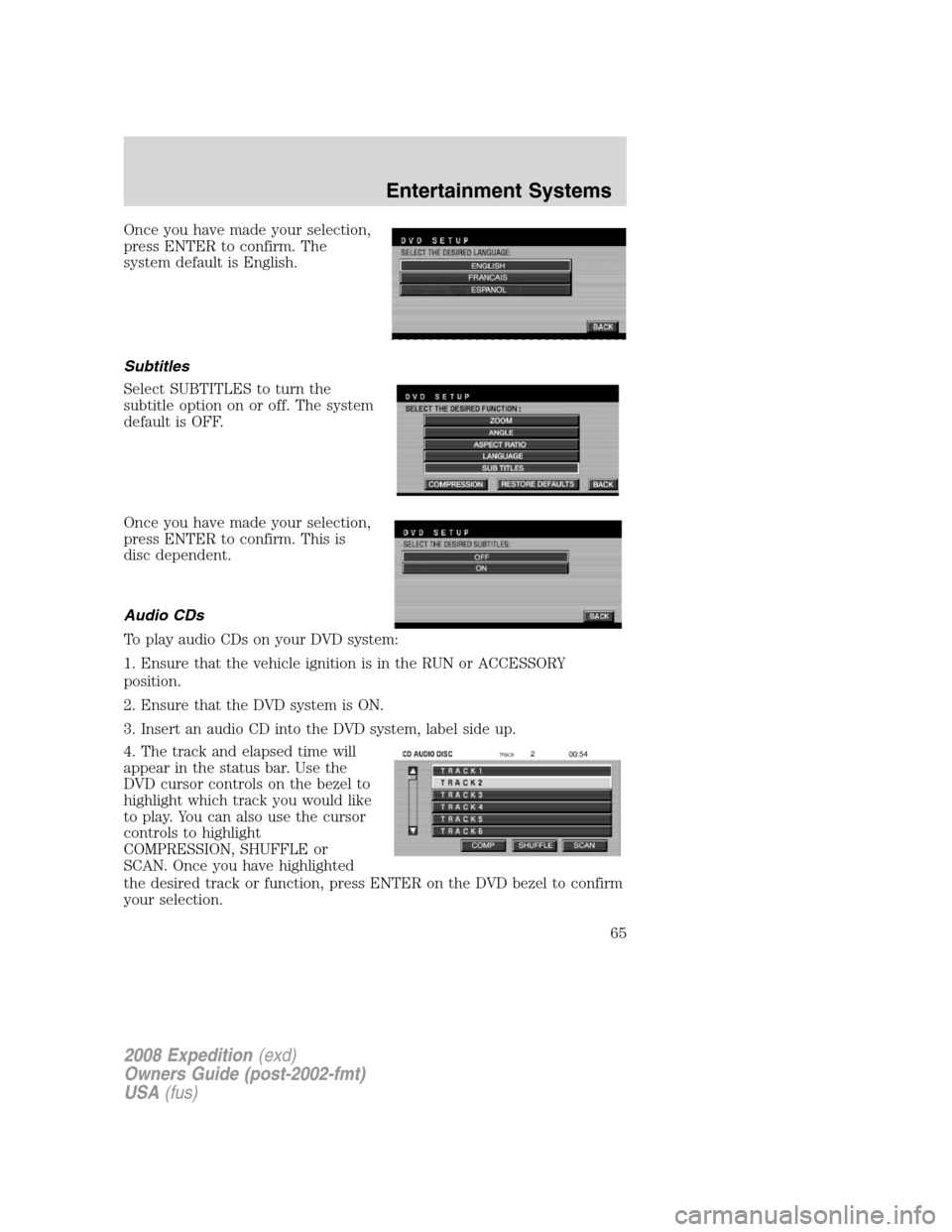
Once you have made your selection,
press ENTER to confirm. The
system default is English.
Subtitles
Select SUBTITLES to turn the
subtitle option on or off. The system
default is OFF.
Once you have made your selection,
press ENTER to confirm. This is
disc dependent.
Audio CDs
To play audio CDs on your DVD system:
1. Ensure that the vehicle ignition is in the RUN or ACCESSORY
position.
2. Ensure that the DVD system is ON.
3. Insert an audio CD into the DVD system, label side up.
4. The track and elapsed time will
appear in the status bar. Use the
DVD cursor controls on the bezel to
highlight which track you would like
to play. You can also use the cursor
controls to highlight
COMPRESSION, SHUFFLE or
SCAN. Once you have highlighted
the desired track or function, press ENTER on the DVD bezel to confirm
your selection.
2008 Expedition(exd)
Owners Guide (post-2002-fmt)
USA(fus)
Entertainment Systems
65
Page 67 of 392

•Disc finalization — The disc may be left open for the purpose of
adding sessions to it at a later time, but be sure to close each session
or the disc will not play.
•Bit rate — The player supports bit rates from 32–320 kbps, as well as
variable bit rate MP3 files, but lower bit rates will have a noticeable
effect on sound quality and are recommended only for speech or low
fidelity music material. We recommend that you encode MP3 files
using a high quality encoder.
•PC configuration — Encoding MP3 files requires intensive use of your
computer’s resources. Follow the PC configuration recommendations
of the encoder software vendor. We recommend that you avoid
running other software applications on your PC during MP3 encoding
to avoid undesirable noise and distortion.
CD, MP3 and CD player care
•Handle discs by their edges only. Never touch the playing surface.
•Do not expose discs to direct sunlight or heat sources for extended
periods of time.
•Do not insert more than one disc into the slot of the CD player (if
equipped).
•Always store discs out of direct sunlight. Excessive heat may damage
or warp discs.
•Use care when handling and playing CD-R and CD-RW discs, which
are more susceptible to damage from heat, light and stress than are
regular CDs.
•Always insert and remove a disc by holding the disc flat, with the
playing surface facing down, in order to prevent damage to the disc or
the player.
•Never insert any object other than a compact disc (CD) or digital
versatile disc (DVD) into the player, as doing so may damage the
player and may cause injury to you.
•Do not disassemble the player. The laser used in disc playback is
extremely harmful to the eyes.
The FES DVD system is designed to play commercially pressed
12 cm (4.75 in) audio compact discs and digital versatile discs
(DVD) only. Due to technical incompatibility, certain recordable
and re-recordable compact discs may not function correctly when
used in Ford CD and DVD players. Irregular shaped CDs or DVDs,
CDs or DVDs with a scratch protection film attached, and CDs
2008 Expedition(exd)
Owners Guide (post-2002-fmt)
USA(fus)
Entertainment Systems
67
Page 69 of 392
2. Press and hold the reverse or
advance button to enter into slow
play mode. Once in slow play mode,
press and release the reverse or advance button repeatedly to cycle
through 1/4 and 1/2. These will display on the status bar on top of the
screen as the screens cycle through at this rate.
Frame by frame
1. With a DVD playing, press pause.
2. Press the right cursor button. The
DVD will advance one frame. Each
press of the right cursor button will
advance the DVD video by one
frame.
Headphone/auxiliary jacks
There are wired headphones (not included) and auxiliary jacks on the
left and right side of your DVD system. They can be used to plug in
wired headphones or to connect and play auxiliary electronic devices
such as game systems, personal camcorders, video cassette recorders,
etc.
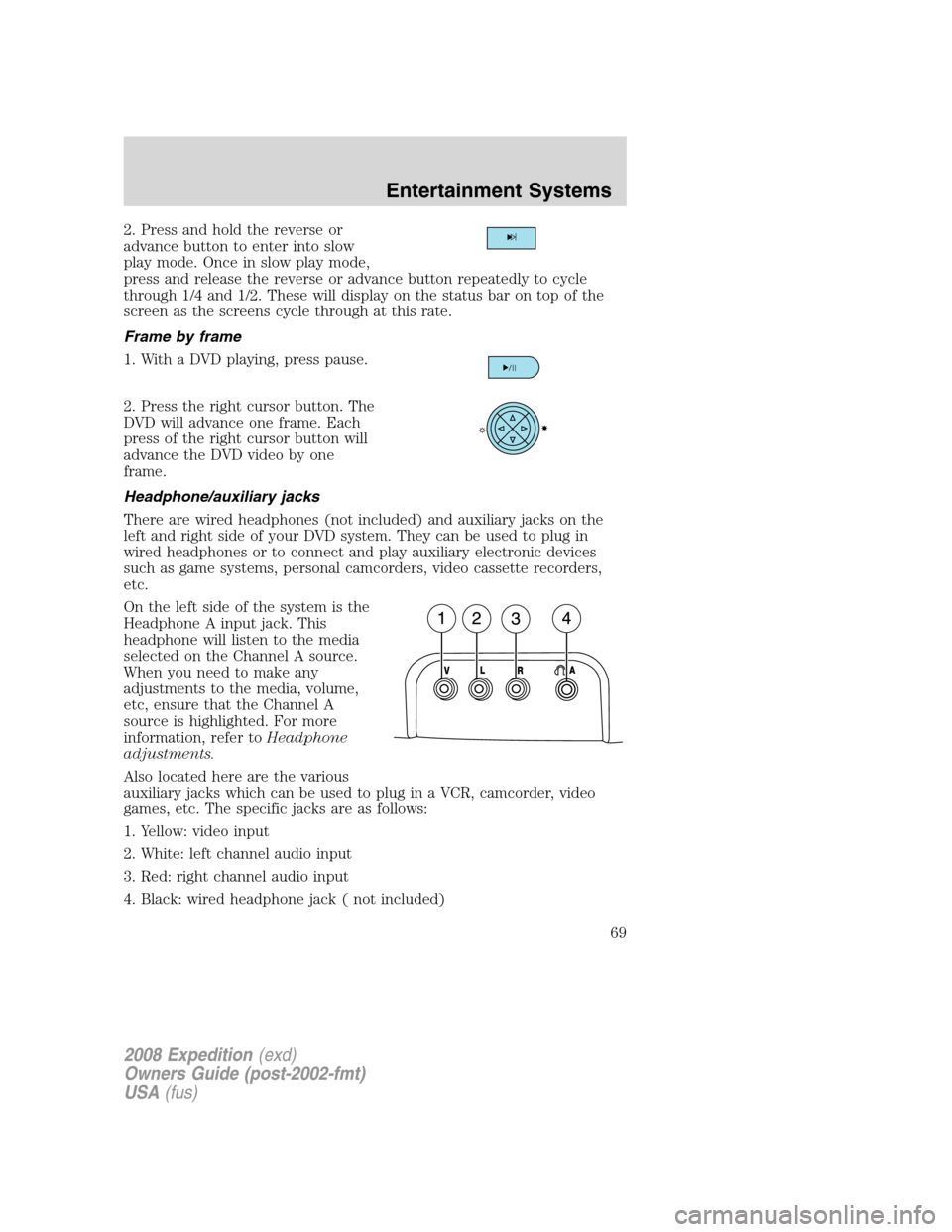
On the left side of the system is the
Headphone A input jack. This
headphone will listen to the media
selected on the Channel A source.
When you need to make any
adjustments to the media, volume,
etc, ensure that the Channel A
source is highlighted. For more
information, refer toHeadphone
adjustments.
Also located here are the various
auxiliary jacks which can be used to plug in a VCR, camcorder, video
games, etc. The specific jacks are as follows:
1. Yellow: video input
2. White: left channel audio input
3. Red: right channel audio input
4. Black: wired headphone jack ( not included)
2008 Expedition(exd)
Owners Guide (post-2002-fmt)
USA(fus)
Entertainment Systems
69
Page 72 of 392
use this product in any commercial (i.e. revenue generating) real time
broadcasting (terrestrial, satellite, cable and /or any other media)
broadcasting/streaming via internet, intranets and/or other networks or in
other electronic content distribution systems, such as pay-audio or
audio-on-demand applications. An independent license for such use is
required. For details, please visit http:// www.mp3licensing.com.
Safety information
Driving while distracted can result in loss of vehicle control,
accident and injury. Ford strongly recommends that drivers use
extreme caution when using any device that may take their focus off
the road. The drivers primary responsibility is the safe operation of
their vehicle. Only use cell phones and other devices not essential to
the driving task when it is safe to do so.
Read all of the safety and operating instructions before operating the
system and retain for future reference.
Do not attempt to service, repair or modify the Family Entertainment
System (FES). See your dealer.
Do not insert foreign objects into the DVD compartment.
Do not leave children unattended in the vehicle and do not let
children operate the system while unsupervised. If wired
headphones or auxiliary systems are used, children may become
entangled in the cords and seriously injure themselves.
The front glass on the liquid crystal display (LCD) flip-down
screen may break when hit with a hard surface. If the glass
breaks, do not touch the liquid crystalline material. In case of contact
with skin, wash immediately with soap and water.
The driver should not attempt to operate any function of the
DVD system while the vehicle is in motion. Give full attention to
driving and to the road. Pull off the road in a safe place before
inserting or extracting DVDs from the system. A remote control is
included in the system to allow the rear seat occupants to operate the
FES functions without distracting the driver.
Do not expose the liquid crystal display (LCD) flip-down screen
to direct sunlight or intensive ultraviolet rays for extensive
periods of time. Ultraviolet rays deteriorate the liquid crystal.
2008 Expedition(exd)
Owners Guide (post-2002-fmt)
USA(fus)
Entertainment Systems
72