Page 98 of 554
Call by Saying a Name
²
Press the PHONE button to begin.
²After the9Ready9prompt and the following beep, say
ªCall.9
²The system will prompt you to say the name of the
person you want to call.
²After the9Ready9prompt and the following beep, say
the name of the person you want to call. For example,
you can say9John Doe,9where John Doe is a previ-
ously stored name entry in the UConnecttphonebook.
To learn how to store a name in the phonebook, refer
to9Add Names to Your UConnecttPhonebook,9in
this section.
²The UConnecttsystem will confirm the name and
then dial the corresponding phone number, which
may appear in the display of certain radios.
Add Names to Your UConnecttPhonebook
NOTE:Adding names to the phonebook is recom-
mended when the vehicle is not in motion.
²Press the PHONE button to begin.
²After the9Ready9prompt and the following beep, say
9Phonebook New Entry.9
²When prompted, say the name of the new entry. Use of
long names helps the voice recognition and it is
recommended. For example, say9Robert Smith9or
9Robert9instead of9Bob.9
²When prompted, enter the number designation (e.g.,
9Home,99Work,99Mobile,9or9Pager9). This will allow
you to store multiple numbers for each phonebook
entry, if desired.
²When prompted, recite the phone number for the
phonebook entry that you are adding.
96 UNDERSTANDING THE FEATURES OF YOUR VEHICLE
Page 108 of 554
Turning Confirmation Prompts On/Off
Turning confirmation prompts off will stop the system
from confirming your choices (e.g., the UConnecttsys-
tem will not repeat a phone number before you dial it).
²Press the PHONE button to begin.
²After the9Ready9prompt and the following beep, say
9Setup Confirmations.9The UConnecttsystem will
play the current confirmation prompt status and you
will be given the choice to change it.
Phone and Network Status Indicators
If available on the radio and/or on a premium display
such as the instrument panel cluster, and supported by
your cell phone, the UConnecttsystem will provide
notification to inform you of your phone and network
status when you are attempting to make a phone call
using UConnectt. The status is given for roaming, net-
work signal strength, phone battery strength, etc.
Dialing Using the Cellular Phone Keypad
You can dial a phone number with your cellular phone
keypad and still use the UConnecttsystem (while dial-
ing via the cell phone keypad, the user must exercise
caution and take precautionary safety measures). By
dialing a number with your paired Bluetoothtcellular
phone, the audio will be played through your vehicle's
audio system. The UConnecttsystem will work the same
as if you dial the number using voice recognition.
NOTE:Certain brands of mobile phones do not send the
dial ring to the UConnecttsystem to play it on the
vehicle audio system, so you will not hear it. Under this
situation, after successfully dialing a number the user
may feel that the call did not go through even though the
call is in progress. Once your call is answered, you will
hear the audio.
106 UNDERSTANDING THE FEATURES OF YOUR VEHICLE
Page 111 of 554

Things You Should Know About Your UConnectT
System
UConnecttTutorial
To hear a brief tutorial of the system features, press the
PHONE button and say ªUConnecttTutorial.º
Voice Training
For users experiencing difficulty with the system recog-
nizing their voice commands or numbers, the UConnectt
system Voice Training feature may be used. To enter this
training mode, follow one of the two following proce-
dures:
From outside the UConnecttmode (e.g., from radio
mode):
²Press and hold the ªVoice Recognitionº button for five
seconds until the session begins, or,
²Press the ªVoice Recognitionº button and say the
9Setup, Voice Training9command.Repeat the words and phrases when prompted by the
UConnecttsystem. For best results, the Voice Training
session should be completed when the vehicle is parked
with the engine running, all windows closed, and the
blower fan switched OFF.
This procedure may be repeated with a new user. The
system will adapt to the last trained voice only.
To restore the Voice Recognition system to factory default
settings, enter the Voice Training session via the above
procedure and follow the prompts.
Voice Recognition (VR)
²
For best performance, adjust the rearview mirror to
provide at least1¤2in (1 cm) gap between the overhead
console (if equipped) and the mirror.
²Always wait for the beep before speaking.
UNDERSTANDING THE FEATURES OF YOUR VEHICLE 109
3
Page 137 of 554
Interior Lights
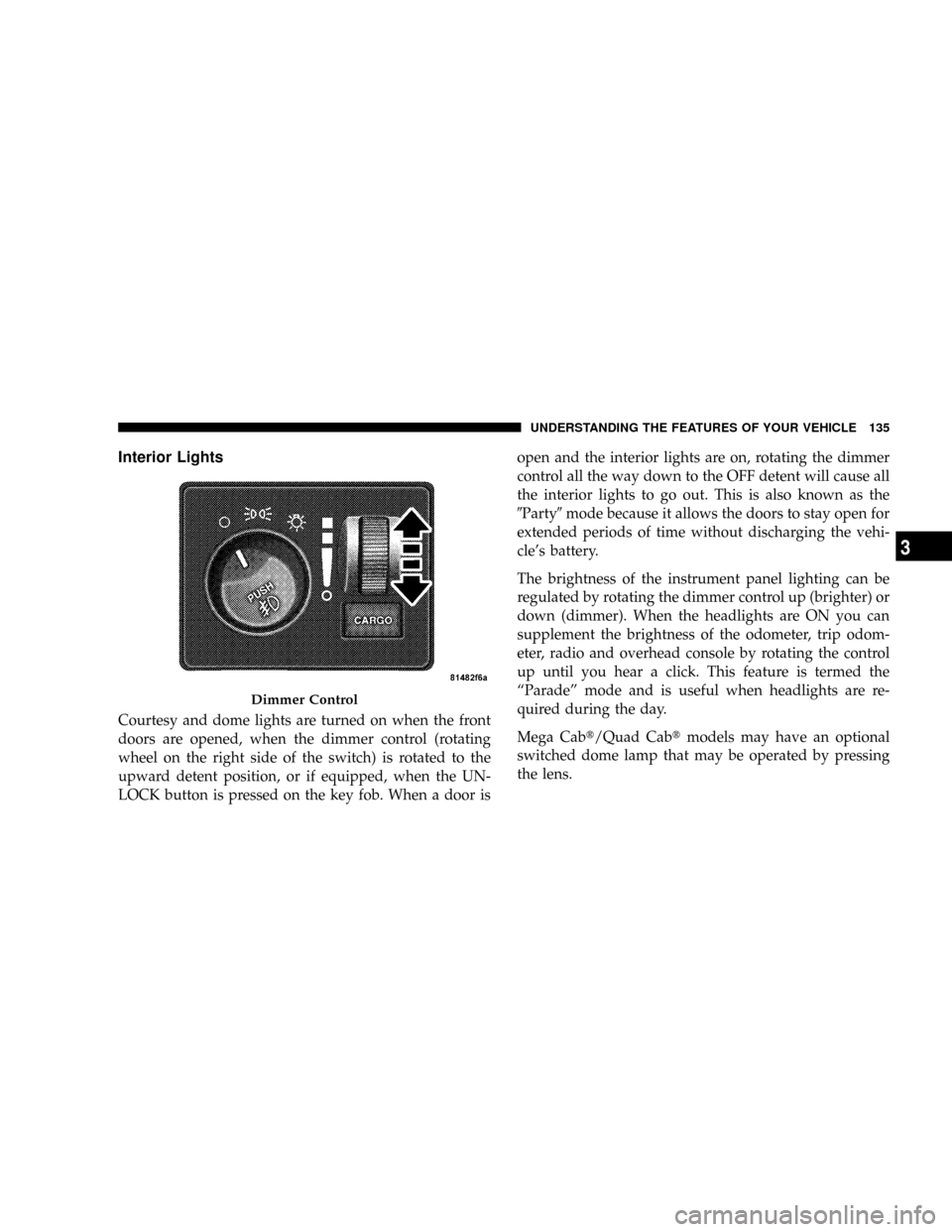
Courtesy and dome lights are turned on when the front
doors are opened, when the dimmer control (rotating
wheel on the right side of the switch) is rotated to the
upward detent position, or if equipped, when the UN-
LOCK button is pressed on the key fob. When a door isopen and the interior lights are on, rotating the dimmer
control all the way down to the OFF detent will cause all
the interior lights to go out. This is also known as the
9Party9mode because it allows the doors to stay open for
extended periods of time without discharging the vehi-
cle's battery.
The brightness of the instrument panel lighting can be
regulated by rotating the dimmer control up (brighter) or
down (dimmer). When the headlights are ON you can
supplement the brightness of the odometer, trip odom-
eter, radio and overhead console by rotating the control
up until you hear a click. This feature is termed the
ªParadeº mode and is useful when headlights are re-
quired during the day.
Mega Cabt/Quad Cabtmodels may have an optional
switched dome lamp that may be operated by pressing
the lens.
Dimmer Control
UNDERSTANDING THE FEATURES OF YOUR VEHICLE 135
3
Page 160 of 554
WARNING!
Vehicle exhaust contains carbon monoxide, a danger-
ous gas. Do not run your vehicle in the garage while
training the transceiver. Exhaust gas can cause seri-
ous injury or death.
Programming HomeLinkT
Before You Begin
The Compass Mini-Trip Computer (CMTC) illuminates
the HomeLinktsymbol (a house with an arrow inside it)
along with 1, 2 or 3 indicators under it, when a
HomeLinktbutton is pressed.
Pay attention to the indicator(s), as they will flash at
different rates, or remain solid during training.If you have not trained any of the HomeLinktbuttons,
erase all channels before you begin training.
To do this, press and hold the two outside buttons for 20
seconds. Release the buttons when the indicators start to
flash.
It is recommended that anew batterybe placed in the
hand-held transmitter of the device being programmed
to HomeLinkt, for more efficient training and accurate
transmission of the radio-frequency signal.
Your vehicle should be parked outside of the garage
while training.
1. Turn the ignition switch to the ON/RUN position.
2. Place the hand-held transmitter 1 to 3 inches (3 to 8
cm) from the HomeLinktbuttons, while keeping the
HomeLinktdisplay in view.
158 UNDERSTANDING THE FEATURES OF YOUR VEHICLE
Page 163 of 554
7. Return to the vehicle and press the programmed
HomeLinktbutton twice (holding the button for 2 sec-
onds each time). If the device is plugged in and activates,
programming is complete.
If the device does not activate, press the button a third
time (for 2 seconds) to complete the training.
If you are have any problems, or require assistance,
please call toll-free 1±800±355±3515 or, on the Internet at
www.HomeLink.com for information or assistance.
To program the remaining two HomeLinktbuttons,
repeat each step for each remaining button. DO NOT
erase the channels.
Gate Operator/Canadian Programming
Canadian radio-frequency laws require transmitter sig-
nals to ªtime-outº (or quit) after several seconds of
transmission ± which may not be long enough for
HomeLinktto pick up the signal during programming.Similar to this Canadian law, some U.S. gate operators are
designed to ªtime-outº in the same manner.
It may be helpful to unplug the device during the cycling
process, to prevent possible overheating of the garage
door or gate motor.
If you are having difficulties programming a garage door
opener or a gate operator, replace ªProgramming
HomeLink,º Step 3, with the following:
3. Continue to press and hold the HomeLinktbutton,
while you press and release - every two seconds
(ªcycleº), your hand-held transmitter until HomeLinkt
has successfully accepted the frequency signal. The
indicator(s) will change from a slow flash, to a rapid
flash when trained.
If you unplugged the device for training, plug it back in
at this time.
UNDERSTANDING THE FEATURES OF YOUR VEHICLE 161
3
Page 191 of 554
UNDERSTANDING YOUR INSTRUMENT PANEL
CONTENTS
mInstruments And Controls.................193
mInstrument Cluster......................194
NPremium Cluster ± If Equipped...........194
NBase Cluster ± If Equipped...............195
mInstrument Cluster Description.............196
mElectronic Digital Clock..................209
NClock Setting Procedure.................209
mRadio General Information................209
NRadio Broadcast Signals.................209NTwo Types Of Signals..................210
mSales Code REF Ð AM/FM/CD (Single-Disc)
Radio With Optional Satellite Radio And
Hands-Free Phone Capability..............211
NOperating Instructions - Radio Mode.......211
NOperating Instructions - CD Mode.........215
NOperating Instructions - Auxiliary Mode.....217
NOperating Instructions - Hands-Free Phone Ð
If Equipped.........................2184
Page 192 of 554
NOperating Instructions - Satellite Radio Ð
If Equipped.........................218
mSales Code RAQ ± AM/FM/CD (6-Disc) Radio
With Optional Satellite Radio, Hands-Free Phone,
And Video Entertainment System (VESŸ)
Capabilities...........................219
NOperating Instructions - Radio Mode.......219
NOperating Instructions -
(CD Mode For CD Audio Play)...........224
NLoad/Eject Button
(CD Mode For CD Audio Play)...........226
NNotes On Playing MP3 Files.............228
NOperating Instructions -
(CD Mode For MP3 Audio Play)..........230
NLoad/Eject Button (CD Mode For MP3 Play) . . 230mSales Code RAK ± AM/FM/Cassette/CD (6-Disc)
Radio With Optional Satellite Radio, Hands Free
Phone, Video, MP3, And WMA Capabilities....233
NOperating Instructions - Radio Mode.......233
NOperating Instructions Ð Tape Player.......237
NSeek Button.........................238
NFast Forward (FF).....................238
NRewind (RW)........................238
NTape Eject...........................238
NScan Button.........................238
NChanging Tape Direction................239
NMetal Tape Selection...................239
NPinch Roller Release...................239
190 UNDERSTANDING YOUR INSTRUMENT PANEL
