Page 116 of 442

3. Use the ON/OFF VOLUME rotary knob to adjust the
volume to a comfortable level while the voice recognition
system is speaking. Please note the volume setting for VR
is different then the audio system.
Main Menu
Start a dialogue by pressing the VR hard-key. You may
say MAIN MENU to switch to the main menu.
In this mode, you can say the following commands:
•RADIO (to switch to the radio mode)
•DISC (to switch to the disc mode)
•MEMO (to switch to the memo recorder)
Radio AM (or Radio Long Wave or Radio Medium
Wave - if equipped)
To switch to the AM band say AM or RADIO AM. In this
mode, you may say the following commands:
•FREQUENCY (to change the frequency)
•NEXT STATION (to select the next station)
•PREVIOUS STATION (to select the previous station)
•RADIO MENU (to switch to the radio menu)
•MAIN MENU (to switch to the main menu)
Radio FM
To switch to the FM band say FM or RADIO FM. In this
mode, you may say the following commands:
•FREQUENCY (to change the frequency)
•NEXT STATION (to select the next station)
•PREVIOUS STATION (to select the previous station)
•RADIO MENU (to switch to the radio menu)
•MAIN MENU (to switch to the main menu)
114 UNDERSTANDING THE FEATURES OF YOUR VEHICLE
Page 117 of 442

Satellite Radio
To switch to satellite radio mode say SAT or SATELLITE
RADIO. In this mode, you may say the following com-
mands:
•CHANNEL NUMBER (to change the channel by its
spoken number)
•NEXT CHANNEL (to select the next channel)
•PREVIOUS CHANNEL (to select the previous chan-
nel)
•LIST CHANNEL (to hear a list of available channels)
•SELECT NAME (to say the name of a channel)
•RADIO MENU (to switch to the radio menu)
•MAIN MENU (to switch to the main menu)
Disc
To switch to the disc mode say DISC. In this mode, you
may say the following commands:
•TRACK (#) (to change the track)
•NEXT TRACK (to play the next track)
•PREVIOUS TRACK (to play the previous track)
•MAIN MENU (to switch to the main menu)
Memo
To switch to the voice recorder mode say MEMO. In this
mode, you may say the following commands:
•NEW MEMO (to record a new memo) — During the
recording you may press the VR hard-key to stop
recording. You continue by saying one of the following
commands:
SAVE (to save the memo)
UNDERSTANDING THE FEATURES OF YOUR VEHICLE 115
3
Page 128 of 442
Automatic Headlights — If Equipped
This system automatically turns the headlights ON or
OFF according to ambient light levels. To turn the system
ON, rotate the HEADLIGHT switch counterclockwise to
the AUTO (A) position. When the system is on, the
headlight time delay feature is also on. This means the
headlights will stay on for up to 90 seconds after you turn
the ignition switch OFF. To turn the automatic system
OFF, move the HEADLIGHT switch out of the AUTO (A)
position.
NOTE:The engine must be running before the head-
lights will come on in the automatic mode.
HEADLIGHT Switch
126 UNDERSTANDING THE FEATURES OF YOUR VEHICLE
Page 133 of 442
because a door is open. This includes the glove box light,
but not the trunk light. To restore interior light operation,
either turn the ignition switch ON or cycle the light
switch.
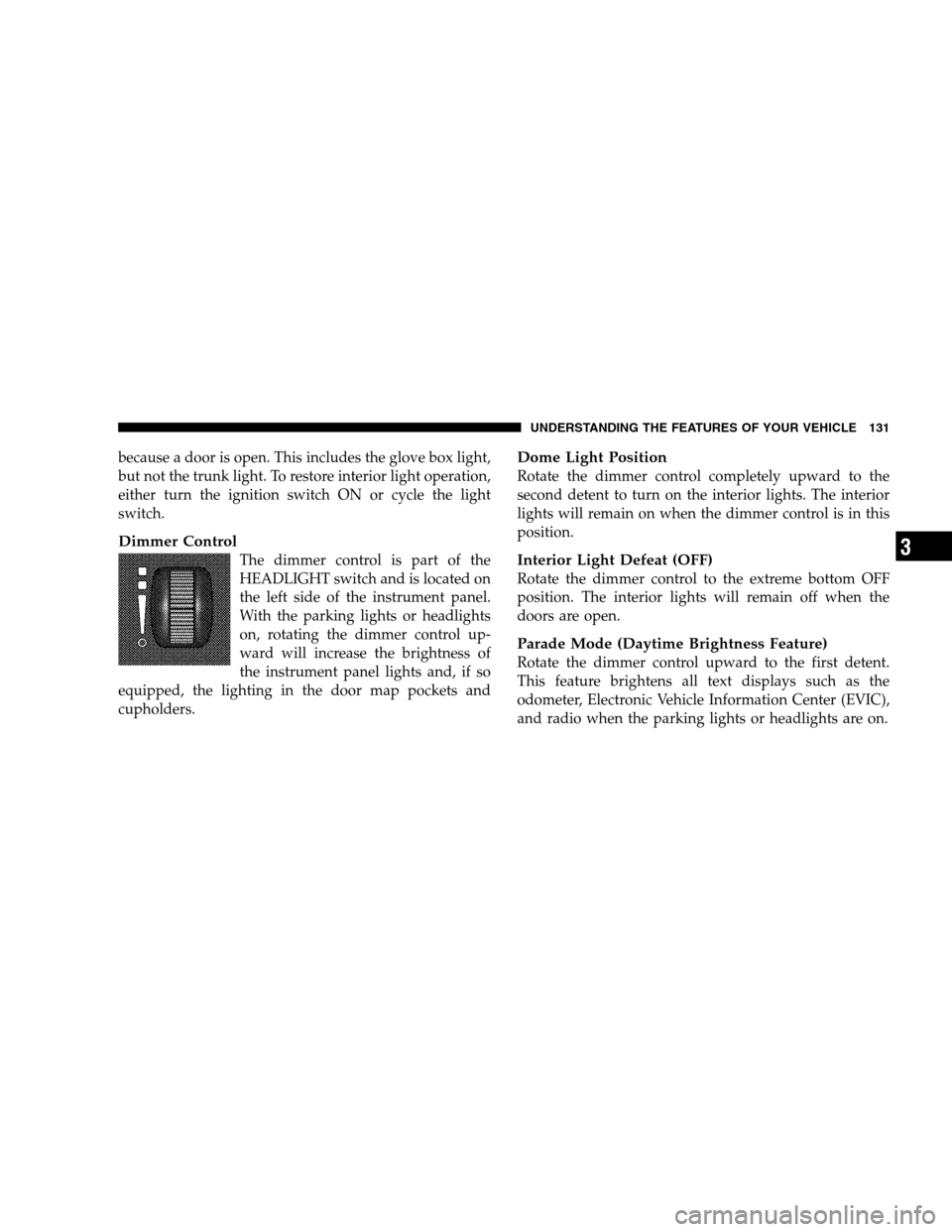
Dimmer Control
The dimmer control is part of the
HEADLIGHT switch and is located on
the left side of the instrument panel.
With the parking lights or headlights
on, rotating the dimmer control up-
ward will increase the brightness of
the instrument panel lights and, if so
equipped, the lighting in the door map pockets and
cupholders.
Dome Light Position
Rotate the dimmer control completely upward to the
second detent to turn on the interior lights. The interior
lights will remain on when the dimmer control is in this
position.
Interior Light Defeat (OFF)
Rotate the dimmer control to the extreme bottom OFF
position. The interior lights will remain off when the
doors are open.
Parade Mode (Daytime Brightness Feature)
Rotate the dimmer control upward to the first detent.
This feature brightens all text displays such as the
odometer, Electronic Vehicle Information Center (EVIC),
and radio when the parking lights or headlights are on.
UNDERSTANDING THE FEATURES OF YOUR VEHICLE 131
3
Page 162 of 442

▫Two Types Of Signals..................193
▫Electrical Disturbances..................194
▫AM Reception.......................194
▫FM Reception........................194
�Sales Code REN — Multimedia System — If
Equipped............................194
▫Operating Instructions — Satellite Radio (If
Equipped)..........................195
▫Operating Instructions — Voice Recognition
System (VR) (If Equipped)...............195
▫Operating Instructions — Hands-Free
Communication (UConnect�) (If Equipped) . . . 195
▫Clock Setting Procedure.................196�Sales Code REQ — AM/FM Stereo Radio And
6–Disc CD/DVD Changer (MP3/WMA AUX
Jack)................................197
▫Operating Instructions - Radio Mode.......198
▫Operation Instructions - (Disc Mode For CD
And MP3/WMA Audio Play, DVD-Video)....206
▫NotesOnPlayingMP3/WMAFiles ........208
▫List Button (Disc Mode For MP3/WMA
Play) ..............................210
▫Info Button (Disc Mode For MP3/WMA
Play) ..............................211
�Sales Code RER — Multimedia System — If
Equipped............................213
▫Operating Instructions — Satellite Radio.....214
160 UNDERSTANDING YOUR INSTRUMENT PANEL
Page 167 of 442
INSTRUMENT CLUSTER DESCRIPTIONS
1. Fuel Gauge
The pointer shows the level of fuel in the fuel tank when
the ignition switch is in the ON position.
2. Trip Odometer Button
Press this button to change the display from odometer to
either of two trip odometer settings. The letter “A” or “B”
will appear when in the trip odometer mode. Push in and
hold the button for two seconds to reset the trip odometer
to 0 mi (km). The odometer must be in TRIP mode to
reset it.
3. Speedometer
Indicates vehicle speed.
4. Electronic Speed Control Indicator Light
This light will turn on when the electronic
speed control is ON. (See page 137 for more
information.)5. Tachometer
The red segments indicate the maximum permissible
engine revolutions per minute (RPM. x 1000) for each
gear range. Ease up on the accelerator before reaching the
red area.
6. Charging System Light
This light shows the status of the electrical charg-
ing system. The light should turn on when the
ignition switch is first turned ON and remain on briefly
as a bulb check. If the light stays on or turns on while
driving, turn off some of the vehicle’s non-essential
electrical devices (i.e., radio) or slightly increase engine
speed (if at idle). If the light remains on, it means that the
charging system is experiencing a problem. See your
local authorized dealer to obtain service immediately.
UNDERSTANDING YOUR INSTRUMENT PANEL 165
4
Page 181 of 442

•Trip B
•Elapsed Time
•Display Units of Measure in
Press the SCROLL button to cycle through all the Trip
Computer functions.
The Trip Functions mode displays the following.
•Average Fuel Economy
Shows the average fuel economy since the last reset.
When the fuel economy is reset, the display will read
“RESET” or show dashes for two seconds. Then, the
history information will be erased, and the averaging will
continue from the last fuel average reading before the
reset.
•Distance To Empty (DTE)
Shows the estimated distance that can be traveled with
the fuel remaining in the tank. This estimated distance isdetermined by a weighted average of the instantaneous
and average fuel economy, according to the current fuel
tank level. DTE cannot be reset through the FUNCTION
SELECT button.
NOTE:Significant changes in driving style or vehicle
loading will greatly affect the actual drivable distance of
the vehicle, regardless of the DTE displayed value.
•When the DTE value is less than 30 mi (48 km)
estimated driving distance, the DTE display will
change to a text display of�LOW FUEL.�This display
will continue until the vehicle runs out of fuel. Adding
a significant amount of fuel to the vehicle will turn off
the�LOW FUEL�text and a new DTE value will
display.
•Trip A
Shows the total distance traveled for Trip A since the last
reset.
UNDERSTANDING YOUR INSTRUMENT PANEL 179
4
Page 186 of 442

Compass Display
The compass readings indicate the direction
the vehicle is facing. Press and release the
COMPASS button to display one of eight com-
pass readings and the outside temperature.
Automatic Compass Calibration
This compass is self-calibrating, which eliminates the
need to set the compass manually. When the vehicle is
new, the compass may appear erratic and the EVIC will
display “CAL” until the compass is calibrated. You may
also calibrate the compass by completing one or more 360
degree turns (in an area free from large metal or metallic
objects) until the “CAL” message displayed in the EVIC
turns off. The compass will now function normally.
Manual Compass Calibration
If the compass appears erratic and the “CAL” message
does not appear in the EVIC display, you must put the
compass into the Calibration Mode manually as follows:
1. Turn the ignition switch ON.
2. Press and hold the COMPASS button for approxi-
mately two seconds.
3. Press the SCROLL button until “Calibrate Compass”
displays in the EVIC.
4. Press and release the FUNCTION SELECT button to
start the calibration. The message “CAL” will display in
the EVIC.
5. Complete one or more 360 degree turns (in an area free
from large metal or metallic objects) until the “CAL”
message turns off. The compass will now function nor-
mally.
COM-
PA S S
Button
184 UNDERSTANDING YOUR INSTRUMENT PANEL
