Page 226 of 467

The satellite navigation capability combines a Global-
Positioning System (GPS)-based navigation system with
an integrated color screen to provide maps, turn identi-
fication, selection menus, and instructions for selecting a
variety of destinations and routes.
A shared HDD for the navigation system, the database,
and other radio features allows uploads of music and
photos from CDs or through the USB port. The Gracenote
database finds the artist, track, and title for the music.
An auxiliary input jack permits passengers to listen to a
portable MP3 player through the vehicle's speakers. For
vehicles equipped with the Vehicle Entertainment System
(VES) t , separate audio outputs allow passengers to listen
to the vehicle speakers while different audio tracks play
through the system's wireless headphones. This means
rear-seat passengers can watch a DVD on the optional
rear-seat entertainment system while the driver and
front-seat passenger listen to the radio. Other special features include direct tune, music type
selections, traffic messaging (optional), easy store presets,
parental lockout for VES t (if equipped), backup camera
display for vehicles equipped with a backup camera, and
on some models, a dual display screen operation. Refer to
your ªNavigation User's Manualº for detailed operating
instructions.
Operating Instructions Ð Satellite Radio
Refer to your ªNavigation User's Manualº for detailed
operating instructions.
Operating Instructions Ð Hands-Free
Communication (UConnect T ) (If Equipped)
Refer to your ªNavigation User's Manualº for detailed
operating instructions.224 UNDERSTANDING YOUR INSTRUMENT PANEL
Page 230 of 467
Controlling The iPod T Using Radio Buttons
To get into the UCI (iPod t ) mode and access a connected
iPod t , press the AUX button on the radio faceplate. Once
in the UCI (iPod t ) mode, the iPod t audio track (if
available from iPod t ) will start playing over the vehicle
audio system.
Play Mode
When switched to UCI mode the iPod t will be in Play
mode. In Play mode, you may use the following buttons
on the radio faceplate to control the iPod t and display
data:
Tune/Scroll Knob
Use the Tune/Scroll knob to go to the next or previous
track.
The Tune/Scroll knob functions similar to the scroll
wheel on the iPod t mobile digital device. Turning it clockwise (forward) by one click while playing
a track skips to the next track.
Turning it counterclockwise (backward) by one click
during the first two seconds of the track will jump to the
previous track in the list and turning this button at any
other time in the track will jump to the beginning of the
current track.
RW (Rewind) Button
Press and hold the RW button to move backward in the
current track. Holding the RW button long enough will
take you back to the beginning of the current track.
Pressing and releasing the RW button will go back five
seconds of the current track.
FF (Fast Forward) Button
Press and hold the FF button to move forward in the
current track.228 UNDERSTANDING YOUR INSTRUMENT PANEL
Page 243 of 467
² Two wireless infrared headsets allow rear seat passen-
gers to listen to the same or individual audio sources.
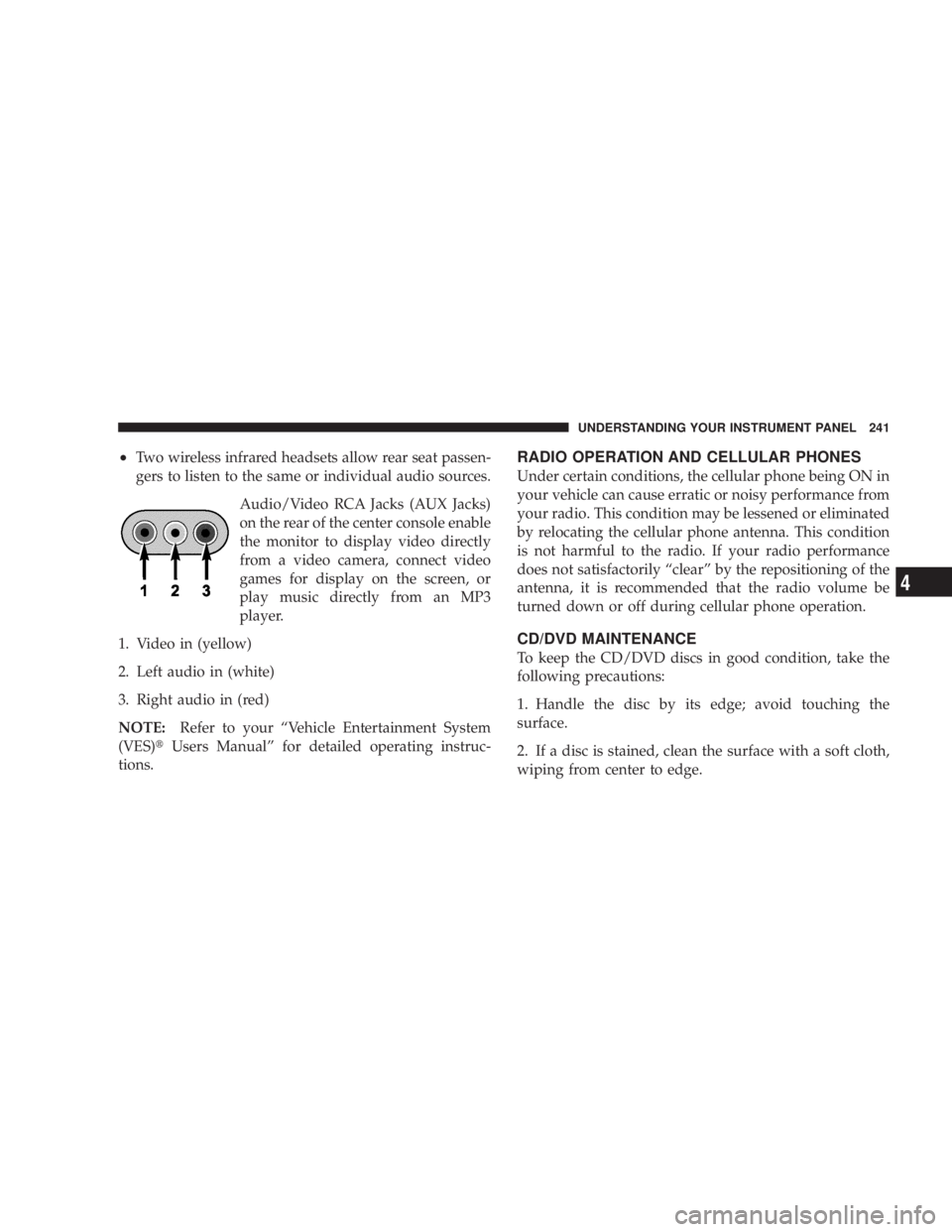
Audio/Video RCA Jacks (AUX Jacks)
on the rear of the center console enable
the monitor to display video directly
from a video camera, connect video
games for display on the screen, or
play music directly from an MP3
player.
1. Video in (yellow)
2. Left audio in (white)
3. Right audio in (red)
NOTE: Refer to your ªVehicle Entertainment System
(VES) t Users Manualº for detailed operating instruc-
tions. RADIO OPERATION AND CELLULAR PHONES
Under certain conditions, the cellular phone being ON in
your vehicle can cause erratic or noisy performance from
your radio. This condition may be lessened or eliminated
by relocating the cellular phone antenna. This condition
is not harmful to the radio. If your radio performance
does not satisfactorily ªclearº by the repositioning of the
antenna, it is recommended that the radio volume be
turned down or off during cellular phone operation.
CD/DVD MAINTENANCE
To keep the CD/DVD discs in good condition, take the
following precautions:
1. Handle the disc by its edge; avoid touching the
surface.
2. If a disc is stained, clean the surface with a soft cloth,
wiping from center to edge. UNDERSTANDING YOUR INSTRUMENT PANEL 241
4
Page 458 of 467

Paint Care ............................. 400
Panic Alarm ............................ 25
Parking Brake .......................... 276
Passing Light ........................... 131
Personal Settings ........................ 188
Pets .................................. 77
Phone, Cellular .................... 89,223,224
Phone, Hands-Free (UConnectŸ) ........ 89,223,224
Placard, Tire and Loading Information ......... 295
Port
Universal Serial Bus (USB) ............. 220,223
USB ............................. 220,223
Power
Distribution Center (Fuses) ............... 406
Door Locks ........................... 32
Mirrors .............................. 86
Outlet (Auxiliary Electrical Outlet) .......... 153
Seats ............................... 123
Steering ............................. 287 Steering, Checking ..................... 385
Sunroof ............................. 150
Windows ............................. 35
Power Steering Fluid ..................... 385
Pregnant Women and Seat Belts .............. 50
Preparation for Jacking .................... 352
Pretensioners
Seat Belts ............................. 48
Programmable Electronic Features ............ 188
Programming Transmitters
(Remote Keyless Entry) .................... 26
Radial Ply Tires ......................... 302
Radiator Cap (Coolant Pressure Cap) .......... 391
Radio Broadcast Signals ................... 191
Radio, Navigation ....................... 223
Radio Operation ................... 221,224,241
Radio Remote Controls .................... 236
Radio, Satellite .............. 220,221,223,224,231456 INDEX