2008 CHEVROLET UPLANDER ignition
[x] Cancel search: ignitionPage 252 of 476

Playing a CD (Single CD Player)
Insert a CD partway into the slot, label side up. The
player pulls it in and the CD should begin playing.
If the ignition or radio is turned off with a CD in the
player, it stays in the player. When the ignition or radio
is turned on, the CD starts playing where it stopped,
if it was the last selected audio source.
When a CD is inserted, CD and the CD symbol displays.
As each new track starts to play the track number
displays.
The CD player can play the smaller 3 inch (8 cm) single
CDs with an adapter ring. Full-size CDs and the
smaller CDs are loaded in the same manner.
Playing a CD(s) (Six-Disc CD Player)
M
(Load):Press to load CDs into the CD player.
This CD player holds up to six CDs.
To insert one CD, do the following:
1. Turn the ignition on.
2. Press and release the load button.
3. When INSERT CD # displays, load a CD. Insert the
CD partway into the slot, label side up. The player
pulls the CD in.To insert multiple CDs, do the following:
1. Turn the ignition on.
2. Press and hold the load button for two seconds.
A beep sounds and LOAD ALL DISC displays.
3. When INSERT CD # displays, load a CD. Insert the
CD partway into the slot, label side up. The player
pulls the CD in.
Once the CD is loaded, wait for INSERT CD # to
display, then load the next CD. The CD player takes
up to six CDs. Do not try to load more than six.
To load more than one CD but less than six, complete
Steps 1 through 3. When nished loading CDs, press this
button to cancel the loading function. The radio begins to
play the last CD loaded.
If more than one CD has been loaded, a number for
each CD displays.
Playing a Specic Loaded CD
A number displays for every CD that is loaded into the
player. To play a specic CD press the numbered
pushbutton that corresponds to the CD.
3-92
Page 253 of 476
Care of Your CDs
If playing a CD-R, the sound quality can be reduced due
to CD-R quality, the method of recording, the quality of
the music that has been recorded, and the way the CD-R
has been handled. Handle them carefully. Store CD-R(s)
in their original cases or other protective cases and away
from direct sunlight and dust. The CD player scans the
bottom surface of the disc. If the surface of a CD is
damaged, such as cracked, broken, or scratched, the
CD does not play properly or not at all. Do not touch the
bottom side of a CD while handling it; this could damage
the surface. Pick up CDs by grasping the outer edges or
the edge of the hole and the outer edge.
If the surface of a CD is soiled, take a soft, lint free
cloth or dampen a clean, soft cloth in a mild, neutral
detergent solution mixed with water, and clean it.
Make sure the wiping process starts from the center
to the edge.
Care of Your CD and DVD Player
Do not add any label to a CD, it could get caught in the
CD or DVD player. If a CD is recorded on a personal
computer and a description label is needed, try labeling
the top of the recorded CD with a marking pen.
The use of CD lens cleaners for CDs is not advised,
due to the risk of contaminating the lens of the CD
optics with lubricants internal to the CD or DVD player
mechanism.
Notice:If a label is added to a CD, or more than
one CD is inserted into the slot at a time, or an
attempt is made to play scratched or damaged CDs,
the CD player could be damaged. While using the
CD player, use only CDs in good condition without
any label, load one CD at a time, and keep the
CD player and the loading slot free of foreign
materials, liquids, and debris.
If an error displays, see “CD Messages” later in this
section.
X(Eject):Press to eject CD(s). Eject can be activated
with either the ignition or radio off.
To eject the CD that is currently playing, press and
release.
3-93
Page 262 of 476

Navigation/Radio System
Your vehicle may have a navigation radio system.
The navigation system has built-in features intended
to minimize driver distraction. Technology alone,
no matter how advanced, can never replace your
own judgment. See the Navigation System manual for
some tips to help you reduce distractions while driving.
Rear Seat Entertainment (RSE)
System
Vehicles with a Rear Seat Entertainment (RSE) system
have a DVD player, a video display screen, auxiliary
inputs, two sets of wireless headphones, and a remote
control.
Parental Control
rj
(Parental Control):This button is located behind
the video screen, next to the auxiliary jacks. Press this
button while using rear seat audio (RSA) to make the
video screen go blank and to mute the audio while a DVD
or CD is playing. The power indicator lights on the DVD
player ash. Turning on the parental control also disables
all other button operations from the remote control andthe DVD player, except for the eject button. Press this
button again to restore operation of the RSA, DVD player,
and remote control.
This button can also be used to turn the DVD player
power on and to automatically resume play of a disc that
is in the player while the ignition is on. If no disc is in the
player, the system powers up with no display on the LCD
screen.
Before You Drive
The RSE is designed for rear seat passengers only.
The driver cannot safely view the video screen
while driving and should not try to do so.
Normal operation could be limited under extremely low
or high temperatures, in order to protect the system
from damage. Operate the RSE system under normal
or comfortable cabin temperature ranges.
Headphones
Notice:Do not store the headphones in heat or
direct sunlight. This could damage the headphones
and repairs will not be covered by your warranty.
Storage in extreme cold can weaken the batteries.
Keep the headphones stored in a cool, dry place.
3-102
Page 272 of 476

To use the RSE OSD menu when using a CD or an
MP3, do the following:
Make sure that a CD or an MP3 is loaded in the RSE
system and that the system is not in auxiliary, then press
the
zbutton on the remote control, or faceplate if there
is no rear seat climate control. Once the menu is on the
screen, use the
q,Q,r,Rnavigation arrows and
the
rbutton to navigate the screen. This menu lets
you select default preferences for language and playback
settings. To exit this menu, press the
zbutton, or
the
qbutton on the remote control, or faceplate if
there is no rear seat climate control, or wait for the menu
to time out.
Battery Replacement
To change the remote control batteries, do the following:
1. Slide the rear cover back on the remote control.
2. Replace the two batteries in the compartment. Make
sure that they are installed correctly, using the
diagram on the inside of the battery compartment.
3. Replace the battery cover.
If the remote control is to be stored for a long period of
time, remove the batteries and keep them in a cool,
dry place.
Tips and Troubleshooting Chart
Problem Recommended Action
No power. The ignition might not be
in ACC/ACCESSORY,
ON/RUN, or Retained
Accessory Power (RAP).
Disc will not play. The system might be off.
The parental control
button might have been
pressed. The power
indicator lights ash.
The system might be in
auxiliary source mode.
Press the DVD AUX
button on the player
faceplate or the AUX
button on the remote to
switch between the DVD
player and the auxiliary
sources. The disc is
upside down or is not
compatible.
3-112
Page 281 of 476
Fixed Mast Antenna
The xed mast antenna can withstand most car washes
without being damaged. If the mast should ever become
slightly bent, straighten it out by hand. If the mast is badly
bent, replace it.
Check occasionally to make sure the mast is still
tightened to the antenna base. If tightening is required,
tighten by hand.
XM™ Satellite Radio Antenna
System
The XM™ Satellite Radio antenna is located on the roof
of your vehicle. Keep this antenna clear of snow and
ice build up for clear radio reception.
Loading items onto the roof of your vehicle can interfere
with the performance of the XM™ system. Make sure
that the XM™ satellite antenna is not obstructed.
Chime Level Adjustment
The radio is used to adjust the vehicle’s chime level.
To change the volume level of the chime, press and hold
pushbutton 6 with the ignition on and the radio power off.
The volume level will change from the normal level to
loud, and LOUD will appear on the radio display. To
change back to the default or normal setting, press and
hold pushbutton 6 again. The volume level will change
from the loud level to normal, and NORMAL will appear
on the radio display. Removing the radio and not
replacing it with a factory radio or chime module will
disable vehicle chimes.
3-121
Page 298 of 476

Hill and Mountain Roads
Driving on steep hills or through mountains is different
than driving on at or rolling terrain. Tips for driving
in these conditions include:
Keep your vehicle serviced and in good shape.
Check all uid levels and brakes, tires, cooling
system, and transmission.
Going down steep or long hills, shift to a
lower gear.
{CAUTION:
If you do not shift down, the brakes could get
so hot that they would not work well. You
would then have poor braking or even none
going down a hill. You could crash. Shift down
to let the engine assist the brakes on a steep
downhill slope.
{CAUTION:
Coasting downhill in NEUTRAL (N) or with the
ignition off is dangerous. The brakes will have
to do all the work of slowing down and they
could get so hot that they would not work well.
You would then have poor braking or even
none going down a hill. You could crash.
Always have the engine running and your
vehicle in gear when you go downhill.
Stay in your own lane. Do not swing wide or cut
across the center of the road. Drive at speeds
that let you stay in your own lane.
Top of hills: Be alert — something could be in your
lane (stalled car, accident).
Pay attention to special road signs (falling rocks
area, winding roads, long grades, passing or
no-passing zones) and take appropriate action.
4-16
Page 337 of 476
How to Reset the Engine Oil Life
System
The Engine Oil Life System calculates when to
change the engine oil and lter based on vehicle use.
Whenever the oil is changed, reset the system so it can
calculate when the next oil change is required. If a
situation occurs where you change the oil prior to
a CHANGE OIL SOON message being turned on,
reset the system.
1. With the ignition key in ON/RUN but the engine off,
repeatedly push the set/reset button until OIL is
displayed on the Driver Information Center (DIC).
2. Once OIL is displayed, push and hold the set/reset
button for ve seconds. The number will disappear
and be replaced by 100 (indicating 100% oil life
remaining).
3. Turn the key to LOCK/OFF.
If the CHANGE OIL SOON message comes back on
when you start your vehicle, the engine oil life system
has not reset. Repeat the procedure.
What to Do with Used Oil
Used engine oil contains certain elements that can be
unhealthy for your skin and could even cause cancer.
Do not let used oil stay on your skin for very long.
Clean your skin and nails with soap and water, or a
good hand cleaner. Wash or properly dispose of
clothing or rags containing used engine oil. See the
manufacturer’s warnings about the use and disposal of
oil products.
Used oil can be a threat to the environment. If you
change your own oil, be sure to drain all the oil from the
lter before disposal. Never dispose of oil by putting it
in the trash, pouring it on the ground, into sewers, or into
streams or bodies of water. Instead, recycle it by
taking it to a place that collects used oil. If you have a
problem properly disposing of used oil, ask your
dealer/retailer, a service station, or a local recycling
center for help.
5-17
Page 358 of 476
Notice:If you leave your radio or other accessories
on during the jump starting procedure, they could
be damaged. The repairs would not be covered
by your warranty. Always turn off your radio and
other accessories when jump starting your vehicle.
3. Turn off the ignition on both vehicles. Unplug
unnecessary accessories plugged into the cigarette
lighter or the accessory power outlet. Turn off
the radio and all lamps that are not needed.
This will avoid sparks and help save both batteries.
And it could save the radio!
4. Open the hoods and locate the batteries. Find the
positive (+) and negative (−) terminal locations on
each vehicle.
You will not need to access your battery for jump
starting. Your vehicle has a remote positive (+) jump
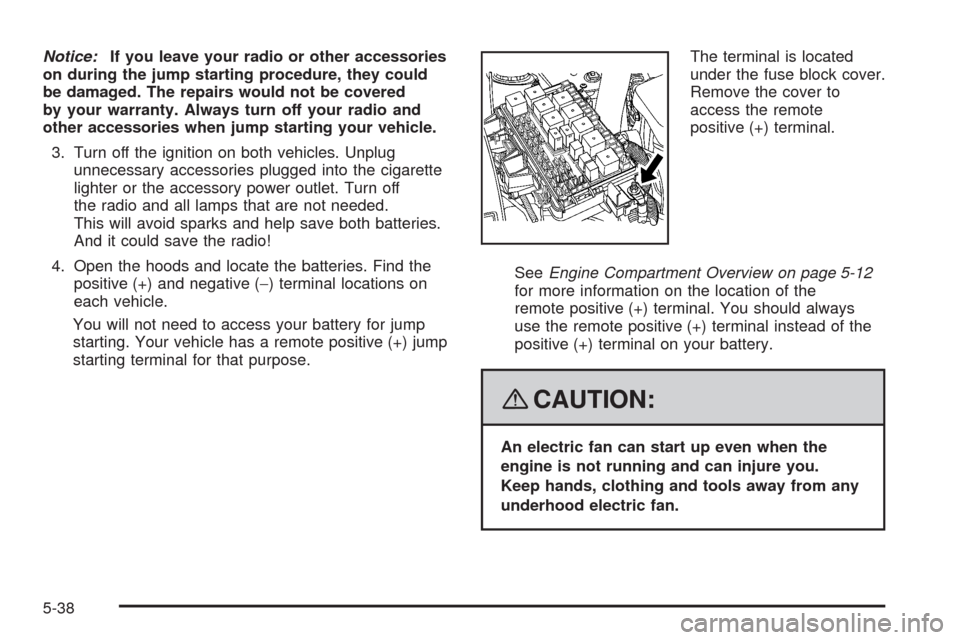
starting terminal for that purpose.The terminal is located
under the fuse block cover.
Remove the cover to
access the remote
positive (+) terminal.
SeeEngine Compartment Overview on page 5-12
for more information on the location of the
remote positive (+) terminal. You should always
use the remote positive (+) terminal instead of the
positive (+) terminal on your battery.
{CAUTION:
An electric fan can start up even when the
engine is not running and can injure you.
Keep hands, clothing and tools away from any
underhood electric fan.
5-38