2008 CHEVROLET TRAIL BLAZER display
[x] Cancel search: displayPage 157 of 472
#A/C (Air Conditioning):Press this button to
manually turn the air conditioning system on or off.
When the system is on, the system will automatically
begin to cool and dehumidify the air inside of your
vehicle. The air conditioning symbol will appear on the
display when the air conditioning is on and will turn
off when the air conditioning is off.
If you turn the air conditioning off while in front defrost
or defog mode, the air conditioning symbol will turn
off, however, the A/C compressor will remain on to help
de-humidify the air inside the vehicle. If one of the
other modes is selected the compressor will then turn
the A/C off until it is selected again or the AUTO button
is pressed.
To avoid fogging the inside glass on rainy and humid
days at a temperature above freezing, press the
air conditioning button to run the A/C compressor.
Also it is best to avoid the use of the recirculation mode
except when maximum air conditioning performance
is needed or for short times to avoid exterior odors.
You may notice a slight change in engine performance
when the air-conditioning compressor shuts off and
turns on again. This is normal.Defogging and Defrosting
Fog on the inside of the windows is a result of moisture
condensing on the cool window glass. This can be
reduced if the climate control system is used properly.
You can use either defog or front defrost to clear
fog or frost from your windshield.
-(Defog):Use this setting to clear the windows of
fog or moisture. This setting will deliver air to the
oor and windshield outlets.
0(Front Defrost):Press the front defrost button to
clear the windshield and side windows of frost or
fog quickly. The system will automatically control the fan
speed if you select defrost from AUTO mode. If the
outside temperature is 40°F (4°C) or warmer, your air
conditioning compressor will automatically run to help
dehumidify the air and dry the windshield. Do not drive
the vehicle until all the windows are clear.
3-27
Page 162 of 472
Speedometer and Odometer
The speedometer lets you see your speed in both miles
per hour (mph) and kilometers per hour (km/h).
The odometer shows how far your vehicle has been
driven, in either miles (used in the United States)
or kilometers (used in Canada).
The odometer mileage can be checked without the
vehicle running. Press the trip stem located on
the instrument panel cluster.
If your vehicle needs a new odometer installed,
the new one will be set to the correct mileage total
of the old odometer.
Trip Odometer
The trip odometer can tell you how far your vehicle has
been driven since you last set the trip odometer to zero.
The odometer works together with the Driver Information
Center (DIC). You can set a Trip A and Trip B odometer.
See “Trip Information” underDIC Operation and Displays
on page 3-50.
The odometer mileage can be checked without the
vehicle running. Press the trip stem on the instrument
panel cluster.
Tachometer
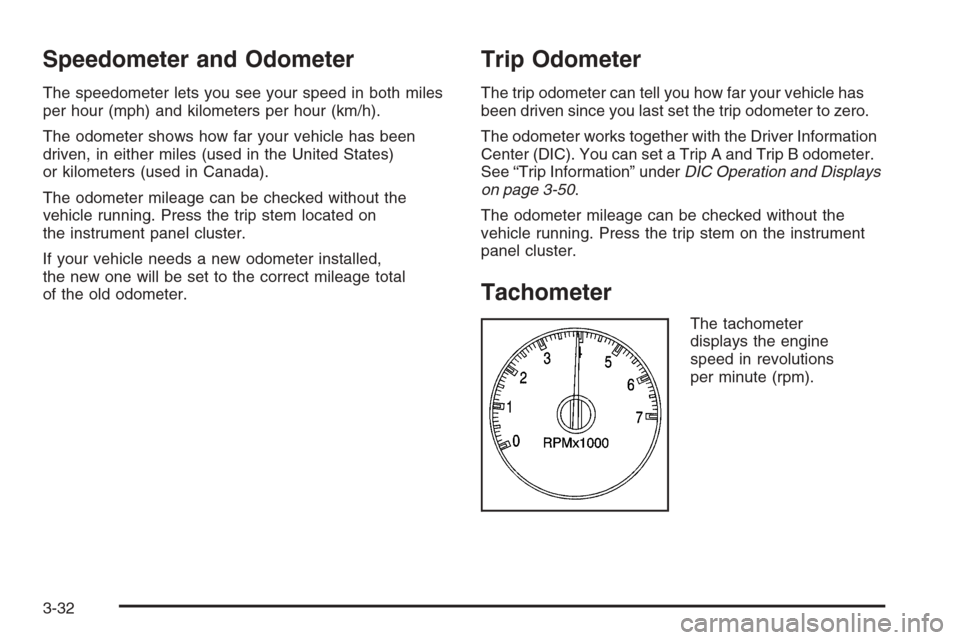
The tachometer
displays the engine
speed in revolutions
per minute (rpm).
3-32
Page 167 of 472
Charging System Light
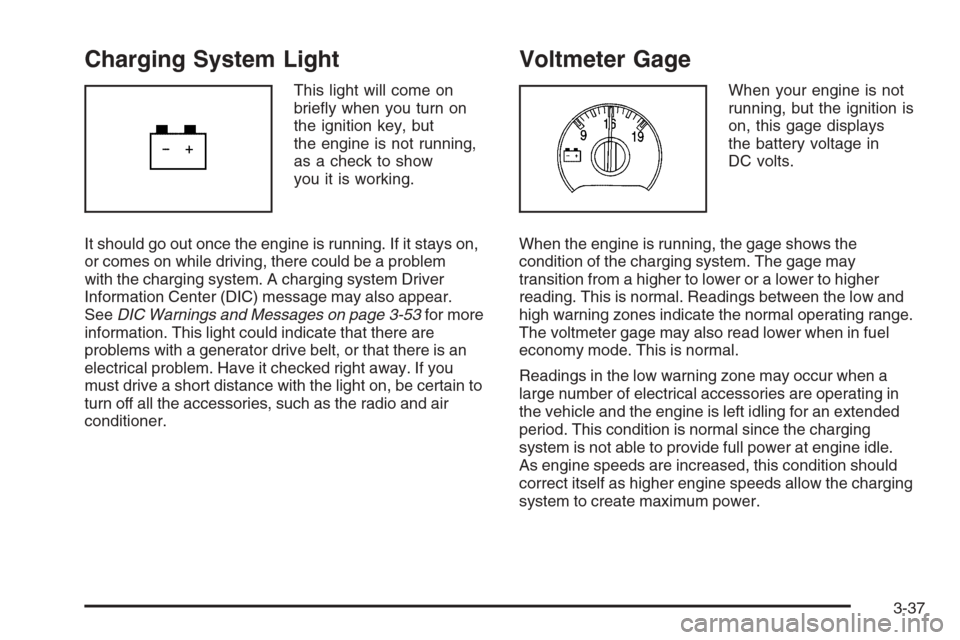
This light will come on
briey when you turn on
the ignition key, but
the engine is not running,
as a check to show
you it is working.
It should go out once the engine is running. If it stays on,
or comes on while driving, there could be a problem
with the charging system. A charging system Driver
Information Center (DIC) message may also appear.
SeeDIC Warnings and Messages on page 3-53for more
information. This light could indicate that there are
problems with a generator drive belt, or that there is an
electrical problem. Have it checked right away. If you
must drive a short distance with the light on, be certain to
turn off all the accessories, such as the radio and air
conditioner.
Voltmeter Gage
When your engine is not
running, but the ignition is
on, this gage displays
the battery voltage in
DC volts.
When the engine is running, the gage shows the
condition of the charging system. The gage may
transition from a higher to lower or a lower to higher
reading. This is normal. Readings between the low and
high warning zones indicate the normal operating range.
The voltmeter gage may also read lower when in fuel
economy mode. This is normal.
Readings in the low warning zone may occur when a
large number of electrical accessories are operating in
the vehicle and the engine is left idling for an extended
period. This condition is normal since the charging
system is not able to provide full power at engine idle.
As engine speeds are increased, this condition should
correct itself as higher engine speeds allow the charging
system to create maximum power.
3-37
Page 179 of 472
Driver Information Center (DIC)
Your vehicle may have this feature. The Driver
Information Center (DIC) display is located on the
instrument panel cluster, below the speedometer. If your
vehicle has DIC buttons, they are located on the
steering wheel. The DIC can display information such
as the trip odometer, fuel economy, customization
features, and warning/status messages.
If your vehicle does not have DIC steering wheel
buttons, you will not have all of the features listed.
Scroll through the odometer and trip odometer by
pressing the trip odometer reset stem located on the
instrument panel cluster. Turn off, or acknowledge,
DIC messages by pressing the trip odometer reset stem.
SeeSpeedometer and Odometer on page 3-32for
information on features for vehicles without DIC buttons.
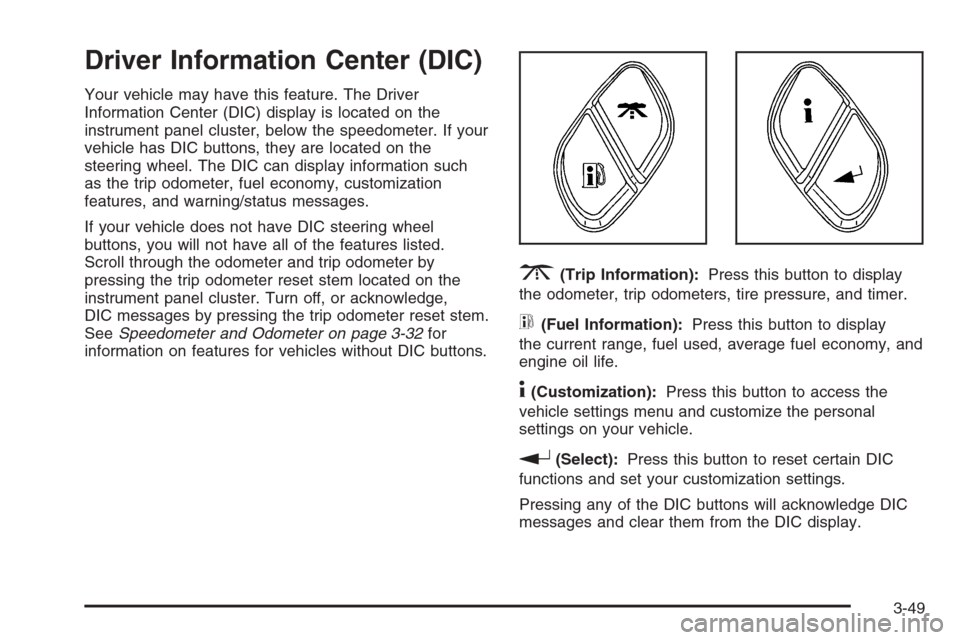
3(Trip Information):Press this button to display
the odometer, trip odometers, tire pressure, and timer.
t(Fuel Information):Press this button to display
the current range, fuel used, average fuel economy, and
engine oil life.
4(Customization):Press this button to access the
vehicle settings menu and customize the personal
settings on your vehicle.
r(Select):Press this button to reset certain DIC
functions and set your customization settings.
Pressing any of the DIC buttons will acknowledge DIC
messages and clear them from the DIC display.
3-49
Page 180 of 472
DIC Operation and Displays
The DIC comes on when the ignition is on. After a short
delay the DIC will display the information that was
last displayed before the engine was turned off.
If a problem is detected, a warning message will appear
on the display. Pressing the trip stem will acknowledge
any warning or service messages. Pressing any of
the DIC steering wheel buttons — trip information, fuel
information, customization, or select button — will
also acknowledge any warnings or service messages.
You should take any message that appears on the
display seriously and remember that clearing the
message will only make the message disappear, not
correct the problem.
The DIC has different modes which can be accessed by
pressing the four DIC buttons located on the steering
wheel. These buttons are trip information, fuel
information, customization, and select. The button
functions are detailed in the following pages.
Trip Information Button
3
(Trip Information):Press the trip information
button to scroll through the ODOMETER, TRIP A,
TRIP B, TIRE PRESSURES, and TIMER.
Odometer:Press the trip information button until
ODOMETER appears on the display. This mode shows
the total distance the vehicle has been driven in
either miles or kilometers. Pressing the reset stem
located on the instrument cluster with the vehicle off will
also display the odometer.
Trip A:Press the trip information button until TRIP A
appears on the display. This mode shows the current
distance traveled since the last reset for TRIP A in either
miles or kilometers.
Trip B:Press the trip information button until TRIP B
appears on the display. This mode shows the current
distance traveled since the last reset for TRIP B in either
miles or kilometers.
To reset TRIP A or TRIP B information, press and hold
the select button for one second while in one of the
trip modes. This will reset the information for TRIP A
or TRIP B.
3-50
Page 181 of 472
You can also reset the TRIP A or TRIP B while they are
displayed by pressing the reset stem on the cluster.
If you press and hold the reset stem or the select button
for more than four seconds, the display will show the
distance traveled since the last ignition cycle for TRIP A
or TRIP B.
Tire Pressures:Press the trip information button until
TIRE PRESSURES appears on the display. This mode
shows the tire pressure in pounds per square inch
(psi) or kilopascals (kPa). Press the select button to
scroll through the following information:
LF TIRE shows the tire pressure for the front
driver’s side tire.
RF TIRE shows the tire pressure for the front
passenger’s side tire.
LR TIRE shows the tire pressure for the rear
driver’s side tire.
RR TIRE shows the tire pressure for the rear
passenger’s side tire.Timer:The DIC can be used as a timer. Press the
select button while TIMER is displayed to start the timer.
The display will show the amount of time that has
passed since the timer was last reset, not including time
the ignition is off. Time will continue to be counted as
long as the ignition is on, even if another display is being
shown on the DIC. The timer will record up to 99 hours,
59 minutes and 59 seconds (99:59:59) after which
the display will roll back to zero.
To stop the counting of time, press the select button
briey while TIMER is displayed.
To reset the timer to zero, press and hold the select
button while TIMER is displayed.
3-51
Page 182 of 472
Fuel Information Button
t
(Fuel Information):Press the fuel information
button to scroll through the range, fuel used, average
fuel economy, and the engine oil life system.
Fuel Range:Press the fuel information button until
RANGE appears on the display. This mode shows the
remaining distance you can drive without refueling.
It is based on fuel economy and the fuel remaining in
the fuel tank. The display will show LOW if the fuel level
is low.
The fuel economy data used to determine fuel range is
an average of recent driving conditions. As your driving
conditions change, this data is gradually updated.
Fuel range cannot be reset.
Fuel Used:Press the fuel information button until
FUEL USED appears on the display. This mode shows
the number of gallons or liters of fuel used since the
last reset of this menu item. To reset the fuel used
information, press and hold the select button for
one second while FUEL USED is displayed.
Average Fuel Economy:Press the fuel information
button until AVG. ECON appears on the display.
This mode shows how many miles per gallon (MPG),
liters per 100 kilometers (L/100 km), or kilometers
per liter (km/L) your vehicle is getting based on current
and past driving conditions.Press and hold the select button for one second while
AVG. ECON is displayed to reset the average fuel
economy. Average fuel economy will then be calculated
starting from that point. If the average fuel economy
is not reset, it will be continually updated each time
you drive.
Engine Oil Life System:Press the fuel information
button until ENGINE OIL LIFE appears on the display.
The engine oil life system shows an estimate of the
oil’s remaining useful life. It will show 100% when the
system is reset after an oil change. It will alert you
to change the oil on a schedule consistent with your
driving conditions.
Always reset the engine oil life system after an oil
change. To reset the engine oil life system, seeEngine
Oil Life System on page 5-22.
In addition to the engine oil life system monitoring the oil
life, additional maintenance is recommended in the
Maintenance Schedule in this manual. SeeEngine Oil on
page 5-17andScheduled Maintenance on page 6-4.
Customization Button
4
(Customization):Press the customization button to
access the VEHICLE SETTINGS menu and customize
the settings to your vehicle. SeeDIC Vehicle
Customization on page 3-58for more information.
3-52
Page 183 of 472
Select Button
r
(Select):Press the select button to reset certain
DIC functions, turn off or acknowledge messages on
the DIC display, and set your customization settings.
For example, this button will allow you to reset the trip
odometers, turn off the FUEL LEVEL LOW message,
and enables you to scroll through and select the
language in which the DIC information will appear.
DIC Warnings and Messages
Messages are displayed on the DIC to notify the driver
that the status of the vehicle has changed and that
some action may be needed to correct the condition.
Multiple messages may appear one after another.
Some messages may not require immediate action.
Press any of the DIC buttons on the steering wheel or
the trip odometer reset stem on the instrument panel
cluster to acknowledge that you received the messages
and to clear them from the display.
Some messages cannot be cleared from the display
because they are more urgent. These messages require
action before they can be removed from the DIC display.Take any messages that appear on the display seriously
and remember that clearing the messages will only make
the messages disappear, not correct the problem.
The following are the possible messages that can be
displayed and some information about them.
CHANGE ENGINE OIL
This message displays when the engine oil needs to be
changed and service is required for your vehicle. See
Scheduled Maintenance on page 6-4andEngine Oil on
page 5-17for more information. Also seeEngine Oil
Life System on page 5-22for information on how
to reset the message. This message clears itself
after 10 seconds until the next ignition cycle.
CHECK TIRE PRESSURE
This message displays when the pressure in one or
more of the vehicle’s tires needs to be checked. If a tire
pressure message appears on the DIC, stop as soon
as you can. Have the tire pressures checked and set to
those shown on the Tire Loading Information label.
SeeTires on page 5-58,Loading Your Vehicle on
page 4-35, andInflation - Tire Pressure on page 5-65.
The DIC also shows the tire pressure values. See
DIC Operation and Displays on page 3-50. If the tire
pressure is low, the low tire pressure warning light
comes on. SeeTire Pressure Light on page 3-41.
3-53