2008 CHEVROLET SILVERADO audio
[x] Cancel search: audioPage 267 of 596
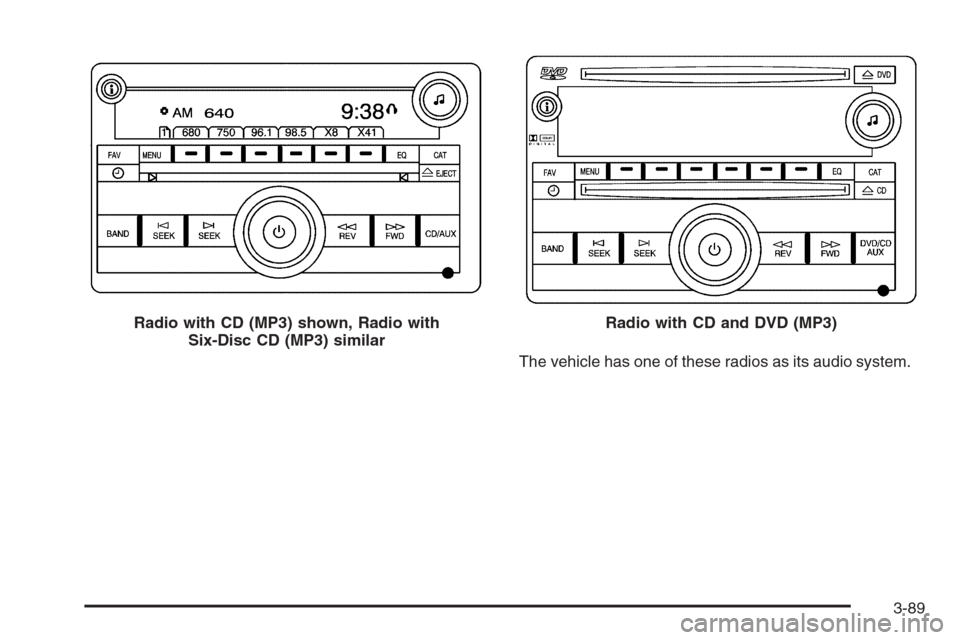
The vehicle has one of these radios as its audio system. Radio with CD (MP3) shown, Radio with
Six-Disc CD (MP3) similar
Radio with CD and DVD (MP3)
3-89
Page 268 of 596

Radios with CD and DVD
Radios with CD and DVD have a Bose®Surround
Sound System. Some of its features are explained
later in this section under, “Adjusting the Speakers
(Balance/Fade)”.
If the vehicle has a Rear Seat Entertainment (RSE)
system, it has a CD/DVD radio. SeeRear Seat
Entertainment (RSE) System on page 3-121for more
information on the vehicle’s RSE system.
The DVD player is the top slot on the radio faceplate.
The player is capable of reading the DTS programmed
DVD Audio or DVD Video media, (DTS and DTS
Digital Surround are registered trademarks of Digital
Theater Systems, Inc.).
Manufactured under license from Dolby Laboratories.
Dolby and the double-D symbol are trademarks of
Dolby Laboratories.
Radio Data System (RDS)
The audio system has a Radio Data System (RDS).
The RDS feature is available for use only on FM stations
that broadcast RDS information. This system relies
upon receiving specic information from these stations
and only works when the information is available.
While the radio is tuned to an FM-RDS station, the
station name or call letters displays. In rare cases,
a radio station could broadcast incorrect information that
causes the radio features to work improperly. If this
happens, contact the radio station.
Playing the Radio
O
(Power/Volume):Press to turn the system on
and off.
Turn clockwise or counterclockwise to increase or
decrease the volume.
4(Information) (AM-FM Radio):Press to switch the
display between the radio station frequency and
the time. While the ignition is off, press this button to
display the time.
3-90
Page 272 of 596
To quickly adjust bass, midrange, or treble to the middle
position, press the pushbutton positioned under the
BASS, MID, or TREB label for more than two seconds.
A beep sounds and the level adjusts to the middle
position.
To quickly adjust all tone and speaker controls to the
middle position, press the
fknob for more than
two seconds until a beep sounds.
EQ (Equalization):Press this button to choose bass
and treble equalization settings designed for different
types of music. The choices are pop, rock, country, talk,
jazz, and classical. Selecting MANUAL or changing
bass or treble, returns the EQ to the manual bass and
treble settings.
Unique EQ settings can be saved for each source.
If the radio has a Bose
®audio system, the EQ settings
are either MANUAL or TALK.
Adjusting the Speakers (Balance/Fade)
(AM-FM Radio)
`
(Balance/Fade):To adjust the balance or fade,
press this button or the tune knob until the desired
speaker control label displays. Turn the tune knob
clockwise or counterclockwise to adjust the setting.
The setting can also be adjusted by pressing the
seek arrows.
Adjusting the Speakers (Balance/Fade)
BAL/FADE (Balance/Fade):To adjust balance or
fade, press the
fknob until the speaker control labels
display. Continue pressing to highlight the desired
label, or press the pushbutton positioned under the
desired label. Turn the
fknob clockwise or
counterclockwise to adjust the highlighted setting, or
adjust the highlighted setting by pressing either
SEEK arrow,
\FWD, orsREV button until the
desired levels are obtained.
To quickly adjust balance or fade to the middle position,
press the pushbutton positioned under the BAL or
FADE label for more than two seconds. A beep sounds
and the level adjusts to the middle position.
3-94
Page 273 of 596
To quickly adjust all speaker and tone controls to the
middle position, press the
fknob for more than
two seconds.
If the Rear Seat Audio (RSA) is turned on, the radio
disables FADE and mutes the rear speakers.
Finding a Category (CAT) Station
CAT (Category):The CAT button is used to nd XM™
stations when the radio is in the XM™ mode. To nd
XM™ channels within a desired category, perform
the following:
1. Press the BAND button until the XM™ frequency
displays. Press the CAT button to display the
category labels. Continue pressing the CAT button
until the desired category name displays.
Radios with CD and DVD can also navigate the
category list by pressing the
\FWD or the
sREV button.
2. Press either of the two buttons below the desired
category label to immediately tune to the rst
XM™ station associated with that category.3. Turn the
fknob, press the buttons below the right
or left arrows displayed, or press either SEEK arrow
to go to the previous or to the next XM™ station
within the selected category.
4. To exit the category search mode, press the
FAV button or BAND button to display the
favorites again.
Undesired XM™ categories can be removed through
the setup menu. To remove an undesired category,
perform the following:
1. Press the MENU button to display the radio
setup menu.
2. Press the pushbutton located below the XM CAT
label.
3. Turn the
fknob to display the category to be
removed.
4. Press the pushbutton located under the Remove
label until the category name along with the word
Removed displays.
5. Repeat the steps to remove more categories.
Removed categories can be restored by pressing the
pushbutton under the Add label when a removed
category is displayed or by pressing the pushbutton
under the Restore All label.
Categories cannot be removed or added while the
vehicle is moving faster than 5 mph (8 km/h).
3-95
Page 274 of 596

Radio Messages
Calibration Error:The audio system has been
calibrated for the vehicle from the factory. If Calibration
Error displays, it means that the radio has not been
congured properly for the vehicle and it must be
returned to your dealer/retailer for service.
Locked or Loc:One of these messages will display
when the THEFTLOCK
®system has locked up the
radio. Take the vehicle to your dealer/retailer for service.
If any error occurs repeatedly or if an error cannot be
corrected, contact your dealer/retailer.
XM™ Satellite Radio Service
XM™ is a satellite radio service that is based in the
48 contiguous United States and 10 Canadian
provinces. XM™ Satellite Radio has a wide variety
of programming and commercial-free music,
coast-to-coast, and in digital-quality sound. During your
trial or when you subscribe, you will get unlimited
access to XM™ Radio Online for when you are not in
your vehicle. A service fee is required to receive
the XM™ service. For more information, contact XM™
at www.xmradio.com or call 1-800-929-2100 in the
U.S. and www.xmradio.ca or call 1-877-438-9677
in Canada.
Radio Messages for XM™ Only
SeeXM Radio Messages on page 3-119later in this
section for further detail.
Playing a CD (Single CD Player)
Insert a CD partway into the slot, label side up.
The player pulls it in and the CD should begin playing.
Playing a CD(s) (Six-Disc CD Player)
LOAD^:Press to load CDs into the CD player.
This CD player holds up to six CDs.
To insert one CD, do the following:
1. Press and release the
^button.
2. Wait for the message to insert the disc.
3. Load a CD. Insert the CD partway into the slot,
label side up. The player pulls the CD in.
3-96
Page 275 of 596

To insert multiple CDs, do the following:
1. Press and hold the
^button for two seconds.
A beep sounds and Load All Discs displays.
2. Follow the displayed instruction on when to insert
the discs. The CD player takes up to six CDs.
3. Press the
^button again to cancel loading
more CDs.
Insert a CD partway into the slot, label side up.
The player pulls it in and the CD should begin playing.
To insert a CD with the ignition off, rst press the
Zbutton or the DISP knob.
If the ignition or radio is turned off with a CD in the
player it stays in the player. When the ignition or radio
is turned on, the CD starts to play where it stopped,
if it was the last selected audio source.
When the CD is inserted, the CD symbol displays.
As each new track starts to play, the track number
displays.
The CD player can play the smaller 3 inch (8 cm)
single CDs with an adapter ring. Full-size CDs and the
smaller CDs are loaded in the same manner.
Playing a CD
(In Either the DVD or CD Slot)
Insert a CD partway into the slot, label side up.
The player pulls it in and the CD should begin playing
(loading a disc into the system, depending on media
type and format ranges from 5 to 20 seconds for a CD,
and up to 30 seconds for a DVD to begin playing).
If the ignition or radio is turned off, with a CD in
the player, it stays in the player. When the ignition or
radio is turned on, the CD starts playing where it
stopped, if it was the last selected audio source.
The CD is controlled by the buttons on the radio
faceplate or by the RSA unit. SeeRear Seat Audio
(RSA) on page 3-130for more information. The DVD/CD
decks, (upper slot is the DVD deck and the lower slot
is the CD deck) of the radio are compatible with
most audio CDs, CD-R, CD-RW, and MP3s.
When a CD is inserted, the text label DVD or CD
symbol displays on the left side of the radio display.
As each new track starts to play, the track number
displays.
The CD player can play the smaller 3 inch (8 cm)
single CDs with an adapter ring. Full-size CDs and
the smaller CDs are loaded in the same manner.
3-97
Page 278 of 596
Press the CD/AUX button, or for a six-disc
CD player, press and hold the
^button. A beep
sounds and Load All Discs displays. Insert one or
more discs partway into the slot of the CD player.
To play tracks from all CDs loaded in a six-disc
CD player in random order, press the pushbutton
positioned under the RDM label until Randomize All
Discs displays. Press the same pushbutton again to
turn off random play.
To play the tracks from a CD loaded in the radio with
CD and DVD, press the DVD/CD AUX button when
not sourced to the CD, or insert a disc partway into
the slot. A RDM label displays.
To play tracks from a single CD in random order,
press the pushbutton positioned under the RDM label
until Random Current Disc displays. Press the
pushbutton again to turn off random play.
BAND:Press to listen to the radio when a CD is playing.
The CD remains inside the radio for future listening.
For the radio with CD and DVD, press to listen to the
radio when a CD or DVD is playing. The CD or DVD
remains inside the radio for future listening or for viewing
entertainment.CD/AUX (CD/Auxiliary):Press to play a CD when
listening to the radio. The CD icon and a message
showing the disc and/or track number displays when
a CD is in the player. Press again and the system
automatically searches for an auxiliary input device, such
as a portable audio player. If a portable audio player is
not connected, “No Input Device Found” displays.
DVD/CD AUX (Auxiliary):Press this button to cycle
through DVD, CD, or Auxiliary when listening to
the radio. The DVD/CD text label and a message
showing the track or chapter number displays when a
disc is in either slot. Press this button again and
the system automatically searches for an auxiliary input
device, such as a portable audio player. If a portable
audio player is not connected, “No Aux Input Device”
displays. If a disc is in both the DVD slot and the
CD slot the DVD/CD AUX button cycles between the
two sources and not indicate “No Aux Input Device”.
If a front auxiliary device is connected, the DVD/CD AUX
button cycles through all available options, such as:
DVD slot, CD slot, Front Auxiliary, and Rear Auxiliary
(if available). See “Using the Auxiliary Input Jack(s)”
later in this section, or “Audio/Video (A/V) Jacks” under,
Rear Seat Entertainment (RSE) System on page 3-121
for more information.
If a disc is inserted into top DVD slot, the rear seat
operator can turn on the video screen and use the remote
control to navigate the CD (tracks only) through the
remote control.
3-100
Page 279 of 596
Radios with CD and DVD Audio Output
Only one audio source can be heard through the
speakers at one time. An audio source is dened as
DVD slot, CD slot, XM™, FM/AM, Front Auxiliary Jack,
or Rear Auxiliary Jack.
Press the
Obutton to turn the radio on. The radio can
be heard through all of the vehicle speakers.
Front seat passengers can listen to the radio (AM, FM,
or XM) by pressing the BAND button or the DVD/CD
AUX button to select CD slot, DVD slot, front or rear
auxiliary input (if available).
If a playback device is plugged into the radio’s front
auxiliary input jack or the rear auxiliary jack, the front
seat passengers are able to listen to playback from this
source through the vehicle speakers. See “Using the
Auxiliary Input Jack(s)” later in this section, or
“Audio/Video (A/V) Jacks” under,Rear Seat
Entertainment (RSE) System on page 3-121for
more information.
In some vehicles, depending on audio options, the rear
speakers can be muted when the RSA power is
turned on. SeeRear Seat Audio (RSA) on page 3-130
for more information.
Playing an MP3 CD-R or CD-RW Disc
Radios with a Single CD player or a Six-Disc CD player
has the capability of playing an MP3 CD-R or CD-RW
disc. For more information on how to play an MP3 CD-R
or CD-RW disc, see “Using an MP3” in the index.
Playing an MP3/WMA CD-R or
CD-RW Disc
Radios with CD and DVD has the capability of playing
an MP3/WMA CD-R or CD-RW disc. For more
information on how to play an MP3/WMA CD-R or
CD-RW disc, see “Using an MP3” in the index.
CD Messages
CHECK DISC:Radios with a Single CD player or
radios with a Six-Disc player displays CHECK DISC
and/or ejects the CD if an error occurs.
Radios with a CD and DVD player may display other
messages when an error occurs:
Optical Error:The disc was inserted upside down.
Disk Read Error:A disc was inserted with an invalid
or unknown format.
3-101