2008 CHEVROLET AVEO display
[x] Cancel search: displayPage 187 of 384
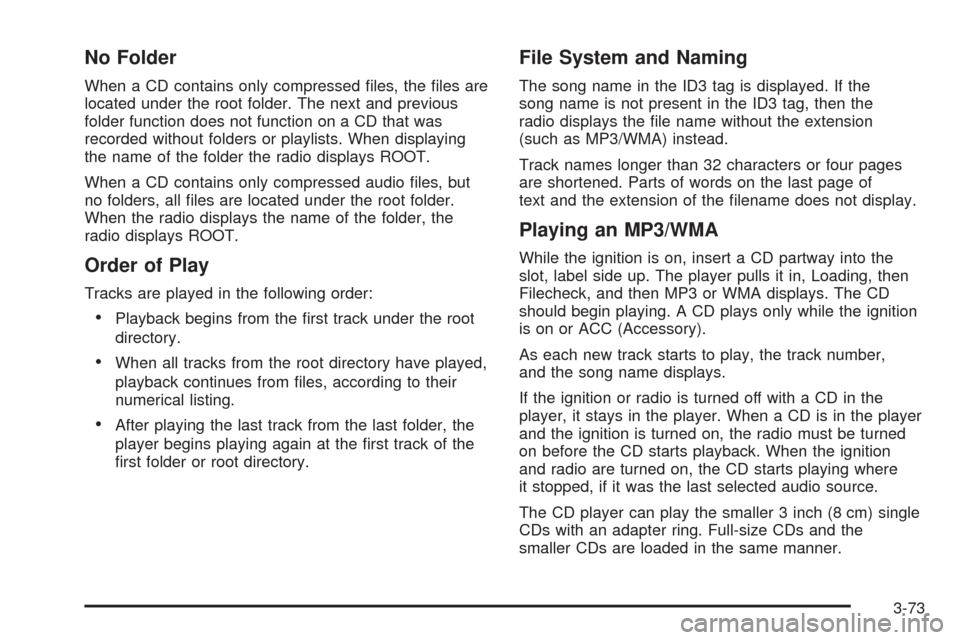
No Folder
When a CD contains only compressed files, the files are
located under the root folder. The next and previous
folder function does not function on a CD that was
recorded without folders or playlists. When displaying
the name of the folder the radio displays ROOT.
When a CD contains only compressed audio files, but
no folders, all files are located under the root folder.
When the radio displays the name of the folder, the
radio displays ROOT.
Order of Play
Tracks are played in the following order:
•Playback begins from the first track under the root
directory.
•When all tracks from the root directory have played,
playback continues from files, according to their
numerical listing.
•After playing the last track from the last folder, the
player begins playing again at the first track of the
first folder or root directory.
File System and Naming
The song name in the ID3 tag is displayed. If the
song name is not present in the ID3 tag, then the
radio displays the file name without the extension
(such as MP3/WMA) instead.
Track names longer than 32 characters or four pages
are shortened. Parts of words on the last page of
text and the extension of the filename does not display.
Playing an MP3/WMA
While the ignition is on, insert a CD partway into the
slot, label side up. The player pulls it in, Loading, then
Filecheck, and then MP3 or WMA displays. The CD
should begin playing. A CD plays only while the ignition
is on or ACC (Accessory).
As each new track starts to play, the track number,
and the song name displays.
If the ignition or radio is turned off with a CD in the
player, it stays in the player. When a CD is in the player
and the ignition is turned on, the radio must be turned
on before the CD starts playback. When the ignition
and radio are turned on, the CD starts playing where
it stopped, if it was the last selected audio source.
The CD player can play the smaller 3 inch (8 cm) single
CDs with an adapter ring. Full-size CDs and the
smaller CDs are loaded in the same manner.
3-73
Page 188 of 384
If playing a CD-R, the sound quality can be reduced due
to CD-R quality, the method of recording, the quality of
the music that has been recorded, and the way the CD-R
has been handled. There can be an increase in skipping,
difficulty in finding tracks, and/or difficulty in loading and
ejecting. If these problems occur, check the bottom
surface of the CD. If the surface of the CD is damaged,
such as cracked, broken, or scratched, the CD does not
play properly. If the surface of the CD is soiled, seeCare
of Your CDs on page 3-79for more information.
If there is no apparent damage, try a known good CD.
Do not add any label to a CD, it could get caught in the
CD player. If a CD is recorded on a personal computer
and a description label is needed, try labeling the top
of the recorded CD with a marking pen.
Notice:If a label is added to a CD, or more than
one CD is inserted into the slot at a time, or an
attempt is made to play scratched or damaged CDs,
the CD player could be damaged. While using the
CD player, use only CDs in good condition without
any label, load one CD at a time, and keep the
CD player and the loading slot free of foreign
materials, liquids, and debris.
If an error displays, see “CD Messages” later in this
section.
All of the CD functions work the same while playing an
MP3/WMA, except for those listed here. See “Playing
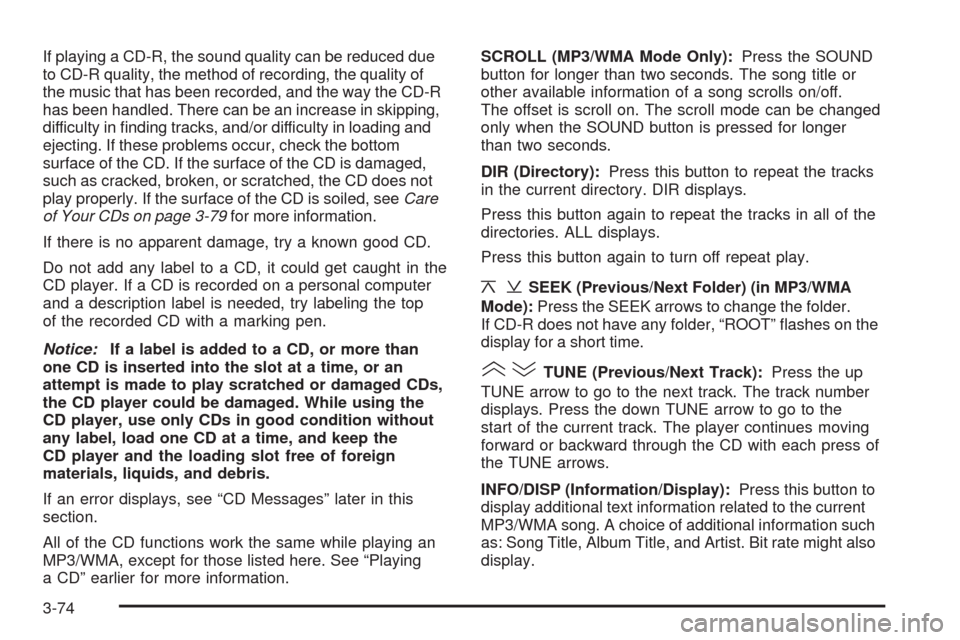
a CD” earlier for more information.SCROLL (MP3/WMA Mode Only):Press the SOUND
button for longer than two seconds. The song title or
other available information of a song scrolls on/off.
The offset is scroll on. The scroll mode can be changed
only when the SOUND button is pressed for longer
than two seconds.
DIR (Directory):Press this button to repeat the tracks
in the current directory. DIR displays.
Press this button again to repeat the tracks in all of the
directories. ALL displays.
Press this button again to turn off repeat play.
¦¥SEEK (Previous/Next Folder) (in MP3/WMA
Mode):Press the SEEK arrows to change the folder.
If CD-R does not have any folder, “ROOT” flashes on the
display for a short time.
()TUNE (Previous/Next Track):Press the up
TUNE arrow to go to the next track. The track number
displays. Press the down TUNE arrow to go to the
start of the current track. The player continues moving
forward or backward through the CD with each press of
the TUNE arrows.
INFO/DISP (Information/Display):Press this button to
display additional text information related to the current
MP3/WMA song. A choice of additional information such
as: Song Title, Album Title, and Artist. Bit rate might also
display.
3-74
Page 189 of 384

When information is not available, No Info (information)
displays.
Press this button for longer than two seconds to change
display mode.
Using an MP3 (Radio with
Six-Disc Player)
MP3/WMA CD-R Disc
MP3 Format
If you burn your own MP3/WMA disc on a personal
computer:
•Make sure the MP3/WMA files are recorded on a
CD-R disc.
•Do not mix standard audio and MP3/WMA files on
one disc.
•Make sure each MP3/WMA file has a .m3u or .wma
extension, other file extensions might not work.
•Files can be recorded with a variety of fixed or
variable bit rates. Song title, artist name, and
album are available for display by the radio
when recorded using ID3 tags version 1 and 2.
•Create a folder structure that makes it easy to find
songs while driving. Organize songs by albums
using one folder for each album. Each folder
or album should contain 18 songs or less.
•Make sure to finalize the disc when burning an
MP3/WMA disc, using multiple sessions. It is usually
better to burn the disc all at once.
The player is able to read and play a maximum of
50 folders, five sessions, and 999 files. Long file
names and folder names might use more disc memory
space than necessary. To conserve space on the
disc, minimize the length of the file and folder names.
An MP3/WMA CD that was recorded using no file folders
can also be played. The system can support up to
eight folders in depth, though, keep the depth of the
folders to a minimum in order to keep down the difficulty
and confusion in trying to locate a particular folder
during playback. If a CD contains more than the
maximum of 50 folders, five sessions, and 999 files,
the player lets you access and navigate up to the
maximum, but all items over the maximum is ignored.
Root Directory
The root directory is treated as a folder. If the root
directory has compressed audio files, the directory is
displayed as ROOT. All files contained directly under the
root directory are accessed prior to any other directory.
3-75
Page 190 of 384

Empty Directory or Folder
If a root directory or a folder exists somewhere in the file
structure that contains only folders/subfolders and no
compressed files directly beneath them, the player
advances to the next folder in the file structure that
contains compressed audio files. The empty folder
does not display.
No Folder
When a CD contains only compressed files, the files are
located under the root folder. The next and previous
folder function does not function on a CD that was
recorded without folders or playlists. When displaying
the name of the folder the radio displays ROOT.
When a CD contains only compressed audio files, but
no folders, all files are located under the root folder.
When the radio displays the name of the folder, the
radio displays ROOT.
Order of Play
Tracks is played in the following order:
•Playback begins from the first track under the root
directory.
•When all tracks from the root directory have played,
playback continues from files, according to their
numerical listing.
•After playing the last track from the last folder, the
player begins playing again at the first track of the
first folder or root directory.
File System and Naming
The song name in the ID3 tag is displayed. If the
song name is not present in the ID3 tag, then the
radio displays the file name without the extension
(such as MP3/WMA) instead.
Track names longer than 32 characters or four pages
are shortened. Parts of words on the last page of
text and the extension of the filename does not display.
Playing an MP3/WMA
While the ignition is on, insert a CD partway into the
slot, label side up. The player pulls it in, Loading, then
Filecheck, and then MP3 or WMA displays. The CD
should begin playing. A CD plays only while the ignition
is on or ACC (Accessory).
As each new track starts to play, the track number,
and the song name displays.
If the ignition or radio is turned off with a CD in the
player, it stays in the player. When a CD is in the player
and the ignition is turned on, the radio must be turned
on before the CD starts playback. When the ignition and
radio are turned on, the CD starts playing where it
stopped, if it was the last selected audio source.
The CD player can play the smaller 3 inch (8 cm) single
CDs with an adapter ring. Full-size CDs and the
smaller CDs are loaded in the same manner.
3-76
Page 191 of 384

If playing a CD-R, the sound quality can be reduced due
to CD-R quality, the method of recording, the quality of
the music that has been recorded, and the way the CD-R
has been handled. There can be an increase in skipping,
difficulty in finding tracks, and/or difficulty in loading and
ejecting. If these problems occur, check the bottom
surface of the CD. If the surface of the CD is damaged,
such as cracked, broken, or scratched, the CD will not
play properly. If the surface of the CD is soiled, seeCare
of Your CDs on page 3-79for more information.
If there is no apparent damage, try a known good CD.
Do not add any label to a CD, it could get caught in the
CD player. If a CD is recorded on a personal computer
and a description label is needed, try labeling the top of
the recorded CD with a marking pen.
Notice:If a label is added to a CD, or more than
one CD is inserted into the slot at a time, or an
attempt is made to play scratched or damaged CDs,
the CD player could be damaged. While using the
CD player, use only CDs in good condition without
any label, load one CD at a time, and keep the
CD player and the loading slot free of foreign
materials, liquids, and debris.
If an error displays, see “CD Messages” later in this
section.
All of the CD functions work the same while playing an
MP3/WMA, except for those listed here. See “Playing
a CD” earlier for more information.SCROLL (MP3/WMA Mode Only):Press the SOUND
button for longer than two seconds. The song title and
other available information of the song scrolls on/off.
The offset is scroll on. The scroll mode can be changed
only when the SOUND button is pressed for longer than
two seconds.
1 DIR (Directory):Press this button to repeat the
tracks in the current directory. DIR displays.
Press this button again to repeat the tracks in all of the
directories. ALL displays.
Press this button again to turn off repeat play.
¦¥SEEK (Previous/Next Folder) (in MP3/WMA
Mode):Press the SEEK arrows to change the folder.
If CD-R does not have any folder, “ROOT” flashes
on the display for a short time.
()TUNE (Previous/Next Track):Press the up
TUNE arrow to go to the next track. The track number
displays. Press the down TUNE arrow to go to the
start of the current track. The player continues moving
forward or backward through the CD with each press of
the up or down arrows.
INFO/DISP (Information/Display):Press this button to
display additional text information related to the current
MP3/WMA song. A choice of additional information such
as: Song Title, Album Title, and Artist. Bit rate might also
display.
3-77
Page 192 of 384
When information is not available, No Info (information)
displays.
Press this button for longer than two seconds to change
display mode.
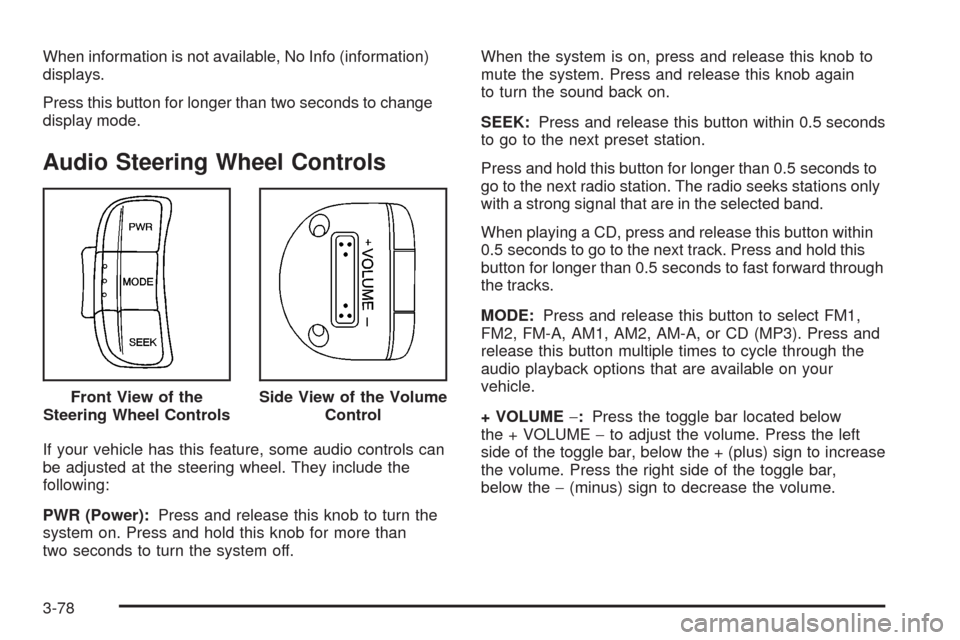
Audio Steering Wheel Controls
If your vehicle has this feature, some audio controls can
be adjusted at the steering wheel. They include the
following:
PWR (Power):Press and release this knob to turn the
system on. Press and hold this knob for more than
two seconds to turn the system off.When the system is on, press and release this knob to
mute the system. Press and release this knob again
to turn the sound back on.
SEEK:Press and release this button within 0.5 seconds
to go to the next preset station.
Press and hold this button for longer than 0.5 seconds to
go to the next radio station. The radio seeks stations only
with a strong signal that are in the selected band.
When playing a CD, press and release this button within
0.5 seconds to go to the next track. Press and hold this
button for longer than 0.5 seconds to fast forward through
the tracks.
MODE:Press and release this button to select FM1,
FM2, FM-A, AM1, AM2, AM-A, or CD (MP3). Press and
release this button multiple times to cycle through the
audio playback options that are available on your
vehicle.
+ VOLUME−:Press the toggle bar located below
the + VOLUME−to adjust the volume. Press the left
side of the toggle bar, below the + (plus) sign to increase
the volume. Press the right side of the toggle bar,
below the−(minus) sign to decrease the volume. Front View of the
Steering Wheel Controls
Side View of the Volume
Control
3-78
Page 347 of 384
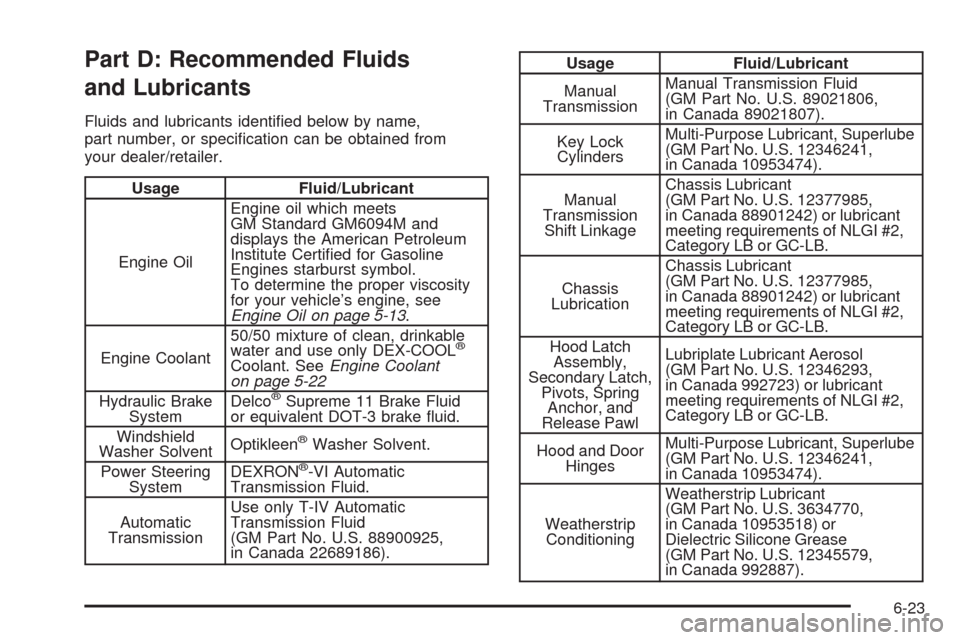
Part D: Recommended Fluids
and Lubricants
Fluids and lubricants identified below by name,
part number, or specification can be obtained from
your dealer/retailer.
Usage Fluid/Lubricant
Engine OilEngine oil which meets
GM Standard GM6094M and
displays the American Petroleum
Institute Certified for Gasoline
Engines starburst symbol.
To determine the proper viscosity
for your vehicle’s engine, see
Engine Oil on page 5-13.
Engine Coolant50/50 mixture of clean, drinkable
water and use only DEX-COOL
®
Coolant. SeeEngine Coolant
on page 5-22
Hydraulic Brake
SystemDelco
®Supreme 11 Brake Fluid
or equivalent DOT-3 brake fluid.
Windshield
Washer SolventOptikleen
®Washer Solvent.
Power Steering
SystemDEXRON
®-VI Automatic
Transmission Fluid.
Automatic
TransmissionUse only T-IV Automatic
Transmission Fluid
(GM Part No. U.S. 88900925,
in Canada 22689186).
Usage Fluid/Lubricant
Manual
TransmissionManual Transmission Fluid
(GM Part No. U.S. 89021806,
in Canada 89021807).
Key Lock
CylindersMulti-Purpose Lubricant, Superlube
(GM Part No. U.S. 12346241,
in Canada 10953474).
Manual
Transmission
Shift LinkageChassis Lubricant
(GM Part No. U.S. 12377985,
in Canada 88901242) or lubricant
meeting requirements of NLGI #2,
Category LB or GC-LB.
Chassis
LubricationChassis Lubricant
(GM Part No. U.S. 12377985,
in Canada 88901242) or lubricant
meeting requirements of NLGI #2,
Category LB or GC-LB.
Hood Latch
Assembly,
Secondary Latch,
Pivots, Spring
Anchor, and
Release PawlLubriplate Lubricant Aerosol
(GM Part No. U.S. 12346293,
in Canada 992723) or lubricant
meeting requirements of NLGI #2,
Category LB or GC-LB.
Hood and Door
HingesMulti-Purpose Lubricant, Superlube
(GM Part No. U.S. 12346241,
in Canada 10953474).
Weatherstrip
ConditioningWeatherstrip Lubricant
(GM Part No. U.S. 3634770,
in Canada 10953518) or
Dielectric Silicone Grease
(GM Part No. U.S. 12345579,
in Canada 992887).
6-23