2008 CHEVROLET AVEO ECO mode
[x] Cancel search: ECO modePage 188 of 384
If playing a CD-R, the sound quality can be reduced due
to CD-R quality, the method of recording, the quality of
the music that has been recorded, and the way the CD-R
has been handled. There can be an increase in skipping,
difficulty in finding tracks, and/or difficulty in loading and
ejecting. If these problems occur, check the bottom
surface of the CD. If the surface of the CD is damaged,
such as cracked, broken, or scratched, the CD does not
play properly. If the surface of the CD is soiled, seeCare
of Your CDs on page 3-79for more information.
If there is no apparent damage, try a known good CD.
Do not add any label to a CD, it could get caught in the
CD player. If a CD is recorded on a personal computer
and a description label is needed, try labeling the top
of the recorded CD with a marking pen.
Notice:If a label is added to a CD, or more than
one CD is inserted into the slot at a time, or an
attempt is made to play scratched or damaged CDs,
the CD player could be damaged. While using the
CD player, use only CDs in good condition without
any label, load one CD at a time, and keep the
CD player and the loading slot free of foreign
materials, liquids, and debris.
If an error displays, see “CD Messages” later in this
section.
All of the CD functions work the same while playing an
MP3/WMA, except for those listed here. See “Playing
a CD” earlier for more information.SCROLL (MP3/WMA Mode Only):Press the SOUND
button for longer than two seconds. The song title or
other available information of a song scrolls on/off.
The offset is scroll on. The scroll mode can be changed
only when the SOUND button is pressed for longer
than two seconds.
DIR (Directory):Press this button to repeat the tracks
in the current directory. DIR displays.
Press this button again to repeat the tracks in all of the
directories. ALL displays.
Press this button again to turn off repeat play.
¦¥SEEK (Previous/Next Folder) (in MP3/WMA
Mode):Press the SEEK arrows to change the folder.
If CD-R does not have any folder, “ROOT” flashes on the
display for a short time.
()TUNE (Previous/Next Track):Press the up
TUNE arrow to go to the next track. The track number
displays. Press the down TUNE arrow to go to the
start of the current track. The player continues moving
forward or backward through the CD with each press of
the TUNE arrows.
INFO/DISP (Information/Display):Press this button to
display additional text information related to the current
MP3/WMA song. A choice of additional information such
as: Song Title, Album Title, and Artist. Bit rate might also
display.
3-74
Page 189 of 384

When information is not available, No Info (information)
displays.
Press this button for longer than two seconds to change
display mode.
Using an MP3 (Radio with
Six-Disc Player)
MP3/WMA CD-R Disc
MP3 Format
If you burn your own MP3/WMA disc on a personal
computer:
•Make sure the MP3/WMA files are recorded on a
CD-R disc.
•Do not mix standard audio and MP3/WMA files on
one disc.
•Make sure each MP3/WMA file has a .m3u or .wma
extension, other file extensions might not work.
•Files can be recorded with a variety of fixed or
variable bit rates. Song title, artist name, and
album are available for display by the radio
when recorded using ID3 tags version 1 and 2.
•Create a folder structure that makes it easy to find
songs while driving. Organize songs by albums
using one folder for each album. Each folder
or album should contain 18 songs or less.
•Make sure to finalize the disc when burning an
MP3/WMA disc, using multiple sessions. It is usually
better to burn the disc all at once.
The player is able to read and play a maximum of
50 folders, five sessions, and 999 files. Long file
names and folder names might use more disc memory
space than necessary. To conserve space on the
disc, minimize the length of the file and folder names.
An MP3/WMA CD that was recorded using no file folders
can also be played. The system can support up to
eight folders in depth, though, keep the depth of the
folders to a minimum in order to keep down the difficulty
and confusion in trying to locate a particular folder
during playback. If a CD contains more than the
maximum of 50 folders, five sessions, and 999 files,
the player lets you access and navigate up to the
maximum, but all items over the maximum is ignored.
Root Directory
The root directory is treated as a folder. If the root
directory has compressed audio files, the directory is
displayed as ROOT. All files contained directly under the
root directory are accessed prior to any other directory.
3-75
Page 191 of 384

If playing a CD-R, the sound quality can be reduced due
to CD-R quality, the method of recording, the quality of
the music that has been recorded, and the way the CD-R
has been handled. There can be an increase in skipping,
difficulty in finding tracks, and/or difficulty in loading and
ejecting. If these problems occur, check the bottom
surface of the CD. If the surface of the CD is damaged,
such as cracked, broken, or scratched, the CD will not
play properly. If the surface of the CD is soiled, seeCare
of Your CDs on page 3-79for more information.
If there is no apparent damage, try a known good CD.
Do not add any label to a CD, it could get caught in the
CD player. If a CD is recorded on a personal computer
and a description label is needed, try labeling the top of
the recorded CD with a marking pen.
Notice:If a label is added to a CD, or more than
one CD is inserted into the slot at a time, or an
attempt is made to play scratched or damaged CDs,
the CD player could be damaged. While using the
CD player, use only CDs in good condition without
any label, load one CD at a time, and keep the
CD player and the loading slot free of foreign
materials, liquids, and debris.
If an error displays, see “CD Messages” later in this
section.
All of the CD functions work the same while playing an
MP3/WMA, except for those listed here. See “Playing
a CD” earlier for more information.SCROLL (MP3/WMA Mode Only):Press the SOUND
button for longer than two seconds. The song title and
other available information of the song scrolls on/off.
The offset is scroll on. The scroll mode can be changed
only when the SOUND button is pressed for longer than
two seconds.
1 DIR (Directory):Press this button to repeat the
tracks in the current directory. DIR displays.
Press this button again to repeat the tracks in all of the
directories. ALL displays.
Press this button again to turn off repeat play.
¦¥SEEK (Previous/Next Folder) (in MP3/WMA
Mode):Press the SEEK arrows to change the folder.
If CD-R does not have any folder, “ROOT” flashes
on the display for a short time.
()TUNE (Previous/Next Track):Press the up
TUNE arrow to go to the next track. The track number
displays. Press the down TUNE arrow to go to the
start of the current track. The player continues moving
forward or backward through the CD with each press of
the up or down arrows.
INFO/DISP (Information/Display):Press this button to
display additional text information related to the current
MP3/WMA song. A choice of additional information such
as: Song Title, Album Title, and Artist. Bit rate might also
display.
3-77
Page 192 of 384
When information is not available, No Info (information)
displays.
Press this button for longer than two seconds to change
display mode.
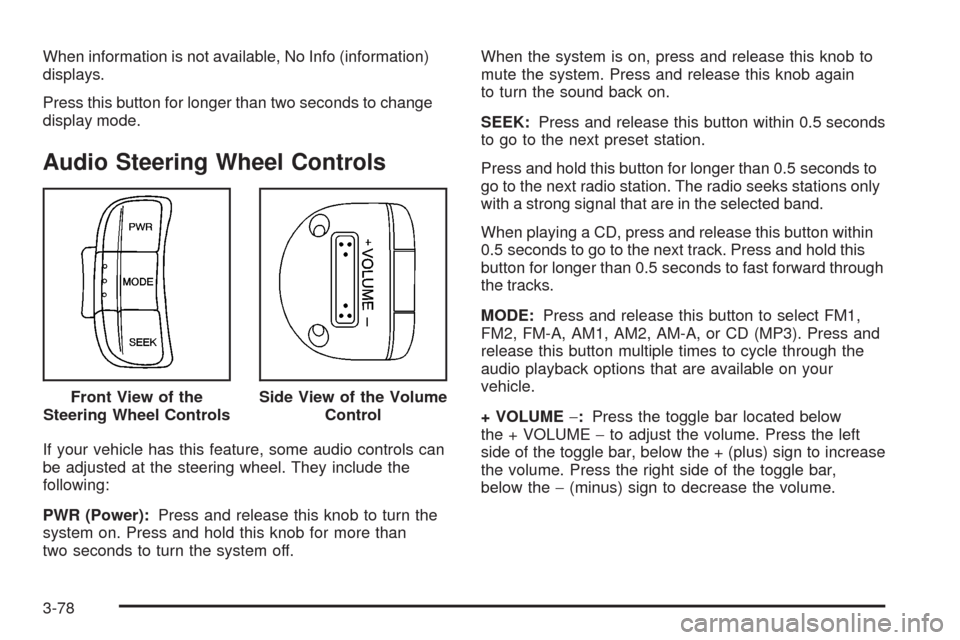
Audio Steering Wheel Controls
If your vehicle has this feature, some audio controls can
be adjusted at the steering wheel. They include the
following:
PWR (Power):Press and release this knob to turn the
system on. Press and hold this knob for more than
two seconds to turn the system off.When the system is on, press and release this knob to
mute the system. Press and release this knob again
to turn the sound back on.
SEEK:Press and release this button within 0.5 seconds
to go to the next preset station.
Press and hold this button for longer than 0.5 seconds to
go to the next radio station. The radio seeks stations only
with a strong signal that are in the selected band.
When playing a CD, press and release this button within
0.5 seconds to go to the next track. Press and hold this
button for longer than 0.5 seconds to fast forward through
the tracks.
MODE:Press and release this button to select FM1,
FM2, FM-A, AM1, AM2, AM-A, or CD (MP3). Press and
release this button multiple times to cycle through the
audio playback options that are available on your
vehicle.
+ VOLUME−:Press the toggle bar located below
the + VOLUME−to adjust the volume. Press the left
side of the toggle bar, below the + (plus) sign to increase
the volume. Press the right side of the toggle bar,
below the−(minus) sign to decrease the volume. Front View of the
Steering Wheel Controls
Side View of the Volume
Control
3-78
Page 198 of 384
And, of course, actual stopping distances vary greatly
with the surface of the road, whether it is pavement
or gravel; the condition of the road, whether it is
wet, dry, or icy; tire tread; the condition of the brakes;
the weight of the vehicle; and the amount of brake
force applied.
Avoid needless heavy braking. Some people drive
in spurts — heavy acceleration followed by heavy
braking — rather than keeping pace with traffic. This is
a mistake. The brakes might not have time to cool
between hard stops. The brakes will wear out much
faster if you do a lot of heavy braking. If you keep pace
with the traffic and allow realistic following distances,
you will eliminate a lot of unnecessary braking.
That means better braking and longer brake life.
If your vehicle’s engine ever stops while you are
driving, brake normally but do not pump the brakes.
If you do, the pedal could get harder to push down.
If the engine stops, you will still have some power
brake assist. But you will use it when you brake.
Once the power assist is used up, it can take longer
to stop and the brake pedal will be harder to push.
Adding non-dealer/non-retailer accessories can affect
your vehicle’s performance. SeeAccessories and
Modifications on page 5-3.Antilock Brake System (ABS)
Your vehicle might have the Antilock Brake System
(ABS), an advanced electronic braking system that will
help prevent a braking skid.
If your vehicle has ABS,
this warning light will come
on briefly when you start
your vehicle.
The warning light is on the instrument panel cluster for
a sedan. SeeAntilock Brake System Warning Light
on page 3-34. For hatchback models, the warning light
is on the Secondary Information Center (SIC). See
Antilock Brake System Warning Light on page 3-48.
Let us say the road is wet and you are driving safely.
Suddenly, an animal jumps out in front of you. You slam
on the brakes and continue braking. Here is what
happens with ABS:
A computer senses that wheels are slowing down.
If one of the wheels is about to stop rolling, the computer
will separately work the brakes at each wheel.
4-4
Page 368 of 384

Current and Past Model Order Forms
Technical Service Bulletins and Manuals are
available for current and past model GM vehicles.
To request an order form, specify year and model
name of the vehicle.
ORDER TOLL FREE: 1-800-551-4123
Monday-Friday 8:00 AM - 6:00 PM
Eastern Time
For Credit Card Orders Only
(VISA-MasterCard-Discover), visit Helm, Inc.
on the World Wide Web at: www.helminc.com
Or you can write to:
Helm, Incorporated
P.O. Box 07130
Detroit, MI 48207
Prices are subject to change without notice and without
incurring obligation. Allow ample time for delivery.
Note to Canadian Customers: All listed prices are
quoted in U.S. funds. Canadian residents are to make
checks payable in U.S. funds.
Vehicle Data Recording
and Privacy
Your GM vehicle has a number of sophisticated
computers that record information about the vehicle’s
performance and how it is driven. For example,
your vehicle uses computer modules to monitor
and control engine and transmission performance,
to monitor the conditions for airbag deployment
and deploy airbags in a crash and, if so equipped,
to provide antilock braking to help the driver control the
vehicle. These modules may store data to help your
dealer/retailer technician service your vehicle. Some
modules may also store data about how you operate
the vehicle, such as rate of fuel consumption or average
speed. These modules may also retain the owner’s
personal preferences, such as radio pre-sets, seat
positions, and temperature settings.
7-18