2008 BMW X6 remote start
[x] Cancel search: remote startPage 195 of 288
Navigation
Entertainment
Driving tips
193Reference
At a glance
Controls
Communications
Mobility
An overview of the coding zones:
Starting playback
1.Push the CD/DVD into the drive with the
labeled side facing upward.
The CD/DVD is automatically pulled in.
>Playback usually begins automatically
after a few seconds.
>If playback does not begin automatically:
Select "DVD".
Press the button.
2.If the DVD control or the DVD-specific
menu is displayed for a DVD, select the
desired option for menu guidance with the
remote control buttons.
Or:
Press the button on the CD/DVD player.
You can control the playback with the buttons
on the CD/DVD player or the DVD control.
Video CDs, VCD, and Super Video CDs,
SVCD, can be played like DVDs if they do
not have a DVD menu of their own.<
Ejecting CD/DVD
Press the button on the CD/DVD player.
The DVD emerges slightly from the drive.
DVD control
With the DVD control, you can select the track
and chapter, open the DVD-specific menu and
operate functions such as Language, Fast for-
ward and Reverse or Freeze frame.
A DVD can briefly deactivate functions of the
DVD control, under certain circumstances while the entire DVD is being played. It is not possible
to operate the DVD control under these circum-
stances. In this case, try to make the selection
using the DVD-specific menu.
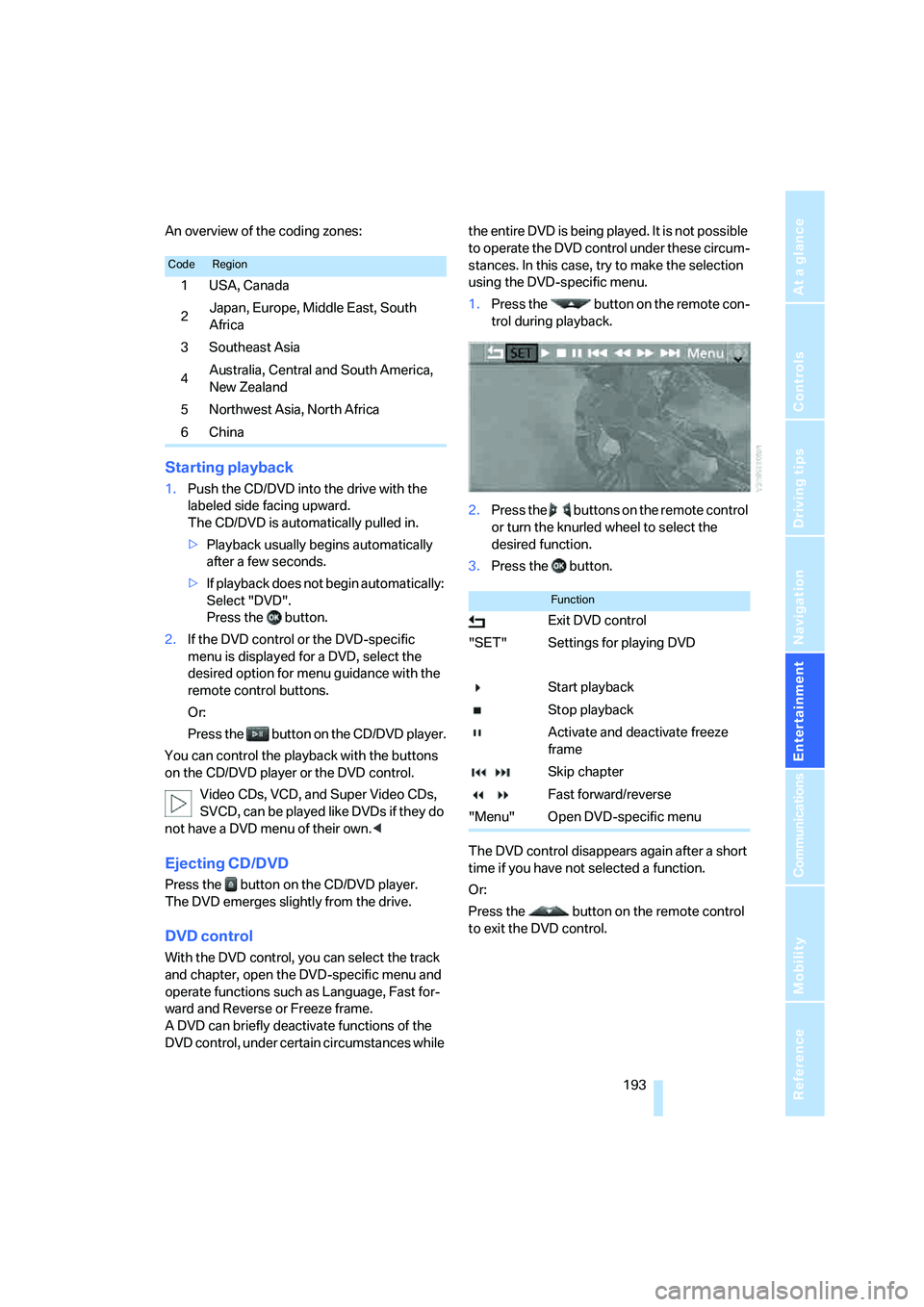
1.Press the button on the remote con-
trol during playback.
2.Press the buttons on the remote control
or turn the knurled wheel to select the
desired function.
3.Press the button.
The DVD control disappears again after a short
time if you have not selected a function.
Or:
Press the button on the remote control
to exit the DVD control.
CodeRegion
1USA, Canada
2Japan, Europe, Middle East, South
Africa
3Southeast Asia
4Australia, Central and South America,
New Zealand
5Northwest Asia, North Africa
6China
Function
Exit DVD control
"SET" Settings for playing DVD
Start playback
Stop playback
Activate and deactivate freeze
frame
Skip chapter
Fast forward/reverse
"Menu" Open DVD-specific menu
Page 196 of 288
DVD system in rear
194
Fast forward/reverse
Forward/reverse with DVD control
1.Press the button on the remote con-
trol during playback.
2.Select the symbol.
3.Press the button.
4.Press the button several times to
increase the fast forward/reverse speed.
The DVD playback will be distorted.
To cancel fast forward/reverse:
1.Select the symbol.
2.Press the button.
Or:
Press the button on the CD/DVD player.
The DVD will start play at the point selected.
Forward/reverse with remote control
Press and hold the button until you reach
the desired point.
Or:
1.During playback, turn the knurled wheel.
Fast forward/reverse is interrupted.
2.Continue to turn the knurled wheel.
The speed is increased.
3.Press the button on the CD/DVD player.
Fast forward/reverse is interrupted.
The DVD will start play at the point selected.
Skipping chapter
You can change to the next or previous chapter
during playback.
1.Press the button on the remote con-
trol during playback.
2.Select the symbol.
3.Press the button repeatedly, continuing
until you reach the desired chapter.
Or:
Press the button on the left or right on the
remote control repeatedly until you reach the
desired chapter.
Freeze frame
1.Press the button on the remote con-
trol during playback.
2.Select the symbol.
3.Press the button.
To continue playback:
1.Select the or symbol.
2.Press the button.
As an alternative you can also stop and con-
tinue playback with the button on the
CD/DVD player.
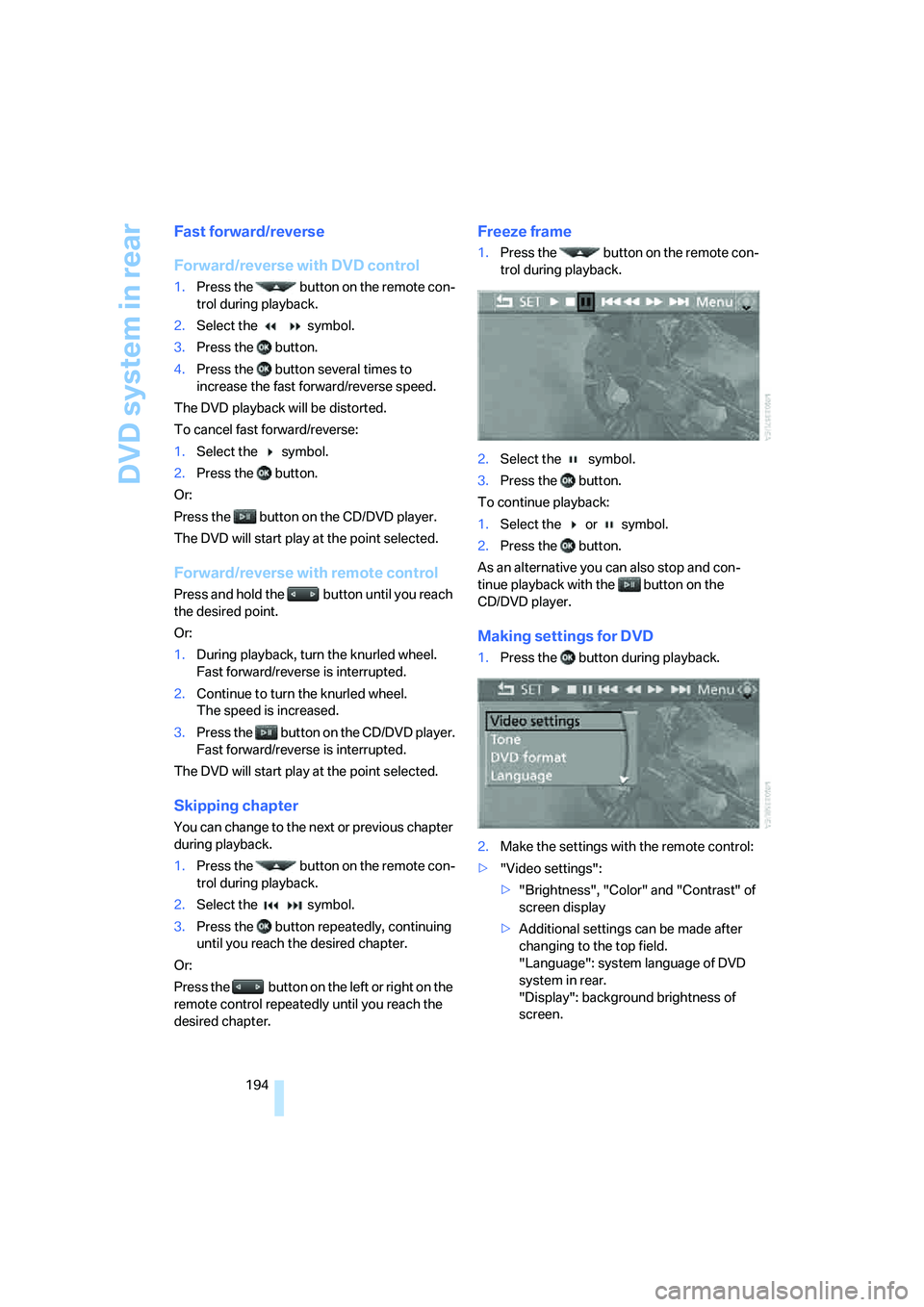
Making settings for DVD
1.Press the button during playback.
2.Make the settings with the remote control:
>"Video settings":
>"Brightness", "Color" and "Contrast" of
screen display
>Additional settings can be made after
changing to the top field.
"Language": system language of DVD
system in rear.
"Display": background brightness of
screen.
Page 198 of 288

DVD system in rear
196 3.Select a track.
4.Press the button.
5.Select "Play".
6.Press the button.
To change the directory:
1.Select the directory.
2.Press the button.
Playback functions
1.Select a track.
2.Press the button.
3.Select a menu item:
>"Play":
Start playback.
>"Pause":
Stop and continue playback.>"Repeat track":
Repeat the selected track.
>"Repeat directory":
Repeat the tracks in the current direc-
tory.
4.Press the button.
Playing audio tracks from
CD/DVD
Start playback
Push the CD/DVD into the drive with the labeled
side facing upward.
The CD/DVD is automatically pulled in.
>Playback begins automatically after a
few seconds.
>If playback does not begin automatically:
Select "CD".
Press the button.
For CDs/DVDs with compressed audio files,
refer to page197, it may take several minutes to
read the data depending on the directory struc-
ture.
To start playback when there is already a
CD/DVD in the drive:
1.Open the start menu with the remote con-
trol.
2.Select "CD".
As an alternative you can also control the play-
back with the buttons on the CD/DVD player.
To eject CD/DVD:
Press the button on the CD/DVD player.
Page 199 of 288

Navigation
Entertainment
Driving tips
197Reference
At a glance
Controls
Communications
Mobility
Selecting a track
Buttons on CD/DVD player
Press the button for the corresponding
direction repeatedly until you reach the desired
track.
Playback begins at the start of the track.
Via the remote control
Press the button for the corresponding
direction repeatedly or turn the knurled wheel
until you reach the desired track.
Playback begins at the start of the track.
Settings and playback functions for
audio CDs/DVDs
1.Select "SET".
2.Press the button.
3.Make the settings with the remote control:
>"Tone":
>"Treble / Bass" and "Balance":
Separately adjustable for the left and
right-hand headphones and the infrared
headphones.
>"Reset":
The settings are reset to the default
value.>"Pause":
Stop and continue playback.
>"Random":
In this mode, the tracks on the CD/DVD are
played once in a random sequence.
>"Scan":
Automatically briefly sample all tracks of the
CD/DVD consecutively.
>"Repeat":
Repeat the current track. Select again to
end.
Fast forward/reverse
Buttons on the CD/DVD player:
Press and hold the button for the corre-
sponding direction.
Remote control:
Press and hold the button until you reach
the desired point.
Compressed audio files
With some CDs/DVDs playback may automati-
cally start with the first track.
Playback
1.Select the directory if necessary.
2.Press the button.
Page 200 of 288

DVD system in rear
198 3.Select a track.
4.Press the button.
To change the directory:
1.Select the directory.
2.Press the button.
Settings and playback functions for
compressed audio files
1.Select a track.
2.Press the button.
3.Make the settings with the remote control:>"Tone":
>"Treble / Bass" and "Balance":
Separately adjustable for the left and
right-hand headphones and the infrared
headphones.
>"Reset":
The settings are reset to the default
value.
>"Pause":
Stop or continue playback.
>"Scan directory":
Briefly sample the tracks in the current
directory.
>"Scan all":
Briefly sample all tracks.
>"Random directory":
Play the tracks in the current directory in a
random sequence.
>"Random all":
Play all tracks in a random sequence.
>"Repeat track":
Repeat the selected track.
>"Repeat directory":
Repeat the tracks in the current directory.
>"Details":
Display any stored information on the cur-
rent track.
Displaying images from
CD/DVD
1.Push the CD/DVD into the drive with the
labeled side facing upward.
The CD/DVD is automatically pulled in.
2.Open the start menu with the remote con-
trol.
3.Select "Photo".
4.Press the button.
Page 201 of 288
Navigation
Entertainment
Driving tips
199Reference
At a glance
Controls
Communications
Mobility
Displaying overview
1.Select the subdirectory if necessary.
2.Select "Overview".
3.Press the button.
It may take some time until the overview is
completely displayed.
4.Scroll through the overview with the menu
guidance of the remote control.
If a symbol is shown instead of an image,
then the image cannot be shown in the
overview.<
Displaying images
1.Select an image with the buttons of the
remote control.
2.Press the button.
3.Select type of display:
>Scroll with the menu guidance buttons
of the remote control.
>Show slide show:
Turn the knurled wheel to set the display
duration and the sequence of the dis-
play.
Stop slide show:
Select "Stop".
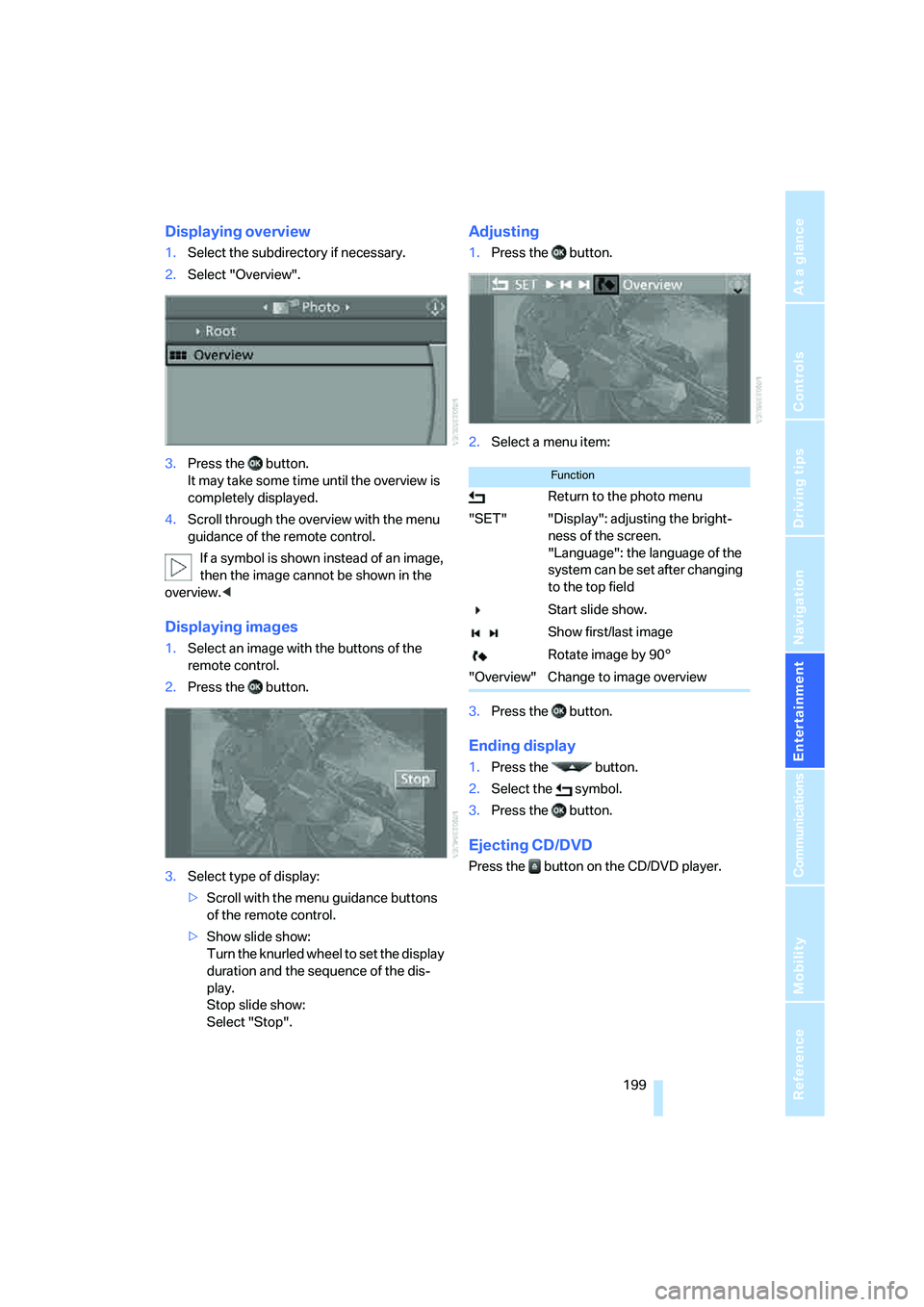
Adjusting
1.Press the button.
2.Select a menu item:
3.Press the button.
Ending display
1.Press the button.
2.Select the symbol.
3.Press the button.
Ejecting CD/DVD
Press the button on the CD/DVD player.
Function
Return to the photo menu
"SET" "Display": adjusting the bright-
ness of the screen.
"Language": the language of the
system can be set after changing
to the top field
Start slide show.
Show first/last image
Rotate image by 90°
"Overview" Change to image overview
Page 203 of 288
Navigation
Entertainment
Driving tips
201Reference
At a glance
Controls
Communications
Mobility
Humidity
High levels of humidity can lead to condensa-
tion on the CD/DVD or the laser's scan lens and
temporarily prevent playback.
Malfunctions with individual CDs/DVDs
If malfunctions occur only with particular CDs/
DVDs, this can be due to one of the following
causes.
Copied or self-recorded CDs/DVDs
Possible reasons for malfunctions with copied
or self-recorded CDs/DVDs are, e.g., inconsis-
tent data-creation or recording processes, or
poor quality or high age of the CD/DVD blank.
Only label CDs/DVDs on the side with the label
using a pen intended for this purpose.
Damaged CDs/DVDs
Avoid fingerprints, dust, scratches and mois-
ture.
Store CDs/DVDs in a sleeve.
Do not subject CDs/DVDs to temperatures over
1227/506, high levels of humidity or direct
sunlight.
CDs/DVDs with copy protection
CDs/DVDs are often provided with a copy pro-
tection feature by the manufacturer. As a result,
some CDs/DVDs cannot be played, can only be
played to a limited degree, or cause the system
to switch off. In this case, wait a short while and
then switch the system back on again. Then
remove the CD/DVD from the drive.
CDs/DVDs with compressed audio files
If the language set for the CD/DVD player does
not match the language of the music track, the
music tracks may be displayed incorrectly.
Care instructions
Do not use cleaning CDs with a brush.
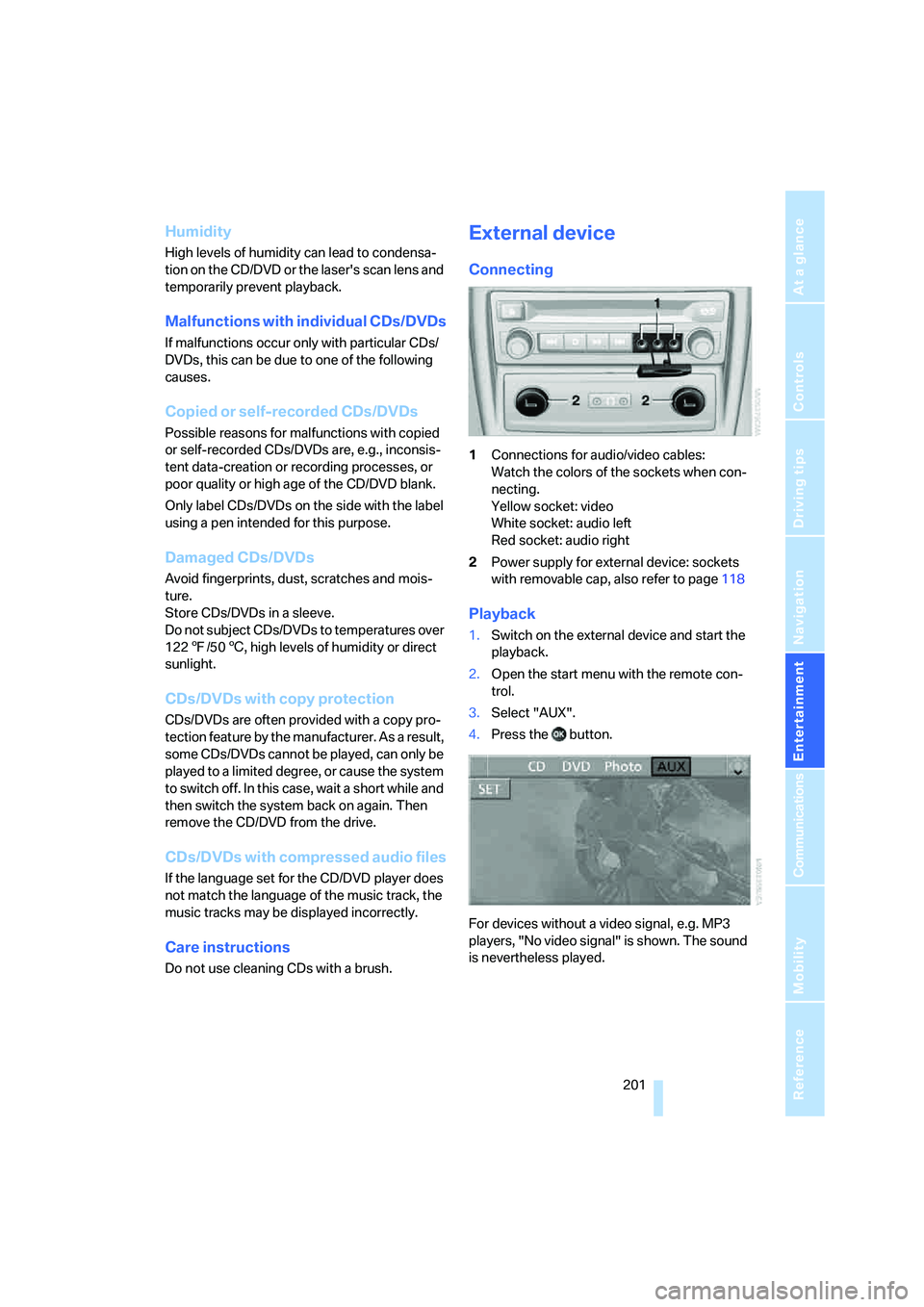
External device
Connecting
1Connections for audio/video cables:
Watch the colors of the sockets when con-
necting.
Yellow socket: video
White socket: audio left
Red socket: audio right
2Power supply for external device: sockets
with removable cap, also refer to page118
Playback
1.Switch on the external device and start the
playback.
2.Open the start menu with the remote con-
trol.
3.Select "AUX".
4.Press the button.
For devices without a video signal, e.g. MP3
players, "No video signal" is shown. The sound
is nevertheless played.
Page 209 of 288

207
Entertainment
Reference
At a glance
Controls
Driving tips Communications
Navigation
Mobility
progress. If this happens, you must log off the
mobile phone from the vehicle if you wish to
place a call with the mobile phone.
Commissioning
Logging on mobile phone on vehicle
The following prerequisites must be met:
>Suitable mobile phone: the mobile phone
is supported by the full mobile phone prep-
aration package. Information on this subject
is also provided on the Internet at:
www.bmw.com
>The mobile phone is ready to operate.
>The Bluetooth link on the vehicle, refer to
page211, and on the mobile phone is
active.
>Depending on the mobile phone, it may be
necessary to adjust the presets of the
mobile phone, e.g. via the following menu
items:
>Bluetooth activated
>Connection not with confirmation
>Reconnect
>Depending on the mobile phone model, the
setting energy saving mode can, for exam-
ple, result in vehicle failing to detect the
paired mobile phone.
>For pairing, specify any desired number as
the Bluetooth passkey, e.g. 1. This Blue-
tooth passkey is no longer required follow-
ing successful logon.
>The ignition is switched on.
Only pair the mobile phone with the vehi-
cle stopped, otherwise the passengers
and other road users can be endangered due
to a lack of attentiveness on the part of the
driver.<
Switching on ignition
1.Insert the remote control as far as possible
into the ignition lock.
2.Switch on the ignition by pressing the Start/
Stop button without depressing the brake
pedal.
Preparation via iDrive
iDrive, for operating principle refer to page16.
3.Press the button to open the start
menu.
4.Press the controller to open the menu.
5.Select "Settings" and press the controller.
6.Select "Bluetooth" and press the controller.