2008 BMW M6 ad blue
[x] Cancel search: ad bluePage 189 of 262

187
Entertainment
Reference
At a glance
Controls
Driving tips Communications
Navigation
Mobility
Changing between mobile
phone and hands-free system
From mobile phone to hands-free
system*
You can continue calls begun outside the Blue-
tooth range of the vehicle via the hands-free
system when the engine is running or the igni-
tion is switched on. Depending on your mobile
phone, the system automatically switches over
to the hands-free mode.
For mobile phones that do not automatically
switch over to the hands-free mode:
>Depending on the mobile phone model
used, the conversation can be continued via
the hands-free system if necessary. Follow
the instructions displayed on the mobile
phone display, refer to the operating
instructions of your mobile phone.
>Press the button above the storage
compartment. Switching over may take
several seconds.
From hands-free system to mobile
phone
When you telephone via the hands-free system,
you can also continue the call via the mobile
phone if necessary, depending on the mobile
phone model. Act according to what is shown
on the mobile phone display, refer to the oper-
ating instructions of your mobile phone.
As an alternative, you can deactivate the Blue-
tooth link.
Depending on your mobile phone model, poor
reception of the wireless communications net-
work can result in the system switching from
the hands-free system to the mobile phone.
Operation by voice*
The concept
You can operate your mobile phone without
having to remove your hands from the steering
wheel. When making your entries, you will be
supported by announcements or questions in
many cases.
The same prerequisites as for operation via
iDrive apply, refer to page182.
Voice commands
Activating system
1.Briefly press the button on the steering
wheel.
An acoustic signal indicates that you can
say commands.
2.Say the command.
Ending/canceling operation by voice
Press the button on the steering wheel
or
In dialogs where text is spoken, not a command,
e.g. a name, canceling is only possible using the
button on the steering wheel.
Having possible commands read aloud
The system understands default commands
that must be spoken word for word.
You can have the possible commands spoken
by the system at any point:
Using alternative commands
There are often a number of commands to run a
function, e.g.:
The system recognizes digits from zero to nine.
You can say each digit individually or group
them into a sequence to accelerate the input.
{Cancel}.
{Help}.
{Dial name} or {Name}.
Page 197 of 262

195
Entertainment
Reference
At a glance
Controls
Driving tips Communications
Navigation
Mobility
Displaying transmitted data
Select the received message if necessary and
press the controller.
Dialing a phone number or transferring
an address for destination guidance
1.Select "Options" and press the controller.
2.Select a menu item:
>With "Call" you can establish a telephone
connection. A prerequisite for this is that
your Bluetooth mobile phone has been
paired with the vehicle.
>Press "Select as destination" to transfer the
address to the navigation system for desti-
nation guidance.
Updating BMW Assist
Displaying and updating services
You will be notified of any changes in the ser-
vices offered by BMW Assist. In this case, you
should update the service functions.1.Press the button.
This opens the start menu.
2.Press the controller to open the menu.
3.Turn the controller until "Settings" is
selected and press the controller.
4.Turn the controller until "BMW Service set-
tings" is selected and press the controller.
5.Change to upper field if necessary. Turn the
controller until "Service Status" is selected
and press the controller.
The currently available BMW Assist ser-
vices are displayed.
6.If applicable, select "Options" and press the
controller.
7.Select "Update services" and press the
controller.
Page 238 of 262

Short commands of voice command system
236
Short commands of voice command
system
With short commands you can run certain func-
tions directly, regardless of which menu item is
selected. Here are the important short commands for the
voice command system.
Assistance window
Communication
*
FunctionCommand
To open the assistance window20{Assistance window}
To select the display in the assistance window20{Assistance window map facing north},
{Assistance window map direction of travel},
{Assistance window arrow display},
{Assistance window perspective},
{Assistance window current position},
{Assistance window trip computer} or
{Assistance window onboard info}
To change scale in assistance window124{Assistance window scale ... feet} or
{Assistance window scale ... miles}
FunctionCommand
To activate telephone183{Phone}
To dial phone number183{Dial number}
To display the phone book184{A to Z}
To dial from phone book184{Call ...} or
{Dial name}
To display "Top 8"185{Top 8}
To redial185{Redial}
To display "Received calls"185{Received calls}
To display "Missed calls"185{Missed calls}
To display "Bluetooth"177{Bluetooth}
To open BMW Assist 191{BMW Assist}
To open BMW Service, Services191{BMW Service}
To open "BMW Contact"185{BMW Contact}
To open "BMW Contact Numbers"193{BMW Contact numbers}
To open "Roadside Assistance"192{Roadside Assistance}
Page 241 of 262
Reference 239
At a glance
Controls
Driving tips
Communications
Navigation
Entertainment
Mobility
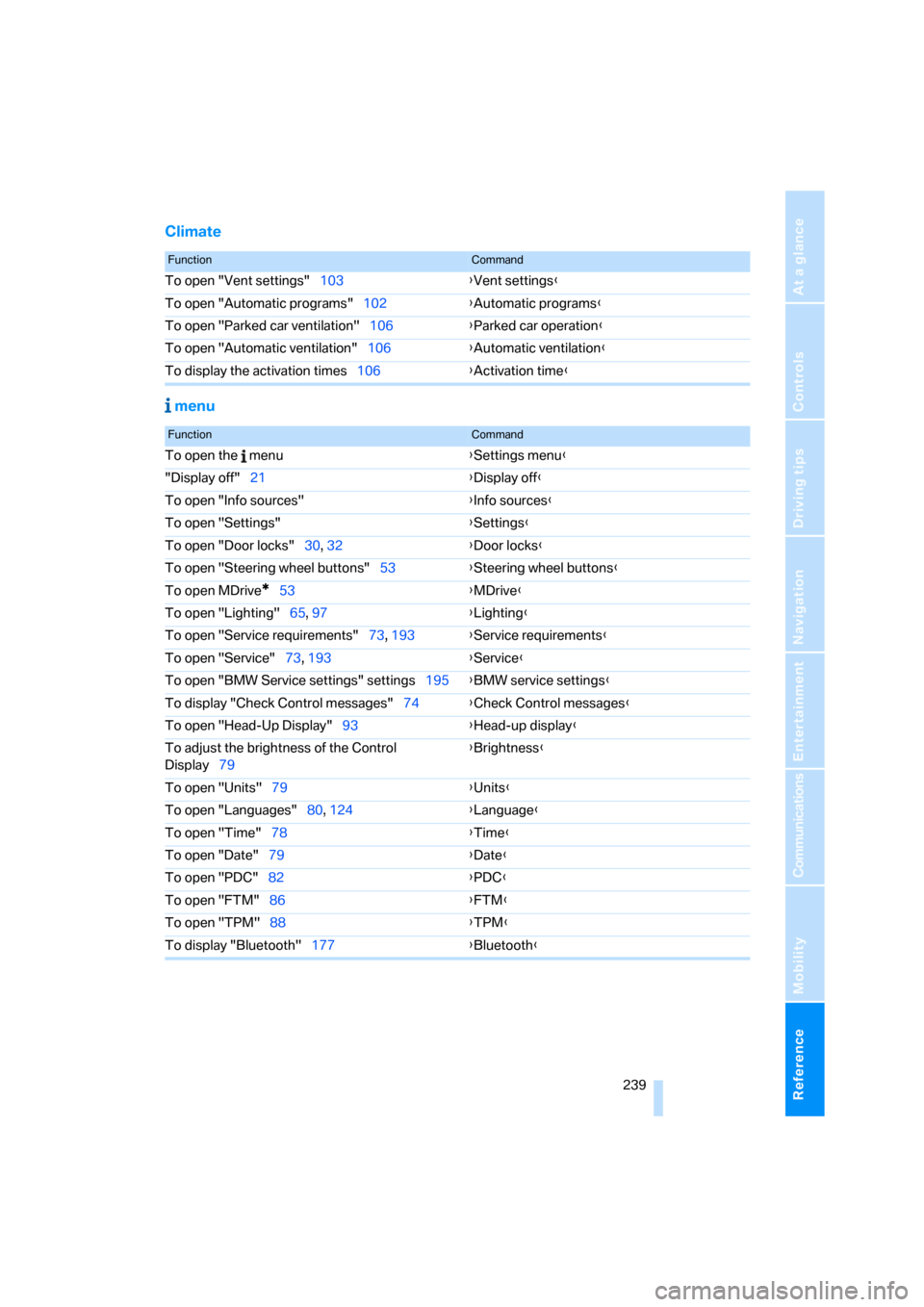
Climate
menu
FunctionCommand
To open "Vent settings"103{Vent settings}
To open "Automatic programs"102{Automatic programs}
To open "Parked car ventilation"106{Parked car operation}
To open "Automatic ventilation"106{Automatic ventilation}
To display the activation times106{Activation time}
FunctionCommand
To open the menu{Settings menu}
"Display off"21{Display off}
To open "Info sources"{Info sources}
To open "Settings"{Settings}
To open "Door locks"30, 32{Door locks}
To open "Steering wheel buttons"53{Steering wheel buttons}
To open MDrive
*53{MDrive}
To open "Lighting"65, 97{Lighting}
To open "Service requirements"73, 193{Service requirements}
To open "Service"73, 193{Service}
To open "BMW Service settings" settings195{BMW service settings}
To display "Check Control messages"74{Check Control messages}
To open "Head-Up Display"93{Head-up display}
To adjust the brightness of the Control
Display79{Brightness}
To open "Units"79{Units}
To open "Languages"80, 124{Language}
To open "Time"78{Time}
To open "Date"79{Date}
To open "PDC"82{PDC}
To open "FTM"86{FTM}
To open "TPM"88{TPM}
To display "Bluetooth"177{Bluetooth}
Page 243 of 262

Reference 241
At a glance
Controls
Driving tips
Communications
Navigation
Entertainment
Mobility
"Assist. window off"21
AUC Automatic recirculated-
air control104
"Audio"151,153,158
Audio150
– controls150
– switching on/off150
– tone control151
– volume151
Audio device, external110
Automatic
– air distribution102
– air volume102
– cruise control67
– headlamp control96
– recirculated-air control
AUC104
– service notification193
– steering wheel
adjustment47
– storing stations156
Automatic car washes118
– also refer to Caring for your
vehicle brochure
Automatic climate control101
– automatic air
distribution102
– convertible program102
– switching on and off105
– ventilation with vehicle
parked106
Automatic closing of doors,
refer to Automatic soft
closing34
Automatic curb monitor52
Automatic lighting
– refer to Automatic headlamp
control96
– refer to Daytime running
lamps97
– refer to High-beam
assistant98
– refer to Interior lamps100
– refer to Pathway lighting97
– refer to Welcome lamps96
"Automatic programs"102
Automatic soft closing34Automatic station search155
"Automatic ventilation"106
AUTO program with
automatic climate
control102
"Autostore" on the
radio154,156
"AUX"150,170,
172
– in audio mode170
AUX-In connection110,170
Average fuel consumption71
– setting units79
"Avoid ferries" for navigation
system137
"Avoid highways" for
navigation system136
Avoiding freeways for
navigation136
Avoiding unintentional
alarms36
"Avoid tollroads" for
navigation system137
Axle loads, refer to
Weights235
"A - Z"184
B
Backrest contour, refer to
Lumbar support46
Backrests, refer to Seats46
Backrest width adjustment46
Backup lamps, replacing
bulbs, refer to Tail
lamps217
"Balance", refer to Tone
control152
Band-aids, refer to First-aid
kit225
Bass, refer to Tone
control151
"Bass", tone control151
Battery
– jump starting225
– refer to Vehicle battery222
Battery replacement, remote
control for comfort
access38BC button, refer to
Computer70
Being towed227
Belts, refer to Safety belts50
Beverage holder, refer to Cup
holders111
Blower, refer to Air
volume103
"Bluetooth"177
"BMW Assist"192
BMW Assist191
– activating196
– concierge service194
– contacting BMW Customer
Relations194
– displaying vehicle data197
– offered services191
– roadside assistance192
– TeleService193
– updating195
"BMW Contact"186
"BMW Contact
Numbers"186
BMW homepage4
BMW Maintenance
System214
"BMW Service settings"195
BMW website4
Bottle holder, refer to Cup
holders111
Bracket for telephone or
mobile phone, refer to Snap-
in adapter189
Brake assistant83
Brake force display90
Brake lamps
– replacing bulbs, refer to Tail
lamps217
– two-stage90
Brake rotors
– breaking-in116
– refer to Braking safely117