2008 BMW M6 navigation
[x] Cancel search: navigationPage 189 of 262

187
Entertainment
Reference
At a glance
Controls
Driving tips Communications
Navigation
Mobility
Changing between mobile
phone and hands-free system
From mobile phone to hands-free
system*
You can continue calls begun outside the Blue-
tooth range of the vehicle via the hands-free
system when the engine is running or the igni-
tion is switched on. Depending on your mobile
phone, the system automatically switches over
to the hands-free mode.
For mobile phones that do not automatically
switch over to the hands-free mode:
>Depending on the mobile phone model
used, the conversation can be continued via
the hands-free system if necessary. Follow
the instructions displayed on the mobile
phone display, refer to the operating
instructions of your mobile phone.
>Press the button above the storage
compartment. Switching over may take
several seconds.
From hands-free system to mobile
phone
When you telephone via the hands-free system,
you can also continue the call via the mobile
phone if necessary, depending on the mobile
phone model. Act according to what is shown
on the mobile phone display, refer to the oper-
ating instructions of your mobile phone.
As an alternative, you can deactivate the Blue-
tooth link.
Depending on your mobile phone model, poor
reception of the wireless communications net-
work can result in the system switching from
the hands-free system to the mobile phone.
Operation by voice*
The concept
You can operate your mobile phone without
having to remove your hands from the steering
wheel. When making your entries, you will be
supported by announcements or questions in
many cases.
The same prerequisites as for operation via
iDrive apply, refer to page182.
Voice commands
Activating system
1.Briefly press the button on the steering
wheel.
An acoustic signal indicates that you can
say commands.
2.Say the command.
Ending/canceling operation by voice
Press the button on the steering wheel
or
In dialogs where text is spoken, not a command,
e.g. a name, canceling is only possible using the
button on the steering wheel.
Having possible commands read aloud
The system understands default commands
that must be spoken word for word.
You can have the possible commands spoken
by the system at any point:
Using alternative commands
There are often a number of commands to run a
function, e.g.:
The system recognizes digits from zero to nine.
You can say each digit individually or group
them into a sequence to accelerate the input.
{Cancel}.
{Help}.
{Dial name} or {Name}.
Page 191 of 262

189
Entertainment
Reference
At a glance
Controls
Driving tips Communications
Navigation
Mobility
Creating and editing voice phone
book*
Save entry:
An entry always consists of a name and phone
number.
Delete entry:
You can delete any entry from the voice phone
book.
Delete all entries:
{Delete phone book} deletes all entries in the
phone book.
Have entries read aloud and dial:
You can have all the entries of your voice phone
book read aloud in the order of input and select
a certain entry to establish a connection:
Selecting an entry
The connection to the phone number of the
selected entry is established.
Redialing
The {Redial} command calls up "Redial".
Notes
Important for voice commands
For voice commands, keep the following in
mind:
>Issue the commands smoothly and at nor-
mal volume, avoiding excessive emphasis
and pauses.
>Keep the doors and windows closed to pre-
vent interference from ambient noise.
>Avoid making other noise in the vehicle
while speaking.
Mounting/removing snap-in
adapter
1.Press the area 1 around the button and
remove the cover. 1.{Save name}.
2.Say the name.
The spoken length of the names in the
phone book must not exceed approx.
2seconds.
3.Say the phone number after being
requested to do so by the system.
4.To store the phone number:
{Save}.
1.{Delete name}.
The dialog for deleting an entry is
opened.
2.Say the name when prompted.
3.Confirm the prompt with {Yes}.
1.{Delete phone book}.
The dialog for deleting phone book is
opened.
2.Confirm the prompt with {Yes}.
3.Confirm the repeated prompt with
{Yes}.
1.{Read phone book}.
The dialog for reading phone book is
opened.
2.{Dial number} when the desired entry is
read aloud.
1.{Dial name}.
The dialog for selecting an entry is
opened.
2.Say the name when prompted.
3.Confirm the prompt with {Yes}.
Page 193 of 262

191
Entertainment
Reference
At a glance
Controls
Driving tips Communications
Navigation
Mobility
BMW Assist
BMW Assist provides you with various services.
For example, the position data of your vehicle
can be transmitted to the BMW Assist
Response Center if an emergency request
* has
been initiated.
Many BMW Assist services depend on the indi-
vidually agreed contract.
After your contract has expired, the BMW
Assist system will be deactivated by the BMW
Assist Response Center without you having to
visit a BMW center. Following the deactivation
of the BMW Assist systems, no BMW Assist
service is available. The BMW Assist system be
reactivated by a BMW center after signing a
new contract.
Requirements
You can use BMW Assist when the following
requirements are met:
>The installed BMW Assist system is logged
on to a mobile phone network. This network
must be capable of transmitting the ser-
vices.
>To transmit position data, the vehicle must
be able to determine the current position.
>In order to activate and update BMW Assist,
a GPS signal must be available.
>You have subscribed to BMW Assist with
your BMW center or with the BMW Assist
Response Center. Enabling must have
been completed.
>BMW Assist is activated, refer to page196.
Offered services
The following services are available via
BMW Assist:
>Emergency request, refer to page224:
When you press the SOS button, a connec-
tion is established to the BMW Assist
Response Center. The BMW Assist
Response Center contacts you and takes
further steps to help you.
>Automatic collision notification:
Under certain conditions a connection is
established to the BMW Assist Response
Center directly following a serious accident.
If possible, the BMW Assist Response Cen-
ter contacts you and takes further steps to
help you.
>Enhanced roadside assistance:
You can call Roadside Assistance
* of the
BMW Group should you require help in the
event of a breakdown. If possible, the vehi-
cle and position data are transmitted in the
process.
>BMW Customer Relations:
For information related to your vehicle, call
BMW Customer Relations.
>TeleService:
The data on the service status of your vehi-
cle or on required inspections are transmit-
ted to your BMW center either automati-
cally prior to the due date or when you
request a BMW service appointment.
>Remote door unlock:
Inform the BMW Assist Response Center,
e.g. if your remote control is not available
and you want to have the vehicle unlocked.
>Stolen vehicle recovery:
After your vehicle has been reported to the
police as stolen, the BMW Assist Response
Center can locate its position. To do this,
the vehicle electronics must be ready for
operation.
*
Page 195 of 262
193
Entertainment
Reference
At a glance
Controls
Driving tips Communications
Navigation
Mobility
5.Select "Start service" and press the con-
troller.
The BMW Assist Response Center will connect
you to the Roadside Assistance of the
BMW Group.
TeleService
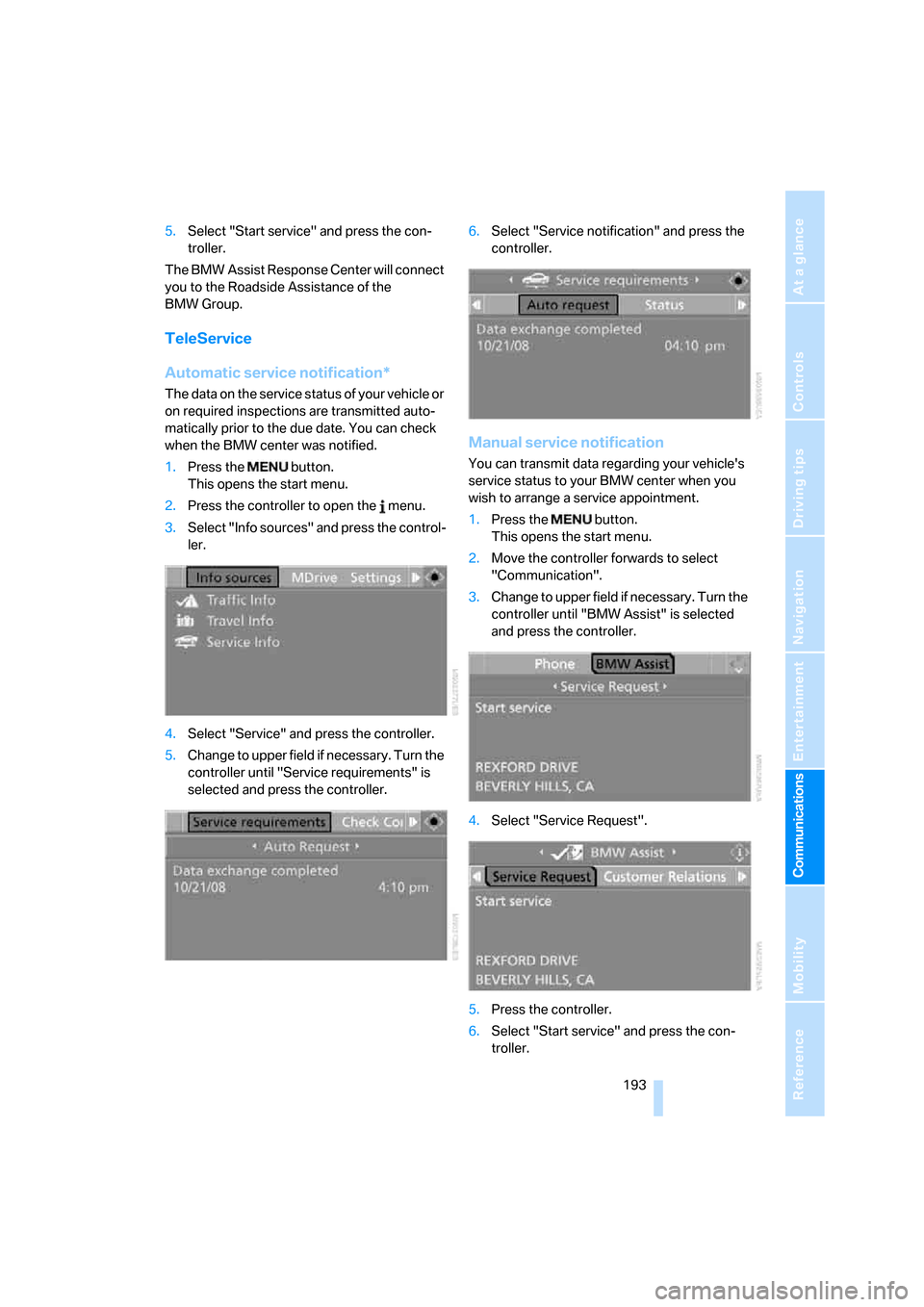
Automatic service notification*
The data on the service status of your vehicle or
on required inspections are transmitted auto-
matically prior to the due date. You can check
when the BMW center was notified.
1.Press the button.
This opens the start menu.
2.Press the controller to open the menu.
3.Select "Info sources" and press the control-
ler.
4.Select "Service" and press the controller.
5.Change to upper field if necessary. Turn the
controller until "Service requirements" is
selected and press the controller.6.Select "Service notification" and press the
controller.
Manual service notification
You can transmit data regarding your vehicle's
service status to your BMW center when you
wish to arrange a service appointment.
1.Press the button.
This opens the start menu.
2.Move the controller forwards to select
"Communication".
3.Change to upper field if necessary. Turn the
controller until "BMW Assist" is selected
and press the controller.
4.Select "Service Request".
5.Press the controller.
6.Select "Start service" and press the con-
troller.
Page 197 of 262

195
Entertainment
Reference
At a glance
Controls
Driving tips Communications
Navigation
Mobility
Displaying transmitted data
Select the received message if necessary and
press the controller.
Dialing a phone number or transferring
an address for destination guidance
1.Select "Options" and press the controller.
2.Select a menu item:
>With "Call" you can establish a telephone
connection. A prerequisite for this is that
your Bluetooth mobile phone has been
paired with the vehicle.
>Press "Select as destination" to transfer the
address to the navigation system for desti-
nation guidance.
Updating BMW Assist
Displaying and updating services
You will be notified of any changes in the ser-
vices offered by BMW Assist. In this case, you
should update the service functions.1.Press the button.
This opens the start menu.
2.Press the controller to open the menu.
3.Turn the controller until "Settings" is
selected and press the controller.
4.Turn the controller until "BMW Service set-
tings" is selected and press the controller.
5.Change to upper field if necessary. Turn the
controller until "Service Status" is selected
and press the controller.
The currently available BMW Assist ser-
vices are displayed.
6.If applicable, select "Options" and press the
controller.
7.Select "Update services" and press the
controller.
Page 199 of 262

197
Entertainment
Reference
At a glance
Controls
Driving tips Communications
Navigation
Mobility
4.Turn the controller until "BMW Service set-
tings" is selected and press the controller.
5.Change to upper field if necessary. Turn the
controller until "Service Status" is selected
and press the controller.
6.Select "Enable services" and press the con-
troller.
BMW Assist is activated and the data
exchange with the BMW Assist Response
Center begins.
Activation takes a few minutes. The status is
displayed on the Control Display. If you open
another menu, the activation process continues
to run in the background.Displaying vehicle data
When BMW Assist is activated, the license
plate and the vehicle identification number of
your vehicle may be displayed.
1.Open the start menu.
2.Press the controller to open the menu.
3.Select "Settings" and press the controller.
4.Select "BMW Service settings" and press
the controller.
5.Change to upper field if necessary. Turn the
controller until "Profile" is selected and
press the controller.
Page 203 of 262

Mobility
201Reference
At a glance
Controls
Driving tips
Communications
Navigation
Entertainment
Fuel specifications
Never used leaded gasoline; it will perma-
nently damage the catalytic converter.
Do not use E85, i.e. fuel that consists of 85%
ethanol, or Flex Fuel. Otherwise permanent
damage to the engine and the fuel supply sys-
tem will result.<
Required fuel
Super Premium Gasoline/AKI 93
Always use this premium grade fuel to obtain
maximum fuel economy and performance.
The minimum approved fuel grade is AKI 91.
Do not use gasoline below the specified
minimum quality, otherwise engine dam-
age can result.<
Use high-quality brands
Field experience has demonstrated significant
differences in fuel quality: volatility, composi-
tion, additives, etc., among gasolines offered for
sale in the United States and Canada. Fuels
containing up to and including 10 % ethanol or
other oxygenates with up to 2.8 % oxygen by
weight, that is, 15 % MTBE or 3 % methanol
plus an equivalent amount of co-solvent, will
not void the applicable warranties with respect
to defects in materials or workmanship.
The use of poor-quality fuels may result in
problems relating to drivability and start-
ing, and to a tendency to stall, especially under
certain environmental conditions such as high
ambient temperature and high altitude.
Should you encounter drivability problems
which you suspect could be related to the fuel
you are using, we recommend that you respond
by switching to a recognized high-quality brand
such as gasoline that is advertised as Top Tier
Detergent Gasoline.
Failure to comply with these recommendations
may also result in unscheduled maintenance.<
Page 205 of 262

Mobility
203Reference
At a glance
Controls
Driving tips
Communications
Navigation
Entertainment
Tire inflation pressures for M6 Coupe
Tire inflation pressures for M6 Convertible
Tire sizePressure specifications in psi/kPa
Traveling speeds
up to max. of
100 mph/160 km/hTraveling speeds
including those exceeding
100 mph/160 km/h
All pressure specifications
in the table are indicated in
psi/kilopascal with cold tires.
Cold = ambient temperature
245/45 R 18 100 V XL M+S 35/240 38/260 35/240 38/260 41/280 46/320
255/40 ZR 19 33/230 - 33/230 - 41/280 -
285/35 ZR 19 - 36/250 - 36/250 - 46/320
More details on the permissible load and weights can be found on page235.
Tire sizePressure specifications in psi/kPa
Traveling speeds
up to max. of
100 mph/160 km/hTraveling speeds
including those exceeding
100 mph/160 km/h
All pressure specifications
in the table are indicated in
psi/kilopascal with cold tires.
Cold = ambient temperature
245/45 R 18 100 V XL M+S 35/240 38/260 35/240 38/260 41/280 46/320
255/40 ZR 19 32/220 - 32/220 - 41/280 -
285/35 ZR 19 - 35/240 - 35/240 - 46/320
More details on the permissible load and weights can be found on page235.