2008 BMW 750LI idrive
[x] Cancel search: idrivePage 54 of 254
Adjusting
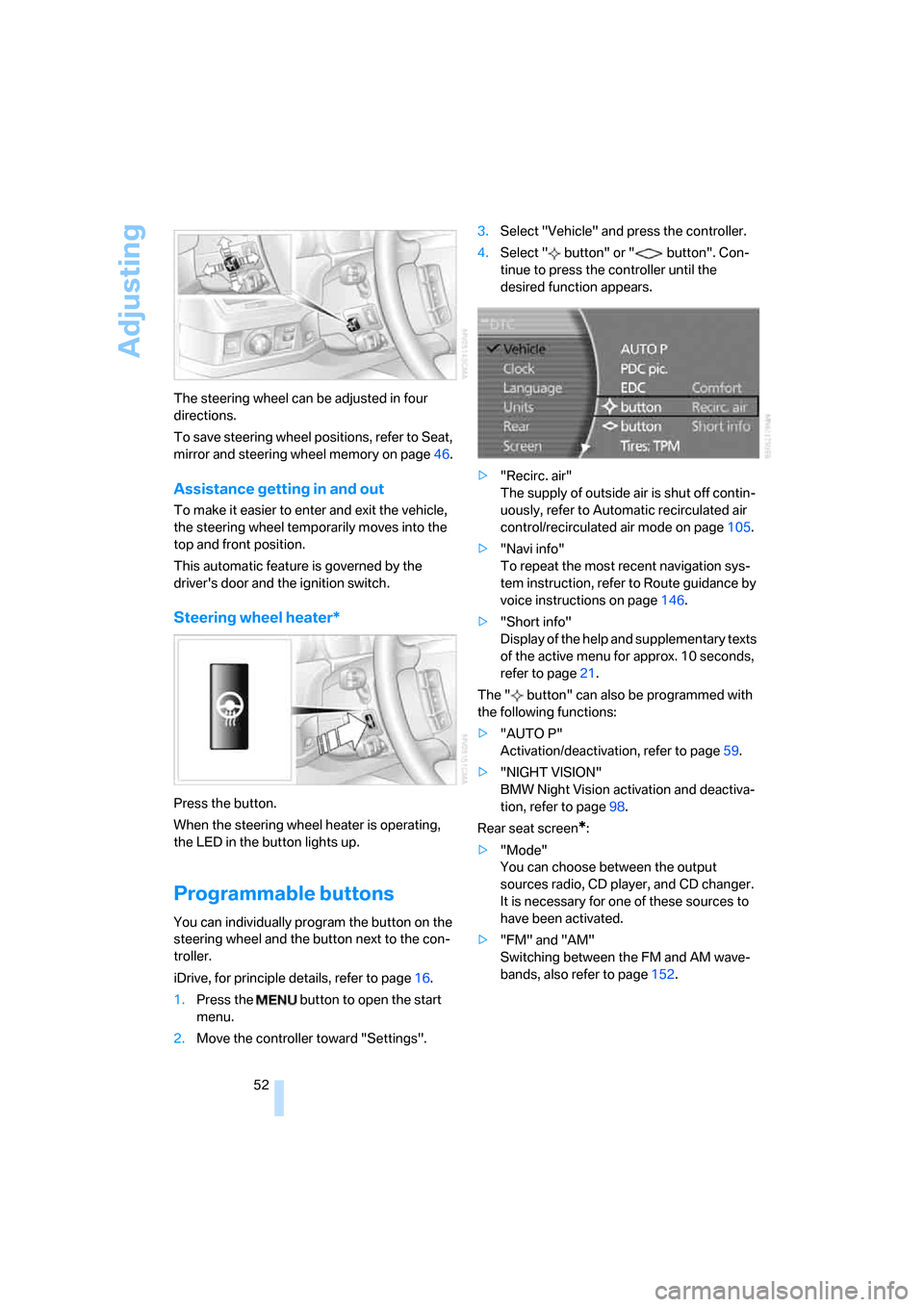
52 The steering wheel can be adjusted in four
directions.
To save steering wheel positions, refer to Seat,
mirror and steering wheel memory on page46.
Assistance getting in and out
To make it easier to enter and exit the vehicle,
the steering wheel temporarily moves into the
top and front position.
This automatic feature is governed by the
driver's door and the ignition switch.
Steering wheel heater*
Press the button.
When the steering wheel heater is operating,
the LED in the button lights up.
Programmable buttons
You can individually program the button on the
steering wheel and the button next to the con-
troller.
iDrive, for principle details, refer to page16.
1.Press the button to open the start
menu.
2.Move the controller toward "Settings".3.Select "Vehicle" and press the controller.
4.Select " button" or " button". Con-
tinue to press the controller until the
desired function appears.
>"Recirc. air"
The supply of outside air is shut off contin-
uously, refer to Automatic recirculated air
control/recirculated air mode on page105.
>"Navi info"
To repeat the most recent navigation sys-
tem instruction, refer to Route guidance by
voice instructions on page146.
>"Short info"
Display of the help and supplementary texts
of the active menu for approx. 10 seconds,
refer to page21.
The " button" can also be programmed with
the following functions:
>"AUTO P"
Activation/deactivation, refer to page59.
>"NIGHT VISION"
BMW Night Vision activation and deactiva-
tion, refer to page98.
Rear seat screen
*:
>"Mode"
You can choose between the output
sources radio, CD player, and CD changer.
It is necessary for one of these sources to
have been activated.
>"FM" and "AM"
Switching between the FM and AM wave-
bands, also refer to page152.
Page 61 of 254

Controls
59Reference
At a glance
Driving tips
Communications
Navigation
Entertainment
Mobility
It is only possible to disengage the parking
brake with the ignition on.
If exceptional circumstances should make it
necessary to engage the parking brake while
the vehicle is in motion, maintain pressure on
the button.
The indicator lamp on the Info Display lights up
in red, a chime sounds, and the brake lamps
light up.
The vehicle continues to brake forcefully for as
long as you maintain pressure on the button.
When you brake the vehicle almost to a stop,
i.e., down to a speed of approximately 2 mph/
3 km/h or below, the parking brake remains
engaged.
Manual release
Briefly press the button with the ignition
switched on.
The indicator lamp on the Info Display goes
out.
As long as the remote control is inserted
into the ignition lock, you can also release
the parking brake after the engine has been
switched off. This function is useful, for exam-
ple, in automatic car washes, refer to
page123<
When leaving the vehicle, always bring
the remote control with you; this precau-
tion prevents children from disengaging the
parking brake, for example.<
Automatic Hold
You can activate the system after starting the
engine; it then remains operational until the
next time the engine is switched off.
This feature provides additional assistance dur-
ing vehicle operation by automatically engaging
and releasing the parking brake during stops at
traffic lights, in stop-and-go traffic, etc. The
vehicle is automatically held in place so as to
suppress the tendency to creep when the
transmission is in drive.
It also prevents the vehicle from rolling back-
ward during uphill starts.
The parking brake engages automatically when
you stop the vehicle and switch off the engine.You can activate or deactivate Automatic Hold
via the "Settings" menu in iDrive.
Activation/deactivation
iDrive, for principle details, refer to page16.
1.Press the button to open the start
menu.
2.Move the controller toward "Settings".
3.Select "Vehicle" and press the controller.
4.Select "AUTO P". Press the controller to
activate/deactivate the desired function.
>Automatic Hold is activated.
The green AUTO P status message on the
Info Display indicates that the system is
ready for operation.
>Automatic Hold is deactivated.
The green AUTO P status message disap-
pears from the Info Display.
You can program the programmable but-
ton on the steering wheel with the Auto-
matic Hold function, refer to page52. This gives
you the option of being able to quickly activate
or deactivate Automatic Hold without distract-
ing your attention from the road.<
Driving
The parking brake engages automatically when
the vehicle comes to a stop.
The indicator lamp on Info Display lights up
green.
To start off again, simply press the accelerator
pedal. The parking brake is released automati-
cally; the indicator lamp goes out.
Do not drive through an automatic car
wash with the Automatic Hold on and the
engine running. Otherwise, the system will
Page 79 of 254

Controls
77Reference
At a glance
Driving tips
Communications
Navigation
Entertainment
Mobility
Cruising range
Displays the estimated cruising range available
with the remaining fuel. It is projected by taking
into account the driving style over the last
20 miles/30 km.
When your cruising range falls below
30 miles/50 km, be sure to refuel. Other-
wise, engine functions are not assured and
damage can occur.<
The computer only registers refueling amounts
greater than approx. 1.3 US gal/5 liters.
Distance to destination
When you enter a destination into the naviga-
tion system, refer to page131, or manually
enter a distance in the computer, refer to
page78, prior to departure, then the system
displays the remaining distance to your desti-
nation.
The system automatically adopts the distance
to your destination on the route recommended
by the navigation system.
When you enter a destination into the
navigation system, any manual distance
entries will be overwritten once the vehicle has
traveled approx. 1,640 ft/500 m of the calcu-
lated distance.<
Energy Control/current fuel
consumption
Shows the current fuel consumption. This
allows you to see whether your current driving
style is conducive to fuel economy with mini-
mum exhaust emissions.
Average fuel consumption
The average fuel consumption is determined
for the time during which the engine is running.
Average speed
Periods with the vehicle parked and the engine
off are not included in the calculations of aver-
age speed.
You can reset value for average fuel consump-
tion and average speed, refer to Resetting val-
ues, page78.
For different route segments
You can display the average speed and average
fuel consumption for two different route seg-
ments:
>refer to Displays on Control Display below
>refer to Trip computer on page78
Time of arrival
A display of your estimated time of arrival is
available whenever you enter a destination into
the navigation system, refer to page131, or
enter the distance manually into the computer,
refer to page78, prior to departure.
A prerequisite for this is that you have the
time set correctly, refer to page84.<
Displays on Control Display
You can also access the computer via iDrive, for
principle details, refer to page16.
1.Press the button to open the start
menu.
2.Move the controller toward "Car Data".
3.Select "BC" and press the controller.
>Anticipated arrival time at destination and
remaining distance:
>To enter a distance into the computer
manually, refer to Entering a distance
manually
>To enter a destination into the naviga-
tion system, refer to page131
>Cruising range
>Average fuel consumption
>Average speed
Page 80 of 254

Everything under control
78
Resetting values
You can reset values for the average speed and
average fuel consumption:
1.Activate the relevant menu item and press
the controller.
2.Press the controller again to confirm your
selection.
This also resets the information currently
shown on the Info Display.
Entering a distance manually
1.Select "To dest." and press the controller.
2.Turn the controller to set the distance to the
destination.
3.Press the controller to save the setting.
The distance to the destination is automatically
predetermined when using the navigation sys-
tem route guidance, refer to page144.
Using voice command system
Trip computer
The trip computer can be used, e.g. for a vaca-
tion trip.
iDrive, for principle details, refer to page16.
1.Press the button to open the start
menu.
2.Move the controller toward "Car Data".3.Select "BC " and press the controller.
>Departure time
>Driving time
>Distance traveled
>Average fuel consumption
>Average speed
To switch trip computer on/off and reset all val-
ues:
Select "START / RESET" and press the con-
troller.
To deactivate trip computer:
Select "STOP" and press the controller.
Service required
The distance or time period remaining until your
next service briefly appears when you switch on
the ignition.
Your Service Advisor will determine your
vehicle's current service requirements by
reading out the data stored in the remote con-
trol.<
With BMW Assist enabled, information about
maintenance status of your vehicle or informa-
tion about legally mandated inspections is
automatically transmitted before the relevant {On-board computer}.
Page 81 of 254
Controls
79Reference
At a glance
Driving tips
Communications
Navigation
Entertainment
Mobility
deadline, refer to Automatic service notification
on page190.
Additional information
You can view additional information on service
and maintenance procedures on the Control
Display.
iDrive, for principle details, refer to page16.
1.Press the button to open the start
menu.
2.Move the controller toward "Car Data".
3.Select and press the controller.
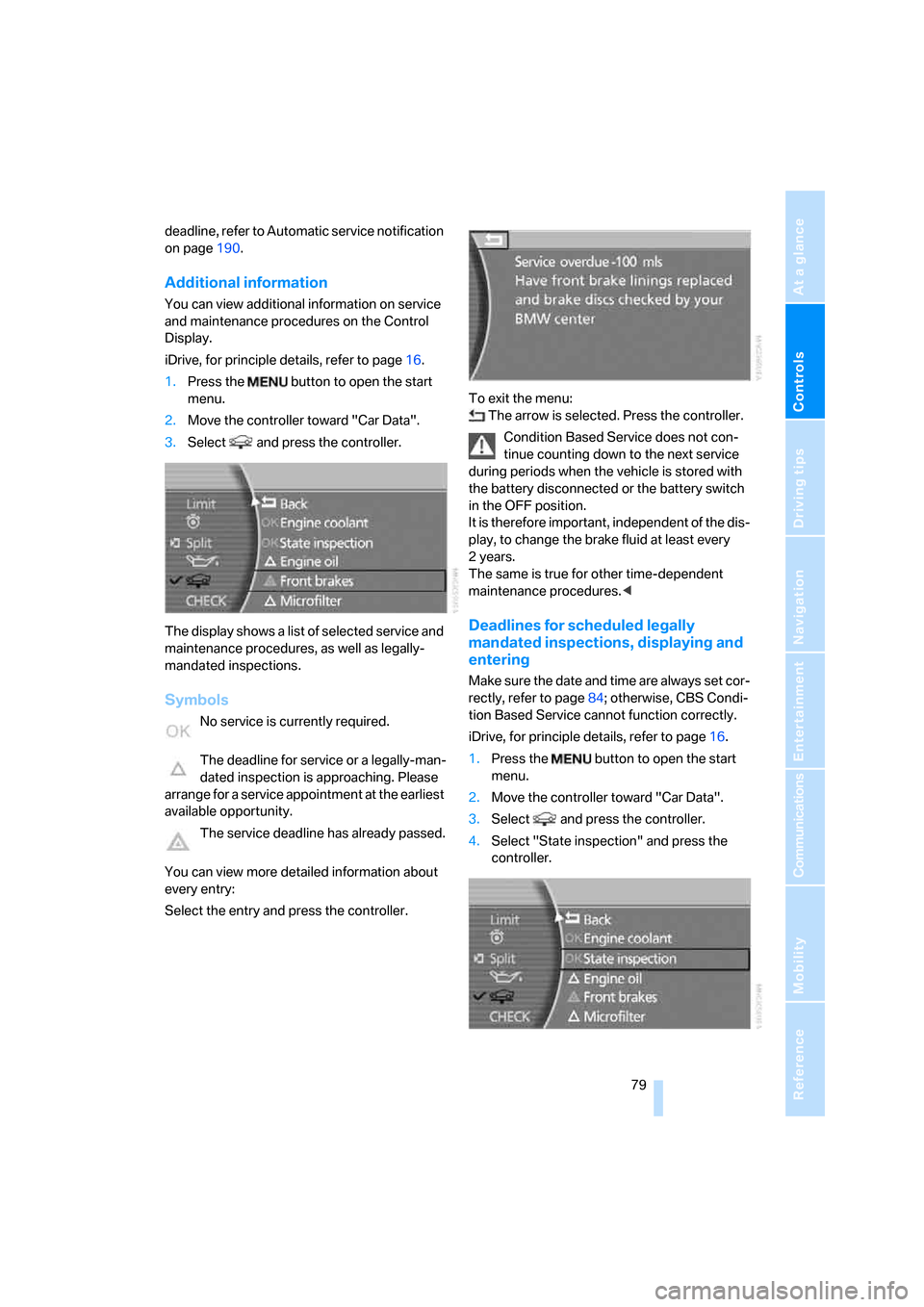
The display shows a list of selected service and
maintenance procedures, as well as legally-
mandated inspections.
Symbols
No service is currently required.
The deadline for service or a legally-man-
dated inspection is approaching. Please
arrange for a service appointment at the earliest
available opportunity.
The service deadline has already passed.
You can view more detailed information about
every entry:
Select the entry and press the controller.To exit the menu:
The arrow is selected. Press the controller.
Condition Based Service does not con-
tinue counting down to the next service
during periods when the vehicle is stored with
the battery disconnected or the battery switch
in the OFF position.
It is therefore important, independent of the dis-
play, to change the brake fluid at least every
2years.
The same is true for other time-dependent
maintenance procedures.<
Deadlines for scheduled legally
mandated inspections, displaying and
entering
Make sure the date and time are always set cor-
rectly, refer to page84; otherwise, CBS Condi-
tion Based Service cannot function correctly.
iDrive, for principle details, refer to page16.
1.Press the button to open the start
menu.
2.Move the controller toward "Car Data".
3.Select and press the controller.
4.Select "State inspection" and press the
controller.
Page 83 of 254

Controls
81Reference
At a glance
Driving tips
Communications
Navigation
Entertainment
Mobility
You can view additional information about most
Check Control messages, e.g. regarding the
cause of a malfunction and action required,
refer to Viewing additional information on
page81.
In urgent cases, this information will be shown
as soon as the corresponding lamp comes on.
An acoustic signal sounds at the same time.
To exit the menu:
The arrow is selected. Press the controller.
Hiding Check Control messages
Press the button on the turn signal lever.
Some Check Control messages are displayed
until the related malfunction is rectified: they
cannot be hidden. If several malfunctions occur
simultaneously, then the Check Control mes-
sages are displayed in sequence.
Other Check Control messages are hidden after
roughly 20 seconds, but remain stored in mem-
ory.
Viewing stored Check Control
messages
Using CHECK button
1.Press the button longer:
The first stored message is displayed.
2.Briefly press the button:
A new message appears each time you
press the button.
Viewing additional information
iDrive, for principle details, refer to page16.
1.Press the button to open the start
menu.
2.Move the controller toward "Car Data".
3.Select "CHECK" and press the controller.
The stored status reports appear on the
display.
Page 84 of 254
Everything under control
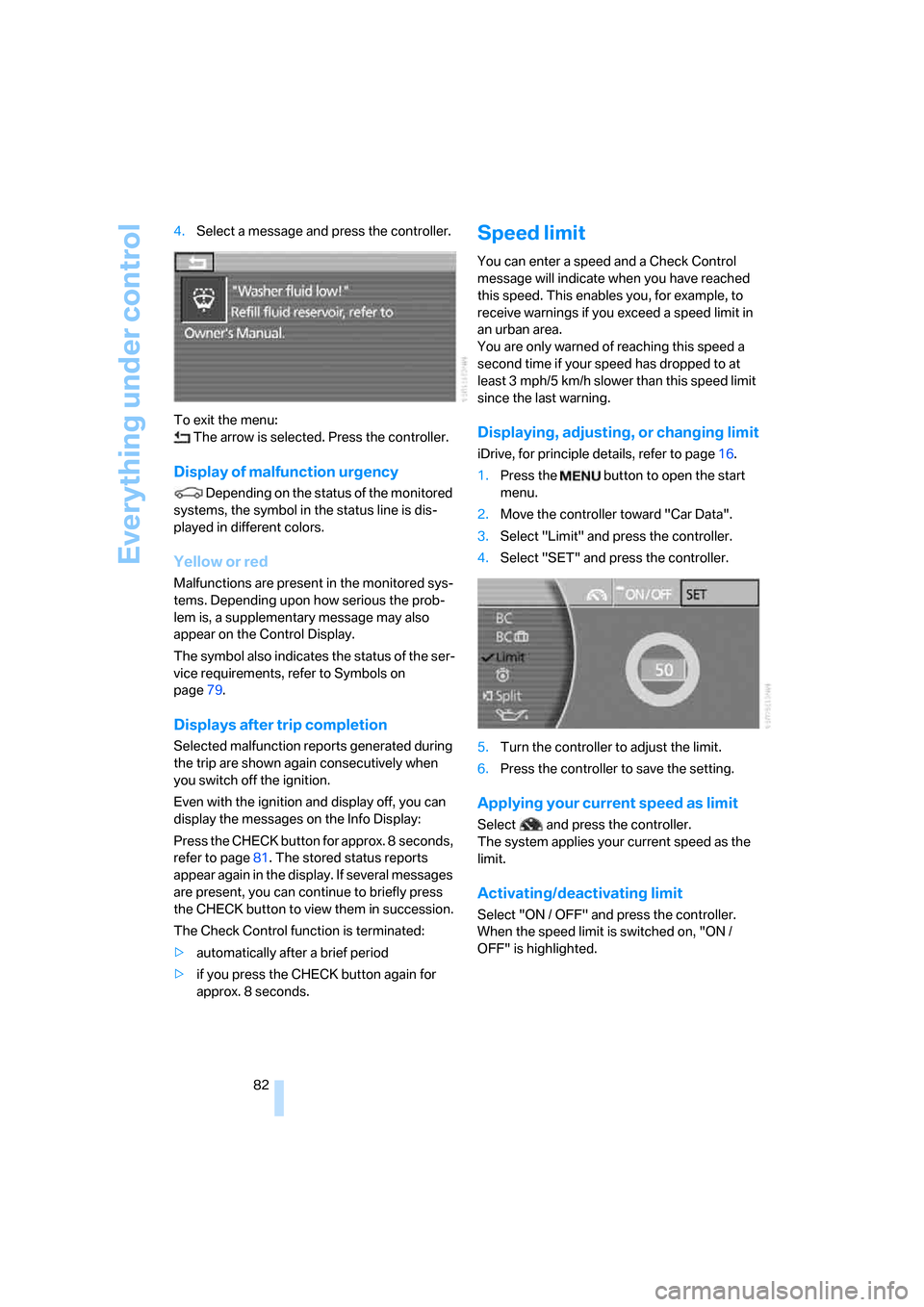
82 4.Select a message and press the controller.
To exit the menu:
The arrow is selected. Press the controller.
Display of malfunction urgency
Depending on the status of the monitored
systems, the symbol in the status line is dis-
played in different colors.
Yellow or red
Malfunctions are present in the monitored sys-
tems. Depending upon how serious the prob-
lem is, a supplementary message may also
appear on the Control Display.
The symbol also indicates the status of the ser-
vice requirements, refer to Symbols on
page79.
Displays after trip completion
Selected malfunction reports generated during
the trip are shown again consecutively when
you switch off the ignition.
Even with the ignition and display off, you can
display the messages on the Info Display:
Press the CHECK button for approx. 8 seconds,
refer to page81. The stored status reports
appear again in the display. If several messages
are present, you can continue to briefly press
the CHECK button to view them in succession.
The Check Control function is terminated:
>automatically after a brief period
>if you press the CHECK button again for
approx. 8 seconds.
Speed limit
You can enter a speed and a Check Control
message will indicate when you have reached
this speed. This enables you, for example, to
receive warnings if you exceed a speed limit in
an urban area.
You are only warned of reaching this speed a
second time if your speed has dropped to at
least 3 mph/5 km/h slower than this speed limit
since the last warning.
Displaying, adjusting, or changing limit
iDrive, for principle details, refer to page16.
1.Press the button to open the start
menu.
2.Move the controller toward "Car Data".
3.Select "Limit" and press the controller.
4.Select "SET" and press the controller.
5.Turn the controller to adjust the limit.
6.Press the controller to save the setting.
Applying your current speed as limit
Select and press the controller.
The system applies your current speed as the
limit.
Activating/deactivating limit
Select "ON / OFF" and press the controller.
When the speed limit is switched on, "ON /
OFF" is highlighted.
Page 85 of 254

Controls
83Reference
At a glance
Driving tips
Communications
Navigation
Entertainment
Mobility
Limit on Info Display
If, for instance, the advance warning field in the
tachometer is activated, refer to page75, then
the speed limit will be indicated by a warning
field in the speedometer, refer to arrow.
Stopwatch
Starting and stopping
iDrive, for principle details, refer to page16.
1.Press the button to open the start
menu.
2.Move the controller toward "Car Data".
3.Select and press the controller.
4.Select and press the controller. The stop-
watch is reset to 0 and starts.
5.Select and press the controller.
This stops the timer.
Press the controller again to reset the stop-
watch to zero.
All of the remaining functions remain
available at all times while the stopwatch
is running. The stopwatch continues to run in
the background.<
Taking an intermediate time reading
Select "INTERM. TIME" and press the control-
ler. This intermediate time appears below the
ongoing primary stopwatch count.
Assistance window for
onboard data
You can select any of the following computer
functions for display in the assistance window:
>Computer
>Trip computer
>Speed limit
>Stopwatch
Adopting display
iDrive, for principle details, refer to page16.
1.Press the button to open the start
menu.
2.Move the controller toward "Car Data".
3.Select "BC" and press the controller.
4.Select " Split" and press the controller.
The function appears in the assistance win-
dow.
You can also choose to view brief help texts
explaining selected menu items, refer to
page21, or the travel route with a navigation
system, refer to page130.