2008 BMW 4.8I phone
[x] Cancel search: phonePage 25 of 292
At a glance
23Reference
Controls
Driving tips
Communications
Navigation
Entertainment
Mobility
Voice command system
The concept
The voice command system allows you to con-
trol operation of various vehicle systems with-
out ever removing your hands from the steering
wheel.
Individual menu items on the Control Display
can be spoken as commands. This frees you of
having to use the controller.
The voice command system transforms your
oral commands into control signals for the
selected systems and provides support in the
form of instructions or questions.
The voice command system uses a special
microphone located in the area of the interior
rearview mirror, refer to page14.
Precondition
Via iDrive, set the language that applies for the
voice command system in order to enable iden-
tification of the spoken commands. To set the
language of iDrive, refer to page83.
Symbols in Owner's Manual
Voice commands
Activating voice command system
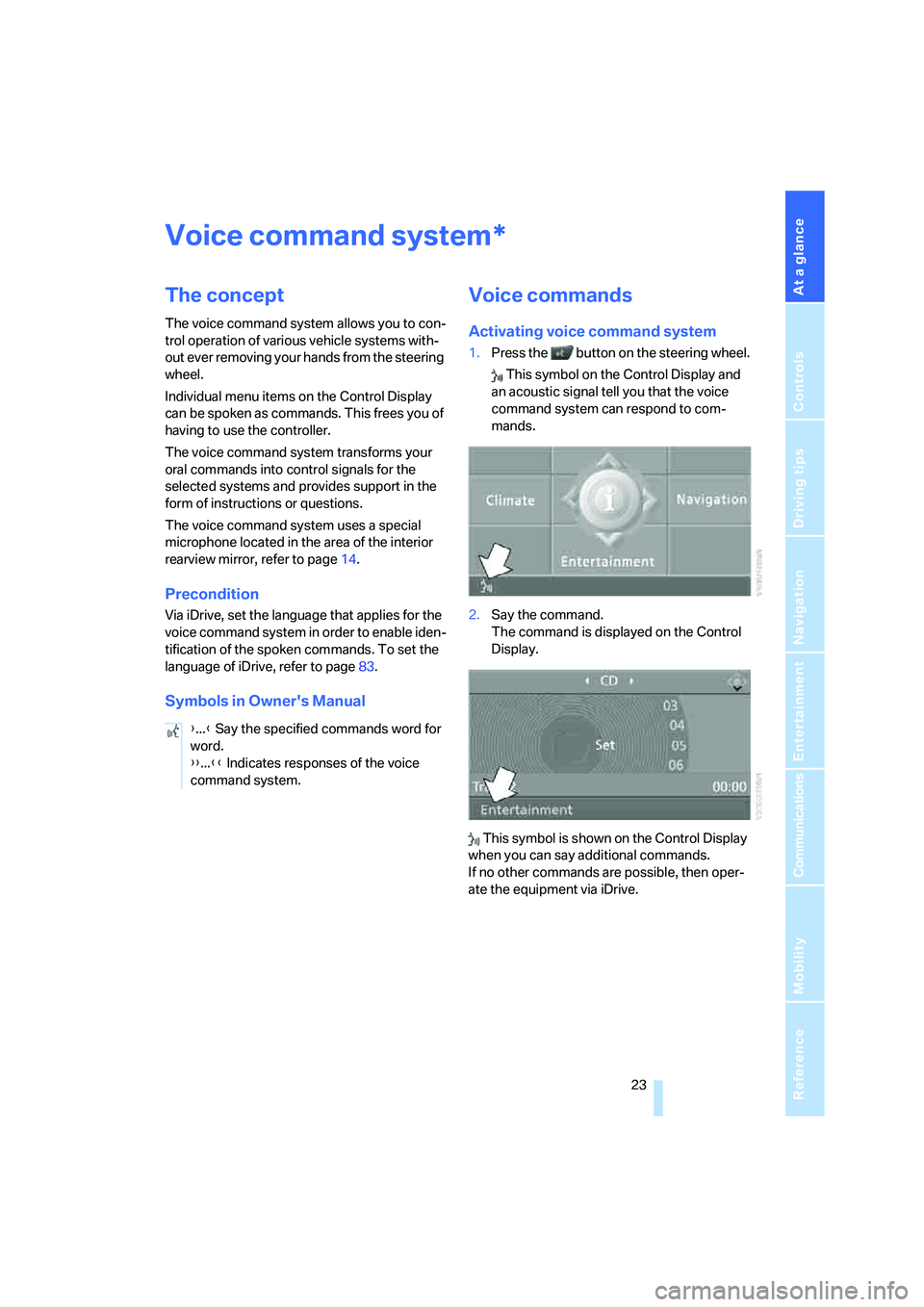
1.Press the button on the steering wheel.
This symbol on the Control Display and
an acoustic signal tell you that the voice
command system can respond to com-
mands.
2.Say the command.
The command is displayed on the Control
Display.
This symbol is shown on the Control Display
when you can say additional commands.
If no other commands are possible, then oper-
ate the equipment via iDrive.
*
{...} Say the specified commands word for
word.
{{...}} Indicates responses of the voice
command system.
Page 27 of 292
At a glance
25Reference
Controls
Driving tips
Communications
Navigation
Entertainment
Mobility
Notes
The mobile phone can also be operated
with voice commands, refer to
page219.<
For voice commands, bear the following in
mind:
>Say the commands and numbers smoothly
and at normal volume, avoiding excessive
emphases and pauses. This also applies to
spelling when entering the destination.
>Always issue commands in the language of
the voice command system.
>When selecting a radio station, use the
common pronunciation of the station name.
>For entries in the voice-activated phone
book, only use names in the language of the
voice command system and no abbrevia-
tions.
>Keep the doors, windows and panorama
glass sunroof
* closed to prevent interfer-
ence from ambient noise.
>Avoid making other noise in the vehicle
while speaking.
Page 31 of 292

Controls
29Reference
At a glance
Driving tips
Communications
Navigation
Entertainment
Mobility
>Settings for the display on the Control Dis-
play:
>Brightness of the Control Display, refer
to page82
>Measuring units for consumption, route/
distances, temperature, and pressure,
refer to page82
>Language on Control Display, refer to
page83
>12h/24h mode of the clock, refer to
page82
>Date format, refer to page82
>Showing optical warning for PDC Park Dis-
tance Control
*, refer to page85
>Selection, brightness and position of dis-
play in Head-Up Display
*, refer to page99
>Settings of automatic climate control, refer
to page107
>Positions of driver's seat, exterior mirrors,
and steering wheel
*, refer to page44
>With Adaptive Drive
*, last selected chassis
and suspension tuning setting, refer to
page91
>Audio sources, volume and tone settings,
refer to page163
>Radio, displaying stored stations, refer to
page166
>Telephone, setting volume, refer to
pages214,220
>Pathway lighting, refer to page103, and
daytime running lamps
*, refer to page103
>Triple turn signal activation, refer to
page67
>With rear view camera
*, selection of func-
tions, refer to page86, and type of display,
refer to page88
>With programmable memory/direct selec-
tion buttons, selection of stored functions,
refer to page21
Central locking system
The concept
The central locking system is ready for opera-
tion whenever the driver's door is closed.
The system simultaneously engages and
releases the locks on the following:
>Doors
>Liftgate
>Fuel filler door
Operating from outside
>via the remote control
>via the door lock
>with comfort access
* via the door handles
At the same time, the anti-theft system is also
operated. It prevents the doors from being
unlocked using the lock buttons or door han-
dles. The interior lamps and the courtesy
lamps
* are also switched on and off with the
remote control. The alarm system
is armed/dis-
armed at the same time.
You can find more detailed information on the
alarm system
on page35.
Operating from inside
Via the button for central locking, refer to
page32. The fuel filler door is not locked.
In an accident of sufficient severity, the central
locking system automatically unlocks the vehi-
cle. In addition, the hazard warning flashers and
interior lamps come on.
Opening and closing:
Using remote control
Persons or animals left unattended in a
parked vehicle can lock the doors from
the inside. Always take along the remote control
when leaving the vehicle so that the vehicle can
then be opened from the outside.<
Page 55 of 292
Controls
53Reference
At a glance
Driving tips
Communications
Navigation
Entertainment
Mobility
Easy entry/exit*
To facilitate entry and exit, the steering wheel
temporarily moves into the uppermost position.
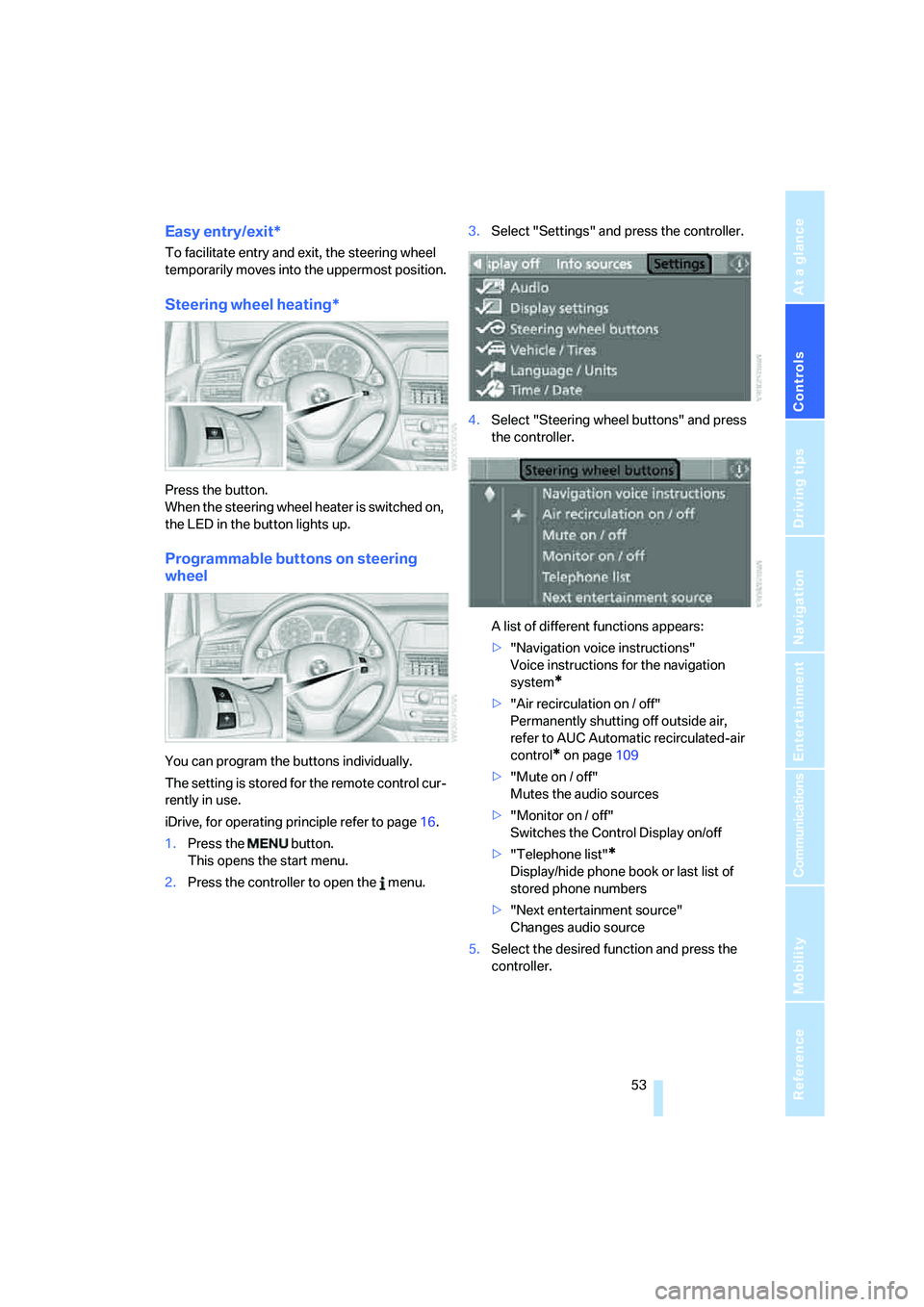
Steering wheel heating*
Press the button.
When the steering wheel heater is switched on,
the LED in the button lights up.
Programmable buttons on steering
wheel
You can program the buttons individually.
The setting is stored for the remote control cur-
rently in use.
iDrive, for operating principle refer to page16.
1.Press the button.
This opens the start menu.
2.Press the controller to open the menu.3.Select "Settings" and press the controller.
4.Select "Steering wheel buttons" and press
the controller.
A list of different functions appears:
>"Navigation voice instructions"
Voice instructions for the navigation
system
*
>"Air recirculation on / off"
Permanently shutting off outside air,
refer to AUC Automatic recirculated-air
control
* on page109
>"Mute on / off"
Mutes the audio sources
>"Monitor on / off"
Switches the Control Display on/off
>"Telephone list"
*
Display/hide phone book or last list of
stored phone numbers
>"Next entertainment source"
Changes audio source
5.Select the desired function and press the
controller.
Page 121 of 292
Controls
119Reference
At a glance
Driving tips
Communications
Navigation
Entertainment
Mobility
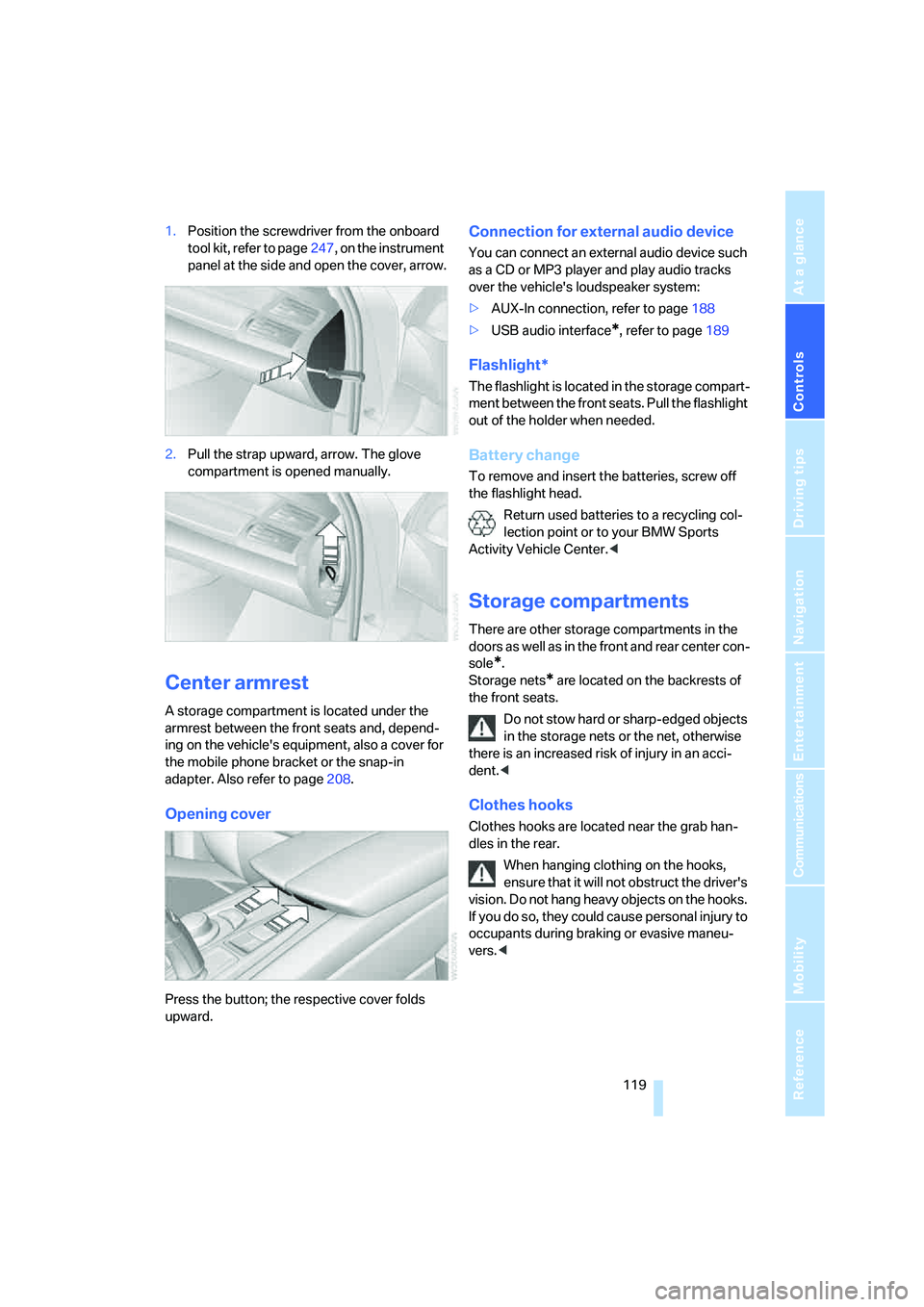
1.Position the screwdriver from the onboard
tool kit, refer to page247, on the instrument
panel at the side and open the cover, arrow.
2.Pull the strap upward, arrow. The glove
compartment is opened manually.
Center armrest
A storage compartment is located under the
armrest between the front seats and, depend-
ing on the vehicle's equipment, also a cover for
the mobile phone bracket or the snap-in
adapter. Also refer to page208.
Opening cover
Press the button; the respective cover folds
upward.
Connection for external audio device
You can connect an external audio device such
as a CD or MP3 player and play audio tracks
over the vehicle's loudspeaker system:
>AUX-In connection, refer to page188
>USB audio interface
*, refer to page189
Flashlight*
The flashlight is located in the storage compart-
ment between the front seats. Pull the flashlight
out of the holder when needed.
Battery change
To remove and insert the batteries, screw off
the flashlight head.
Return used batteries to a recycling col-
lection point or to your BMW Sports
Activity Vehicle Center.<
Storage compartments
There are other storage compartments in the
doors as well as in the front and rear center con-
sole
*.
Storage nets
* are located on the backrests of
the front seats.
Do not stow hard or sharp-edged objects
in the storage nets or the net, otherwise
there is an increased risk of injury in an acci-
dent.<
Clothes hooks
Clothes hooks are located near the grab han-
dles in the rear.
When hanging clothing on the hooks,
ensure that it will not obstruct the driver's
vision. Do not hang heavy objects on the hooks.
If you do so, they could cause personal injury to
occupants during braking or evasive maneu-
vers.<
Page 146 of 292
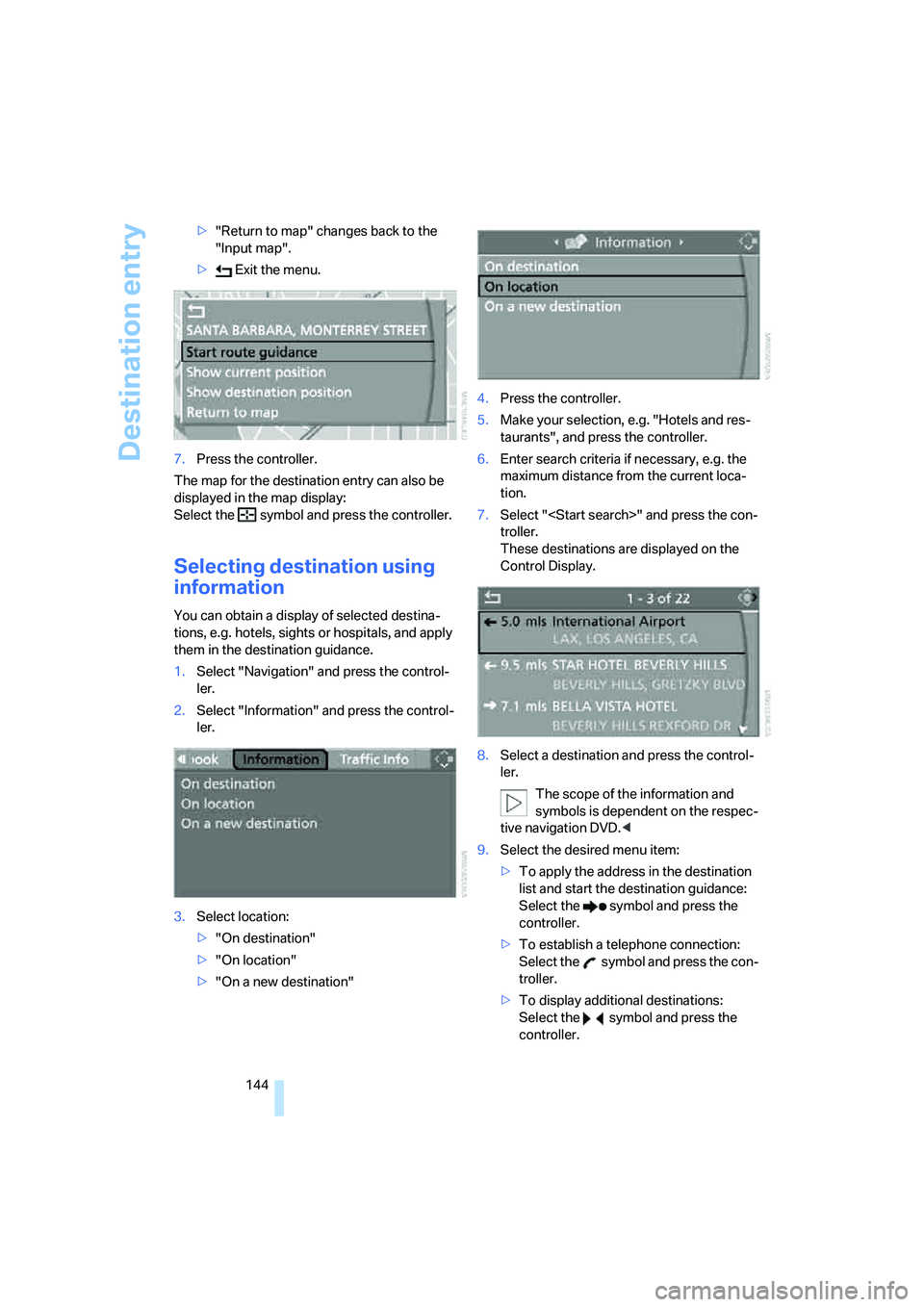
Destination entry
144 >"Return to map" changes back to the
"Input map".
> Exit the menu.
7.Press the controller.
The map for the destination entry can also be
displayed in the map display:
Select the symbol and press the controller.
Selecting destination using
information
You can obtain a display of selected destina-
tions, e.g. hotels, sights or hospitals, and apply
them in the destination guidance.
1.Select "Navigation" and press the control-
ler.
2.Select "Information" and press the control-
ler.
3.Select location:
>"On destination"
>"On location"
>"On a new destination"4.Press the controller.
5.Make your selection, e.g. "Hotels and res-
taurants", and press the controller.
6.Enter search criteria if necessary, e.g. the
maximum distance from the current loca-
tion.
7.Select "
troller.
These destinations are displayed on the
Control Display.
8.Select a destination and press the control-
ler.
The scope of the information and
symbols is dependent on the respec-
tive navigation DVD.<
9.Select the desired menu item:
>To apply the address in the destination
list and start the destination guidance:
Select the symbol and press the
controller.
>To establish a telephone connection:
Select the symbol and press the con-
troller.
>To display additional destinations:
Select the symbol and press the
controller.
Page 174 of 292
Satellite radio
172
Satellite radio
You can receive over 100 different channels
with high sound quality.
The channels are offered to you in predefined
packages. To receive the channels of your
choice, you must have this package enabled.
With this new technology the signal may
fail, causing interruptions in reception.<
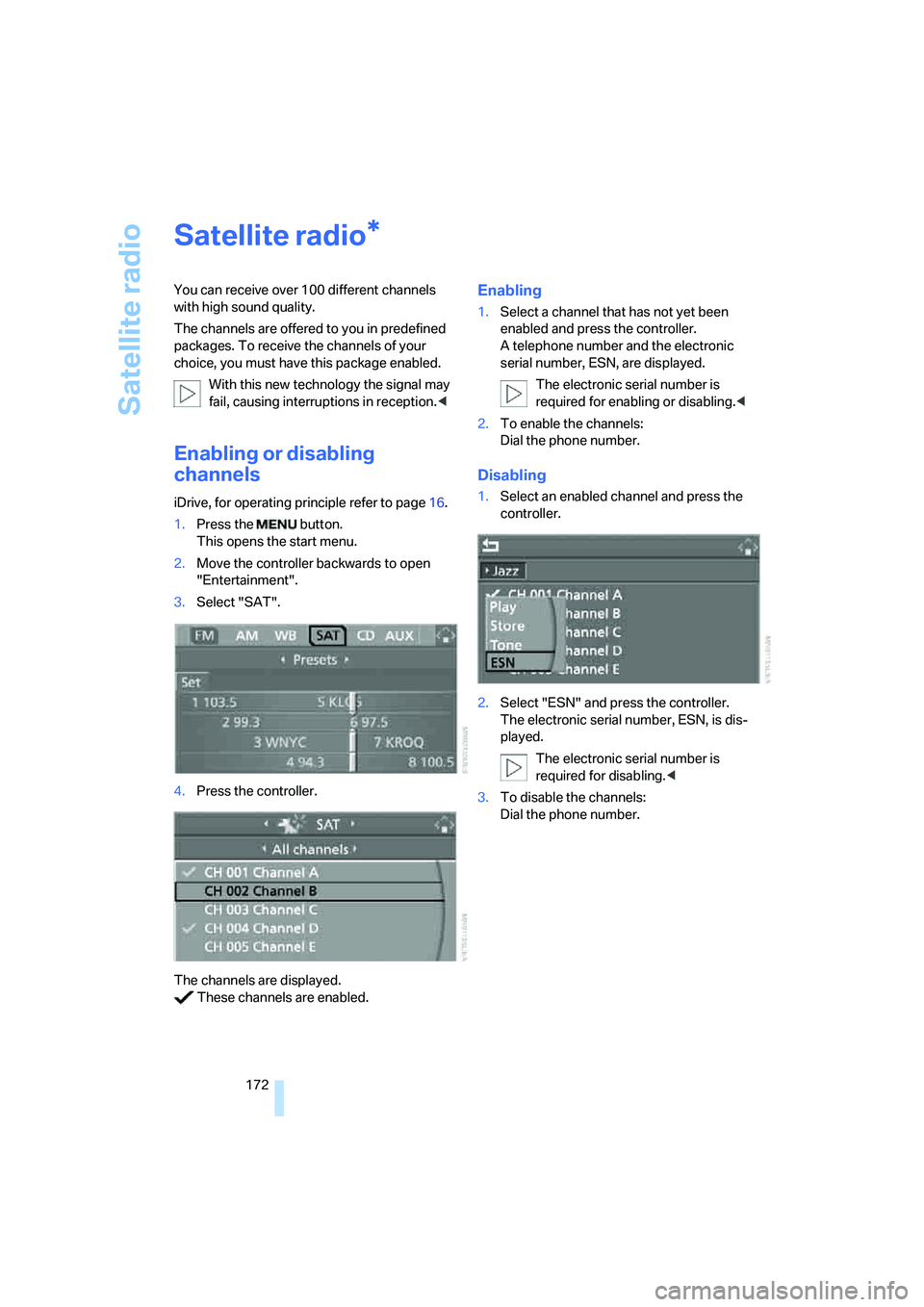
Enabling or disabling
channels
iDrive, for operating principle refer to page16.
1.Press the button.
This opens the start menu.
2.Move the controller backwards to open
"Entertainment".
3.Select "SAT".
4.Press the controller.
The channels are displayed.
These channels are enabled.
Enabling
1.Select a channel that has not yet been
enabled and press the controller.
A telephone number and the electronic
serial number, ESN, are displayed.
The electronic serial number is
required for enabling or disabling.<
2.To enable the channels:
Dial the phone number.
Disabling
1.Select an enabled channel and press the
controller.
2.Select "ESN" and press the controller.
The electronic serial number, ESN, is dis-
played.
The electronic serial number is
required for disabling.<
3.To disable the channels:
Dial the phone number.
*
Page 190 of 292
AUX-In connection
188
AUX-In connection
You can connect an external audio device, e.g.
an MP3 player, and play the sound via the vehi-
cle loudspeakers. The sound can be adjusted
via iDrive.
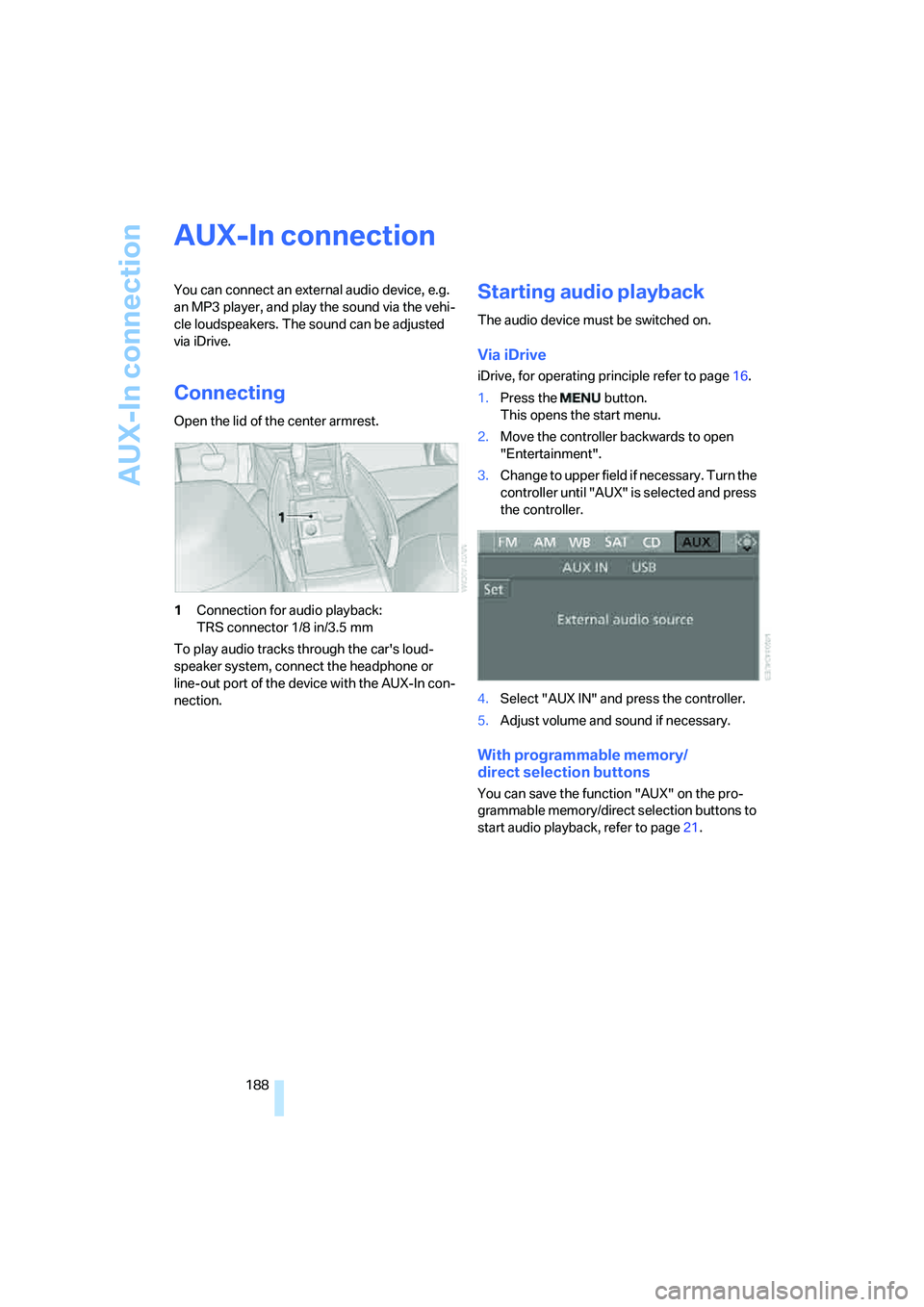
Connecting
Open the lid of the center armrest.
1Connection for audio playback:
TRS connector 1/8 in/3.5 mm
To play audio tracks through the car's loud-
speaker system, connect the headphone or
line-out port of the device with the AUX-In con-
nection.
Starting audio playback
The audio device must be switched on.
Via iDrive
iDrive, for operating principle refer to page16.
1.Press the button.
This opens the start menu.
2.Move the controller backwards to open
"Entertainment".
3.Change to upper field if necessary. Turn the
controller until "AUX" is selected and press
the controller.
4.Select "AUX IN" and press the controller.
5.Adjust volume and sound if necessary.
With programmable memory/
direct selection buttons
You can save the function "AUX" on the pro-
grammable memory/direct selection buttons to
start audio playback, refer to page21.