Page 153 of 225
140
5U5262G
5. When you complete the setting, touch
.
�Initializing the Bluetooth� settings.
You can initialize the settings.
5U5263G
1. Touch “Default”.
5U5264G
2. Touch “YES”.
�Deleting a Bluetooth� phone
5U5265G
1. Touch “Delete” of “Bluetooth∗
Telephone”.
5U5266G
2. Select the telephone you want to delete
and touch “OK”.
∗: Bluetooth is a registered trademark of
Bluetooth SIG. Inc.
Page 154 of 225
141
5U5267G
3. Touch “YES”.
�Displaying the information of the Blue-
tooth� phone you delete
You can display the information of the
Bluetooth
� phone before you delete it and
you can make sure whether the telephone
you delete is correct or not.
5U5268G
1. Select the telephone you want to dis-
play the information about.
5U5239G
2. When you complete confirming it,
touch
.
Speech command system
The speech command system enables
you to operate the navigation system by
giving a command.
5U5003
1. Push the speech command switch.
A beep sounds and on screen message is
displayed with an indicator at the top left.
Page 160 of 225

147
(c) Rear system lock
(with rear seat entertainment
system)
If the vehicle is equipped with the rear seat
entertainment system, the rear seat enter-
tainment system can be locked to prevent
rear passengers from operating the enter-
tainment system.
RS02019
Select “ON” or “OFF” and then touch
“OK”.
“ON”: The rear passengers cannot operate
the rear seat entertainment system. Only
front passengers can operate the system.
“OFF”: Both the front and rear passengers
can operate the rear seat entertainment sys-
tem.
Delete personal data
The following personal data can be de-
leted or returned to their default settings:
Information
�Maintenance conditions
�Maintenance information “off” setting
Navigation system
�Memory points
�Areas to avoid
�Previous points
�Route trace
�User selection settings
Handsfree system
�Phone book data
�Dialed numbers and received calls
�Speed dial
�Bluetooth� phone data
�Security code
This function is available only when the
vehicle is not moving.
RS02019
1. Touch “Delete personal data”. The
“Delete personal data” screen appears.
Page 171 of 225
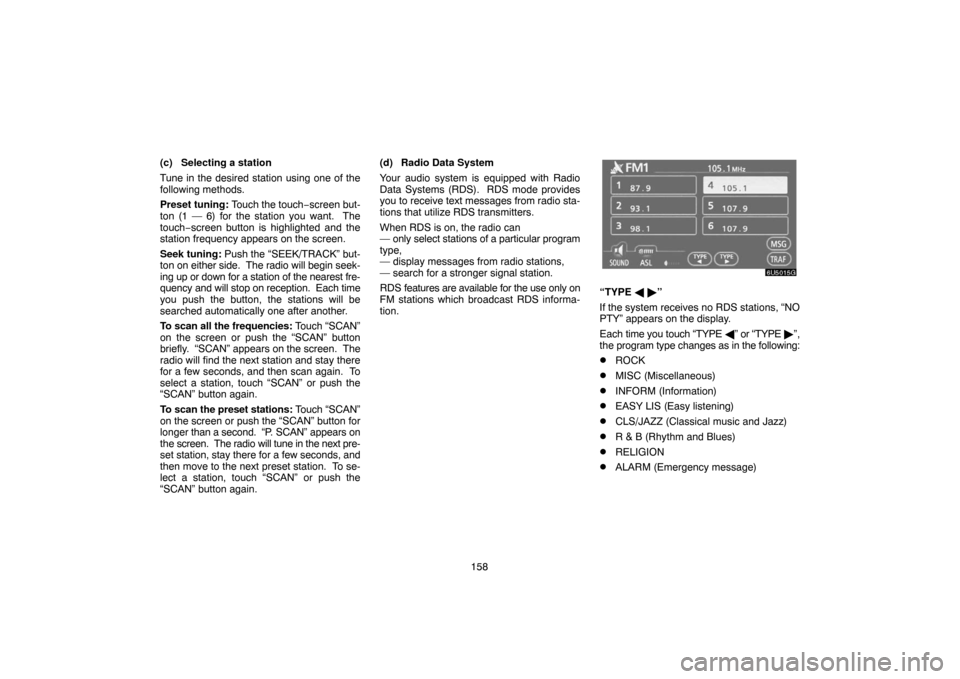
158 (c) Selecting a station
Tune in the desired station using one of the
following methods.
Preset tuning: Touch the touch−screen but-
ton (1 — 6) for the station you want. The
touch−screen button is highlighted and the
station frequency appears on the screen.
Seek tuning: Push the “SEEK/TRACK” but-
ton on either side. The radio will begin seek-
ing up or down for a station of the nearest fre-
quency and will stop on reception. Each time
you push the button, the stations will be
searched automatically one after another.
To scan all the frequencies: Touch “SCAN”
on the screen or push the “SCAN” button
briefly. “SCAN” appears on the screen. The
radio will find the next station and stay there
for a few seconds, and then scan again. To
select a station, touch “SCAN” or push the
“SCAN” button again.
To scan the preset stations: Touch “SCAN”
on the screen or push the “SCAN” button for
longer than a second. “P. SCAN” appears on
the screen. The radio will tune in the next pre-
set station, stay there for a few seconds, and
then move to the next preset station. To se-
lect a station, touch “SCAN” or push the
“SCAN” button again.(d) Radio Data System
Your audio system is equipped with Radio
Data Systems (RDS). RDS mode provides
you to receive text messages from radio sta-
tions that utilize RDS transmitters.
When RDS is on, the radio can
— only select stations of a particular program
type,
— display messages from radio stations,
— search for a stronger signal station.
RDS features are available for the use only on
FM stations which broadcast RDS informa-
tion.
6U5015G
“TYPE � �”
If the system receives no RDS stations, “NO
PTY” appears on the display.
Each time you touch “TYPE �” or “TYPE �”,
the program type changes as in the following:
�ROCK
�MISC (Miscellaneous)
�INFORM (Information)
�EASY LIS (Easy listening)
�CLS/JAZZ (Classical music and Jazz)
�R & B (Rhythm and Blues)
�RELIGION
�ALARM (Emergency message)
Page:
< prev 1-8 9-16 17-24

