2007 SUZUKI XL7 lock
[x] Cancel search: lockPage 148 of 274

3-66 INSTRUMENT PANEL
78J00-03E
Radio Display Message Condition Action Required
CAT Not Found No channel available for the chosen
categoryThere are no channels available for the selected category.
The system is working properly.
XM Theft Locked Theft lock active The XM
TM receiver in the vehicle could have previously been
in another vehicle. For security purposes, XM
TM receivers
cannot be swapped between vehicles. If this message
appears after having your vehicle serviced, check with your
dealer.
XM Radio ID Radio ID label (channel 0) If tuned to channel 0, this message alternates with the XM
TM
Radio eight digit radio ID label. This label is needed to acti-
vate the service.
Unknown Radio ID not known
(should only be if hardware failure)If this message is received when tuned to channel 0, there
could be a receiver fault. Consult with your dealer.
Check XM Receivr Hardware failure If this message does not clear within a short period of time,
the receiver could have a fault. Consult with your dealer.
XM Not Available XM
TM Not Available If this message does not clear within a short period of time,
the receiver could have a fault. Consult with your dealer.
Page 149 of 274

3-67 INSTRUMENT PANEL
78J00-03E
Navigation/Radio SystemYour vehicle may have a navigation radio
system.
The navigation radio system has built-in
features intended to minimize driver dis-
traction. Technology alone, no matter how
advanced, can never replace your own
judgment. For complete information on
your navigation radio system, including tips
on helping to reduce distractions while
driving, see the Navigation System Man-
ual.Rear Seat Entertainment SystemYour vehicle may have a DVD Rear Seat
Entertainment (RSE) system. The RSE
system works with the vehicle's audio sys-
tem. The DVD player is part of the front
radio. The RSE system includes a radio
with a DVD player, a video display screen,
audio/video jacks, two wireless head-
phones, and a remote control. Refer to
“Radio with CD and DVD (MP3)” in this
section for more information on the vehi-
cle’s audio/DVD system.
Before You Drive
The RSE is designed for rear seat passen-
gers only. The driver cannot safely view
the video screen while driving and should
not try to do so.
In severe or extreme weather conditions
the RSE system may or may not work until
the temperature is within the operating
range. The operating range for the RSEsystem is above –4°F (–20°C) or below
140°F (60°C). If the temperature of your
vehicle is outside of this range, heat or
cool the vehicle until the temperature is
within the operating range of the RSE sys-
tem.
Parental Control
The RSE system may have a Parental
Control feature, depending on which radio
you have. The Parental Control feature will
turn off the video screen. This feature also
disables all button operations from the
remote control. This feature can be used to
gain the attention of the rear passengers
that are using headphones.
To enable Parental Control press and hold
the radio power button for more than two
seconds. If on, the radio and video screen
will turn off. If a DVD and/or CD is playing,
it will be stopped. A “padlock” icon or a text
message may be displayed on the radio
display depending on which radio you
have, while Parental Control is on. The
radio can be turned back on with a single
press of the power button and used nor-
mally, but the RSE system will remain in
Parental Control.
To turn off Parental Control, press and
hold the radio power button for more than
two seconds. The video screen will return
to the state they were in before Parental
Control was turned on. The padlock icon
will disappear from the radio display.Parental Control can also be turned off by
inserting or ejecting any disc, an ignition
cycle, or pressing the play icon on the
radio DVD display menu.
Headphones
1674951
The RSE includes two 2-channel wireless
headphones that are dedicated to this sys-
tem. These headphones are used to listen
to media such as CDs, DVDs, MP3s,
DVDAs, radio, or any auxiliary source con-
nected to the auxiliary input jack, if your
vehicle has this feature or A/V jacks. The
wireless headphones have an On/Off but-
ton, channel 1/2 switch, and a volume con-
trol.
If your vehicle has a third row video screen
display, it will have two additional head-
phones.
Page 151 of 274

3-69 INSTRUMENT PANEL
78J00-03E
Power for auxiliary devices is not supplied
by the radio system.
To use the auxiliary inputs of the RSE sys-
tem, connect an external auxiliary device
to the color-coded A/V jacks and turn both
the auxiliary device and the video screen
power on. If the video screen is in the DVD
player mode, pressing the AUX button on
the remote control will switch the video
screen from the DVD player mode to the
auxiliary device. The radio can listen to the
audio of the connected auxiliary device by
sourcing to auxiliary. Refer to “Radio with
CD and DVD (MP3)” in this section for
more information.
How to Change the RSE Video Screen
Settings
The screen display mode (normal, full, and
zoom), screen brightness, and setup menu
language can be changed from the on
screen setup menu. To change any fea-
ture, perform the following:
1) Press the display menu button on the
remote control.
2) Use the remote control menu naviga-
tion arrows and the enter button to use
the setup menu.
3) Press the display menu button again to
remove the setup menu from the
screen.Audio Output
Audio from the DVD player or auxiliary
inputs may be heard through the following
possible sources:
Wireless Headphones
Vehicle Speakers
The RSE system will always transmit the
audio signal to the wireless headphones, if
there is audio available. See “Head-
phones” earlier in this section for more
information.
When a device is connected to the radio’s
auxiliary input jack, if your vehicle has this
feature, or A/V jacks, the rear seat passen-
gers will be able to hear audio from the
auxiliary device through the wireless or
wired headphones. The front seat passen-
gers will be able to listen to playback from
this device through the vehicle speakers by
selecting AUX as the source on the radio.
Video Screen
The video screen is located in the RSE
overhead console.
To use the video screen, do the following:
1) Push the release button located on the
RSE overhead console.
2) Rotate the screen to the desired posi-
tion.
When the video screen is not in use, push
it up into its locked position.If a DVD is playing and the screen is raised
to its locked position, the screen will
remain on, this is normal, and the DVD will
continue to play through the previous audio
source. Use the remote control power but-
ton or eject the disc to turn off the screen.
The RSE overhead console contains the
infrared receivers for the wireless head-
phones and the infrared receivers for the
remote control. They are located at the
rear of the console.
CAUTION
Avoid directly touching the video
screen, as damage may occur. See
“Cleaning the Video Screen” later in
this section for more information.
Page 152 of 274

3-70 INSTRUMENT PANEL
78J00-03E
Remote Control
To use the remote control, aim it at the
transmitter window at the rear of the RSE
overhead console and press the desired
button. Direct sunlight or very bright light
may affect the ability of the RSE transmit-
ter to receive signals from the remote con-
trol. If the remote control does not seem to
be working, the batteries may need to be
replaced. See “Battery Replacement” later
in this section. Objects blocking the line of
sight may also affect the function of the
remote control.
If a CD or DVD is in the Radio DVD slot,
the remote control power button can be
used to turn on the video screen display
and start the disc. The radio can also turn
on the video screen display. Refer to
“Radio with CD and DVD (MP3)” in this
section for more information.Remote control buttons
1523717
(Power):
Press this button to turn the video screen
on and off.
(Illumination):
Press this button to turn the remote control
backlight on. The backlight will automati-
cally time out after seven to ten seconds if
no other button is pressed while the back-
light is on.
(Title):
Press this button to return the DVD to the
main menu of the DVD. This function may
vary for each disc.
(Main Menu):
Press this button to access the DVD menu.
The DVD menu is different on every DVD.
Use the up, down, left, and right arrow but-
tons to move the cursor around the DVD
menu. After making a selection press theenter button. This button only operates
when using a DVD.
, , , (Menu Navigation
Arrows):
Use the arrow buttons to navigate through
a menu.
(Enter):
Press this button to select the choice that
is highlighted in any menu.
(Display Menu):
Press this button to adjust the brightness,
screen display mode (normal, full, or
zoom), and display the language menu.
(Return):
Press this button to exit the current active
menu and return to the previous menu.
This button will operate only when the dis-
play menu or a DVD menu is active.
(Stop):
Press this button to stop playing, rewind-
ing, or fast forwarding a DVD. Press this
button twice to return to the beginning of
the DVD.
(Play/Pause):
Press this button to start playing a DVD.
Press this button while a DVD is playing to
pause it. Press it again to continue playing
the DVD.
When the DVD is playing, depending on
the radio, you may be able to do slow play
by pressing the pause button then pressing
the fast forward button. The DVD will con-
CAUTION
Storing the remote control in a hot
area or in direct sunlight can damage
it, and the repairs will not be covered
by your warranty. Keep the remote
control stored in a cool, dry place.
Page 155 of 274

3-73 INSTRUMENT PANEL
78J00-03E
DVD Display Error Messages
The DVD display error message depends
on which radio you have. The video screen
may display one of the following:
Disc Load/Eject Error:
This message is displayed when there are
disc load or eject problems.
Disc Format Error:
This message will be displayed, if the disc
is inserted with the disc label wrong side
up, or if the disc is damaged.
Disc Region Error:
This message will be displayed, if the disc
is not from a correct region.
No Disc Inserted:
This message will be displayed, if no disc
is present when the EJECT button is
pressed on the radio.
DVD Distortion
Video distortion may occur when operating
cellular phones, scanners, CB radios, Glo-
bal Position Systems (GPS)*, two-way
radios, mobile fax, or walkie talkies.
It may be necessary to turn off the DVD
player when operating one of these
devices in or near the vehicle.
Cleaning the RSE Overhead Console
When cleaning the RSE overhead console
surface, use only a clean cloth dampened
with clean water.Cleaning the Video Screen
When cleaning the video screen, use only
a clean cloth dampened with clean water.
Use care when directly touching or clean-
ing the screen, as damage may result.
Theft-Deterrent FeatureTHEFTLOCK
® is designed to discourage
theft of your vehicle’s radio. The feature
works automatically by learning a portion
of the Vehicle Identification Number (VIN).
If the radio is moved to a different vehicle,
it does not operate and LOCKED displays.
With THEFTLOCK
® activated, the radio
cannot operate if stolen.
Audio Steering Wheel Controls
1673270
If your vehicle has audio steering wheel
controls, they may be differ depending onyour vehicle’s options. Some audio con-
trols can be adjusted at the steering wheel.
They include the following:
(Next/Previous):
Press the up or the down arrow to go to the
next or to the previous radio station stored
as a favorite.
When a CD/DVD is playing, press the up
or the down arrow to go to the next or pre-
vious track or chapter.
(Mute/Voice Recognition):
Press and release this button to silence
the vehicle speakers only. The audio of the
wireless and wired headphones, if your
vehicle has these features, will not be
muted. Press and release this button
again, to turn the sound on.
If your vehicle has the navigation system,
press and hold this button for longer than
one second to initiate voice recognition.
See “Voice Recognition” in the Navigation
System manual for more information.
SRCE (Source):
Press this button to switch between the
radio (AM, FM), XM (if equipped), CD, and
if your vehicle has these features, DVD,
front auxiliary, and rear auxiliary.
(Volume):
Press the plus or minus button to increase
or to decrease the radio volume.
Page 162 of 274

4-4 DRIVING YOUR VEHICLE
78J00-03E
Anti-Lock Brake System (ABS)
Your vehicle has the Anti-Lock Brake Sys-
tem (ABS), an advanced electronic braking
system that will help prevent a braking
skid.
When you start the engine and begin to
drive away, ABS will check itself. You may
hear a momentary motor or clicking noise
while this test is going on, and you may
even notice that the brake pedal moves a
little. This is normal.
807057
If there is a problem with ABS, this warning
light will stay on. Refer to “Anti-Lock Brake
System Warning Light” in “Warning Lights,
Gages, and Indicators” in the “Instrument
Panel” section.
1527213
Let us say the road is wet and you are driv-
ing safely. Suddenly, an animal jumps out
in front of you. You slam on the brakes and
continue braking. Here is what happens
with ABS:
A computer senses that wheels are slow-
ing down. If one of the wheels is about to
stop rolling, the computer will separately
work the brakes at each wheel.
ABS can change the brake pressure faster
than any driver could. The computer is pro-
grammed to make the most of available tire
and road conditions. This can help you
steer around the obstacle while braking
hard.
1527212
As you brake, the computer keeps receiv-
ing updates on wheel speed and controls
braking pressure accordingly.
Remember: ABS does not change the time
you need to get your foot up to the brake
pedal or always decrease stopping dis-
tance. If you get too close to the vehicle in
front of you, you will not have time to apply
the brakes if that vehicle suddenly slows or
stops. Always leave enough room up
ahead to stop, even though you have ABS.
Using ABS
Do not pump the brakes. Just hold the
brake pedal down firmly and let anti-lock
work for you. You may hear the anti-lock
pump or motor operate, and feel the brake
pedal pulsate, but this is normal.
Page 165 of 274
4-7 DRIVING YOUR VEHICLE
78J00-03E
favorable conditions you will want to go
slower.
If you need to reduce your speed as you
approach a curve, do it before you enter
the curve, while your front wheels are
straight ahead.
Try to adjust your speed so you can “drive”
through the curve. Maintain a reasonable,
steady speed. Wait to accelerate until you
are out of the curve, and then accelerate
gently into the straightaway.
Adding non-Suzuki accessories can affect
your vehicle’s performance. Refer to
“Accessories and Modifications” in “Ser-
vice” in the “Service and Appearance
Care” section.
Steering in Emergencies
There are times when steering can be
more effective than braking. For example,
you come over a hill and find a truck
stopped in your lane, or a car suddenly
pulls out from nowhere, or a child darts out
from between parked cars and stops right
in front of you. You can avoid these prob-
lems by braking – if you can stop in time.
But sometimes you cannot; there is not
room. That is the time for evasive action –
steering around the problem.
Your vehicle can perform very well in
emergencies like these. First apply your
brakes.
Refer to “Braking” in this section. It is bet-
ter to remove as much speed as you canfrom a possible collision. Then steer
around the problem, to the left or right
depending on the space available.
811539
An emergency like this requires close
attention and a quick decision. If you are
holding the steering wheel at the recom-
mended 9 and 3 o’clock positions, you can
turn it a full 180 degrees very quickly with-
out removing either hand. But you have to
act fast, steer quickly, and just as quickly
straighten the wheel once you have
avoided the object.
The fact that such emergency situations
are always possible is a good reason to
practice defensive driving at all times and
wear safety belts properly.
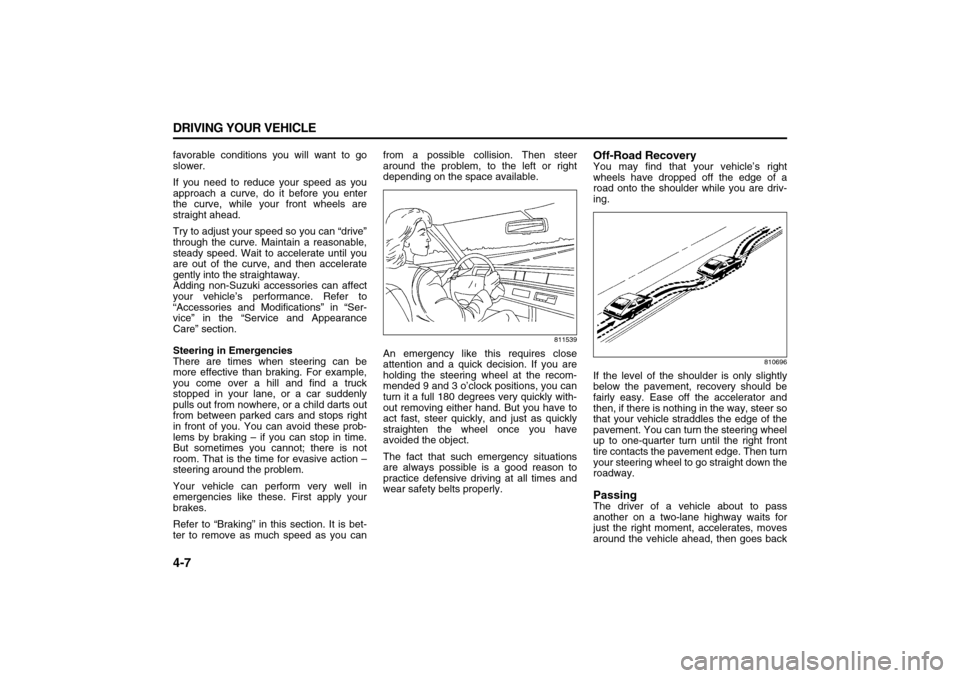
Off-Road RecoveryYou may find that your vehicle’s right
wheels have dropped off the edge of a
road onto the shoulder while you are driv-
ing.
810696
If the level of the shoulder is only slightly
below the pavement, recovery should be
fairly easy. Ease off the accelerator and
then, if there is nothing in the way, steer so
that your vehicle straddles the edge of the
pavement. You can turn the steering wheel
up to one-quarter turn until the right front
tire contacts the pavement edge. Then turn
your steering wheel to go straight down the
roadway.PassingThe driver of a vehicle about to pass
another on a two-lane highway waits for
just the right moment, accelerates, moves
around the vehicle ahead, then goes back
Page 167 of 274

4-9 DRIVING YOUR VEHICLE
78J00-03E
acceleration skid, too much throttle causes
the driving wheels to spin.
A cornering skid is best handled by easing
your foot off the accelerator pedal.
Remember: Any traction control system
helps avoid only the acceleration skid. If
your traction system is off, then an acceler-
ation skid is also best handled by easing
your foot off the accelerator pedal. Refer to
“Traction Control System (TCS)” and
“Electronic Stability Control” in this section.
If your vehicle starts to slide, ease your
foot off the accelerator pedal and quickly
steer the way you want the vehicle to go. If
you start steering quickly enough, your
vehicle may straighten out. Always be
ready for a second skid if it occurs.
Of course, traction is reduced when water,
snow, ice, gravel, or other material is on
the road. For safety, you will want to slow
down and adjust your driving to these con-
ditions. It is important to slow down on slip-
pery surfaces because stopping distance
will be longer and vehicle control more lim-
ited.
While driving on a surface with reduced
traction, try your best to avoid sudden
steering, acceleration, or braking, including
reducing vehicle speed by shifting to a
lower gear. Any sudden changes could
cause the tires to slide. You may not realize
the surface is slippery until your vehicle is
skidding. Learn to recognize warning clues– such as enough water, ice, or packed
snow on the road to make a mirrored sur-
face – and slow down when you have any
doubt.
If you have the Anti-Lock Brake System
(ABS), remember: It helps avoid only the
braking skid. If you do not have ABS, then
in a braking skid, where the wheels are no
longer rolling, release enough pressure on
the brakes to get the wheels rolling again.
This restores steering control. Push the
brake pedal down steadily when you have
to stop suddenly. As long as the wheels
are rolling, you will have steering control.
Remember: Any Anti-Lock Brake System
(ABS) helps avoid only the braking skid.
Driving at NightNight driving is more dangerous than day
driving. One reason is that some drivers
are likely to be impaired – by alcohol or
drugs, with night vision problems, or by
fatigue.
Here are some tips on night driving.
Drive defensively.
Do not drink and drive.
Adjust the inside rearview mirror to
reduce glare from headlamps behind
you.
Since you cannot see as well, you may
need to slow down and keep more space
between you and other vehicles. Slow down, especially on higher speed
roads. Your vehicle’s headlamps can
light up only much road ahead.
In remote areas, watch for animals.
If you are tired, pull off the road in a safe
place and rest.
No one can see as well at night as in the
daytime. But as we get older these differ-
ences increase. A 50-year-old driver may
require at least twice much light to see the
same thing at night as a 20-year-old.
What you do in the daytime can also affect
your night vision. For example, if you
spend the day in bright sunshine you are
wise to wear sunglasses. Your eyes will
have less trouble adjusting to night. But if
you are driving, do not wear sunglasses at
night. They may cut down on glare from
headlamps, but they also make a lot of
things invisible.
You can be temporarily blinded by
approaching headlamps. It can take a sec-
ond or two, or even several seconds, for
your eyes to re-adjust to the dark. When
you are faced with severe glare, as from a
driver who does not lower the high beams,
or a vehicle with misaimed headlamps,
slow down a little. Avoid staring directly
into the approaching headlamps.
Keep the windshield and all the glass on
your vehicle clean – inside and out. Glare
at night is made much worse by dirt on the
glass. Even the inside of the glass can