Page 4 of 272
This manual uses special words, symbols and
icons, organized by function.
Please refer to the following items and familiarize
yourself with them.
Basic operations of the navigation system can
be performed in a similar manner for all vehicle
models. However, the map screen and setting
screen may be different for each model. Set the
navigation system as appropriate for your
vehicle.WARNING
This is used to indicate the presence of a
hazard that could cause death or serious
personal injury. To avoid or reduce the
risk, the procedures must be followed
precisely.
CAUTION
This is used to indicate the presence of a
hazard that could cause minor or mod-
erate personal injury or damage to your
vehicle. To avoid or reduce the risk, the
procedures must be followed carefully.
NOTE:
This indicates an item to help you under-
stand and maximize the performance of
your vehicle. If ignored, it may lead to a
malfunction or poor performance.
REFERENCE SYMBOLS
INFO:
This indicates information that is necessary for
efficient use of your vehicle or accessories.
Reference page:
This indicates the title and page that you should
refer to.
<>:
This indicates a button on the control panel.
[]:
This indicates a key/item displayed on the
screen.
HOW TO USE THIS MANUAL FOR SAFE OPERATION
1-2Introduction
Page 5 of 272
This system is primarily designed to help you
reach your destination, and it also performs
other functions as outlined in this manual.
However, you, the driver, must use the system
safely and properly. Information concerning road
conditions, traffic signs and the availability of
services may not always be up-to-date. The
system is not a substitute for safe, proper and
legal driving.
Before using the navigation system, please read
the following safety information. Always use the
system as outlined in this manual.
WARNING
.When the driver wants to operate the
navigation system, first park the vehi-
cle in a safe location and set the
parking brake. Operating the system
while driving can distract the driver
and may result in a serious accident.
.Do not rely on route guidance alone.
Always be sure that all driving man-
euvers are legal and safe in order to
avoid accidents.
.Do not disassemble or modify this
system. If you do, it may result in
accidents, fire or electrical shock..Do not use this system if you notice
any malfunctions such as a frozen
screen or the lack of sound. Continued
use of the system may result in
accidents, fire or electrical shock.
.If you notice any foreign objects in the
system hardware, spill liquid on the
system or notice smoke or a smell
coming from it, stop using the system
immediately and contact a NISSAN
dealer. Ignoring such conditions may
lead to accidents, fire or electrical
shock.
CAUTION
.Do not keep the navigation system
running with the engine stopped.
Doing so may discharge the vehicle
battery. When you use the navigation
system, always keep the engine run-
ning.
.Some states/provinces may have laws
limiting the use of video screens while
driving. Use this system only where it
is legal to do so.
SAFETY INFORMATION
Introduction1-3
Page 13 of 272
NAI0406
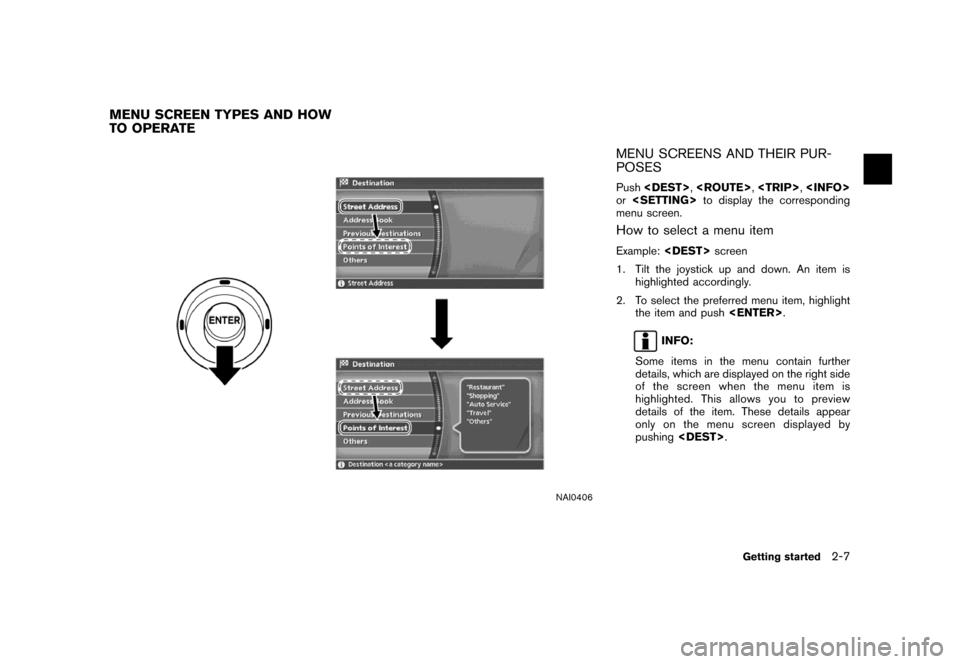
MENU SCREENS AND THEIR PUR-
POSES
Push,,,
orto display the corresponding
menu screen.
How to select a menu item
Example:screen
1. Tilt the joystick up and down. An item is
highlighted accordingly.
2. To select the preferred menu item, highlight
the item and push.
INFO:
Some items in the menu contain further
details, which are displayed on the right side
of the screen when the menu item is
highlighted. This allows you to preview
details of the item. These details appear
only on the menu screen displayed by
pushing.
MENU SCREEN TYPES AND HOW
TO OPERATE
Getting started2-7
Page 16 of 272
NAV2705
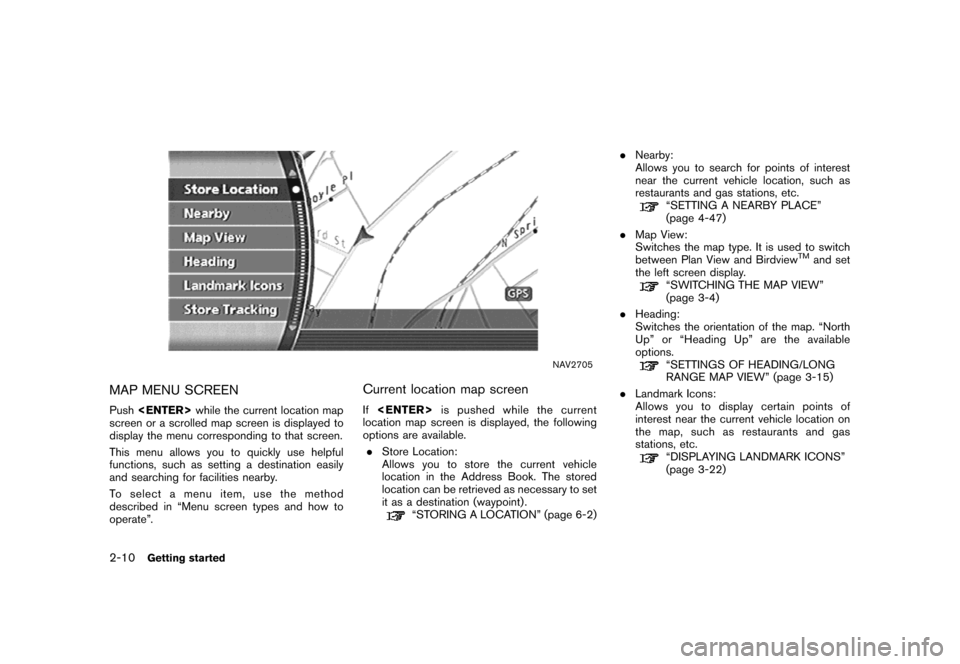
MAP MENU SCREEN
Pushwhile the current location map
screen or a scrolled map screen is displayed to
display the menu corresponding to that screen.
This menu allows you to quickly use helpful
functions, such as setting a destination easily
and searching for facilities nearby.
To select a menu item, use the method
described in “Menu screen types and how to
operate”.
Current location map screen
Ifis pushed while the current
location map screen is displayed, the following
options are available.
.Store Location:
Allows you to store the current vehicle
location in the Address Book. The stored
location can be retrieved as necessary to set
it as a destination (waypoint) .
“STORING A LOCATION” (page 6-2).Nearby:
Allows you to search for points of interest
near the current vehicle location, such as
restaurants and gas stations, etc.
“SETTING A NEARBY PLACE”
(page 4-47)
.Map View:
Switches the map type. It is used to switch
between Plan View and Birdview
TMand set
the left screen display.
“SWITCHING THE MAP VIEW”
(page 3-4)
.Heading:
Switches the orientation of the map. “North
Up” or “Heading Up” are the available
options.
“SETTINGS OF HEADING/LONG
RANGE MAP VIEW” (page 3-15)
.Landmark Icons:
Allows you to display certain points of
interest near the current vehicle location on
the map, such as restaurants and gas
stations, etc.
“DISPLAYING LANDMARK ICONS”
(page 3-22)
2-10Getting started
Page 17 of 272
.Store Tracking:
Allows you to store in the Address Book the
route that you have travelled from the
starting point to the current location.
“STORING A TRACKED ROUTE”
(page 6-14)
Getting started2-11
Page 18 of 272
NAV2706
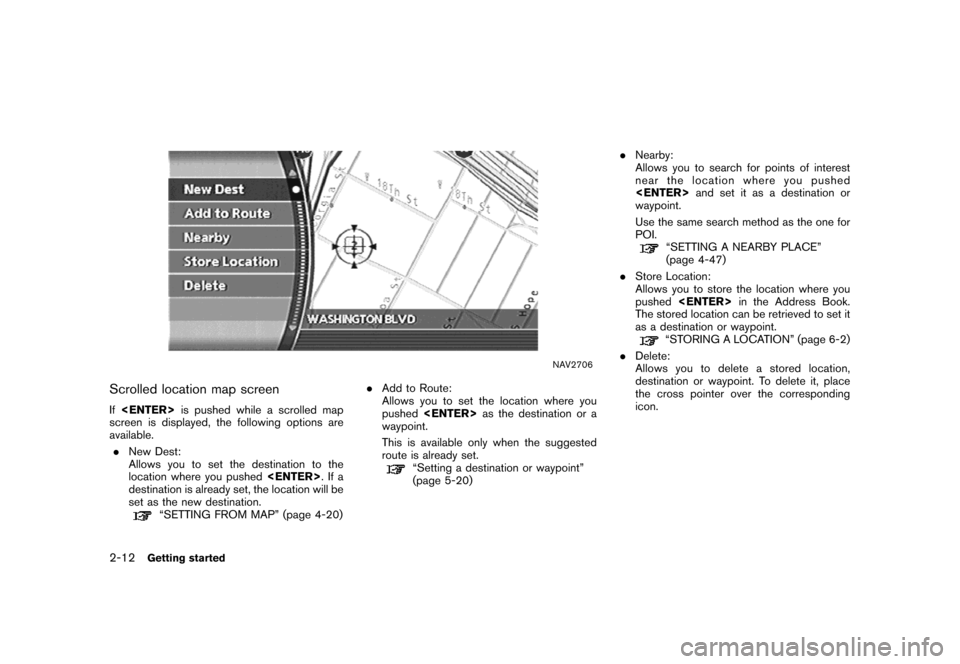
Scrolled location map screen
Ifis pushed while a scrolled map
screen is displayed, the following options are
available.
.New Dest:
Allows you to set the destination to the
location where you pushed.Ifa
destination is already set, the location will be
set as the new destination.
“SETTING FROM MAP” (page 4-20).Add to Route:
Allows you to set the location where you
pushedas the destination or a
waypoint.
This is available only when the suggested
route is already set.
“Setting a destination or waypoint”
(page 5-20).Nearby:
Allows you to search for points of interest
near the location where you pushed
and set it as a destination or
waypoint.
Use the same search method as the one for
POI.
“SETTING A NEARBY PLACE”
(page 4-47)
.Store Location:
Allows you to store the location where you
pushedin the Address Book.
The stored location can be retrieved to set it
as a destination or waypoint.
“STORING A LOCATION” (page 6-2)
.Delete:
Allows you to delete a stored location,
destination or waypoint. To delete it, place
the cross pointer over the corresponding
icon.
2-12Getting started
Page 20 of 272
NAV2708
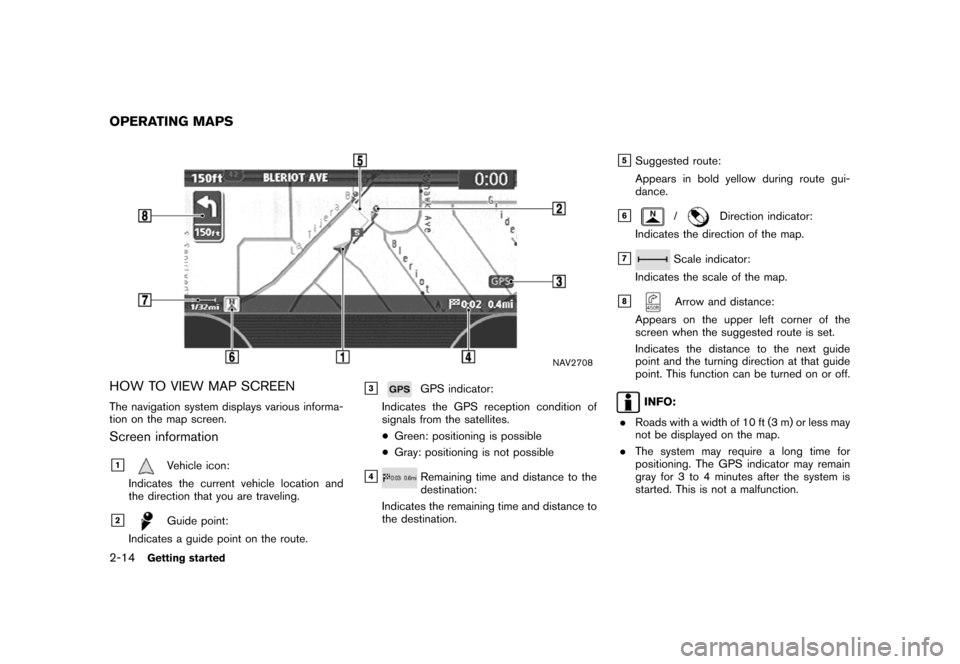
HOW TO VIEW MAP SCREEN
The navigation system displays various informa-
tion on the map screen.
Screen information
&1Vehicle icon:
Indicates the current vehicle location and
the direction that you are traveling.
&2Guide point:
Indicates a guide point on the route.
&3GPS indicator:
Indicates the GPS reception condition of
signals from the satellites.
*Green: positioning is possible
*Gray: positioning is not possible
&4Remaining time and distance to the
destination:
Indicates the remaining time and distance to
the destination.
&5Suggested route:
Appears in bold yellow during route gui-
dance.
&6/Direction indicator:
Indicates the direction of the map.
&7Scale indicator:
Indicates the scale of the map.
&8Arrow and distance:
Appears on the upper left corner of the
screen when the suggested route is set.
Indicates the distance to the next guide
point and the turning direction at that guide
point. This function can be turned on or off.
INFO:
.Roads with a width of 10 ft (3 m) or less may
not be displayed on the map.
.The system may require a long time for
positioning. The GPS indicator may remain
gray for 3 to 4 minutes after the system is
started. This is not a malfunction.
OPERATING MAPS
2-14Getting started
Page 23 of 272
INFO:
.When you select a map view, a preview of
that view is displayed on the right side of the
screen.
.You can also switch the map view using the
following procedure.
1) Push.
2) Highlight [Navigation] and push
.
3) Highlight [Map View] and push
.
Getting started2-17