Page 2 of 272
Table of
Contents
Getting started2
Setting a destination4
Introduction1
Other settings8
Map settings3
Route guidance5
Storing a location/route6
General system information9
Troubleshooting guide10
Viewing technical information7
Index11
Page 7 of 272

2 Getting started
Control buttons and functions............................... 2-2
Control panel................................................ 2-3
Start-up screen................................................. 2-6
Menu screen types and how to operate................... 2-7
Menu screens and their purposes...................... 2-7
Using controls to adjust values, levels, etc............ 2-9
Map menu screen........................................2-10
Functions disabled while driving..........................2-13
Operating maps...............................................2-14
How to view map screen...............................2-14
Map screen types........................................2-15
Switching map view......................................2-16
Moving around within a map...........................2-18Changing the scale of a map..........................2-19
Storing your home location/address......................2-20
How to store your home................................2-20
Character (letter and number) input screen........2-23
Phone number input screen............................2-25
List screen.................................................2-27
Setting a destination.........................................2-28
Searching for a destination.............................2-28
Starting route guidance.................................2-31
Deleting a route...........................................2-33
Setting the voice guidance.................................2-35
Turning voice guidance on/off.........................2-35
Adjusting voice guidance volume.....................2-37
Page 8 of 272
NAI0479
CONTROL BUTTONS AND
FUNCTIONS
2-2Getting started
Page 9 of 272
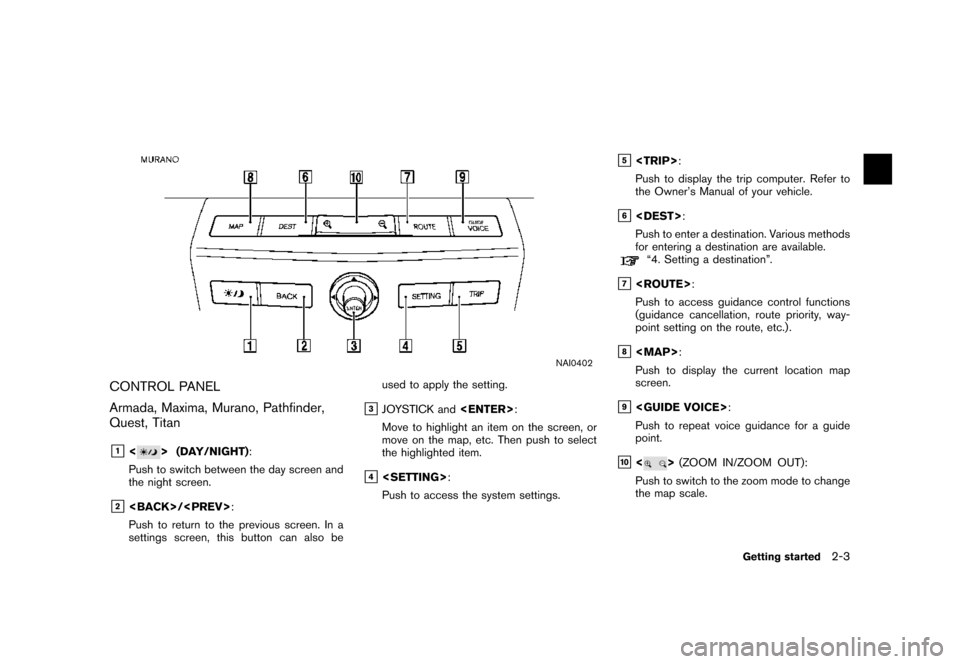
NAI0402
CONTROL PANEL
Armada, Maxima, Murano, Pathfinder,
Quest, Titan
&1<> (DAY/NIGHT):
Push to switch between the day screen and
the night screen.
&2/:
Push to return to the previous screen. In a
settings screen, this button can also beused to apply the setting.
&3JOYSTICK and:
Move to highlight an item on the screen, or
move on the map, etc. Then push to select
the highlighted item.
&4:
Push to access the system settings.
&5:
Push to display the trip computer. Refer to
the Owner’s Manual of your vehicle.
&6:
Push to enter a destination. Various methods
for entering a destination are available.
“4. Setting a destination”.
&7:
Push to access guidance control functions
(guidance cancellation, route priority, way-
point setting on the route, etc.) .
&8
Page 10 of 272
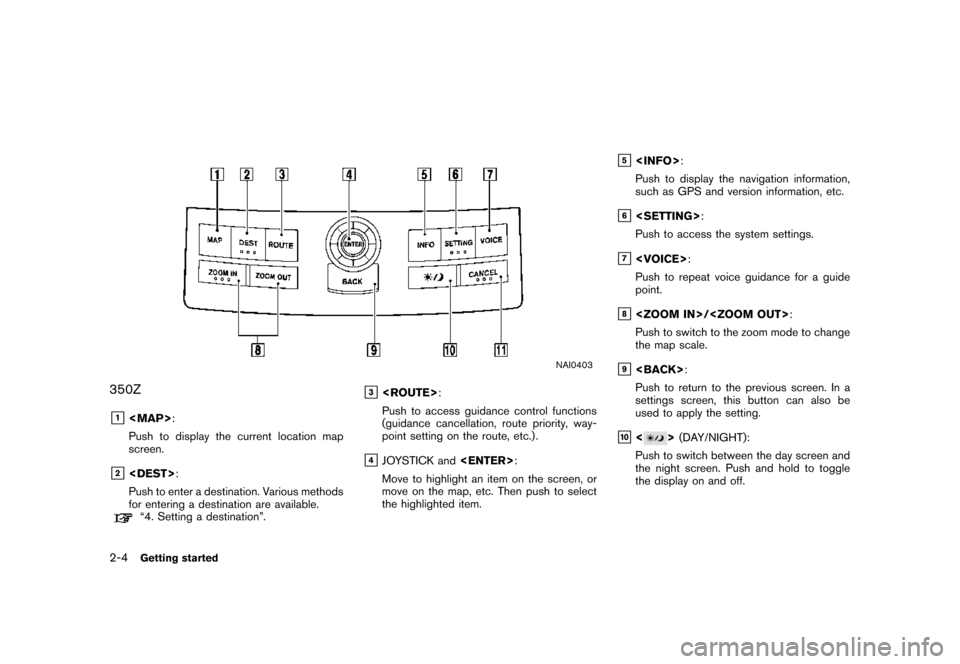
NAI0403
350Z
&1
Page 11 of 272
&11:
Push to return to the map screen or cancel
the route that has already been set.
Getting started2-5
Page 12 of 272
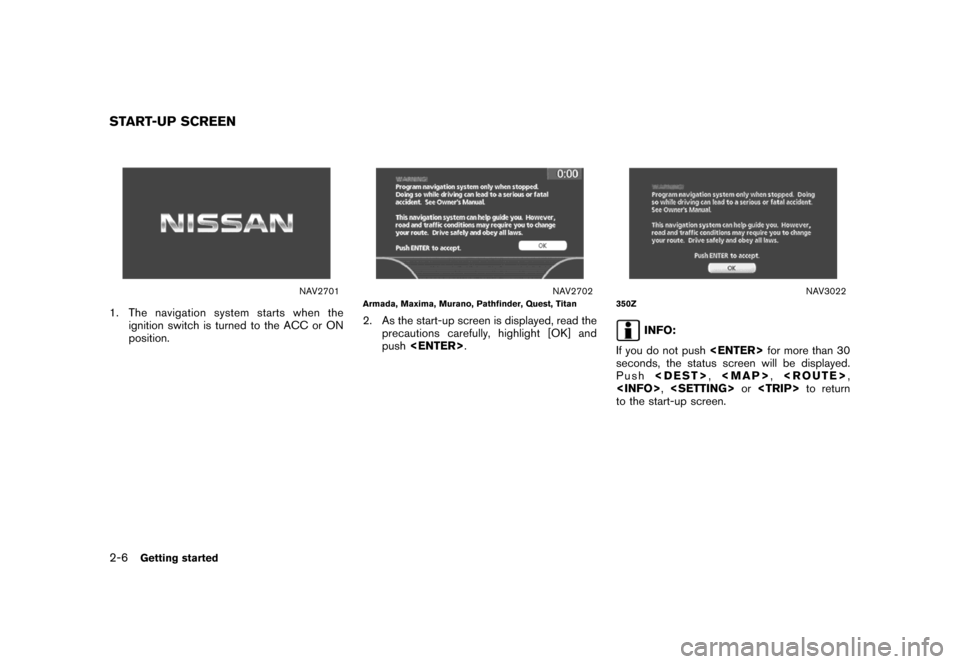
NAV2701
1. The navigation system starts when the
ignition switch is turned to the ACC or ON
position.
NAV2702Armada, Maxima, Murano, Pathfinder, Quest, Titan
2. As the start-up screen is displayed, read the
precautions carefully, highlight [OK] and
push.
NAV3022350Z
INFO:
If you do not pushfor more than 30
seconds, the status screen will be displayed.
Push,
Page 13 of 272
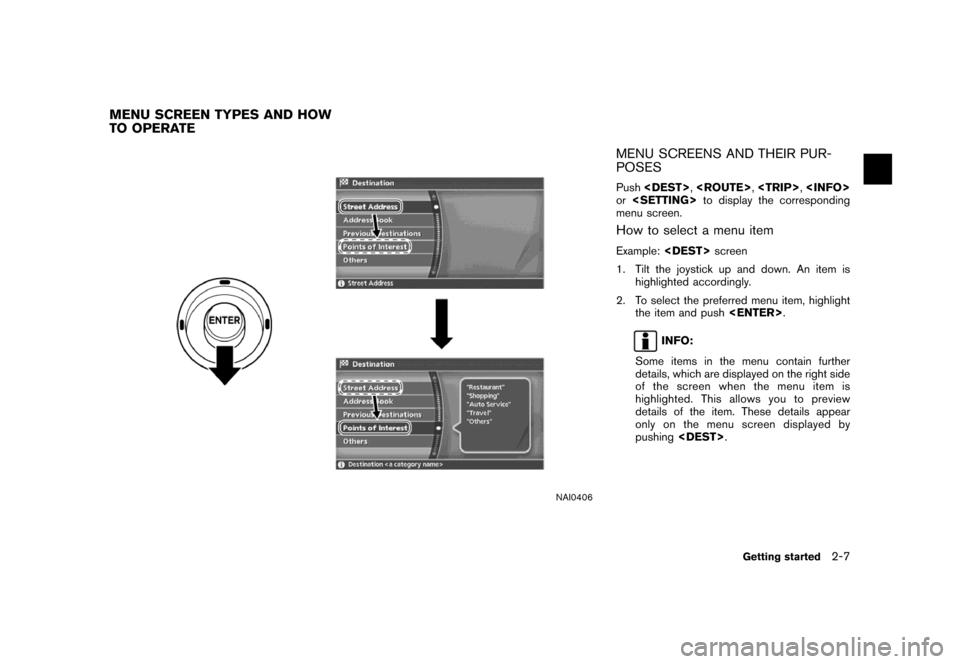
NAI0406
MENU SCREENS AND THEIR PUR-
POSES
Push,,,
orto display the corresponding
menu screen.
How to select a menu item
Example:screen
1. Tilt the joystick up and down. An item is
highlighted accordingly.
2. To select the preferred menu item, highlight
the item and push.
INFO:
Some items in the menu contain further
details, which are displayed on the right side
of the screen when the menu item is
highlighted. This allows you to preview
details of the item. These details appear
only on the menu screen displayed by
pushing.
MENU SCREEN TYPES AND HOW
TO OPERATE
Getting started2-7